Introdución
The Logitech Brio 4K Pro Webcam is designed to deliver exceptional video quality for streaming, recording, and video conferencing. Featuring Ultra HD 4K resolution, advanced autofocus, and a wide field of view, it provides a professional-grade visual experience. This manual provides instructions for setting up, operating, maintaining, and troubleshooting your Brio webleva.
Características clave
- Resolución Ultra HD 4K: Capture video in stunning 4096 x 2160 resolution at 30 frames per second (fps), or 1080p at 60 fps, and 720p at 90 fps.
- Enfoque automático: Ensures sharp, clear images even when moving closer or further from the camera.
- Zoom dixital 5X: Zoom in on details without losing clarity.
- RightLight 3 with HDR: Automatically adjusts exposure and contrast to compensate for glare and backlighting, ensuring you always look your best.
- Multiple Fields of View: Choose from 65°, 78°, or 90° diagonal fields of view to perfectly frame your video.
- Infrared Face Recognition: Supports Windows Hello for secure facial recognition login.
- Dual Integrated Microphones: Omnidirectional microphones with noise-canceling technology capture clear audio.
- Conectividade USB 3.0: High-speed data transfer for smooth 4K video.
Contido do paquete
- Logitech Brio 4K Pro Webleva
- Detachable Universal Mounting Clip
- USB 3.0 Cable (compatible with USB 2.0)
- Obturador de privacidade
- Bolsa de transporte
- Documentación de usuario
Configuración
1. Montaxe do Webleva
The Brio webcam comes with a universal mounting clip that allows it to be securely placed on a monitor, laptop, or tripod.
- Adxunta o clip: Ensure the universal mounting clip is securely attached to the webleva.
- Posición no monitor: Abra o clip e coloque o webcam on top of your monitor or laptop screen. Adjust the flexible base to ensure it sits flush with the back of your device.
- Montaxe de trípode: The universal mounting clip also features a standard tripod thread. Remove the clip from the webcam and screw the webcam directly onto a tripod if preferred.

Image: Logitech Brio 4K Pro Webcámara, dianteira view with monitor clip extended, illustrating how the clip unfolds for placement.
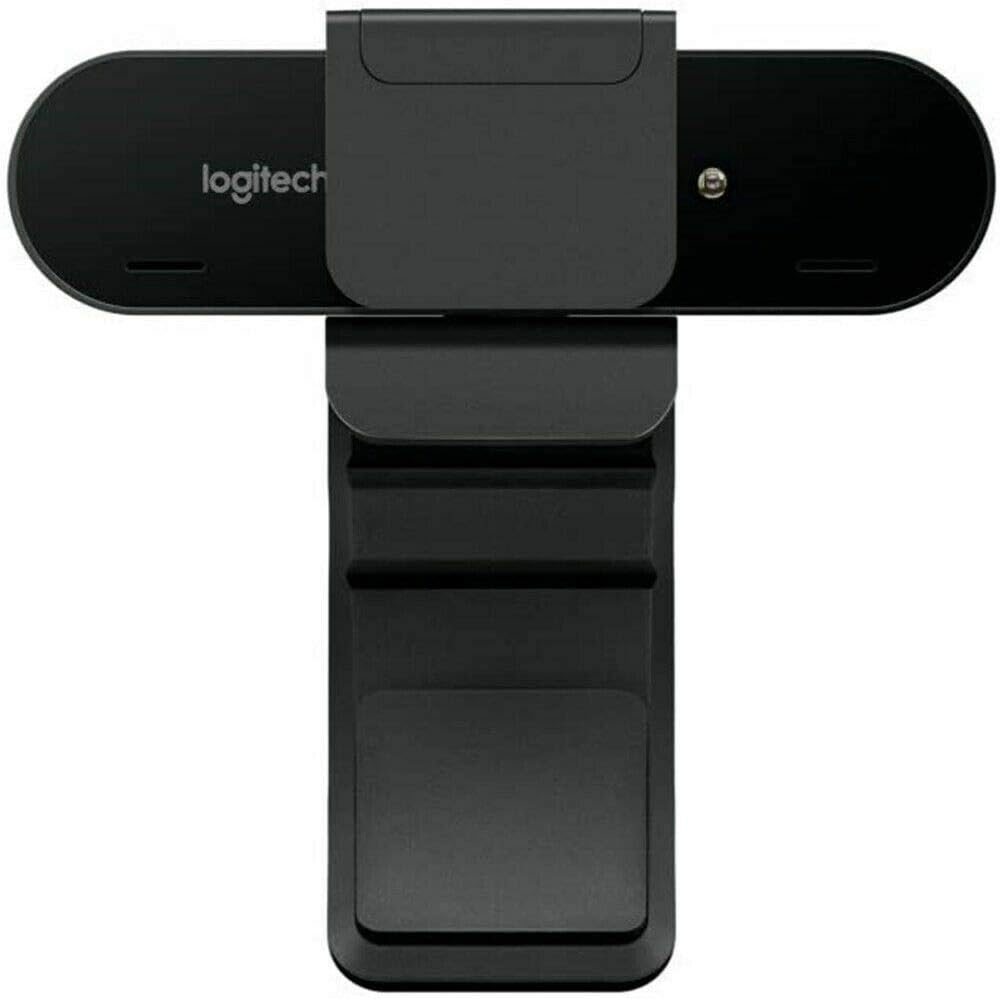
Image: Logitech Brio 4K Pro Webcam, rear view with monitor clip extended, showing the adjustable hinge for monitor placement.
2. Conexión ao teu ordenador
Conecta o webcámara ao seu ordenador mediante o cable USB proporcionado.
- Plug the USB-C end of the cable into the webleva.
- Plug the USB-A end of the cable into an available USB 3.0 port on your computer for optimal performance. The webcam is also compatible with USB 2.0 ports.
O webcam is plug-and-play and should be automatically recognized by your operating system (Windows, macOS, Linux).

Image: Logitech Brio 4K Pro Webcam mounted on a monitor, ready for use, with a computer screen displaying a login prompt.
Instrucións de funcionamento
1. Instalación do software (opcional)
While the Brio webcam functions as a standard webcam without additional software, installing the Logitech Capture software (available from the Logitech website) unlocks advanced features and customization options, including:
- Adjusting field of view (65°, 78°, 90°)
- Customizing resolution and frame rate
- Enabling RightLight 3 with HDR
- Digital pan, tilt, and zoom controls
- Image adjustments (brightness, contrast, color intensity)
2. Using the Privacy Shutter
The included privacy shutter can be attached to the front of the webcam to physically block the lens when not in use, ensuring privacy.
3. Video Conferencing and Streaming
Once connected, select the Logitech Brio 4K Pro Webcam as your video and audio input device within your preferred video conferencing, streaming, or recording application.

Image: A person conducting a video call using the Logitech Brio 4K Pro Webcam, demonstrating its application in professional communication.

Image: The Logitech Brio 4K Pro Webcam positioned in a meeting room, illustrating its capability to maintain high performance regardless of ambient lighting.

Image: The Logitech Brio 4K Pro Webcam displaying its 4K HD resolution during a video conference, ensuring clear visual communication.
Mantemento
- Limpeza da lente: Use a soft, lint-free cloth specifically designed for optics to gently wipe the weblente de leva. Evite materiais abrasivos ou produtos químicos agresivos.
- Limpeza xeral: Limpar o corpo do/da webcam with a soft, damp pano. Non mergullo webcámara en auga ou use humidade excesiva.
- Almacenamento: Cando non estea en uso, almacene o webcam in the provided carrying pouch to protect it from dust and scratches.
Resolución de problemas
- Webcámara non detectada:
- Asegúrese de que o cable USB estea conectado correctamente a ambos os dous webcámara e o ordenador.
- Try connecting to a different USB port, preferably a USB 3.0 port.
- Reinicia o teu ordenador.
- Consulta o xestor de dispositivos do teu sistema operativo para ver se o webA cámara está listada.
- Baixa calidade do vídeo:
- Asegúrate de ter unha iluminación axeitada no teu entorno.
- Limpar o weblente de cámara.
- Verify that your application is set to the desired resolution and frame rate.
- Install Logitech Capture software for advanced image adjustments.
- No Audio from Webcam Microphone:
- Ensure the Logitech Brio microphone is selected as the input device in your application and operating system sound settings.
- Comproba a configuración de privacidade do micrófono no teu sistema operativo.
- Problemas de enfoque automático:
- Ensure there is sufficient light.
- Avoid placing objects too close to the lens that might interfere with autofocus.
- If using Logitech Capture, ensure autofocus is enabled.
Especificacións
| Número de modelo do artigo | 960-001178 |
| Resolución de captura de vídeo | 4K Ultra HD (4096 x 2160) at 30 fps, 1080p at 60 fps, 720p at 90 fps |
| Tecnoloxía do sensor fotográfico | CMOS BSI |
| Enfoque automático | Si |
| Zoom dixital | 5X |
| Campo de View | Adjustable (65°, 78°, 90°) |
| Micrófono | Dual integrated omnidirectional with noise cancellation |
| Tecnoloxía de conectividade | USB 3.0 (compatible con USB 2.0) |
| Compatibilidade do sistema operativo | Windows, macOS, Linux |
| Peso do elemento | 2.22 onzas (63 gramos) |
| Dimensións do produto | 4.02 x 1.06 x 1.06 polgadas (10.2 x 2.7 x 2.7 cm) |
| Cor | Negro |
Información da garantía
Logitech products are manufactured to high quality standards and are subject to a limited hardware warranty. Please refer to the official Logitech website or your product packaging for specific warranty terms and conditions applicable to your region.
Apoio
For further assistance, driver downloads, software updates, or frequently asked questions, please visit the official Logitech support website. You can find detailed product information and contact customer support there.
Soporte Logitech Websitio: www.logitech.com/support


