Introdución
This manual provides essential instructions for the setup, operation, and maintenance of your Canon Color imageCLASS MF733Cdw All-in-One Wireless Duplex Laser Printer. This device is designed for professional quality color and monochrome document handling, offering print, scan, copy, and fax functionalities. Please read this manual thoroughly before using the product to ensure correct and safe operation.

Figura 1: Canon Color imageCLASS MF733Cdw All-in-One Printer, front-left view.
Configuración
1. Unpacking and Component Verification
Carefully remove the printer from its packaging. Verify that all included components are present:
- Color imageCLASS MF733Cdw Product
- Cartridge 046 CMY: Starter 1,200 Yield / K: Standard 2,200 Yield (ISO / IEC Standard)
- Cable de alimentación
- Telephone Cable, Starter Guide
- User Software DVD-ROM
- Tarxeta de garantía
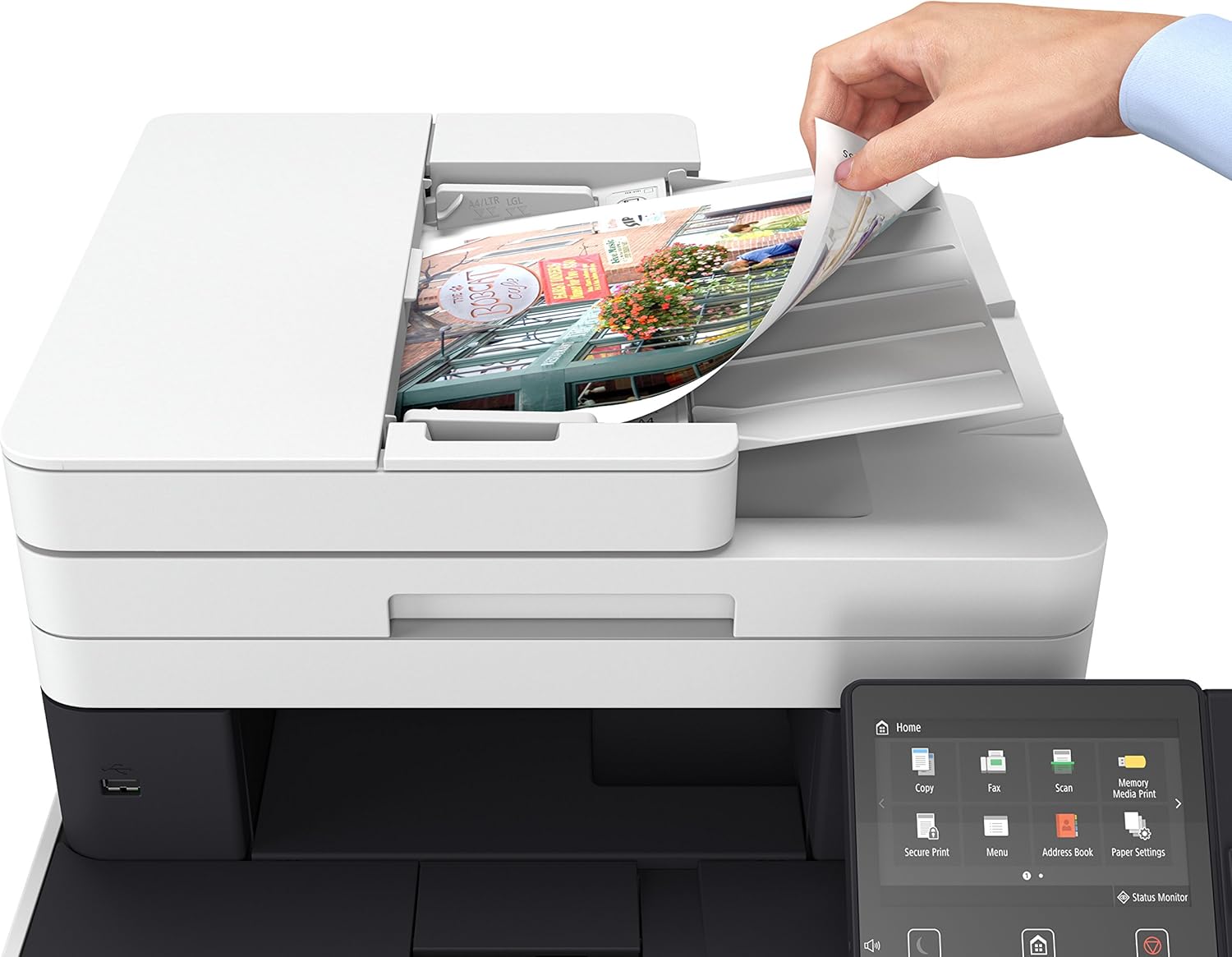
Figura 2: Unpacked Canon MF733Cdw printer with all included accessories.
2. Conexión de alimentación
Connect the power cord to the printer and then to a grounded electrical outlet. The printer's power source is 120 V, 60Hz.
3. Instalación do cartucho de tóner
Open the front cover of the printer to access the toner cartridge compartment. Insert the provided toner cartridges (Cartridge 046 CMY and K) into their respective slots. Ensure they are securely seated. Refer to the starter guide for detailed visual instructions.
4. Carga de papel
The printer supports various paper sizes, including 8.5 x 14 inches (Legal). The standard paper input capacity is 250 sheets, expandable up to 850 sheets with optional trays. Load paper into the main paper tray, adjusting the guides to fit the paper size. The output sheet capacity is 150 sheets (face down).

Figura 3: Loading paper into the printer's paper tray.
5. Conexión de rede
The MF733Cdw supports wireless connectivity (Wi-Fi) and Wi-Fi Direct Connection. For wireless setup, navigate to the network settings on the 5-inch color touch LCD panel and follow the on-screen instructions to connect to your Wi-Fi network. Wi-Fi Direct allows direct connection to mobile devices without a router. An Ethernet port is also available for wired network connections.
6. Instalación de software
Insert the User Software DVD-ROM into your computer and follow the installation wizard. Drivers are available for various operating systems. For the latest drivers or if your computer lacks a DVD drive, visit the official Canon support websitio.
Instrucións de funcionamento
1. Using the Touch LCD Panel
The intuitive 5-inch color touch LCD allows seamless navigation through the printer's functions. Tap icons to select Copy, Fax, Scan, Memory Media Print, Secure Print, Menu, Address Book, Paper Settings, Mobile Portal, Home Screen Settings, Update Firmware, and ID Card Copy. Swipe left or right to access additional options.

Figura 4: The intuitive touch LCD panel for function selection.
2. Impresión de documentos
The MF733Cdw prints professional quality color documents at speeds of up to 28 pages per minute (ppm) in both color and black and white. The first print is delivered in 9 seconds or less.
- Impresión dúplex: The printer supports automatic two-sided printing, saving paper and time.
- Impresión móbil: Print directly from compatible mobile devices using Canon Print Business, Apple AirPrint, Mopria Print Service, and Google Cloud Print.
- NFC Capability: For compatible Android mobile devices, simply "tap and print" using the NFC feature.
- Control de voz: The printer is compatible with Amazon Alexa, allowing for voice-activated printing commands.

Figura 5: Voice-activated printing via Amazon Alexa.
3. Escaneado de documentos
The MF733Cdw features both a sheetfed scanner (Automatic Document Feeder) and a flatbed scanner. The duplex automatic document feeder allows scanning both sides of a document in one pass.
- Destinos de dixitalización: Documents can be scanned to a computer, USB memory, email, or directly to a file.
- Scan Settings: Adjust resolution, color mode, and file format via the touch LCD panel.
4. Copia de documentos
The printer offers various copying options:
- Copia estándar: Basic document duplication.
- Copy (Eco): Reduces toner consumption.
- Copy (BleedReduce): Minimizes ink bleed-through on double-sided copies.
- ID Card Copy (Simple): Easily copy both sides of an ID card onto a single sheet.
- Copia dúplex: Copy two-sided originals to two-sided copies automatically.
5. Envío de documentos por fax
Connect the telephone cable to the printer and a telephone line. Use the touch LCD panel to enter fax numbers from the address book or manually. The printer supports I-Fax functionality.
Mantemento
1. Substitución do tóner
The printer uses Canon Genuine Toner, Cartridge 046 (CMY yields 2,300 sheets / K yields 2,200 sheets) and Cartridge 046 High Capacity CMYK (CMY yields 5,000 sheets / K yields 6,300 sheets). When a toner cartridge is low, a notification will appear on the LCD panel. Open the front cover, slide out the cartridge tray, and replace the depleted cartridge with a new one. Ensure the new cartridge is properly seated before closing the cover.
Vídeo 1: Acabadoview of the Canon Color imageCLASS MF733Cdw, including a demonstration of toner access and paper loading. This video highlights the printer's features and ease of use.
2. Limpeza da impresora
Regularly wipe the exterior of the printer with a soft, dry, lint-free cloth. For the scanner glass, use a soft cloth lightly dampened with a mild, non-abrasive glass cleaner. Avoid spraying cleaner directly onto the glass or any internal components.
Resolución de problemas
If you encounter issues with your printer, refer to the following basic troubleshooting steps. For more complex problems, consult the full user manual available on the Canon support websitio ou póñase en contacto co servizo de atención ao cliente.
- A impresora non responde: Ensure the printer is powered on and properly connected to the power source and network. Restart both the printer and your computer/device.
- Problemas de calidade de impresión: Check toner levels and replace any low cartridges. Perform a print head cleaning or calibration from the printer's maintenance menu. Ensure you are using appropriate paper for your print job.
- Problemas de conectividade de rede: Verify your Wi-Fi password and network selection. If using a wired connection, ensure the Ethernet cable is securely connected. Restart your router and printer.
- Atascos de papel: Follow the on-screen instructions on the LCD panel to clear any paper jams. Always remove jammed paper carefully to avoid tearing.
Especificacións
| Característica | Detalle |
|---|---|
| Dimensións do produto | 18.5" D x 18.5" W x 18.1" H |
| Peso do elemento | 58.3 libras |
| Velocidade de impresión (cor/blanco e negro) | Ata 28 páxinas por minuto |
| Resolución de impresión máxima | 600x600 dpi (Color), 600 dpi (Black and White) |
| Tipo de escáner | Alimentación por follas (ADF) e de cama plana |
| Capacidade máxima da folla de entrada | 250 sheets (standard), 850 sheets (expandable) |
| Capacidade de follas de saída | 150 sheets (face down) |
| Tecnoloxía de conectividade | Wi-Fi, Wi-Fi Direct, Ethernet, USB 2.0 |
| Toner Type | Canon Genuine Toner, Cartridge 046 (CMYK) |
| Duplex Printing/Scanning | Automatic (all modes) |
| Tipo de controlador | Amazon Alexa, Android, Vera |

Figura 6: Printer dimensions: 18.5"D x 18.5"W x 18.1"H.
Garantía e Soporte
The Canon Color imageCLASS MF733Cdw comes with a Garantía limitada de 3 anos. This warranty provides peace of mind and covers manufacturing defects under normal use. Canon offers a 100% U.S. based service and support team dedicated to providing friendly, expert assistance for all levels of experience.
For warranty claims, technical support, or to access the full user manual and updated drivers, please visit the official Canon support websitio web ou póñase en contacto coa súa liña de atención ao cliente.