Introdución
Este manual ofrece instrucións detalladas para configurar, operar, manter e solucionar problemas do seu ViewSonic VA2446MH-LED 24-inch Full HD 1080p LED monitor. Please read this manual thoroughly before using the product to ensure proper functionality and safety.
O que hai na caixa
- Monitor LCD
- Cable de alimentación
- Cable VGA
- Cable de audio
- Guía de inicio rápido

O paquete inclúe o ViewSonic VA2446MH-LED monitor, a power cable, an HDMI cable, and a Quick Start Guide to assist with initial setup.
Configuración
Montaxe do soporte
Follow the instructions in the Quick Start Guide to attach the stand to the monitor. Ensure all connections are secure.
Conectando o monitor
The VA2446MH-LED monitor supports both HDMI and VGA inputs.
Conexión de alimentación
Connect the provided power cable to the monitor's power input and then to a power outlet.
Conexión de vídeo
Choose either an HDMI or VGA cable to connect your computer to the monitor.
- For HDMI: Connect one end of the HDMI cable to the HDMI port on your computer and the other end to the HDMI input on the monitor.
- For VGA: Connect one end of the VGA cable to the VGA port on your computer and the other end to the VGA input on the monitor.
Audio Connection (Optional)
If using the monitor's built-in speakers or audio output, connect the audio cable from your computer's audio output to the monitor's audio input.

This image displays the rear of the monitor, highlighting the HDMI, VGA, and audio input/output ports for flexible connectivity, as well as the location of the integrated 2x 2.5-watt speakers.

Un detallado view of the monitor's back panel, illustrating the power input, HDMI port, VGA port, and audio ports for connecting external devices.
Funcionamento do monitor
Encendido/apagado
Press the power button located on the front or bottom bezel of the monitor to turn it on or off. The power indicator light will illuminate when the monitor is on.
Selección de entrada
Use the monitor's On-Screen Display (OSD) menu or dedicated input selection buttons to switch between HDMI and VGA inputs.
Menú de visualización en pantalla (OSD).
The OSD menu allows you to adjust various display settings such as brightness, contrast, color temperature, and aspect ratio.
- Press the Menu button to access the OSD.
- Use the navigation buttons (usually arrows) to browse through options.
- Press the Select or Enter button to confirm a selection.
- Press the Exit or Menu button again to close the OSD.
ViewSplit Software (Optional)
ViewExclusivo de Sonic ViewSplit software allows you to create customized screen layouts for enhanced productivity.
To install, download the software from the ViewSonic website's product support page.
After installation, double-click the ViewSplit icon on your desktop or click the notification tray icon to open the application.
Select a predefined template or create a customizable template by dragging and resizing the red borders. Save your customized templates for future use.
This official ViewSonic video illustrates how to use the ViewSplit software to divide your monitor screen into multiple viewing windows, enhancing multitasking and productivity. It shows how to select predefined templates and customize layouts by dragging application windows into desired zones.
Mantemento
Limpeza da pantalla
Limpe a pantalla con suavidade cun pano suave e sen pelusa. Para marcas difíciles, d suavementeampEnxágüe o pano con auga ou cun limpador de pantallas non abrasivo. Evite pulverizar líquido directamente sobre a pantalla.
Limpeza do Casing
Use un pano suave e seco para limpar o monitor casing. Non empregue deterxentes fortes nin produtos de limpeza abrasivos.
Almacenamento
When storing the monitor for an extended period, ensure it is powered off and disconnected from the power source. Store it in a cool, dry place, ideally in its original packaging.
Resolución de problemas
Sen Poder
- Asegúrate de que o botón de acendido (ou interruptor) estea ON.
- Ensure the A/C power cord is securely connected to the display.
- Enchufe outro dispositivo eléctrico (como unha radio) na toma de corrente para verificar que a toma está a proporcionar o volume adecuadotage.
A enerxía está conectada pero non hai imaxe de pantalla
- Asegúrese de que o cable de vídeo fornecido coa pantalla está fixado correctamente ao porto de saída de vídeo na parte traseira do ordenador. Se o outro extremo do cable de vídeo non está conectado permanentemente á pantalla, fíxao correctamente na pantalla.
- Adjust brightness and contrast settings via the OSD menu.
- If you are using an older Macintosh (older than G3), a Macintosh adapter may be required.
Cores incorrectas ou anormais
- Se falta algunha cor (vermello, verde ou azul), comprobe o cable de vídeo para asegurarse de que está conectado de forma segura. Os pinos soltos ou rotos no conector do cable poden provocar unha conexión incorrecta.
- Connect the display to another computer to isolate the issue.
- Se tes unha tarxeta gráfica máis antiga, ponte en contacto ViewSonic for a non-DDC adapter.
Os botóns de control non funcionan
- Press only one button at a time. Ensure no objects are obstructing the buttons.
Especificacións
| Característica | Especificación |
|---|---|
| Tamaño da pantalla de pé | 24 polgadas |
| Resolución de pantalla | 1920x1080 |
| Resolución máxima de pantalla | 1920 x 1080 píxeles |
| Marca | ViewSonic |
| Serie | VA |
| Número de modelo do artigo | VA2446MH-LED |
| Peso do elemento | 9.02 libras |
| Dimensións do produto | 8.32 x 22.49 x 15.78 polgadas |
| Dimensións do artigo LxWxH | 8.32 x 22.49 x 15.78 polgadas |
| Cor | Negro |
| Fonte de enerxía | 10 |
| Voltage | 240 voltios |
| Fabricante | ViewSonic |
| ASIN | B074F28QNS |
| Data de primeira dispoñibilidade | 1 de xullo de 2017 |
| Tamaño da pantalla | 24 polgadas |
| Resolución | FHD 1080p |
| Relación de aspecto | 16:9 |
| Descrición da superficie da pantalla | Antirreflexo, revestimento duro (3H) |
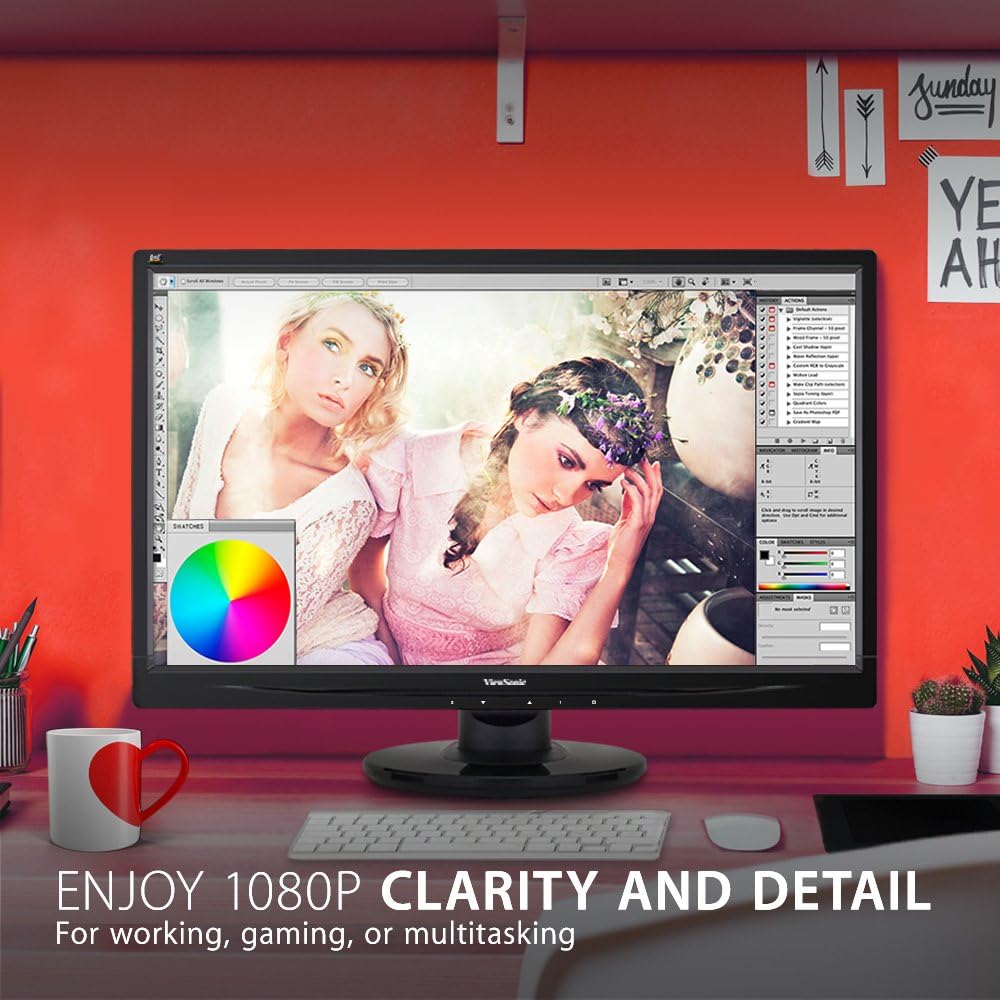
The monitor showcases its Full HD 1080p clarity and detail, ideal for tasks like graphic design, gaming, or general multitasking, with a color palette visible on screen.
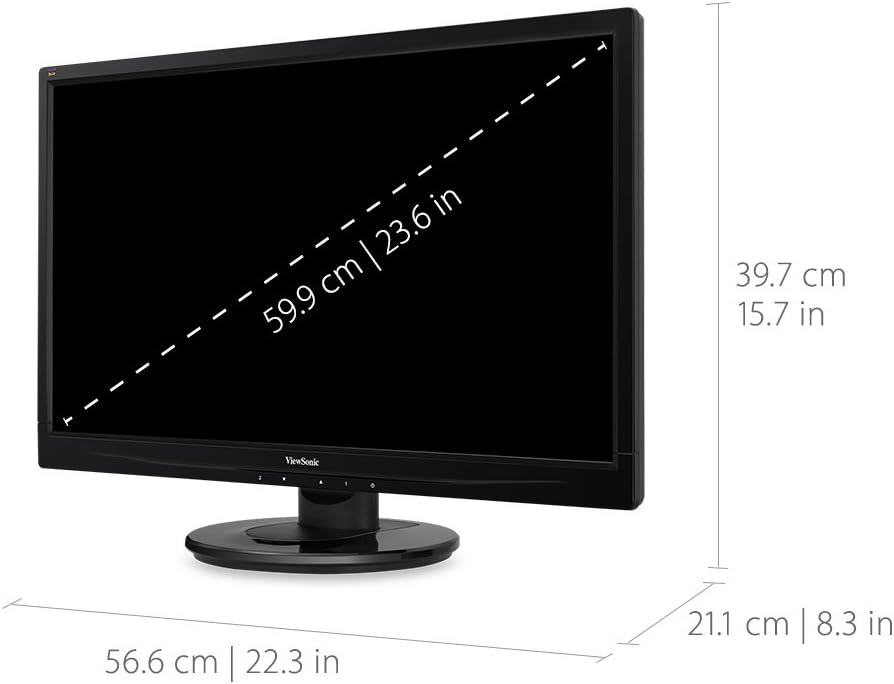
This diagram provides the physical dimensions of the monitor, indicating a 23.6-inch diagonal screen size (59.9 cm) and overall measurements of 22.3 inches (56.6 cm) width, 15.7 inches (39.7 cm) height, and 8.3 inches (21.1 cm) depth.
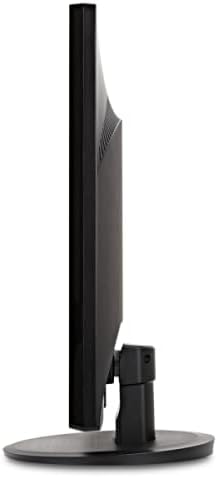
Un lado view of the monitor, highlighting its slim profile and the design of the stand.
Garantía e Soporte
Para obter información sobre a garantía e asistencia técnica, consulte o servizo oficial ViewSonic websitio web ou a documentación incluída co produto.
Podes visitar o oficial ViewSonic Store for more information: ViewTenda Sónica