Introdución
This manual provides comprehensive instructions for the setup, operation, and maintenance of your NETUM NT-R3 Mini 1D CCD Bluetooth Barcode Scanner. Please read this guide thoroughly to ensure proper use and to maximize the performance of your device.
Contido do paquete
Ao desembalar, comprobe que todos os elementos enumerados a continuación estean presentes e en bo estado:
- 1 x NETUM Mini Bluetooth Barcode Scanner (NT-R3)
- 1 x cable de carga USB
- 1 x Guía de inicio rápido
- 1 x 2.4 GHz Adapter
Produto rematadoview
The NETUM NT-R3 is a compact and versatile 1D CCD barcode scanner designed for portability and ease of use. Its ring-style design allows for comfortable wear, enhancing productivity in various environments.

Image: The NETUM NT-R3 Mini Barcode Scanner, a small black electronic device with a screen and button, designed to be worn on a finger with an adjustable ring structure.
Características principais:
- Ring Design: Magnesium alloy casing and trigger for durability and ease of use.
- Rotación 180°: Unique rotatable design for scanning from various angles.
- CCD Scanning: Reads 1D barcodes directly from LCD screens of computers or mobile devices, including poorly printed or damaged barcodes.
- Conectividade sen fíos: Supports Bluetooth (SPP, HID) and 2.4 GHz wireless connections.
- Ampla compatibilidade: Compatible with Windows XP/7/8/8.1/10, Google Android, iOS, and Mac OS X.
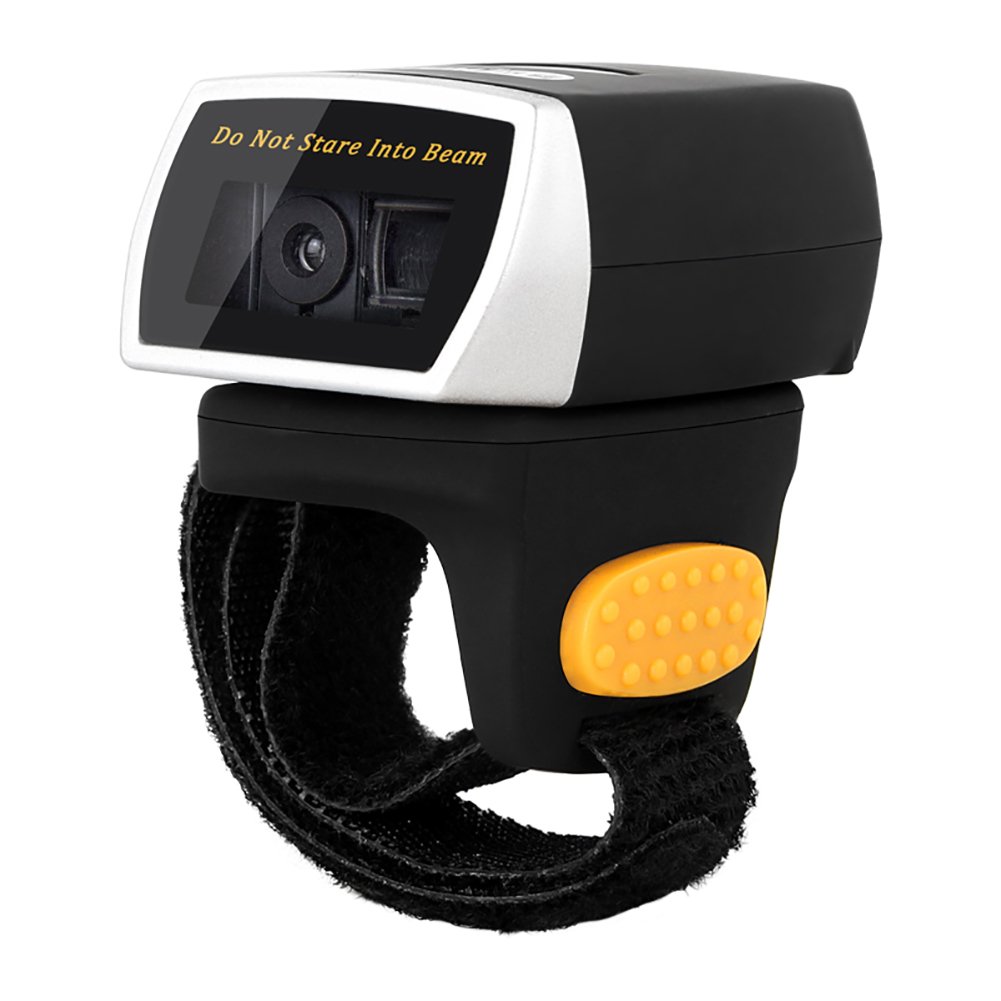
Image: The NETUM NT-R3 Mini Barcode Scanner demonstrating its 180-degree rotation design, allowing for flexible scanning angles.

Image: The NETUM NT-R3 Mini Barcode Scanner held in a hand, illustrating its compact dimensions (50mm x 44mm x 38mm) and light weight (50g), emphasizing its strong compatibility with various devices.
Configuración e conectividade
1. Carga do escáner
Before initial use, fully charge the scanner using the provided USB charging cable. Connect the small end of the USB cable to the scanner's charging port and the other end to a USB power source (e.g., computer, USB wall adapter). The charging indicator light will show the charging status.
2. Acendido/apagado
To power on the scanner, press and hold the trigger button for a few seconds until you hear a beep and see the indicator light. To power off, press and hold the trigger button again until the indicator light turns off.
3. Opcións de conectividade
The NT-R3 scanner offers two primary connectivity methods:
Bluetooth Connection (HID Mode - Keyboard Emulation)
- Asegúrate de que o escáner estea acendido.
- Scan the "Bluetooth HID Mode" barcode (refer to the Quick Start Guide for specific barcodes).
- No teu dispositivo anfitrión (teléfono intelixente, tableta, ordenador), activa o Bluetooth e busca os dispositivos dispoñibles.
- Select "NETUM Barcode Scanner" or a similar name from the list of devices.
- The scanner will beep to confirm successful pairing.
In HID mode, scanned barcodes are input directly as keyboard entries into any active text field.
Bluetooth Connection (SPP Mode - Serial Port Profile)
SPP mode is typically used for applications that require direct data communication with the scanner. This mode requires specific software on the host device to interpret the data. Refer to your application's documentation for SPP setup.
- Asegúrate de que o escáner estea acendido.
- Scan the "Bluetooth SPP Mode" barcode (refer to the Quick Start Guide).
- Follow the instructions provided by your specific application for connecting to an SPP device.
Conexión sen fíos de 2.4 GHz
- Plug the provided 2.4 GHz adapter into a USB port on your computer.
- Asegúrate de que o escáner estea acendido.
- Scan the "2.4G Wireless Mode" barcode (refer to the Quick Start Guide).
- The scanner will automatically connect to the adapter. A successful connection is indicated by a specific beep or light pattern (refer to the Quick Start Guide for details).
The 2.4 GHz connection offers a wireless range of up to 10 meters (30 feet).
Modos de funcionamento
The NETUM NT-R3 scanner supports two data upload modes:
1. Modo de subida instantánea
In this mode, scanned barcodes are immediately transmitted to your connected device. This is suitable for real-time data entry.
2. Modo de almacenamento
The scanner can store up to 2000 barcodes in its built-in flash memory. This mode is useful when working out of range of your host device. Barcodes can be uploaded later when a connection is established.
Image: A visual representation of the two upload modes. Instant Upload Mode shows barcodes being sent directly to a device. Storage Mode shows barcodes being stored internally and then uploaded later.
To switch between modes, scan the corresponding configuration barcodes found in the Quick Start Guide.
Escaneando códigos de barras
Para escanear un código de barras:
- Sujete o escáner coa xanela de dixitalización orientada cara ao código de barras.
- Press the trigger button. A red scanning line will appear.
- Align the red scanning line across the entire barcode.
- Once successfully scanned, the scanner will emit a beep, and the indicator light will flash.
The NT-R3 is capable of reading 1D barcodes from various surfaces, including:
- Etiquetas impresas
- LCD screens (computers, smartphones, tablets)
- Poorly printed or damaged barcodes
Mantemento
Coidado da batería
- Para prolongar a duración da batería, evite descargala completamente con frecuencia.
- Cargue o escáner regularmente, mesmo se non o usa de xeito constante.
- Garde o escáner nun lugar fresco e seco cando non o use durante períodos prolongados.
Limpeza
- Use un pano suave, seco e sen fiapos para limpar o exterior do escáner.
- Para a xanela de dixitalización, use un pano de limpeza de lentes ou un pano suave lixeiramente humedecido.amplimpa con auga ou cun limpador suave e non abrasivo.
- Non empregues produtos químicos agresivos, solventes ou materiais abrasivos, xa que poden danar o dispositivo.
Resolución de problemas
| Problema | Causa posible | Solución |
|---|---|---|
| O escáner non se acende. | Batería baixa. | Cargue o escáner durante polo menos 2 horas. |
| Scanner does not connect via Bluetooth. | Incorrect mode selected; device not discoverable; out of range. | Ensure "Bluetooth HID Mode" or "SPP Mode" is scanned. Make sure Bluetooth is enabled on the host device and the scanner is within 10 meters. Try re-pairing. |
| Scanner does not connect via 2.4 GHz adapter. | Adapter not properly inserted; incorrect mode selected. | Ensure the 2.4 GHz adapter is securely plugged in. Scan the "2.4G Wireless Mode" barcode. |
| O escáner non le códigos de barras. | Barcode is unreadable; scanner not aligned; scanner in storage mode. | Ensure the barcode is clear and well-lit. Align the red line across the entire barcode. If in storage mode, switch to instant upload mode or upload stored data. |
| Os datos dixitalizados aparecen incorrectamente. | Keyboard layout mismatch (for HID mode). | Scan the appropriate keyboard layout barcode (e.g., US, UK, French) from the Quick Start Guide. |
Especificacións técnicas
| Característica | Detalle |
|---|---|
| Número de modelo | NT-R3 |
| Tecnoloxía de dixitalización | CCD 1D |
| Conectividade | Bluetooth (SPP, HID), 2.4 GHz Wireless, USB |
| Sistemas operativos compatibles | Windows XP/7/8/8.1/10, Google Android, iOS, Mac OS X |
| Taxa de escaneo | 260 samples por segundo |
| Capacidade de almacenamento | Ata 2000 códigos de barras (en modo de almacenamento) |
| Tipo de batería | 1 Lithium metal battery (included) |
| Fonte de enerxía | Alimentado por batería |
| Vol. Operativotage | 5 voltios |
| Temperatura máxima de almacenamento | 45 graos centígrados |
| Certificacións | CE, ISO, RoHS |
| Fabricante | Guangzhou Netum Electronic Technology Co.,Ltd. |
| País de Orixe | China |
Garantía e Soporte
Política de devolución
This product is eligible for a refund or replacement within 30 days of purchase, in accordance with the seller's return policy.
Información do fabricante
Manufacturer: Guangzhou Netum Electronic Technology Co.,Ltd.
For further assistance or technical support, please refer to the contact information provided in your Quick Start Guide or visit the official NETUM websitio.
Note: Information regarding spare parts availability and guaranteed software updates is not available at this time.