Introdución
This manual provides essential information for the proper setup, operation, and maintenance of your Rapoo N1600 3-Button Quiet Wired Mouse. Designed for comfort and efficiency, the N1600 features a quiet click mechanism, ergonomic shape, and precise 1000 DPI optical tracking for a smooth user experience.
The Rapoo N1600 mouse is built for endurance, versatility, and comfort, helping you power through tasks with ease on various computer systems.
Vídeo: Rematadoview of the Rapoo Wired Silent Mouse, highlighting its quiet operation and design.
Video: Demonstration of the RX100WH Rapoo Wired Silent Mouse, showcasing as súas características.
Configuración
The Rapoo N1600 mouse is designed for simple plug-and-play functionality, requiring no additional software or drivers for most operating systems.
- Conecte o cable USB: Locate an available USB port on your computer (desktop or laptop). Insert the USB-A connector of the mouse cable into the USB port.
- Recoñecemento do sistema: Your operating system (Windows, Mac OS, Linux, Chrome OS) will automatically detect and install the necessary drivers. This process usually takes a few seconds.
- Comezar a usar: Once recognized, the mouse is ready for immediate use.

Image: The Rapoo N1600 wired mouse in white, showcasing its simple and clean design.

Image: A graphic illustrating the USB connection feature of the mouse.

Image: The Rapoo N1600 mouse featuring its 5-foot long cable, providing ampche alcance varias configuracións.
Instrucións de funcionamento
The Rapoo N1600 mouse offers standard 3-button functionality with a focus on quiet operation and ergonomic comfort.
- Botón esquerdo: Primary click function for selecting items, opening applications, and interacting with user interfaces. Features a 95% reduced click sound.
- Botón dereito: Secondary click function, typically used for accessing context menus or special functions within applications. Also features a 95% reduced click sound.
- Roda de desprazamento: Usado para desprazarse verticalmente por documentos e web pages. The grille anti-slip pattern ensures accurate scrolling. The scroll wheel itself is designed for quiet operation.
- Seguimento óptico: The 1000 DPI high-definition optical tracking engine provides responsive and smooth cursor control on various surfaces.

Image: A diagram illustrating the soft click buttons (Left, Right, and Middle Roller) of the Rapoo N1600 mouse.

Image: The white Rapoo N1600 mouse with a graphic indicating that silent switches reduce click noise.

Image: A layered diagram showing the Rapoo N1600 mouse's high-performance engine can be used on various surfaces like resin, wood, paper, cloth, and cortex.
Mantemento
To ensure the longevity and optimal performance of your Rapoo N1600 mouse, follow these simple maintenance guidelines:
- Limpeza: Use un suave, seco ou lixeiramente damp cloth to wipe the exterior of the mouse. Avoid using harsh chemicals, solvents, or abrasive cleaners, as these can damage the surface.
- Sensor óptico: Periodically inspect the optical sensor on the underside of the mouse for dust or debris. Use a soft brush or compressed air to gently clean the sensor area. Do not touch the sensor directly with your fingers.
- Coidado do cable: Evite dobrar bruscamente ou tirar demasiado do cable USB para evitar danos internos. Garde o cable con coidado cando non o use.
- Almacenamento: Cando non o use durante períodos prolongados, garde o rato nun ambiente limpo e seco, lonxe de temperaturas extremas.
Resolución de problemas
If you encounter issues with your Rapoo N1600 mouse, try the following troubleshooting steps:
- O rato non responde:
- Asegúrate de que o cable USB estea conectado correctamente a un porto USB que funcione no teu ordenador.
- Tenta conectar o rato a un porto USB diferente.
- Reinicia o teu ordenador.
- Cursor Movement is Erratic or Jumpy:
- Clean the optical sensor on the underside of the mouse for any dust or debris.
- Ensure you are using the mouse on a suitable surface. Highly reflective or transparent surfaces may affect tracking. A mouse pad is recommended.
- Os botóns ou a roda de desprazamento non funcionan:
- Asegúrate de que o rato estea conectado correctamente.
- Proba o rato noutro ordenador para determinar se o problema é co rato ou coa configuración do ordenador.
- Noisy Clicks:
- The N1600 is designed for quiet clicks. If you experience unexpected noise, ensure the buttons are not obstructed.
Especificacións
| Característica | Detalle |
|---|---|
| Número de modelo | 1014-07X03-800 (N1600) |
| Dimensións do produto | 4.65 x 2.48 x 1.57 polgadas (118 mm x 63 mm x 40 mm) |
| Peso do elemento | 3.46 onzas (84.46 g) |
| Tecnoloxía de conectividade | USB con cable |
| Tecnoloxía de detección de movemento | Óptica |
| DPI | 1000 DPI |
| Botóns | 3 (Left, Right, Scroll Wheel/Middle Button) |
| Características especiais | Ergonomic Design, Soundless (Quiet Click) |
| Compatibilidade | Mac OS, Linux, Windows, Chrome OS |
| Fabricante | Shenzhen Rapoo Technology Co., Ltd. |

Image: A diagram showing the dimensions of the Rapoo N1600 mouse: 118mm (4.65 inches) length, 63mm (2.48 inches) width, and 40mm (1.57 inches) height, with an item weight of 84.46g.
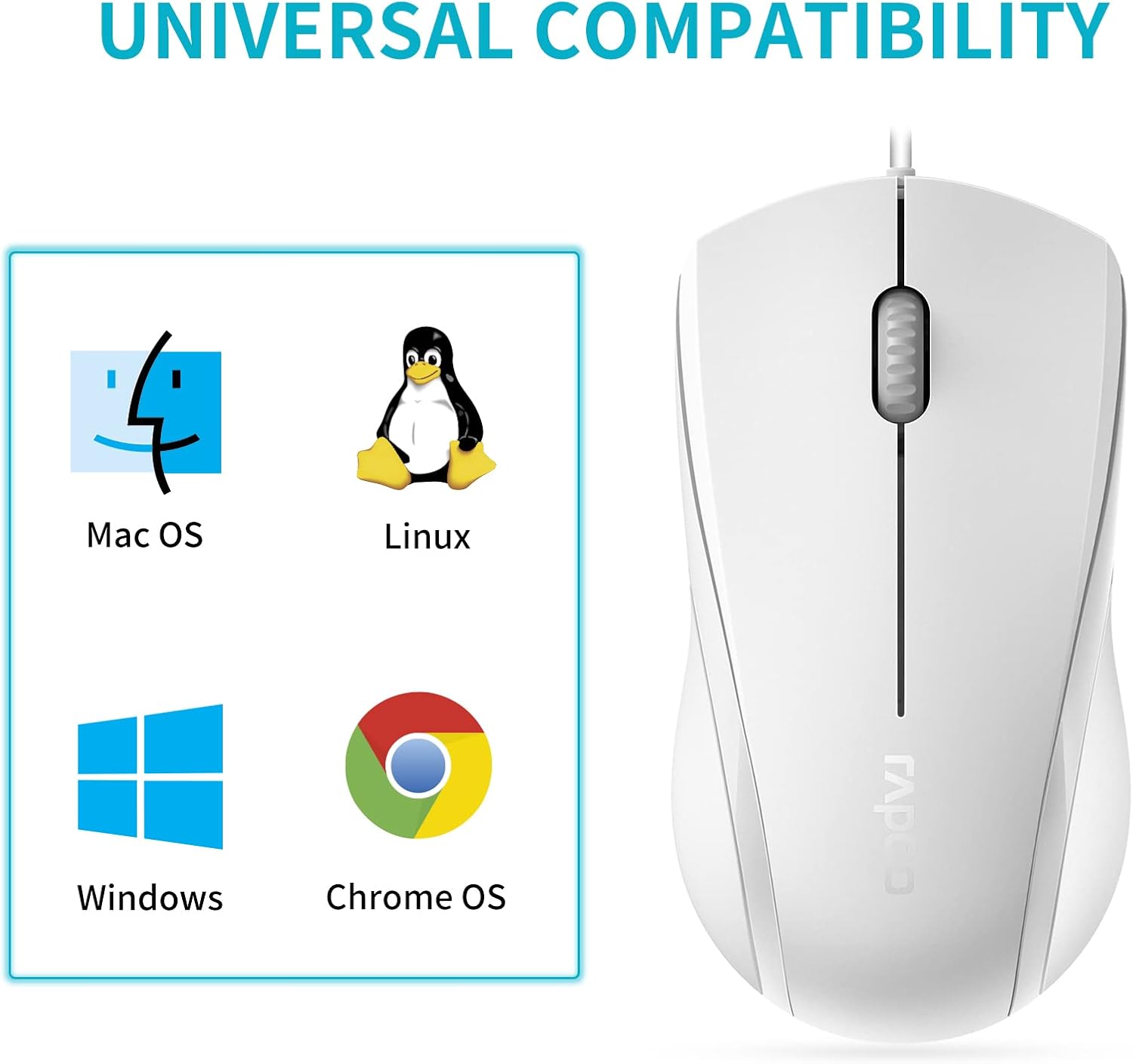
Image: A graphic illustrating the universal compatibility of the Rapoo N1600 mouse with Mac OS, Linux, Windows, and Chrome OS.
Garantía e Soporte
Rapoo is committed to providing quality products and customer satisfaction. The Rapoo N1600 mouse comes with a standard warranty, details of which can be found on the official Rapoo websitio ou contactando co servizo de atención ao cliente.
For any inquiries, technical assistance, or warranty claims, please contact Rapoo customer support. Rapoo offers 7/24 customer support to assist you with your product needs.
Para obter máis información, visite o Rapoo Official Store.


