1. Introdución e finalview
The Insta360 PRO 2 & Farsight is a professional-grade 360 8K 3D camera system designed for capturing immersive virtual reality experiences. It features six lenses working in conjunction to produce highly detailed 3D VR content. The system incorporates FlowState Stabilization for smooth, stable footage without the need for additional bulky gear or extensive post-production. It supports HDR video and photo capture, ensuring natural lighting across varied conditions. The "No-Stitch" editing workflow allows for seamless integration with Adobe Premiere Pro, enabling users to begin editing before the stitching process is complete. Additionally, the Farsight 360° Live Monitoring system provides low-latency, long-range transmission for remote control and monitoring.

Image 1.1: The Insta360 PRO 2 camera system, including the main camera unit, Farsight monitoring device, and a smartphone for control. This setup allows for professional 360-degree video capture and remote operation.
2. Que hai na caixa
Upon unboxing your Insta360 PRO 2 & Farsight system, please verify that all the following components are present:
- Insta360 Pro2 Panoramic Camera
- Visión de lonxe
- Cable USB Tipo-C
- Adaptador de 1/4" a 1/4"
- Lens Protective Case
- Maletín de viaxe
- USB2.0 to 100Mbps Ethernet Network Adapter
- Batería recargable de polímero de litio
- DC Adapter (x4)
- Cable de CA.
- Correa de ombreiro
- Cable LAN
- Documents and Lens Cloth
- Antena WiFi
- Antena GPS

Image 2.1: An illustrative diagram detailing all components included with the Insta360 PRO 2 & Farsight system, ensuring users can verify package contents.
3. Configuración
Follow these steps to prepare your Insta360 PRO 2 for operation:
- Cargar a batería: Connect the provided AC cable and DC adapter to the camera. Ensure the battery is fully charged before first use. The camera uses a Lithium Polymer battery.
- Inserir tarxetas MicroSD: The Insta360 PRO 2 requires multiple microSD cards for optimal performance. Insert them into the designated slots.
- Colocación de antenas: Screw in the WiFi and GPS antennas to their respective ports on the camera.
- Connect Farsight: For remote monitoring and control, connect the Farsight system. Refer to the Farsight specific manual for detailed connection instructions.
- Encendido: Press and hold the power button on the camera until the indicator lights illuminate.

Imaxe 3.1: Fronte view of the Insta360 PRO 2 camera, showing the lenses and control buttons.

Imaxe 3.2: Costas view of the Insta360 PRO 2 camera, highlighting ports for connectivity and battery access.
4. Instrucións de funcionamento
The Insta360 PRO 2 offers advanced features for professional 360-degree capture.
4.1. 8K 3D VR Capture
The camera's six lenses capture stunning 8K 3D VR footage. Ensure proper lighting and composition for the best immersive experience.

Image 4.1.1: Users experiencing immersive 3D VR content, demonstrating the output capability of the Insta360 PRO 2.
4.2. FlowState Stabilization
FlowState stabilization ensures smooth, professional-grade footage even in dynamic shooting environments. This technology minimizes camera shake and motion blur.

Image 4.2.1: A visual comparison illustrating the effectiveness of FlowState stabilization, with a clear, steady image on the left and a blurred, unstable image on the right.
4.3. HDR Video & Photo
Utilize HDR (High Dynamic Range) mode to capture a wider range of light and shadow detail, resulting in more natural and vibrant images, especially in challenging lighting conditions.

Image 4.3.1: A side-by-side comparison demonstrating the impact of HDR, with the "on" image showing richer detail in both bright and dark areas of a landscape.
4.4. Farsight 360° Live Monitoring
The Farsight system enables low-latency, long-range live monitoring of your 360-degree footage, allowing you to control the camera and preview shots from a distance.
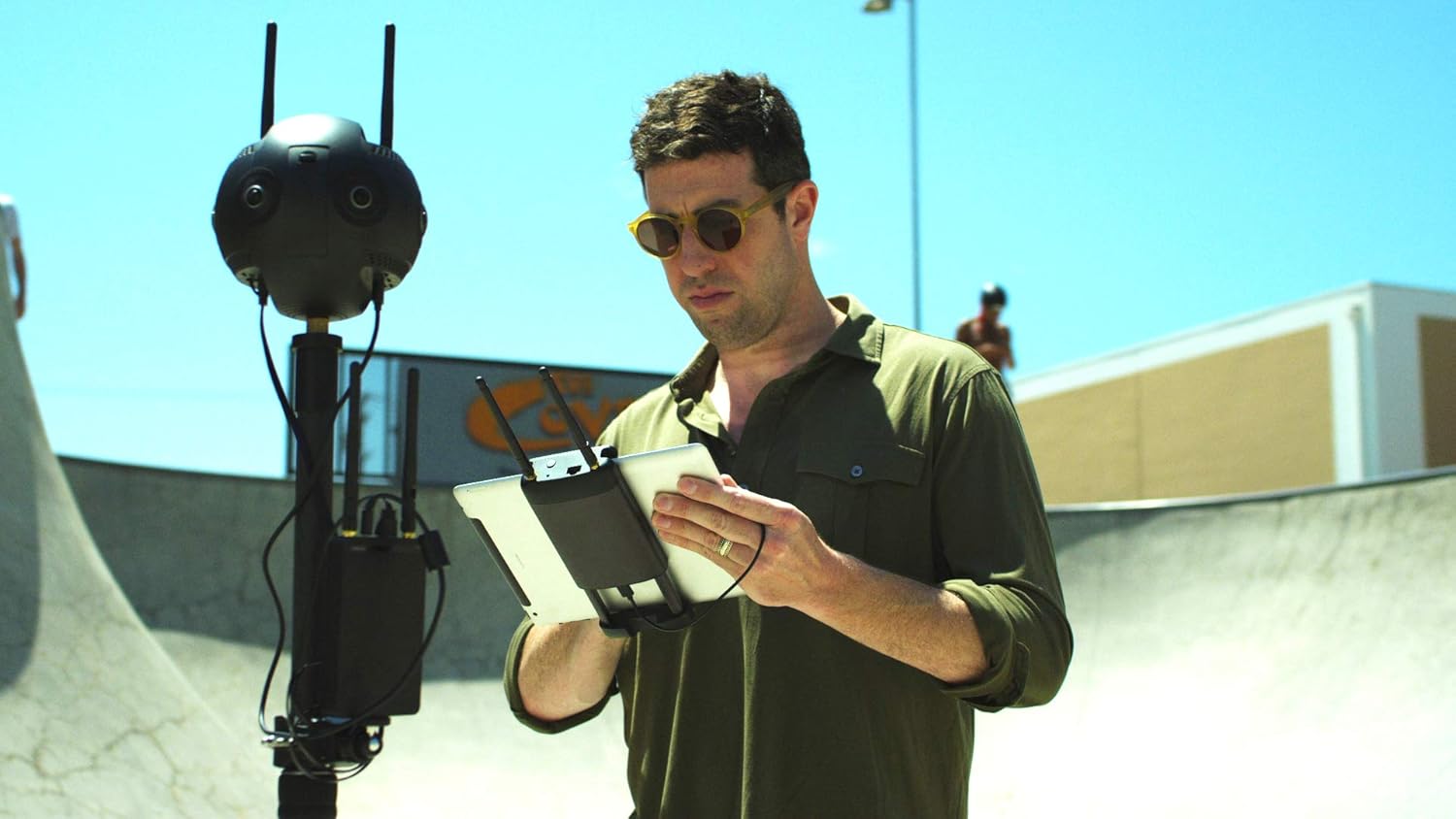
Image 4.4.1: A user remotely controlling and monitoring the Insta360 PRO 2 camera via a tablet, showcasing the Farsight system's capabilities.
4.5. "No-Stitch" Editing Workflow
The Insta360 PRO 2 supports a "No-Stitch" editing workflow, allowing you to import and begin editing your footage directly in Adobe Premiere Pro without waiting for the traditional stitching process. The camera records a proxy file alongside the high-resolution files for immediate preview and editing.

Image 4.5.1: A visual representation of the Insta360 PRO 2's integration with Adobe Premiere Pro, showing footage ready for editing.
5. Mantemento
Proper maintenance ensures the longevity and optimal performance of your Insta360 PRO 2.
- Limpeza de lentes: Use the provided lens cloth or a specialized lens cleaning solution and microfiber cloth to gently clean the camera lenses. Avoid abrasive materials that could scratch the lenses.
- Coidado da batería: Store batteries in a cool, dry place. If storing for extended periods, charge them to approximately 50% capacity. Avoid fully discharging or overcharging.
- Almacenamento: When not in use, store the camera in its protective case in a dry, dust-free environment away from direct sunlight and extreme temperatures.
- Actualizacións de firmware: Regularly check the Insta360 official website for firmware updates. Keeping your camera's firmware up-to-date ensures access to new features and performance improvements.
6 Solución de problemas
This section addresses common issues you might encounter with your Insta360 PRO 2.
| Problema | Causa posible | Solución |
|---|---|---|
| A cámara non se acende. | Low or depleted battery; faulty battery; power button issue. | Ensure battery is fully charged. Try a different battery if available. Contact support if issue persists. |
| Connectivity issues with Farsight/Wi-Fi. | Out of range; interference; incorrect settings. | Ensure Farsight is within range and fully charged. Check Wi-Fi settings on both devices. Minimize interference from other wireless devices. |
| Footage appears shaky despite FlowState. | Extreme motion beyond stabilization limits; outdated firmware. | Attempt to minimize extreme camera movements. Ensure camera firmware is up-to-date. |
| Stitching errors or visible seams. | Improper calibration; objects too close to lenses; software issue. | Perform camera calibration. Ensure subjects are not too close to the camera. Update stitching software. |
7. Especificacións
Key technical specifications for the Insta360 PRO 2 camera system:
| Característica | Detalle |
|---|---|
| Marca | Insta360 |
| Número de modelo | Insta360 Pro 2 |
| Peso do elemento | 3.42 libras |
| Dimensións do paquete | 20 x 18 x 9 polgadas |
| Baterías | Requírese 1 batería de polímero de litio |
| Cor | Negro |
| Tecnoloxía do sensor fotográfico | CMOS |
| Resolución de captura de vídeo | 8K |
| Apertura máxima | 2 f |
| Tipo de memoria flash | SD |
| Formato de captura de vídeo | MPEG-4 |
| Formato de audio compatible | Multiple (including AAC, MP3, PCM, FLAC, or Dolby Digital/AC-3) |
| Tamaño da pantalla | 2 polgadas |
| Tecnoloxía de conectividade | Wi-Fi |
| Data de primeira dispoñibilidade | 10 de setembro de 2018 |
8. Garantía e soporte
For detailed warranty information and technical support, please visit the official Insta360 websitio web ou póñase en contacto co servizo de atención ao cliente. Garde o recibo da compra como proba de compra para reclamacións de garantía.
Recursos en liña:


