1. Introdución
Thank you for choosing the Macally USB Type C Wired Mouse. This manual provides detailed instructions for setting up, operating, and maintaining your new mouse. Designed for simplicity and reliability, this plug-and-play mouse offers comfortable use with adjustable DPI settings for various computing needs.
2. Contido do paquete
- Macally USB Type C Wired Mouse
- Manual de instrucións
3. Configuración
The Macally USB Type C Wired Mouse is designed for easy plug-and-play functionality, requiring no additional drivers for most operating systems.
- Conecta o rato: Locate an available USB-C port on your computer (MacBook Pro, iMac, PC, Laptop, Tablet, etc.). Insert the USB-C connector of the mouse cable firmly into the USB-C port.
- Recoñecemento automático: Your operating system should automatically detect and configure the mouse. No software installation is typically required.
- Comezar a usar: Unha vez recoñecido, o rato está listo para o seu uso inmediato.

Image: The Macally USB-C mouse connected to a laptop via its USB-C cable, demonstrating the plug-and-play setup.
Video: A demonstration of connecting the wired USB-C mouse to a laptop, highlighting its plug-and-play functionality for Type-C computers.
4. Instrucións de funcionamento
4.1 Uso básico
The mouse features a standard 3-button layout for intuitive control:
- Botón esquerdo para premer: Usado para seleccionar elementos, abrir files e executando comandos.
- Botón dereito do rato: Used for accessing contextual menus and additional options.
- Roda de desprazamento: Úsase para percorrer documentos e web pages. The scroll wheel can also be pressed as a middle click button for specific functions in some applications.

Imaxe: De arriba abaixo view of the Macally USB-C mouse, clearly showing the left-click, right-click, and scroll wheel buttons.
4.2 Axuste de DPI
The mouse features a dedicated DPI (Dots Per Inch) switch to adjust cursor sensitivity. This allows you to change the speed and responsiveness of the cursor to suit your preference or task.
- Preme o Botón DPI (located below the scroll wheel) to cycle through the available sensitivity settings: 800, 1200, 1600, and 2400 DPI.
- Select the DPI setting that provides the most comfortable and efficient cursor movement for your current activity.
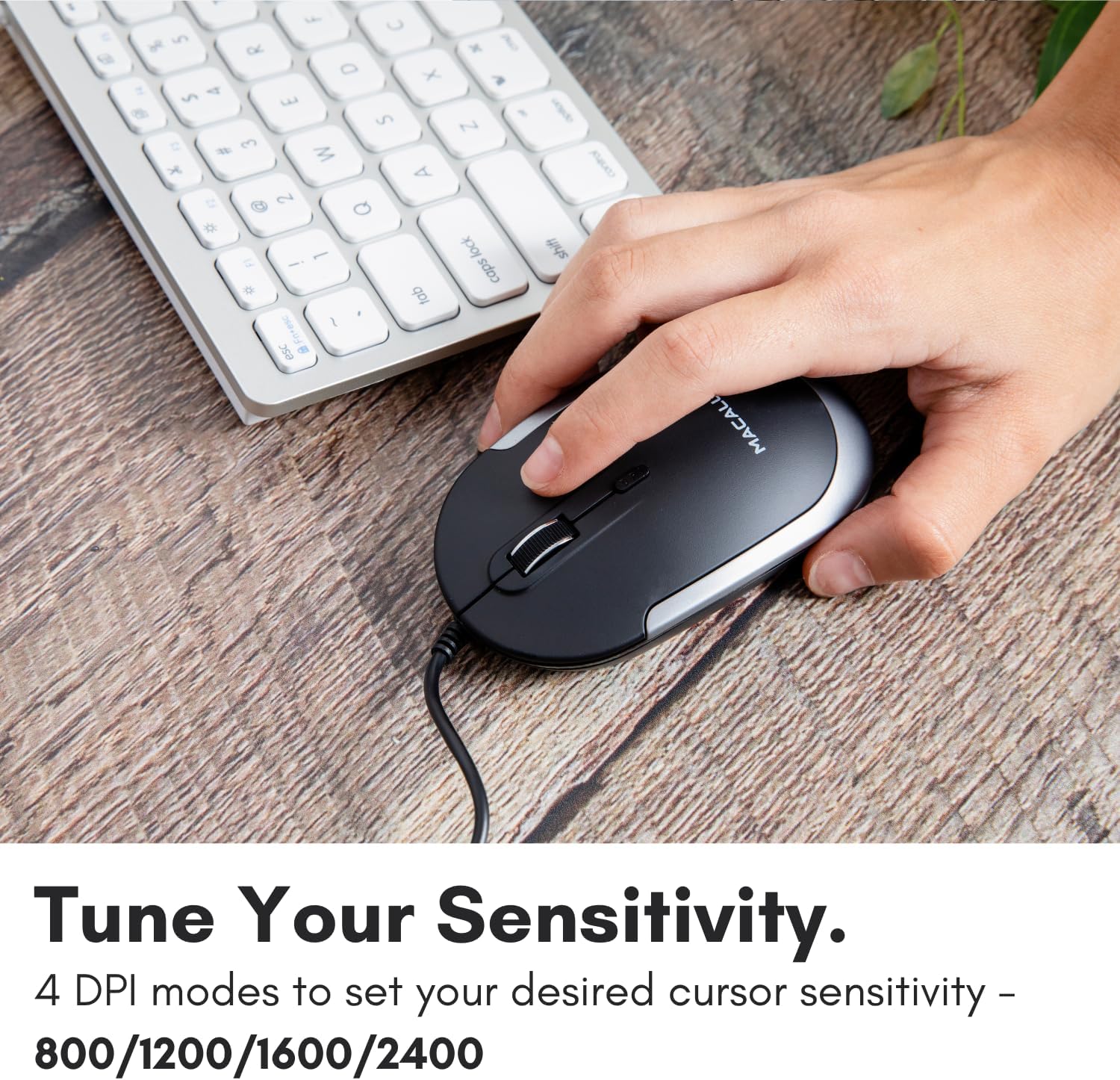
Image: A hand demonstrating how to press the DPI button on the Macally USB-C mouse to adjust sensitivity.
4.3 Compatibilidade
The Macally USB Type C Wired Mouse is universally compatible with a wide range of devices and operating systems:
- Mac (macOS)
- PC (Windows)
- iPadOS
- Android devices with USB-C ports

Image: The Macally USB-C mouse displayed with compatibility logos for Mac, PC, iPadOS, and Android operating systems.
5. Características clave
- Conectividade USB-C: Specifically designed for modern laptops and computers with USB-C ports, ensuring a reliable wired connection.
- Slim & Compact Design: With a height of only 1 inch, the mouse is slim, comfortable, and portable, fitting snugly in your hand.
- Botóns de clic silenciosos: Reduces clicking noise by 90% compared to traditional mice, providing a quieter work environment.
- DPI axustable: Easily switch between 800, 1200, 1600, and 2400 DPI settings for precise cursor control.
- Cable de 5 pés: Proporciona ample length for flexible setup and comfortable use, even with desktop computers.
- Deseño ambidiestro: Adecuado tanto para usuarios destros como zurdos.

Image: The Macally USB-C mouse highlighting its elegant and slim design with dimensions.
Video: A detailed look at the Macally USB-C Optical Mouse, emphasizing its quiet click buttons and compatibility with Mac and PC.
6. Mantemento
To ensure the longevity and optimal performance of your Macally USB Type C Wired Mouse, follow these simple maintenance guidelines:
- Limpeza: Usa un pano suave, seco e sen fiapos para limpar a superficie do rato. Para a sucidade persistente, dórao lixeiramenteampEnxágüe o pano con auga ou unha solución de limpeza suave. Evite o uso de produtos químicos agresivos ou materiais abrasivos.
- Sensor óptico: Manteña o sensor óptico da parte inferior do rato limpo e libre de po ou residuos. Use un hisopo de algodón ou aire comprimido se é necesario.
- Coidado do cable: Avoid sharp bends or excessive pulling on the USB-C cable to prevent damage. Store the cable neatly when not in use.
- Almacenamento: Cando non o use, garde o rato nun ambiente limpo e seco, lonxe de temperaturas extremas.
7 Solución de problemas
If you encounter any issues with your Macally USB Type C Wired Mouse, please refer to the following common solutions:
| Problema | Solución |
|---|---|
| O rato non responde. |
|
| O movemento do cursor é errático ou irregular. |
|
| Buttons or scroll wheel are not working. |
|
8. Especificacións
| Marca | Macally |
| Número de modelo | UCDYNAMOUSESG |
| Tecnoloxía de conectividade | USB-C con cable |
| Tecnoloxía de detección de movemento | Óptica |
| Configuración de DPI | 800, 1200, 1600, 2400 |
| Lonxitude do cable | 5 pés (aproximadamente 1.5 metros) |
| Botóns | 3 (Left, Right, Scroll Wheel/Middle Click) + DPI Switch |
| Peso do elemento | 2.56 onzas (aprox. 72.5 gramos) |
| Dimensións do produto (LxWxH) | 2.8 x 4.21 x 1 polgadas (aprox. 7.1 x 10.7 x 2.5 cm) |
| Compatibilidade | Mac (macOS), PC (Windows), iPadOS, Android (with USB-C) |
9. Garantía e soporte
Macally provides a 1 ano de garantía for this product. For technical support, troubleshooting assistance, or warranty claims, please contact Macally customer service. You can find contact information and additional resources on the official Macally websitio:
Websitio: www.macally.com
Macally also offers easy returns and lifetime support with your purchase.


