1. Introdución
This manual provides detailed instructions for the installation, setup, and operation of your MOES WiFi Smart Wall Touch Light Switch. Please read this manual thoroughly before installation and use to ensure proper function and safety.

Figure 1: MOES WiFi Smart Wall Touch Light Switch (1 Gang, Black)
2. Información de seguridade
- Instalación eléctrica: Installation should only be performed by a qualified electrician or a person with a thorough understanding of electrical wiring.
- Desconexión de alimentación: Always disconnect power at the circuit breaker before installing, removing, or servicing the switch. Failure to do so may result in serious injury or death.
- Fío neutro necesario: This smart switch requires a neutral wire in your switch box to operate correctly. If you do not have a neutral wire, this switch is not compatible.
- Rede Wi-Fi: Requires a 2.4GHz Wi-Fi network connection. It is not compatible with 5GHz Wi-Fi networks.
- Compatibilidade: Only compatible with 1 gang switch boxes. Not compatible with standard US 2/3/4 gang switch plates. This switch is not designed for 3-way switch configurations or as a dimmer switch.
- Só para uso en interiores: This device is intended for indoor use in dry locations.
- Vol. Operativotage: Ensure your electrical system operates within the specified voltage range (240 Volts).

Figure 2: Key compatibility and wiring considerations.
3. Contido do paquete
- MOES WiFi Smart Wall Touch Light Switch (1 Gang)
- Manual de usuario
- Parafusos de montaxe
4. Características do produto
- Control táctil: Features a toughened glass surface for touch operation.
- Control de voz: Compatible with Amazon Alexa (Amazon Echo/Dot/Tap) and Google Assistant for hands-free operation.
- Control remoto Wi-Fi: Control the wall switch wirelessly from anywhere using the 'Smart Life' app on your smartphone via Wi-Fi or 4G network. No separate hub is required.
- Función de temporización: Schedule lights and appliances to turn on/off automatically at specific times.

Figure 3: Smart Switch in a home environment.
5. Especificacións
| Especificación | Valor |
|---|---|
| Modo de operación | Automaticamente, apagado, interruptor intelixente |
| Valoración actual | 10 Amps |
| Vol. Operativotage | 240 voltios |
| Tipo de contacto | Normalmente aberto |
| Tipo de conector | Sen fíos |
| Terminal | Parafuso |
| Dimensións do artigo (L x W x H) | 4.7 x 2.9 x 1.5 polgadas |
| Tipo de circuíto | 1 vías |
| Tipo de actuador | Toca |
| Material de contacto | Latón |
| Clasificación de protección internacional | IPX4 |
| Número de postos | 3 |
| Tipo de controlador | Amazon Alexa, Asistente de Google |
| Método de control | Mando a distancia |
| Protocolo de conectividade | Wi-Fi (só 2.4 GHz) |
| Wattage | 1000 vatios |
| Peso do elemento | 7.4 onzas |

Figure 4: Product dimensions and wiring terminals.
6. Guía de instalación
Antes de comezar:
- Asegúrese de que a alimentación estea DESCONECTADA no disyuntor.
- Confirm your switch box has a neutral wire. This is essential for the smart switch to function.
- Verify your Wi-Fi network is 2.4GHz.
- This switch is for 1-gang setups only and is not a dimmer or 3-way switch.
Pasos de cableado:
- Turn off power at the circuit breaker for the light switch you are replacing.
- Retire a placa de parede existente e o interruptor.
- Identify the wires: Live (usually black), Neutral (usually white), and Load (to the light fixture). A Ground wire (usually green or bare copper) may also be present.
- Connect the wires from your wall box to the corresponding terminals on the MOES Smart Switch:
- N: Connect the Neutral wire (usually white).
- L: Connect the Live wire (incoming power, usually black).
- L1: Connect the Load wire (to the light fixture). For 1-gang switches, only L1 is typically used.
- Terreo: If present, connect the ground wire to the switch's ground terminal (if available) or safely cap it.
- Secure the switch into the wall box using the provided screws.
- Attach the glass panel.
- Restablecer a enerxía no interruptor automático.
After installation, the indicator lights on the switch should blink quickly, indicating it is ready for Wi-Fi connection in Default Normal Mode.

Figure 5: Replacing a traditional switch with the smart touch switch.
7. Configuración e emparellamento da aplicación
To control your smart switch via smartphone, download the 'Smart Life' app from the App Store (iOS) or Google Play (Android).
- Descarga e rexistro: Install the 'Smart Life' app and register an account.
- Engadir dispositivo: Open the app, tap '+' or 'Add Device', and select 'Light Switch' or 'Electrical Switch'.
- Confirm Indicator Status: Ensure the indicator light on your switch is blinking quickly. If not, you may need to reset the device.
- Conectar a wifi: Segue as instrucións da aplicación para conectar o conmutador á túa rede wifi de 2.4 GHz. Introduce o contrasinal da wifi cando se che solicite.
- Renomear o dispositivo: Once connected, you can rename the switch for easier identification (e.g., "Living Room Light").
Restablecer o dispositivo:
If the indicator lights are not blinking quickly, or if you need to reset the switch for any reason:
- Press and hold any button on the switch for approximately 20 seconds until the indicator light blinks quickly. This puts the device into Default Normal Mode for Wi-Fi connection.
- If the indicator light blinks very slowly after holding for 20 seconds, it is in AP (Access Point) mode. This is an alternative pairing mode if Default Normal Mode fails.
Video 1: Demonstrates how to reset or unlock the device by pressing and holding a button for 20 seconds, showing the indicator light changes for different pairing modes.
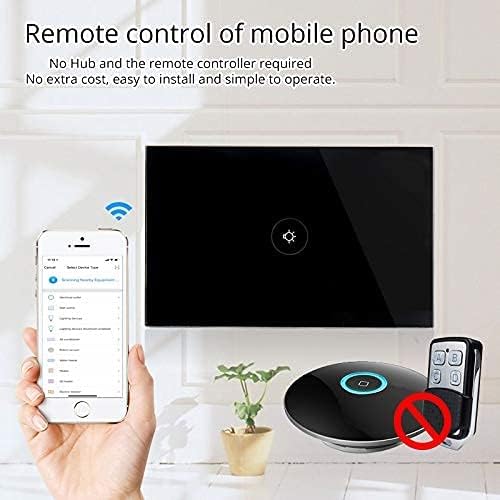
Figure 6: Remote control via mobile application.
8. Funcionamento
Once installed and paired with the 'Smart Life' app, you can operate your switch in several ways:
- Toque manual: Simply touch the glass panel to turn the connected light or appliance on or off.
- Control da aplicación: Use the 'Smart Life' app on your smartphone to remotely turn the switch on or off from anywhere with an internet connection.
9. Integración do control por voz
The MOES Smart Switch is compatible with Amazon Alexa and Google Assistant for convenient voice control.
- Link 'Smart Life' Account: In your Amazon Alexa or Google Home app, search for the 'Smart Life' skill/action and enable it.
- Iniciar sesión: Log in with your 'Smart Life' account credentials.
- Descubra dispositivos: Once linked, ask Alexa or Google Assistant to "Discover devices" or manually initiate device discovery in their respective apps.
- Comandos de voz: You can now use voice commands such as "Alexa, turn on [device name]" or "Hey Google, turn off [device name]". Use the names you assigned in the 'Smart Life' app.

Figure 7: Voice control with Alexa and Google Home.
10. Función de sincronización
The 'Smart Life' app allows you to set schedules and timers for your smart switch, automating your lighting or appliances.
- Crear horarios: In the 'Smart Life' app, navigate to the device settings and select 'Schedule' or 'Timer'.
- Set On/Off Times: Configure specific times for the switch to turn on or off. You can set daily, weekly, or custom schedules.
- Sunrise/Sunset Automation: Some app versions allow for automation based on local sunrise and sunset times.

Figure 8: Setting schedules via the Smart Life app.
11 Solución de problemas
| Problema | Causa posible | Solución |
|---|---|---|
| O interruptor non responde ao tacto. | No power, incorrect wiring, or device locked. | Check circuit breaker. Verify wiring (Live, Neutral, Load). Perform a device reset (hold button for 20 seconds). |
| Non se pode conectar á wifi. | Incorrect Wi-Fi band (5GHz), weak signal, incorrect password, or device not in pairing mode. | Ensure your router is broadcasting a 2.4GHz signal. Move closer to the router. Double-check Wi-Fi password. Reset the switch to enter pairing mode (blinking indicator). Try AP mode if normal mode fails. |
| O control por voz non funciona. | 'Smart Life' skill not enabled, incorrect device name, or no internet connection. | Ensure the 'Smart Life' skill is enabled and linked in your Alexa/Google Home app. Verify device names match. Check internet connectivity. |
| Switch goes offline frequently. | Weak Wi-Fi signal, network congestion, or router issues. | Improve Wi-Fi signal strength (e.g., Wi-Fi extender). Reduce network congestion. Restart your router. |
12. Mantemento
- Limpeza: Limpe o panel de vidro con coidado cun pano suave e seco. Evite produtos de limpeza abrasivos ou solventes.
- Actualizacións de firmware: Periodically check the 'Smart Life' app for available firmware updates to ensure optimal performance and security.
13. Garantía e soporte
For warranty information or technical support, please refer to the documentation provided with your purchase or contact MOES customer service directly. Contact details can typically be found on the MOES official website or within the 'Smart Life' app's support section.
Vídeo 2: Rematadoview of MOES smart home products and their integration, demonstrating various smart life features like color temperature control, music sync lighting, and smart automation based on environmental sensors.


