1. Produto rematadoview
The KuWFi LTE Router CPE812 is a 4G wireless WiFi internet router designed to provide network connectivity using a SIM card. It features a transmission speed of up to 300Mbps and supports up to 32 WiFi users. This device is suitable for home and office environments, offering a 2.4GHz WiFi hotspot with broad coverage.
Características principais:
- 4G LTE FDD: B1/B3/B7/B8/B20
- 4G LTE TDD: B38/B39/B40/B41
- 3G WCDMA: B1/B8
- Wireless transmission speed up to 300Mbps
- 2.4GHz WiFi hotspot with up to 3,000 square meter coverage
- Supports up to 32 WiFi users
- Internal dual-antenna design
- LED indicator display for status monitoring
- Security Protocol: WPA2-PSK
- Two RJ45 ports (one WAN, one LAN)

Imaxe 1.1: Fronte view of the KuWFi LTE Router CPE812, showcasing its four non-detachable antennas and LED indicators.
2. Guía de configuración
Follow these steps to set up your KuWFi LTE Router CPE812.
2.1. Inserir a tarxeta SIM
- Localiza a ranura para a tarxeta SIM no lateral do enrutador.
- Insira unha tarxeta SIM estándar na ranura designada. Asegúrese de que a tarxeta SIM estea orientada correctamente.
- The router supports standard SIM cards. Micro and Nano SIM cards require an adapter (not included).

Imaxe 2.1: Lateral view of the router highlighting the SIM card slot, LAN/WAN ports, and power input.

Image 2.2: Illustration indicating that only standard SIM cards are directly compatible; Micro and Nano SIMs require adapters.
2.2. Acendido do enrutador
- Conecta o adaptador de corrente ao porto DC IN do enrutador.
- Enchufe o adaptador de alimentación a unha toma de corrente.
- Press the ON/OFF button to power on the device. The LED indicators on the front will light up.

Image 2.3: The router packaged with its power adapter, Ethernet cable, and user manual.
2.3. Conexión Wi-Fi inicial
- Once powered on, the router will broadcast a Wi-Fi signal.
- No teu ordenador ou dispositivo móbil, busca as redes wifi dispoñibles.
- Connect to the network with the SSID (Wi-Fi name) printed on the label at the bottom of the router (e.g., WIFI-XXXXX).
- Enter the default Wi-Fi password (e.g., 12345678) also found on the router's label.
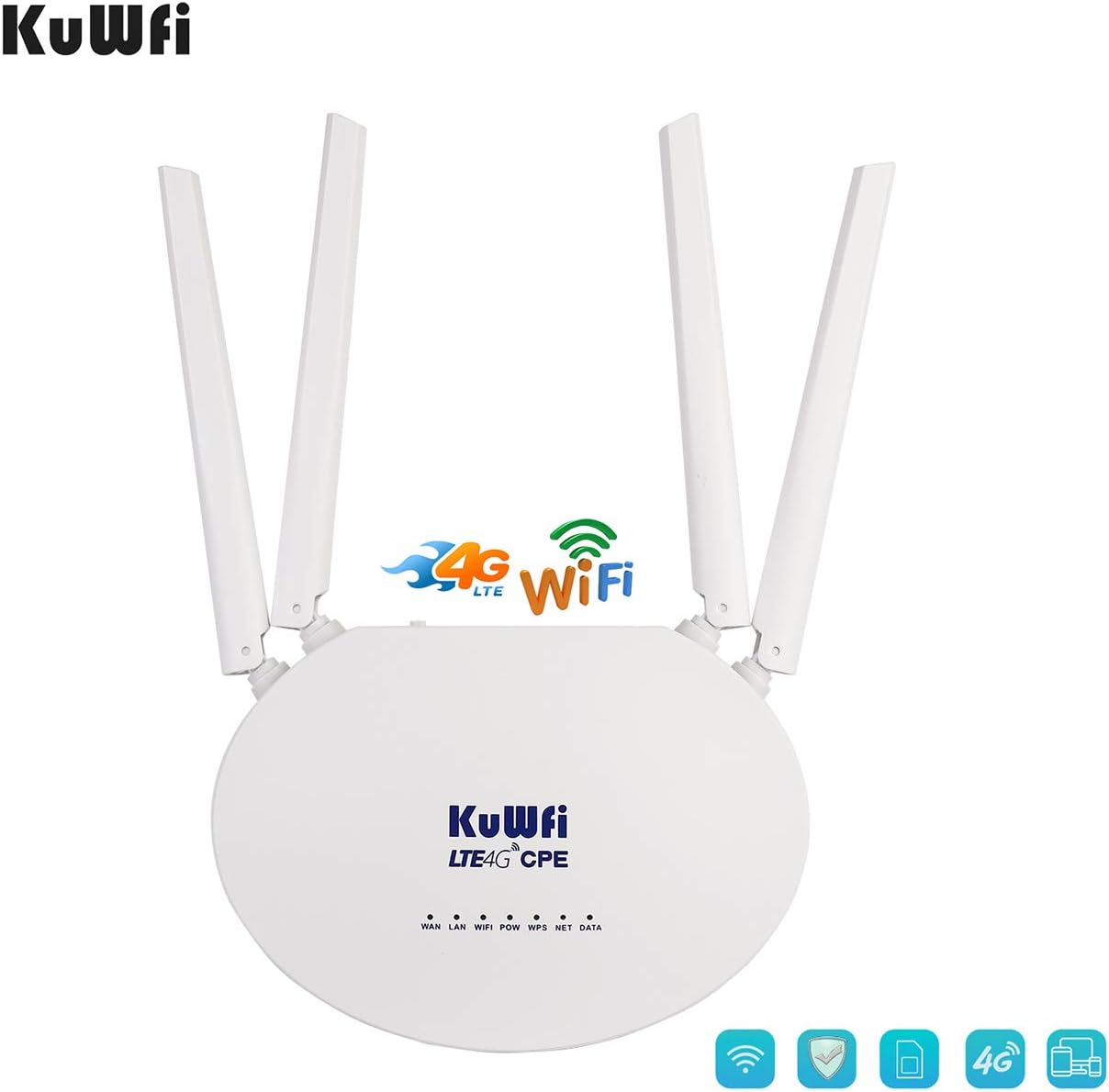
Image 2.4: The bottom label of the router displaying important information such as the default SSID and password.
2.4. Accedendo ao Web Interface and APN Setup
- Abrir a web browser on a device connected to the router's Wi-Fi.
- Introduza o enderezo IP predeterminado 192.168.10.1 na barra de enderezos e prema Intro.
- Inicia sesión no web interface. The default username and password are typically "admin" (refer to the router's label if different).
- Navigate to the "3G/4G setup" section.
- Importante: Uncheck the "auto select 3G / 4G ISP" option.
- Choose "User Defined" for the APN settings.
- Enter the correct APN (Access Point Name) provided by your SIM card provider. If you are unsure, you can insert your SIM card into a mobile phone and check its APN settings, or contact your SIM card provider.
- Click "APPLY" to save the settings.

Imaxe 2.5: Ex.ample of how to find APN settings on a mobile phone.

Imaxe 2.6: Web interface screenshot demonstrating where to enter APN details.
3. Funcionamento
3.1. Understanding Work Modes
The router supports various work modes to suit different network environments. These can typically be configured in the web interface under the "Mode" section.
- Modo de enrutador sen fíos 3G/4G: Connects to the internet via SIM card and broadcasts Wi-Fi.
- Modo de enrutador sen fíos estándar: Connects to a local network via Ethernet and broadcasts Wi-Fi.
- Punto de acceso sen fíos estándar e modo de ponte APClient: Works as an access point or client bridge.
- Modo de cliente de punto de acceso sen fíos: Connects to another wireless AP or router via Ethernet.
3.2. Modifying Wi-Fi Settings
Para cambiar o nome da túa rede Wi-Fi (SSID) ou o contrasinal:
- Accede a web interface (192.168.10.1).
- Go to the "Wireless" section, then "Basic" to modify the SSID. Enter your desired network name and click "Apply".
- Go to the "Wireless" section, then "Security" to modify the Wi-Fi password (WPA-PSK Key). Enter your new password and click "Apply".
3.3. Video Guide: Setup and Configuration
Video 3.1: An operational video demonstrating the setup process, SIM card insertion, power connection, and web interface configuration for the KuWFi LTE Router CPE812. This video also shows how to set the APN and change Wi-Fi settings.
4. Mantemento
To ensure optimal performance and longevity of your KuWFi LTE Router CPE812:
- Garda o dispositivo nun lugar fresco e seco, lonxe da luz solar directa e da humidade.
- Evite colocar o router preto de campos electromagnéticos fortes.
- Clean the exterior of the router with a soft, dry cloth. Do not use liquid cleaners.
- Asegúrese de ventilar adecuadamente o dispositivo para evitar o sobreenriquecido.
- Comprobe periodicamente se hai actualizacións de firmware no dispositivo do fabricante website to enhance performance and security.
5 Solución de problemas
Se tes problemas co teu enrutador, consulta as seguintes solucións habituais:
5.1. No Network Data Connection Despite Wi-Fi Connection
If your device connects to the router's Wi-Fi but has no internet access:
- Check APN Settings: Confirm that the APN settings in the router's web interface are correct. You can verify the correct APN by inserting your SIM card into a mobile phone and checking its network settings, then manually entering it into the router.
- Contact Provider: If the frequency bands are correct but automatic connection fails, manually set the APN. Consult your SIM card provider for the correct APN information.

Image 5.1: Detailed steps for checking and setting APN on a mobile device.
5.2. Poor 4G Signal
If you experience weak or unstable 4G signal:
- Modo de rede: Ensure that you have selected "4G only" in the router's settings if your area has strong 4G coverage.
- Colocación do router: Position the router in an open area, away from obstructions like thick walls or large metal objects, and near a window if possible, to improve signal reception.
- Lock Network Type: No web interface, you can manage the settings page to lock the router to a 4G or 3G network, which can improve network stability if the signal is fluctuating.
5.3. Router Not Recognizing SIM Card
If the router does not detect the SIM card:
- Inserción correcta: Ensure the SIM card is inserted correctly and fully into the slot.
- Tipo de tarxeta SIM: Verify you are using a standard SIM card or the correct adapter for Micro/Nano SIMs.
- IMEI Activation: Note that if your SIM card requires IMEI activation, this router may not function.
6. Especificacións
| Característica | Detalle |
|---|---|
| Número de modelo | CPE 812 |
| Network Frequency (4G LTE FDD) | B1/B3/B7/B8/B20 (2100/1800/2600/900/800MHz) |
| Network Frequency (4G LTE TDD) | B38/B39/B40/B41 |
| Network Frequency (3G WCDMA) | B1/B8 |
| CPU principal | RT7628 Basic Frequency 580MHz |
| ROM | 64Mbits SPI Flash |
| RAM | 1024 Mb DDR2 |
| Alcance de transmisión | 50-100 M |
| Temperatura de traballo | -10 ℃ ~ 40 ℃ |
| Portos LAN | 2 x RJ45 (1 WAN, 1 LAN) |
| Velocidade WiFi | Ata 300 Mbps (2.4 GHz) |
| Max WiFi Users | 32 |
| Tipo de antena | Interno |
| Protocolo de seguridade | WPA2-PSK |
| Método de control | Aplicación (Web Interface) |
| Compoñentes incluídos | Router |
| Peso do elemento | 12.8 onzas |
| Dimensións do paquete | 10.9 x 8.2 x 1.5 polgadas |
7. Garantía e soporte
KuWFi provides comprehensive support for its products.
- Garantía: Este produto vén cunha garantía de 3 anos.
- Soporte técnico: VIP Technical Support is available for assistance with setup, configuration, and troubleshooting.
- Contacto: If you encounter any problems, especially regarding SIM card connectivity or APN settings, please contact the seller or KuWFi customer support for assistance.


