1. Introdución
This manual provides essential information for the installation, operation, and maintenance of your GIGABYTE GeForce GTX 1660 Ti Windforce OC 6G graphics card. Please read this manual thoroughly before installation and retain it for future reference.
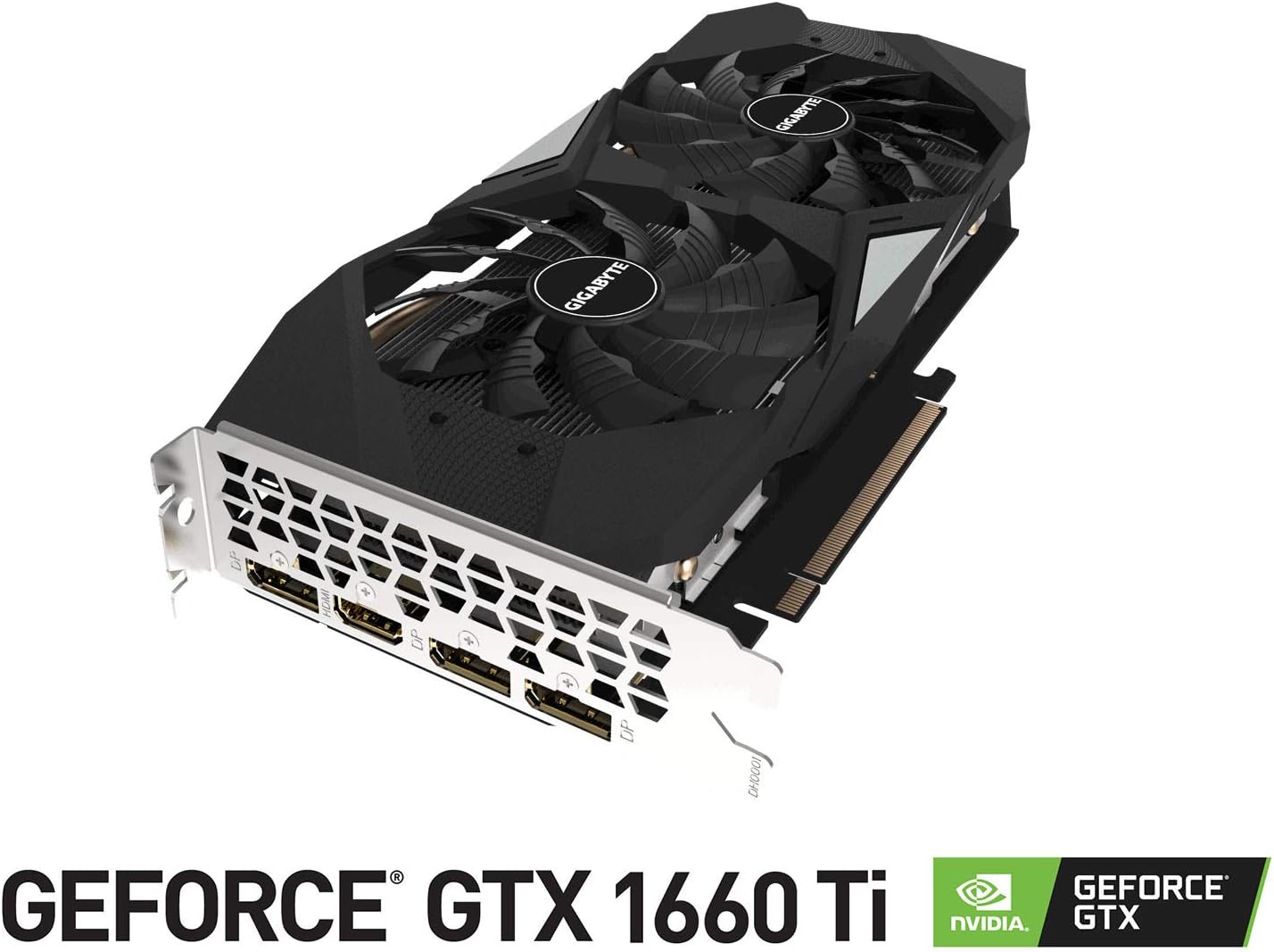
The GIGABYTE GeForce GTX 1660 Ti Windforce OC 6G is designed for enhanced graphics performance, featuring:
- Powered by GeForce GTX 1660 Ti integrated with 6GB GDDR6
- Windforce 2x cooling system with alternate spinning fans
- Controis intuitivos co motor AORUS
- 6GB 192-bit GDDR6 memory interface
- Multiple display outputs: 1 x HDMI, 3 x DisplayPort
- Interface PCI Express 3.0 x16
2. Que hai na caixa
Verifica que todos os elementos estean presentes no paquete:
- GIGABYTE GeForce GTX 1660 Ti Windforce OC 6G Graphics Card
- Manual de usuario
3. Especificacións
| Característica | Especificación |
|---|---|
| Unidade de procesamento gráfico | NVIDIA GeForce GTX 1660 Ti |
| Memoria de vídeo | 6 GB GDDR6 |
| Velocidade da memoria | 12000 MHz |
| Interface de memoria | 192 bits |
| Resolución máxima de pantalla | 7680x4320 |
| Portos de saída | 1 x HDMI 2.0B, 3 x DisplayPort 1.4 |
| Bus estándar | PCI Express 3.0 x16 |
| Sistema de refrixeración | WINDFORCE 2X con ventiladores de xiro alternativo |
| Dimensións (LxWxH) | 10.43 x 4.76 x 1.57 polgadas |
| Peso do elemento | 15.9 onzas |
4. Configuración e instalación
Before proceeding with the installation, ensure your system meets the minimum requirements and that your power supply unit (PSU) has sufficient wattage and the necessary PCIe power connectors.
4.1 Comprobacións previas á instalación
- Apagado: Apaga o ordenador e desconecta o cable de alimentación da toma de corrente.
- Caso aberto: Retire o panel lateral da carcasa do seu ordenador.
- Descarga estática: Ground yourself by touching a metal part of your computer chassis to discharge any static electricity.
- Liquidación: Ensure there is enough physical space in your case for the graphics card.
4.2 Instalación física
- Localiza unha ranura PCI Express 3.0 x16 dispoñible na túa placa base.
- Remove any expansion slot covers that correspond to the graphics card's size (typically two slots).
- Aliña con coidado a tarxeta gráfica coa ranura PCIe e preme firmemente ata que estea ben asentada. É posible que se escoite un clic.
- Fixa a tarxeta gráfica á carcasa con parafusos.
- Connect the appropriate PCIe power cable(s) from your power supply to the graphics card. This model typically requires an 8-pin connector.
- Replace the computer case side panel.
4.3 Instalación do controlador
- Connect your monitor to one of the graphics card's output ports (HDMI or DisplayPort).
- Acende o teu ordenador.
- Once the operating system loads, download the latest drivers from the official GIGABYTE or NVIDIA websitio.
- Siga as instrucións en pantalla para completar a instalación do controlador.
- Reinicie o ordenador para aplicar os cambios.
5. Funcionamento da tarxeta gráfica
Once installed and drivers are updated, your GIGABYTE GeForce GTX 1660 Ti is ready for use. It will automatically handle graphics processing for applications and games. For optimal performance, ensure your operating system and game titles are up-to-date.
You can use NVIDIA's control panel or GIGABYTE's AORUS Engine software to monitor performance, adjust fan curves, and customize settings for specific applications or games.
6. Mantemento
Un mantemento axeitado garante a lonxevidade e o rendemento óptimo da túa tarxeta gráfica.
- Limpeza do po: Regularly clean dust from the fans and heatsink using compressed air. Ensure the computer is powered off and unplugged before cleaning.
- Actualizacións de controladores: Manteña os controladores gráficos actualizados para beneficiarse das melloras de rendemento e as correccións de erros.
- Monitorización de temperatura: Use monitoring software to keep an eye on the GPU temperature, especially during heavy loads. Ensure adequate airflow within your PC case.
- Inspección física: Periodically check for any loose cables or connections.
7 Solución de problemas
Se tes problemas coa túa tarxeta gráfica, proba os seguintes pasos para solucionalo:
- Sen visualización: Ensure the monitor cable is securely connected to the graphics card and the monitor is powered on. Verify the graphics card is fully seated in the PCIe slot and power cables are connected.
- Problemas do controlador: Reinstall the latest drivers from the official GIGABYTE or NVIDIA website. Try using Display Driver Uninstaller (DDU) to completely remove old drivers before installing new ones.
- Sobrequecemento: Check for proper airflow in your PC case. Clean dust from the graphics card fans and heatsink. Ensure fan speeds are adequate using monitoring software.
- Problemas de rendemento: Ensure your game or application settings are not excessively high for the card's capabilities. Check for background applications consuming resources.
- Inestabilidade do sistema: If your system crashes or freezes, ensure your power supply unit (PSU) is sufficient for the graphics card and other components. Check for any conflicts with other hardware.
8. Imaxes do produto



9. Vídeos de produtos
10. Garantía e soporte
GIGABYTE products are covered by a limited warranty. For detailed warranty terms and conditions, please refer to the official GIGABYTE websitio web ou a tarxeta de garantía incluída co produto. Garde o comprobante de compra para reclamacións de garantía.
For technical support, driver downloads, and further assistance, visit the official GIGABYTE support page. You can also find FAQs and community forums for common issues and solutions.


