1. Introdución
Thank you for choosing the S3 Bluetooth Gamepad. This wireless controller is designed to enhance your gaming experience across various platforms, including Android smartphones, tablets, TVs, and TV boxes. With its ergonomic design and versatile connectivity, the S3 Gamepad offers precise control and comfortable gameplay.
2. Produto rematadoview
The S3 Bluetooth Gamepad features a classic layout with dual analog joysticks, a precise D-pad, and 14 action buttons, including ABXY, shoulder buttons (L1, R1, L2, R2), Select, Start, and a central Home button. It is built for comfortable and extended gaming sessions.

Figura 2.1: Fronte view of the S3 Bluetooth Gamepad, showing the D-pad on the left, ABXY buttons on the right, dual analog sticks, and central Home, Select, and Start buttons.

Figura 2.2: Lateral view of the S3 Bluetooth Gamepad, highlighting the micro USB charging port located on the top edge.

Figura 2.3: Atrás view of the S3 Bluetooth Gamepad, showing the ergonomic grips and the product label with "GEN GAME S3 Wireless Controller" and DC 5V 400mA information.
3. Configuración e conexión
3.1. Cargar o GamePad
Before first use, fully charge the gamepad. Connect the provided USB charging cable to the micro USB port on the top of the gamepad and the other end to a USB power source (e.g., computer USB port, USB wall adapter). The charging indicator light will illuminate during charging and turn off when fully charged. A full charge takes approximately 3 hours.
3.2. Emparellamento Bluetooth
The S3 Gamepad supports Bluetooth 3.0 for wireless connection.
- Asegúrate de que o gamepad estea suficientemente cargado.
- On your Android device (smartphone, tablet, TV, TV Box), go to the Bluetooth settings and ensure Bluetooth is enabled.
- Manteña premido o FOGAR button on the gamepad for a few seconds until the LED indicator starts flashing rapidly, indicating it is in pairing mode.
- On your device, search for available Bluetooth devices. The gamepad should appear as "S3 Gamepad" or similar.
- Select the gamepad from the list to pair. Once successfully paired, the LED indicator on the gamepad will stop flashing and remain solid.
- For subsequent connections, simply turn on the gamepad, and it should automatically connect to the last paired device if Bluetooth is enabled on the device.
Note: For iOS devices, only a limited number of mini-games in iCade mode are supported. Full compatibility with all major iOS games is not guaranteed.
4. Modos de funcionamento
The S3 Gamepad supports four distinct operating modes, each indicated by a specific LED light. You can switch between modes by short pressing the FOGAR botón.
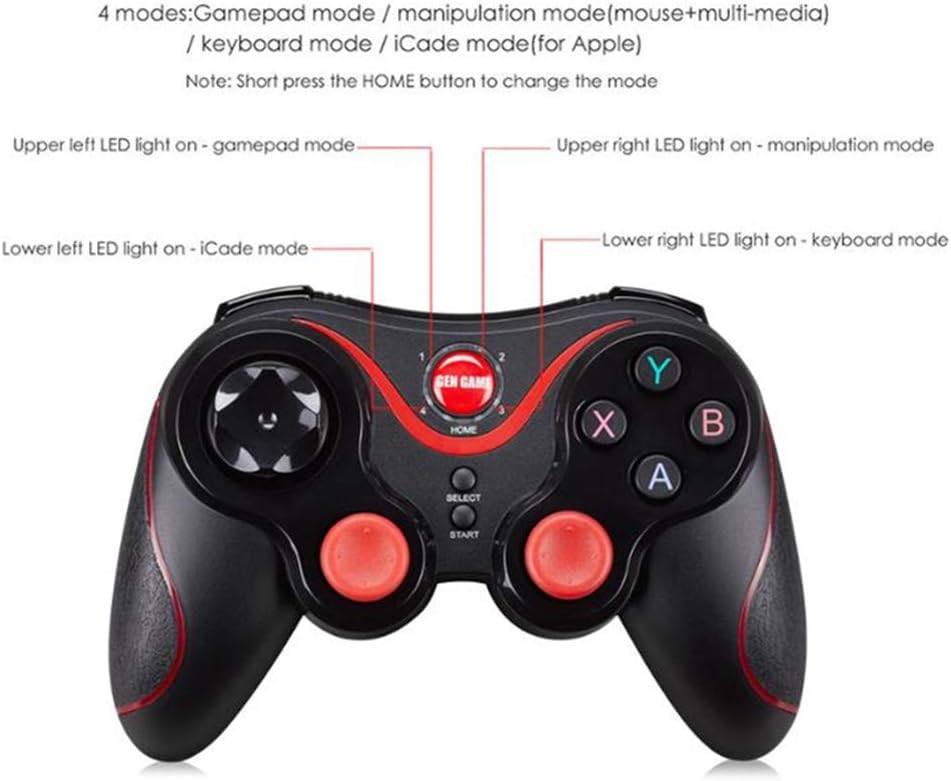
Figure 4.1: Diagram illustrating the four LED indicators and their corresponding modes: Gamepad, Manipulation (Mouse+Multi-media), Keyboard, and iCade.
- Gamepad Mode: Upper left LED light on. This is the standard mode for most Android games that support gamepad input.
- Manipulation Mode (Mouse+Multi-media): Upper right LED light on. This mode allows the gamepad to function as a mouse and control multi-media playback. Useful for navigating Android TV interfaces or media players.
- Modo de teclado: Lower right LED light on. In this mode, the gamepad buttons emulate keyboard keys, which can be useful for certain applications or games that primarily rely on keyboard input.
- iCade Mode (for Apple): Lower left LED light on. This mode is specifically for limited compatibility with iOS devices, primarily for games that support the iCade protocol.
5. Consellos de uso
- For optimal performance, ensure your device's Android platform is 3.2 or above.
- Some games may require specific controller settings within their own menus. Refer to the game's instructions if you encounter issues.
- The gamepad features a smart power-saving sleep mode. If inactive for a period, it will enter sleep mode to conserve battery. Press the FOGAR botón para espertalo.
6. Mantemento
- Limpa o gamepad cun pano suave e seco. Non empregues produtos químicos agresivos nin produtos de limpeza abrasivos.
- Avoid exposing the gamepad to extreme temperatures, direct sunlight, or moisture.
- Garda o gamepad nun lugar fresco e seco cando non o uses.
7 Solución de problemas
7.1. Gamepad does not connect or is not found by device.
- Asegúrate de que o gamepad estea cargado.
- Asegúrate de que o Bluetooth estea activado no teu dispositivo.
- Ensure the gamepad is in pairing mode (flashing LED). If not, press and hold the FOGAR botón.
- Try turning off and on both the gamepad and your device's Bluetooth.
- Se xa o emparellaches, tenta "esquecer" o dispositivo na configuración de Bluetooth e volvelo emparellar.
7.2. Buttons or joysticks are not responding correctly.
- Ensure the gamepad is in the correct operating mode for the game or application you are using. Short press the FOGAR botón para recorrer os modos.
- Check if the game itself supports external controllers.
- Reinicia o gamepad e o teu dispositivo.
- Asegúrate de que a batería do gamepad non estea moi baixa.
8. Especificacións
| Modelo | S3 |
| Conectividade | Bluetooth 3.0 |
| Capacidade da batería | 400 mA |
| Tempo de carga | Aproximadamente 3 horas |
| Plataformas compatibles | Android Platform 3.2 and Above (Smartphones, Pads, TV, TV Box), limited iOS (iCade mode) |
| Dimensións | 15 x 11 x 3.5 cm (aproximadamente) |
| Peso | 157 g (aproximado) |
9. Garantía e soporte
For information regarding warranty coverage and technical support, please refer to the documentation provided by your retailer or contact the manufacturer directly. Keep your proof of purchase for warranty claims.