1. Introdución
This user manual provides detailed instructions for the safe and efficient operation of your Veidoo 10-inch Android Tablet PC. Please read this manual thoroughly before using the device and retain it for future reference. This tablet is designed for various uses, including communication, entertainment, and productivity.

This image shows the Veidoo 10-inch Android Tablet PC. The front of the tablet displays the home screen with the current time, date, and various application icons such as Camera, Gallery, Settings, and Music. The rear of the tablet, visible behind the front, is black with a subtle textured design and features the rear camera module.
2. Información de seguridade
- Non expoñas o dispositivo a temperaturas extremas, luz solar directa nin humidade elevada.
- Evite deixar caer ou someter o dispositivo a fortes impactos.
- Use só cargadores e accesorios aprobados polo fabricante.
- Non intente desmontar nin reparar o dispositivo vostede mesmo. Consulte persoal de servizo cualificado.
- Manteña o dispositivo lonxe de nenos e animais.
- Desfágase do dispositivo e da súa batería de forma responsable segundo a normativa local.
3. Produto rematadoview
3.1 Características físicas
Familiarize yourself with the various ports and buttons on your Veidoo Tablet PC:

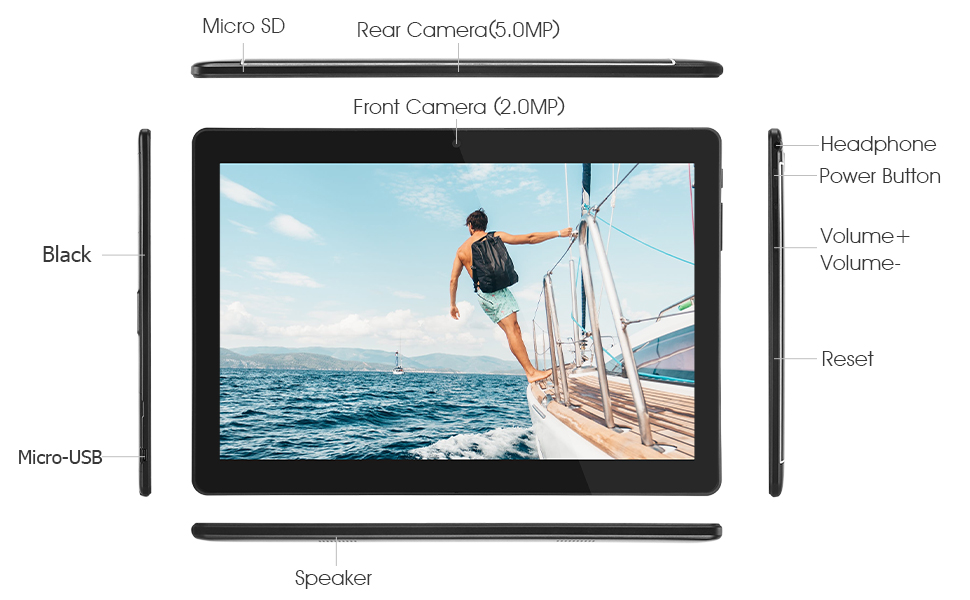
This diagram illustrates the various physical components and ports of the Veidoo 10-inch Android Tablet PC. It clearly labels the Micro SD card slot, the 5.0MP rear camera, the 2.0MP front camera, the headphone jack, the power button, the volume up and down buttons, the reset pinhole, the Micro-USB charging port, and the speaker.
- Ranura Micro SD: Para almacenamento ampliable.
- Cámara traseira (5.0MP): Para facer fotos e vídeos.
- Cámara frontal (2.0MP): Para videochamadas e selfies.
- Jack para auriculares: Conecta auriculares de 3.5 mm.
- Botón de encendido: Manter premido para acender/apagar, premer brevemente para durmir/activar.
- Botóns de volume: Axustar o volume do son.
- Restablecer Pinhole: Use a thin object to reset the device if unresponsive.
- Porto micro-USB: Para carga e transferencia de datos.
- Relator: Saída de audio.
3.2 Contido do paquete
Asegúrate de que todos os elementos estean presentes na caixa do produto:

This image displays the items typically found inside the Veidoo 10-inch Android Tablet PC product box. It includes the tablet itself, a black protective case, a power adapter (wall charger), a USB charging and data cable, a service warranty card, and a leaflet containing frequently asked questions and support information.
- Veidoo 10-inch Android Tablet PC
- Adaptador de alimentación
- Cable USB
- Protective Case (optional, may vary by package)
- Manual de usuario (este documento)
- Tarxeta de garantía do servizo
- FAQ Leaflet
4. Configuración
4.1 Carga da batería
Before first use, fully charge the tablet. Connect the USB cable to the tablet's Micro-USB port and the other end to the power adapter. Plug the adapter into a wall outlet. The charging indicator will show the charging status. A full charge typically takes 3-4 hours.

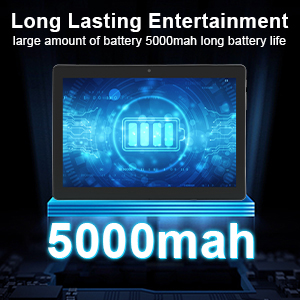
This image focuses on the Veidoo 10-inch Android Tablet PC's battery capacity, prominently displaying a battery icon and '5000mAh'. This signifies the tablet's 5000mAh battery, designed to provide extended usage time for entertainment and productivity.
4.2 Acendido/Apagado
- Para acender: Press and hold the Power button until the Veidoo logo appears on the screen.
- Para apagar: Mantén premido o botón de acendido/apagado ata que apareza un menú. Selecciona "Apagar" e confirma.
- Durmir/Espertar: Briefly press the Power button to put the tablet to sleep or wake it up.
4.3 Inserting SIM and Micro SD Cards
The tablet supports dual SIM cards for 3G phone calls and a Micro SD card for expandable storage.
- Locate the SIM/SD card slot on the side of the tablet.
- Abra a tapa da ranura con coidado.
- Insert the SIM card(s) and/or Micro SD card into the designated slots with the gold contacts facing down. Ensure they are correctly seated.
- Peche a tapa da ranura con seguridade.
This image demonstrates the storage capabilities of the Veidoo 10-inch Android Tablet PC, showing multiple applications and content open. It highlights the device's 16GB internal storage (ROM) and its ability to expand storage up to 32GB via a Micro SD card, allowing for ampespazo para aplicacións, fotos e vídeos.
4.4 Configuración inicial
Ao acendelo por primeira vez, a tableta guiarache polo proceso de configuración inicial:
- Seleccione o seu idioma preferido.
- Conéctate a unha rede wifi.
- Inicia sesión coa túa conta de Google ou crea unha nova. Isto é necesario para descargar aplicacións da Google Play Store.
- Configurar o bloqueo de pantalla (PIN, patrón, contrasinal).
- Review e aceptar os termos e condicións.
5. Funcionamento da tableta
5.1 Navegación básica
- Toca: Selecciona un elemento ou abre unha aplicación.
- Tocar e manter premido: Acceder aos menús contextuais ou mover iconas.
- Pasar o dedo: Desprazarse por pantallas ou listas.
- Pinch-to-Zoom: Achegar ou afastar imaxes e web páxinas.
5.2 Conectividade (Wi-Fi e Bluetooth)
- Wi-Fi: Ir a Configuración > Rede e internet > Wi-Fi. Turn Wi-Fi on, select your network, and enter the password.
- Bluetooth: Ir a Configuración > Dispositivos conectados > BluetoothActiva o Bluetooth, busca dispositivos e emparéllaos co accesorio que desexes.
5.3 Making Phone Calls (3G)
With a valid SIM card inserted, you can make and receive 3G phone calls:

This image shows a group of four individuals participating in a video call using the Veidoo 10-inch Android Tablet PC. This illustrates the tablet's capability for video conferencing and its 3G phone call functionality, allowing users to connect with others remotely.
- Abre o Teléfono aplicación.
- Dial the number using the keypad or select a contact.
- Toca o botón de chamada para iniciar a chamada.
5.4 Uso das cámaras
The tablet is equipped with a front and rear camera for photos and videos.
- Abre o Cámara aplicación.
- Cambia entre as cámaras dianteira e traseira usando a icona da cámara.
- Toca o botón do obturador para sacar unha foto ou iniciar/deter a gravación de vídeo.
5.5 Xestión do almacenamento
Podes view and manage your tablet's internal and external storage:
- Ir a Configuración > Almacenamento.
- Here you can see storage usage and free up space by deleting unnecessary files or uninstalling apps.
5.6 Installing and Uninstalling Apps
This image features the Veidoo 10-inch Android Tablet PC showcasing its Android 10 operating system with a multitude of application icons. This highlights that the device is GMS (Google Mobile Services) certified, ensuring access to Google Play Store and other Google services.
- Instalar: Abre o Google Play Store app, search for your desired app, and tap Instalar.
- Desinstalar: Ir a Configuración > Aplicacións e notificacións > Ver todas as aplicacións. Select the app you wish to uninstall and tap Desinstalar.
6. Mantemento
- Limpeza: Usa un pano suave e sen fiapos para limpar a pantalla e a carcasa. Evita produtos de limpeza abrasivos ou solventes.
- Actualizacións de software: Regularly check for system updates in Configuración > Sistema > Actualización do sistema para garantir un rendemento e unha seguridade óptimos.
- Coidado da batería: To prolong battery life, avoid fully discharging the battery frequently. Store the tablet in a cool, dry place when not in use for extended periods.
- Copia de seguridade de datos: Regularly back up important data to a cloud service or external storage device to prevent data loss.
7 Solución de problemas
| Problema | Posible Solución |
|---|---|
| A tableta non se acende | Ensure the battery is charged. Connect the charger and wait a few minutes before attempting to power on. If unresponsive, try pressing the reset pinhole. |
| A pantalla non responde | Restart the tablet by holding the Power button. If that doesn't work, use the reset pinhole. Ensure the screen is clean and dry. |
| Non se pode conectar á wifi | Check if Wi-Fi is enabled in settings. Ensure the Wi-Fi password is correct. Restart your router and the tablet. |
| As aplicacións fallan ou conxélanse | Close and reopen the app. Clear the app's cache in Configuración> Aplicacións e notificacións. Update the app or uninstall and reinstall it. Ensure sufficient storage space. |
| Mala duración da batería | Reduce screen brightness. Close unused apps running in the background. Turn off Wi-Fi, Bluetooth, and GPS when not in use. Limit background data usage. |
8. Especificacións
Key technical specifications for the Veidoo 10-inch Android Tablet PC (Model T10):

This image provides a visual summary of the Veidoo Tablet PC's key specifications. It highlights features such as 1GB RAM, a 2MP front and 5MP rear camera setup, a 10.1-inch IPS HD display with 1280x800 resolution, 16GB of internal storage, Android 10 operating system, Wi-Fi connectivity, a Quad-Core CPU, and dual SIM card support.
| Característica | Detalle |
|---|---|
| Nome do modelo | Touch (T10) |
| Tamaño de visualización da pantalla de pé | 10.1 polgadas |
| Resolución de pantalla | 800 x 1280 (IPS) |
| RAM | 1 GB (DDR3 SDRAM) |
| Tamaño do disco duro / memoria flash | 16 GB (expandable up to 32GB via Micro SD) |
| Tipo sen fíos | 802.11b, 802.11b/g (Wi-Fi), Bluetooth |
| Duración media da batería | 6 Hours (5000mAh Lithium Polymer) |
| Plataforma de hardware | Android |
| Sistema Operativo | Android 6.0 Marshmallow (GMS Certified) |
| Peso do elemento | 2.86 libras |
| Dimensións do produto | 9.49 x 6.69 x 0.37 polgadas |
| Traseira WebResolución de cámara | 5 MP |
| Fronte WebResolución de cámara | 2 MP |
| Número de procesadores | 4 (catro núcleos) |
| Fonte de enerxía | Alimentado por batería, eléctrico con cable |
9. Garantía e soporte
Your Veidoo Tablet PC comes with a service warranty. Please refer to the included Service Warranty Card for specific terms and conditions, including warranty period and coverage details.
For technical support, troubleshooting assistance, or warranty claims, please contact Veidoo customer service. Contact information can typically be found on the warranty card or the official Veidoo website. When contacting support, please have your model number (T10) and purchase information ready.
You can also visit the official Veidoo store on Amazon for more information and support resources: Veidoo Store


