1. Introdución
This manual provides comprehensive instructions for the setup, operation, and maintenance of your Drawmer CMC2 Compact Monitor Controller. Please read this manual thoroughly before using the device to ensure proper functionality and to maximize its performance.
2. Información de seguridade
- Fonte de alimentación: Use only the factory-supplied 15V DC power supply. Using an incorrect power supply may damage the unit and void the warranty.
- Ventilación: Asegúrese de que haxa unha ventilación axeitada arredor da unidade. Non bloquee as aberturas de ventilación.
- Humidade: Non expoña a unidade á choiva, á humidade ou ao exceso de humidade.
- Limpeza: Desconecte a alimentación antes de limpar. Use un pano seco e suave. Non empregue produtos de limpeza líquidos nin aerosois.
- Servizo: Encomende calquera tarefa de mantemento a persoal de servizo cualificado. Non intente abrir nin reparar a unidade vostede mesmo.
3. Contido do paquete
Verifique que o seu paquete conteña os seguintes elementos:
- Drawmer CMC2 Compact Monitor Controller
- 15V DC Power Supply Unit
- Manual de usuario (este documento)
4. Produto rematadoview
4.1 Controis do panel frontal
The front panel provides all primary controls for audio monitoring and source selection.

Figura 4.1: Fronte view of the Drawmer CMC2 Compact Monitor Controller, showing all knobs and buttons for input selection, speaker selection, master volume, headphone control, and mix check functions.
- AUX INPUT Knob: Adjusts the level of the auxiliary input.
- SOURCE SELECT Buttons (I/P1, I/P2, AUX): Selecciona a fonte de entrada de audio activa.
- SPEAKER SELECT Buttons (A, B, SUB): Activates the selected speaker outputs.
- Botón de volume principal: Controls the overall output level to the selected speakers.
- Botón MUTE: Mutes all speaker outputs.
- HEADPHONE Knob: Axusta o volume da saída de auriculares.
- MIX CHECK Buttons (ØREV, MONO, DIM): Provides phase reverse, mono sum, and dim functions for mix analysis.
- AUX INPUT (3.5mm Jack): Front panel auxiliary input for portable devices.
- HEADPHONE Output (6.35mm Jack): Front panel headphone output.
4.2 Conexións do panel traseiro
The rear panel houses all audio input and output connectors, along with the power input.

Figura 4.2: Traseira view of the Drawmer CMC2 Compact Monitor Controller, displaying the DC power input, speaker outputs (Mono/Sub, R-B-L, R-A-L), and inputs (R-2-L, R-1-L).
- DC=15V Input: Connect the supplied 15V DC power adapter here.
- Interruptor de alimentación: Toggles the unit's power on/off.
- SPEAKER OUTPUTS (MONO/SUB, R-B-L, R-A-L): Balanced XLR outputs for connecting up to two pairs of stereo monitors (A and B) and a mono subwoofer.
- INPUTS (R-2-L, R-1-L): Balanced XLR inputs for two stereo audio sources.
5. Configuración
Follow these steps to set up your CMC2 controller:
- Conexión de alimentación: Connect the supplied 15V DC power adapter to the 'DC=15V' input on the rear panel. Plug the adapter into a suitable power outlet. Do not power on the unit yet.
- Conexións de entrada:
- Connect your primary audio source (e.g., audio interface, mixer) to the 'INPUTS R-1-L' using balanced XLR cables.
- Connect a secondary audio source to the 'INPUTS R-2-L' using balanced XLR cables.
- For portable devices, connect to the front panel 'AUX INPUT' (3.5mm jack) or the rear panel RCA auxiliary inputs (if available on your model, refer to specific product documentation).
- Conexións dos altofalantes:
- Connect your main studio monitors to the 'SPEAKER OUTPUTS R-A-L' using balanced XLR cables.
- If using a second pair of monitors, connect them to 'SPEAKER OUTPUTS R-B-L'.
- If using a subwoofer, connect it to the 'SPEAKER OUTPUTS MONO/SUB'.
- Conexión de auriculares: If desired, connect your headphones to the front panel 'HEADPHONE' 6.35mm jack.
- Encendido: Once all connections are secure, press the power switch on the rear panel to turn on the CMC2.
6. Instrucións de funcionamento
This section details the functions of the CMC2's controls.
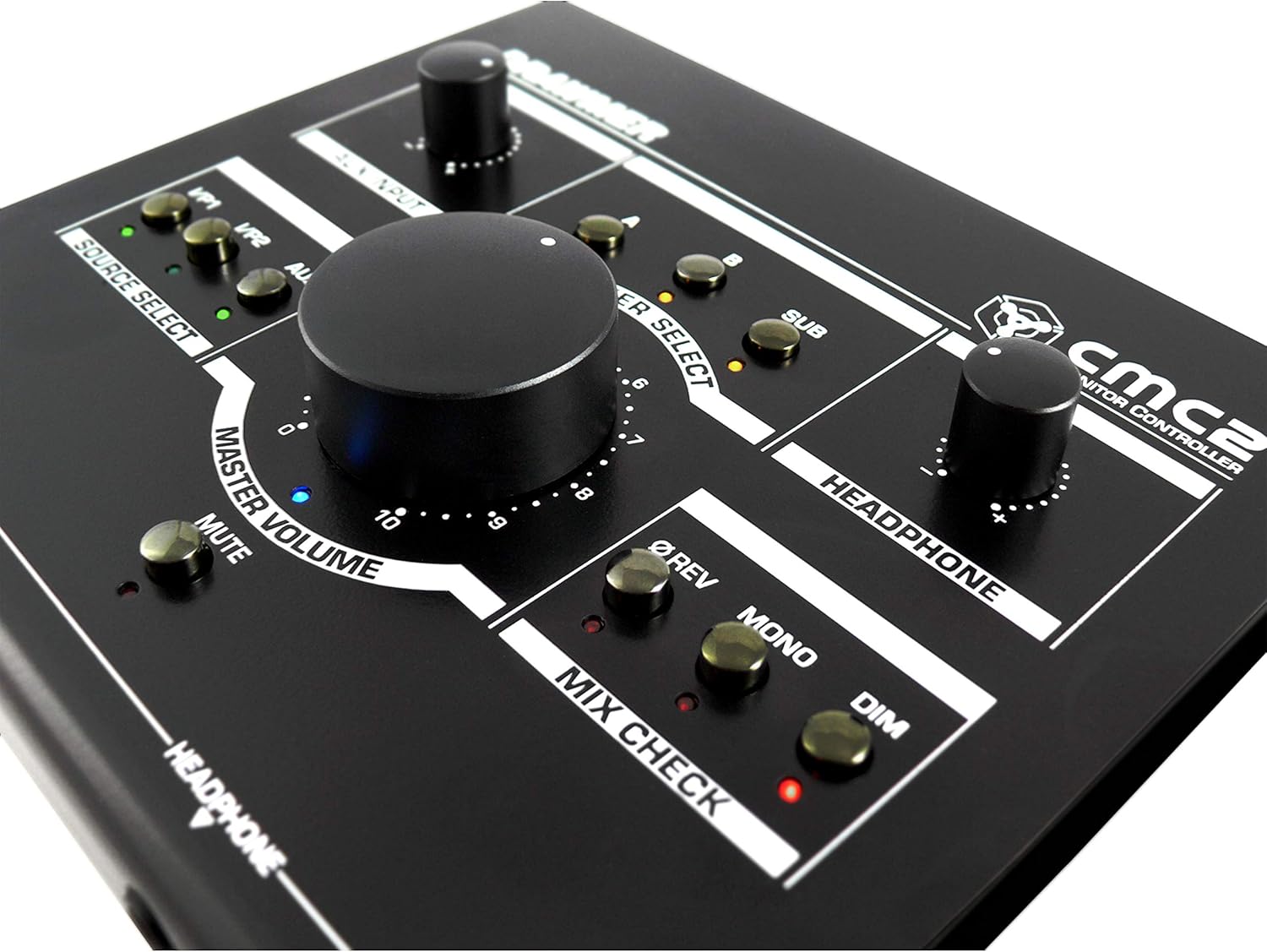
Imaxe 6.1: Primeiro plano view of the Drawmer CMC2 front panel, highlighting the master volume, source select, speaker select, headphone, and mix check controls.
6.1 Selección da fonte
- Preme o I/P1 button to select the audio source connected to Input 1.
- Preme o I/P2 button to select the audio source connected to Input 2.
- Preme o AUX button to select the auxiliary input (front panel 3.5mm jack).
- Only one source can be active at a time. The LED next to the selected button will illuminate.
6.2 Selección de altofalantes
- Preme o A button to route the selected source to Speaker Output A.
- Preme o B button to route the selected source to Speaker Output B.
- Preme o SUB button to route the selected source to the Subwoofer Output.
- Multiple speaker outputs can be active simultaneously (e.g., A and SUB). The LEDs indicate active outputs.
6.3 Control de volume
- Xira o grande VOLUME MESTRE knob clockwise to increase the output level to the selected speakers, and counter-clockwise to decrease it.
- Xire o AURICULAR knob to adjust the listening level for connected headphones.
- Xire o ENTRADA AUX knob to adjust the input level of the auxiliary source.
6.4 Mix Check Functions
- Preme o ØREV button to reverse the phase of the right channel, useful for checking phase compatibility.
- Preme o MONO button to sum the stereo signal to mono, allowing you to check for mono compatibility issues in your mix.
- Preme o DIM button to temporarily reduce the output volume by a fixed amount, useful for quick listening level changes without losing your main volume setting.
6.5 Función de silencio
- Preme o MUTO button to instantly silence all active speaker outputs. The LED will illuminate when mute is active. Press again to unmute.
7. Mantemento
The Drawmer CMC2 is designed for reliable operation with minimal maintenance.
- Limpeza: Keep the unit clean by wiping it with a dry, soft, lint-free cloth. Avoid abrasive cleaners or solvents.
- Ambiente: Operate the unit in a clean, dry environment, away from direct sunlight, heat sources, and excessive dust.
- Ventilación: Asegúrate de que as ranuras de ventilación non estean obstruídas para evitar o sobrequecemento.
8 Solución de problemas
If you encounter issues with your CMC2, refer to the following common problems and solutions:
- Sen enerxía:
- Ensure the 15V DC power adapter is securely connected to the unit and a working power outlet.
- Check that the rear panel power switch is in the 'ON' position.
- Sen saída de audio:
- Verify that the correct input source (I/P1, I/P2, or AUX) is selected and its LED is illuminated.
- Ensure that at least one speaker output (A, B, or SUB) is selected and its LED is illuminated.
- Check that the MASTER VOLUME knob is turned up and the MUTE button is not active (LED off).
- Confirm all audio cables are securely connected to both the CMC2 and your speakers/audio sources.
- Test with different cables or audio sources to isolate the problem.
- Audio distorsionado:
- Reduce the input level from your audio source.
- Lower the MASTER VOLUME on the CMC2.
- Comprobe se os cables de audio están danados.
- Headphone Output Not Working:
- Ensure headphones are fully plugged into the front panel jack.
- Adjust the HEADPHONE volume knob.
- Test with a different pair of headphones.
If the problem persists, contact Drawmer customer support or your authorized dealer for assistance.
9. Especificacións
| Nome do modelo | CMC2 |
| Marca | Debuxante |
| Usos recomendados | Monitorización de audio |
| Tecnoloxía de conectividade | XLR, RCA (Auxiliary) |
| Modo de saída de audio | Estéreo |
| Tipo de altofalante | Monitor |
| Dimensións do produto | 13 x 9 x 3 polgadas (33 x 22.86 x 7.62 cm) |
| Peso do elemento | 3 libras (1.36 kg) |
| Fabricante | Debuxante |
10. Garantía e soporte
The Drawmer CMC2 Compact Monitor Controller is covered by a manufacturer's warranty. Please refer to the warranty card included with your product or visit the official Drawmer websitio web para obter información detallada sobre os termos e condicións da garantía.
For technical support, service, or further inquiries, please contact your authorized Drawmer dealer or the Drawmer customer support team through their official channels.


