1. Introdución
This manual provides detailed instructions for the installation, operation, and maintenance of your Aerocool Streak Mid-Tower ATX PC Gaming Case. Designed for both new and experienced PC builders, the Streak case offers a compact design with a polished aluminum front panel, vibrant RGB lighting, and a full tempered glass side panel to showcase your components. It supports various cooling configurations to ensure optimal performance for your system.
2. Información de seguridade
Please read and understand all safety instructions before installing or operating the PC case. Failure to do so may result in personal injury or damage to the product.
- Desconecte sempre a fonte de alimentación da toma de corrente antes de realizar calquera instalación ou mantemento.
- Be aware of sharp edges inside the case. Handle components with care to avoid cuts.
- Keep small parts and screws away from children.
- Asegúrese de conectar a terra adecuada para evitar descargas eléctricas.
- Do not expose the case to water or excessive humidity.
3. Contido do paquete
Verifica que todos os elementos estean presentes no paquete:
- Aerocool Streak Mid-Tower ATX PC Gaming Case
- Caixa de accesorios (parafusos, separadores, bridas para cables, etc.)
- Manual de usuario (este documento)
4. Case Components Overview
Familiarize yourself with the various parts of your Aerocool Streak case.

Figura 4.1: En ángulo view of the Aerocool Streak PC case, showcasing the RGB front panel and tempered glass side panel.

Figura 4.2: Ángulo de arriba abaixo view of the Aerocool Streak PC case, highlighting the top panel and front I/O ports.
4.1 Front I/O Ports
The front I/O panel provides convenient access to essential connections.
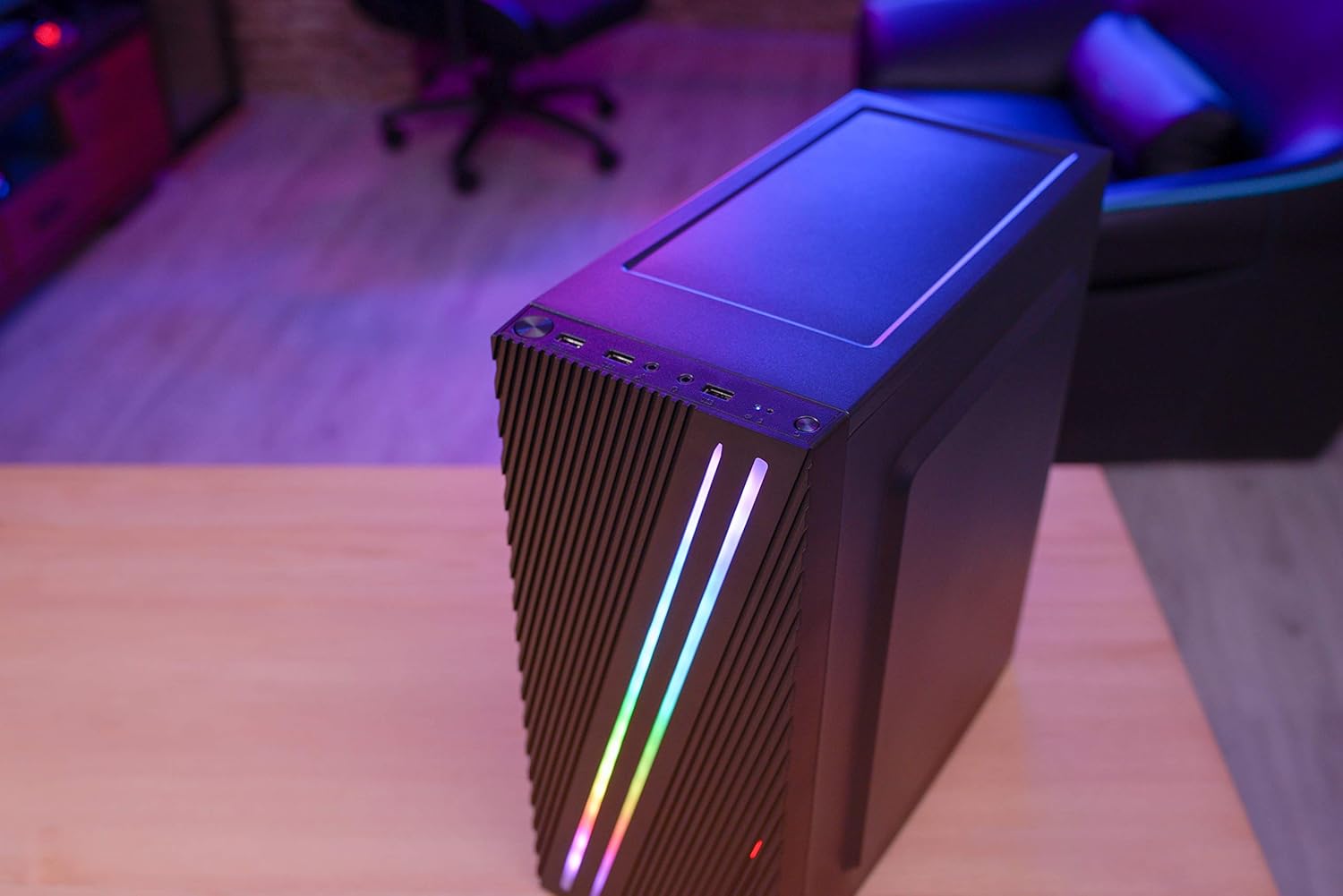
Figura 4.3: Close-up of the front I/O panel, showing the power button, LED control button, USB 3.0 port, two USB 2.0 ports, and HD audio/microphone jacks.
- Botón de encendido: To turn the system on/off.
- Botón de control LED: To cycle through RGB lighting modes.
- Porto USB 3.0 (x1): Para a transferencia de datos a alta velocidade.
- Portos USB 2.0 (x2): Para dispositivos USB estándar.
- HD Audio & Mic Jacks: Para conectar auriculares e micrófonos.
4.2 Disposición interior
The interior is designed for efficient component installation and cable management.

Figura 4.4: Interno view of the Aerocool Streak PC case, showing the motherboard tray, drive bays, and cable routing cutouts.
5. Configuración e instalación
Follow these steps to assemble your PC components within the Aerocool Streak case.
5.1 Preparación
- Desembale a caixa e retire todos os materiais de embalaxe.
- Coloque a caixa sobre unha superficie estable e plana.
- Gather necessary tools: Phillips head screwdriver, cable ties (included in accessory box).
- Remove the tempered glass side panel by unscrewing the four thumb screws.
5.2 Instalación da placa base
The Aerocool Streak supports ATX, Micro-ATX, and Mini-ITX motherboards.

Figura 5.1: Diagram illustrating the compatible motherboard sizes (Mini-ITX, Micro-ATX, ATX) within the case.
- Install the necessary motherboard standoffs into the motherboard tray according to your motherboard's form factor.
- Place your motherboard carefully onto the standoffs, aligning the screw holes.
- Fixe a placa base cos parafusos proporcionados.
5.3 Instalación da Unidade de Alimentación (PSU).
The case features a bottom-mount PSU design.
- Deslice a fonte de alimentación no compartimento correspondente na parte inferior traseira da caixa.
- Secure the PSU to the case rear with screws.
5.4 Instalación da unidade de almacenamento
Install your 2.5" SSDs and 3.5" HDDs.
- SSD de 2.5 polgadas: Mount SSDs to the designated 2.5" drive trays or mounting points on the motherboard tray.
- Discos duros de 3.5 polgadas: Install HDDs into the drive cage located beneath the PSU shroud.
5.5 Expansion Card Installation (Graphics Card, etc.)
The case supports high-end graphics cards up to 335mm in length.
- Retire as tapas das ranuras PCIe necesarias da parte traseira da caixa.
- Insert your expansion card into the corresponding PCIe slot on the motherboard.
- Secure the card with a screw.
5.6 Instalación do sistema de refrixeración
The Aerocool Streak supports both air and liquid cooling solutions.

Figura 5.2: Diagram showing air cooling options, including front 120mm fans (optional) and a rear 80mm fan (included).

Figura 5.3: Diagram illustrating liquid cooling support, specifically a 240mm radiator at the front (optional).
- Refrixeración por aire: The case supports up to two 120mm fans at the front (optional) and includes one 80mm fan at the rear.
- Refrixeración líquida: A 240mm radiator can be installed at the front of the case (optional).
- Install fans or radiators into their respective mounting points and secure them with screws.
5.7 Xestión de cables
Utilize the cable routing cutouts and tie-down points behind the motherboard tray to organize cables for improved airflow and aesthetics.
- Route all power and data cables through the designated cutouts.
- Use cable ties to bundle and secure cables neatly.
6. Instrucións de funcionamento
6.1 Acendido do sistema
- Ensure all components are correctly installed and all cables are securely connected.
- Connect the power cable to your PSU and then to a wall outlet.
- Xire o interruptor de alimentación da fonte de alimentación á posición "ON".
- Press the power button on the front I/O panel of the case to start your system.
6.2 Control de iluminación RGB
The Aerocool Streak features 18 distinct RGB lighting modes on its front panel.

Figura 6.1: The Aerocool Streak PC case with its vibrant RGB lighting illuminated on the front panel.
- Preme o Botón de control LED on the front I/O panel to cycle through the 18 available lighting modes.
- These modes include 11 RGB flow modes and 7 static color modes.
7. Mantemento
Un mantemento regular axuda a garantir a lonxevidade e o rendemento óptimo da carcasa e os compoñentes do teu PC.
7.1 Limpeza da carcasa
- Exterior: Use un suave, damp pano para limpar as superficies exteriores. Evite produtos de limpeza abrasivos.
- Interior: Periodically use compressed air to remove dust buildup from inside the case, especially around fans and heatsinks.
7.2 Mantemento do filtro de po
The case may include removable dust filters to prevent dust ingress. Clean these filters regularly.
- Locate and carefully remove any dust filters (e.g., top, bottom, front).
- Clean the filters with water and mild soap, or use compressed air.
- Asegúrate de que os filtros estean completamente secos antes de volvelos instalar.
8 Solución de problemas
If you encounter issues with your Aerocool Streak case, refer to the following common problems and solutions.
- O sistema non se acende:
- Check all power connections, including the PSU to the wall, PSU switch, and motherboard power cables.
- Ensure the front panel power switch cable is correctly connected to the motherboard.
- RGB lighting is not working:
- Verify that the RGB lighting cables are properly connected to the power supply or motherboard RGB header.
- Press the LED control button to cycle through modes, as it might be on a static black mode.
- Poor airflow/overheating:
- Ensure all case fans are spinning correctly.
- Clean any dust filters and internal components.
- Verify proper fan orientation for optimal airflow (intake/exhaust).
9. Especificacións
| Característica | Especificación |
|---|---|
| Nome do modelo | Raia |
| Número de modelo | ACCM-PV19012.11 |
| Tipo de caso | Media Torre |
| Compatibilidade da placa base | ATX, Micro ATX, Mini ITX |
| Material | Tempered Glass (side panel) |
| Cor | Negro |
| Portos de E / S dianteiros | 1x USB 3.0, 2x USB 2.0, HD Audio, Mic, LED Control Button, Power Button |
| Iluminación RGB | 18 Lighting Modes (11 flow, 7 static) |
| Liquidación do refrigerador da CPU | Ata 151 mm |
| Lonxitude da tarxeta gráfica | Ata 335 mm |
| Montaxe da fonte de alimentación | Montaxe inferior |
| Método de arrefriamento | Aire, Auga |
| Fans incluídos | 1 ventilador traseiro de 80 mm |
| Optional Fan Support | Fronte: 2x 120mm |
| Soporte radiador | Front: 1x 240mm (optional) |
10. Garantía e soporte
The Aerocool Streak PC Gaming Case comes with a 2-year warranty on parts. For technical support, warranty claims, or further assistance, please contact your retailer or the official Aerocool support channels. Keep your proof of purchase for warranty validation.


