1. Introdución e finalview
Thank you for choosing the Bewinner 12-inch LED Digital Photo Frame. This device allows you to display your favorite photos, play music and videos, and utilize clock and calendar functions. It features a high-resolution 12-inch LED screen (1280x800) and supports various media formats.

Image: The digital photo frame showcasing its 12-inch LED screen with a high-resolution image.
The frame is constructed from high-quality ABS material and comes with an infrared remote control for convenient operation. It includes built-in speakers and a 3.5mm headphone jack for audio output.
Contido do paquete:
- 1 x Bewinner Digital Photo Frame
- 1 x mando a distancia
- 1 adaptador/cargador de corrente
- 1 x Frame Stand
- 1 x Manual de usuario (este documento)
2. Configuración
2.1 Desembalaxe
Carefully remove all components from the packaging. Ensure all items listed in the package contents are present and undamaged.
2.2 Colocación do soporte
Locate the detachable frame stand. Insert the stand into the designated slot on the back of the digital photo frame. Ensure it is securely attached to provide stable support on any flat surface.

Imaxe: Traseira view of the digital photo frame with the stand in place, highlighting the port layout.
2.3 Conexión de alimentación
Connect the provided power adapter to the DC IN port on the digital photo frame. Plug the other end of the adapter into a standard electrical outlet. The frame will typically power on automatically or enter standby mode.
2.4 Inserting a Memory Card or USB Drive
The digital photo frame supports external storage via SD cards (up to 32GB, not included) and USB 2.0 host devices. Insert your SD card into the memory card slot or connect a USB flash drive to the USB host port. Ensure the media is inserted correctly.
Nota: This device does not have significant internal storage for media files. An external SD card or USB drive is required to display photos, videos, or music.

Imaxe: Side profile of the digital photo frame, illustrating the various input ports including USB and SD card slots.
3. Instrucións de funcionamento
The digital photo frame can be operated using the buttons on the back of the frame or the included infrared remote control.
3.1 Navegación básica
- Botón de encendido: Activa ou desactiva o cadro.
- Botón de menú/configuración: Accesses the main menu and settings.
- Botóns de frecha (Arriba/Abaixo/Esquerda/Dereita): Navega polos menús e selecciona opcións.
- Botón Intro: Confirma as seleccións.
- Botón de saída: Returns to the previous screen or main display.
- Botóns de volume: Adjust audio volume (VOL+, VOL-).
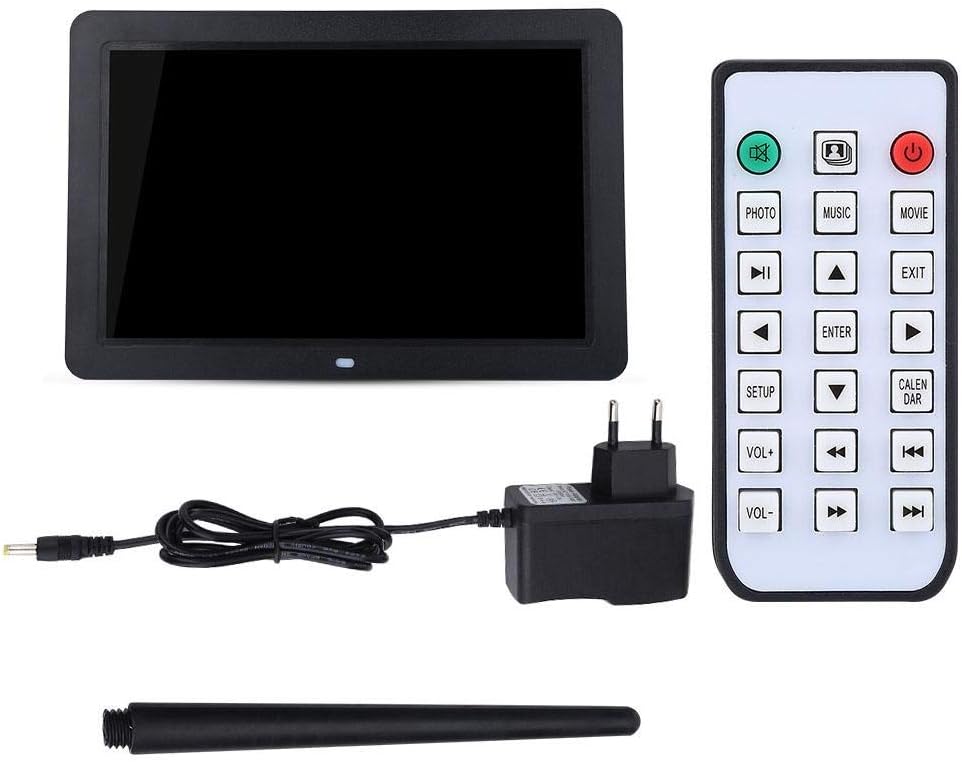
Image: The included remote control, showing buttons for various functions like Photo, Music, Movie, Setup, Calendar, and volume control.
3.2 Reprodución de fotos
The frame supports JPEG and JPG image formats. To view fotos:
- Ensure your photos are stored on a compatible SD card or USB drive.
- From the main menu, select "Photo" or press the FOTO botón do control remoto.
- Navigate to your desired folder or select "All Photos" to start a slideshow.
- You can configure slideshow duration, transition effects, and brightness settings in the "Setup" menu.

Image: The digital photo frame displaying a high-resolution image, demonstrating its photo playback capability.
3.3 Reprodución de música
The frame supports MP3 audio format. To play music:
- Store your MP3 files on a compatible SD card or USB drive.
- From the main menu, select "Music" or press the MÚSICA botón do control remoto.
- Browse your music files and select a track to play.
- Adjust the volume using the VOL+ and VOL- buttons. You can also connect headphones to the 3.5mm jack.

Image: The digital photo frame displaying a visual while playing music, with an overlay indicating MP3 support.
3.4 Reprodución de vídeo
The frame supports various video formats including RM, RMVB, MKV, MOV, M4V, MPG, FLV, PMP, AVI, VOB, DAT, MP4, and 3PG. To play videos:
- Store your video files on a compatible SD card or USB drive.
- From the main menu, select "Movie" or press the PELÍCULA botón do control remoto.
- Explora o teu vídeo files and select a video to play.
- Axuste o volume usando os botóns VOL+ e VOL-.
3.5 Funcións de reloxo e calendario
The digital photo frame includes built-in clock and calendar functions. To access these:
- From the main menu, select "Calendar" or press the CALENDARIO botón do control remoto.
- You can set the time and date in the "Setup" menu.
3.6 Settings and Customization
Access the "Setup" menu to customize various settings:
- Idioma: Seleccione o seu idioma preferido.
- Configuración da pantalla: Adjust brightness, contrast, and aspect ratio.
- Configuración da presentación de diapositivas: Configure interval, transition effects, and playback mode (e.g., sequential, random).
- Data e hora: Establece a data e a hora actual.
- Reprodución automática: Set the frame to automatically play music, images, videos, or a mixed sequence upon startup.
4. Mantemento
4.1 Limpeza da pantalla
To clean the LED screen, gently wipe it with a soft, lint-free cloth. For stubborn smudges, slightly dampLimpa o pano con auga ou cunha solución de limpeza apta para pantallas. Evita o uso de produtos químicos agresivos ou materiais abrasivos.
4.2 Coidados xerais
- Keep the digital photo frame away from direct sunlight, excessive heat, and moisture.
- Evite deixar caer ou someter o dispositivo a fortes impactos.
- Do not attempt to disassemble the frame, as this will void any potential warranty and may cause damage.
- When not in use for extended periods, unplug the power adapter.
5 Solución de problemas
If you encounter issues with your Bewinner Digital Photo Frame, please refer to the following common problems and solutions:
| Problema | Posible causa/solución |
|---|---|
| O marco non se acende. |
|
| No photos/videos/music displayed. |
|
| O control remoto non funciona. |
|
| Images appear washed out or too bright/dark. |
|
| Audio is distorted or no sound. |
|
6. Especificacións
| Característica | Detalle |
|---|---|
| Marca | Vencedor |
| Número de modelo | Bewinner1moich0rzq-03 |
| Tamaño da pantalla | 12 polgadas |
| Tipo de visualización | LED |
| Resolución | 1280 x 800 (WXGA) |
| Relación de aspecto | 16:9 |
| Brillo | 250 cd/m² |
| Material de carcasa | ABS (acrilonitrilo butadieno estireno) |
| Cor | Negro |
| Soporte de almacenamento externo | SD Card (up to 32GB), USB 2.0 Host |
| Formatos de imaxe admitidos | JPEG, JPG (Base Encoding) |
| Formatos de música admitidos | MP3 |
| Formatos de vídeo admitidos | RM, RMVB, MKV, MOV, M4V, MPG, FLV, PMP, AVI, VOB, DAT, MP4, 3PG |
| Supported E-book Format | TXT |
| Altavoz incorporado | 8Ω2W * 2 |
| Método de operación | Infrared Remote Control, On-frame Buttons |
| Interfaces | 3.5mm Headphone Jack, Memory Card Slot, USB 2.0 Host, Mini USB Adapter, Charging Port |
| Dimensións (L x W x H) | Aprox. 30.5 x 20.2 x 2.5 cm (12.0 x 7.9 x 1.0 polgadas) |
| Peso | Aprox. 895 g |
| Fonte de enerxía | Cable eléctrico |

Image: Dimensional diagram of the digital photo frame, indicating its width and height.
7. Garantía e soporte
Information regarding specific warranty terms and conditions for the Bewinner Digital Photo Frame is not provided in the product details. For warranty claims or technical support, please refer to the retailer or manufacturer's official websitio onde adquiriu o produto.
Please note that information on spare parts availability and guaranteed software updates is also not available.


