Introdución
The Sonos Port is a versatile streaming component designed to integrate your traditional stereo or home theater system into the Sonos ecosystem. It allows you to stream music, podcasts, audiobooks, and internet radio through your existing amplified audio equipment. Additionally, you can stream audio from vinyl, CDs, or stored files to Sonos speakers in other rooms of your home, creating a unified multi-room audio experience.

Figura 1: De arriba abaixo view of the Sonos Port, a compact black streaming device.
Configuración
Follow these steps to set up your Sonos Port and integrate it with your audio system.
1. Desembalaxe e colocación
- Carefully remove the Sonos Port and its accessories from the packaging.
- Place the Sonos Port near your stereo receiver or amplifier, ensuring adequate ventilation.
- Asegúrese de colocar o dispositivo nunha superficie plana e estable.

Figure 2: The Sonos Port is designed to fit discreetly into various home environments, such as a bookshelf.
2. Connecting to Power and Network
- Connect the included power cord to the Sonos Port and then to a power outlet.
- For network connectivity, you can use Wi-Fi or an Ethernet cable. For a wired connection, plug an Ethernet cable from your router into the Ethernet port on the Sonos Port.
3. Conexións de audio
The Sonos Port offers various audio input and output options to connect with your existing audio equipment.

Figure 3: Rear panel of the Sonos Port, displaying connectivity options including Ethernet, RCA input/output, and Digital Out.
- Output to Receiver/Ampmáis vivo:
- Use an RCA cable to connect the "OUT" ports on the Sonos Port to an available audio input (e.g., "CD," "Aux," or "Line In") on your stereo receiver or ampmáis vivo.
- Alternatively, use a coaxial digital cable to connect the "DIGITAL OUT" port on the Sonos Port to a digital audio input on your receiver for a digital audio signal.
- Input from External Devices (Line-In):
- To stream audio from an external device like a turntable, CD player, or phone through your Sonos system, connect the device's audio output to the "IN" ports on the Sonos Port using an RCA cable.
- Disparador de 12 V:
- Se o teu amplifier supports a 12V trigger, connect a 3.5mm cable from the 12V trigger output on the Sonos Port to the 12V trigger input on your amplifier. This allows the Port to automatically turn on your amplifier when music starts playing.

Figure 4: The Sonos Port seamlessly integrates with existing home audio setups, connecting to a receiver.
4. Sonos App Setup
- Descarga a aplicación Sonos desde a tenda de aplicacións do teu dispositivo (iOS ou Android).
- Open the Sonos app and follow the on-screen instructions to set up your new Sonos system or add the Port to an existing system.
- The app will guide you through connecting the Port to your Wi-Fi network and configuring its settings.
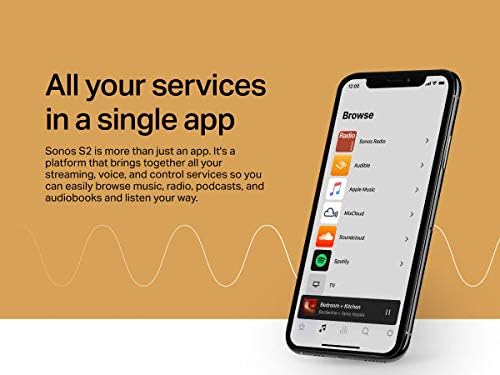
Figure 5: The Sonos app provides comprehensive control over your Sonos system and integrated streaming services.
Operating Your Sonos Port
Once set up, the Sonos Port provides various ways to enjoy your audio content.
Streaming Music and Content
- Aplicación Sonos: Use the Sonos app to browse and play music from hundreds of streaming services, internet radio stations, podcasts, and audiobooks.
- Apple AirPlay 2: Stream audio directly from your iPhone, iPad, or Mac to the Sonos Port. You can also use Siri to control playback via AirPlay 2.
- Transmisión directa: Stream from supported apps like Amazon Music, Audible, Pandora, Spotify, and TIDAL directly to your Sonos system.

Figure 6: Multiple control options are available for the Sonos Port, including the Sonos app, AirPlay 2, direct streaming, and voice commands.
Usando Line-In
The line-in feature allows you to bring audio from external sources into your Sonos system.
- Select the Line-In source within the Sonos app.
- Audio playing on the connected external device (e.g., turntable, CD player) will now play through your connected stereo system and can also be grouped with other Sonos speakers in your home.
Audio multi-habitación
Expand your sound system by wirelessly connecting Sonos speakers around your home. The Port allows you to play audio from your traditional setup (e.g., vinyl) across all your Sonos speakers, or stream digital content to your traditional system and other Sonos speakers simultaneously.

Figure 7: The Sonos Port enables a truly immersive listening experience by integrating with other Sonos speakers for multi-room audio.
Mantemento
Proper care ensures the longevity and optimal performance of your Sonos Port.
- Limpeza: Use a soft, dry cloth to wipe the exterior of the Sonos Port. Avoid using abrasive cleaners, solvents, or chemical sprays, as these can damage the finish.
- Ventilación: Ensure the device has adequate airflow around it. Do not block ventilation openings.
- Ambiente: Keep the Sonos Port away from direct sunlight, heat sources, and excessive moisture.
Resolución de problemas
If you encounter issues with your Sonos Port, try the following troubleshooting steps.
Sen son ou audio intermitente
- Comproba as conexións: Verify that all audio cables (RCA, digital coaxial) are securely connected between the Sonos Port and your receiver/ampmáis vivo.
- Selección de entrada: Ensure your receiver/amplifier is set to the correct input source where the Sonos Port is connected.
- Niveis de volume: Check the volume levels on both the Sonos app and your receiver/ampmáis vivo.
- Conectividade de rede: Confirm that the Sonos Port is connected to your Wi-Fi network. Check the status light on the Port (solid white indicates connected). If using Ethernet, ensure the cable is properly connected.
- Reiniciar dispositivos: Power cycle the Sonos Port by unplugging it from the power outlet for 10 seconds, then plugging it back in. Also, restart your router and receiver/ampmáis vivo.
Sonos App Cannot Find Port
- Comprobación da rede: Ensure your mobile device running the Sonos app is connected to the same Wi-Fi network as your Sonos Port.
- Reiniciar a aplicación: Close and reopen the Sonos app.
- Restart Port: Power cycle the Sonos Port as described above.
- Router Interference: If issues persist, try moving the Port closer to your router or connecting it via Ethernet temporarily to rule out wireless interference.
Line-In Not Working
- Conexión por cable: Verify the RCA cable from your external device is connected to the "IN" ports on the Sonos Port.
- Saída do dispositivo de orixe: Ensure the external device (e.g., turntable, CD player) is powered on and playing audio, and its output volume is sufficient.
- Selección de aplicacións: In the Sonos app, ensure you have selected the correct Line-In source for the Port.
Especificacións
| Característica | Detalle |
|---|---|
| Nome do modelo | Porto de Sonos |
| Número de modelo do artigo | PORT1US1BLK |
| Dimensións do produto | 1.61 x 5.43 x 5.43 polgadas (4.09 x 13.79 x 13.79 cm) |
| Peso do elemento | 1.04 libras (0.47 kg) |
| Cor | Negro |
| Tecnoloxía de conectividade | Ethernet, Wi-Fi |
| Tipo de conector | RCA, Coaxial Digital Out |
| Tipo de controlador | Control de aplicacións |
| Característica especial | Disparador de 12V |
O que hai na caixa
- Porto de Sonos
- Cable de alimentación
- Guía de inicio rápido
Información da garantía
For detailed warranty information, please refer to the official Sonos websitio web ou a tarxeta de garantía incluída co produto. Os termos e condicións da garantía poden variar segundo a rexión.
Apoio
For further assistance, technical support, or to access the full range of Sonos resources, please visit the official Sonos support websitio:
You can also find helpful information and community forums on the Sonos Store page on Amazon: Tenda Sonos en Amazon.


