1. Introdución
This manual provides detailed instructions for the installation, operation, and maintenance of your ZEBRONICS H81 LGA 1150 Socket Motherboard. Designed for Intel Core i7/i5/i3 processors, this ATX motherboard supports DDR3 memory and features an Intel H81 Chipset. Please read this manual thoroughly before proceeding with installation to ensure proper functionality and to prevent damage.

Imaxe 1: Principal view of the ZEBRONICS H81 LGA 1150 Motherboard, showcasina súa disposición e os seus compoñentes.
2. Especificacións
The following table outlines the key technical specifications of the ZEBRONICS H81 Motherboard:
| Característica | Descrición |
|---|---|
| Soporte de procesador | Intel Core i7/i5/i3 processors (LGA 1150 Socket) |
| Chipset | Intel H81 |
| Soporte de memoria | 2 x DDR3 dual-channel slots, 1066/1333/1600MHz, Max 32GB |
| LAN | Realtek 8105E 100/1000 Mbps |
| Audio | Realtek 662, 3x Audio Jacks for 6 channel HD Audio |
| Portos do panel traseiro | 1x USB Mouse/Keyboard, 1x VGA, 1x HDMI, 2x USB 3.0, 2x USB 2.0, 1x LAN, 3x Audio Jacks |
| Conectores a bordo | Front panel, Speaker, Front panel audio, USB 2.0, 4x SATA, 4-pin CPU fan, SYS fan, 24-pin ATX power, 4-pin ATX 12V power, Clear CMOS header |
| Ranuras de expansión | 1 x ranura PCI Express x16 |
| Factor de forma | ATX |
| Dimensións | 21.3 x 5.7 x 26.8 cm |
| Peso | 560 g |

Image 2: Visual representation of key features including H81 Chipset, DDR3 support, LGA 1150 socket, HDMI, 5.1 Audio, 100/1000 LAN, 4 SATA ports, and PCIe slot.
3. Guía de configuración
Follow these steps for proper installation of your motherboard and its components:
- Preparación: Ensure your computer case is compatible with the ATX form factor. Gather necessary tools including a screwdriver, thermal paste, and anti-static wrist strap.
- Instalar CPU: Open the CPU socket lever. Carefully align the CPU with the socket (match the golden triangle on the CPU with the triangle on the socket) and gently place it in. Close the lever to secure the CPU. Apply a thin, even layer of thermal paste to the CPU's heat spreader.
- Instalar o refrixerador da CPU: Mount the CPU cooler according to its manufacturer's instructions, ensuring good contact with the CPU and proper fan orientation. Connect the CPU fan cable to the 4-pin CPU fan connector on the motherboard.
- Instalar RAM: Open the clips on both ends of the DDR3 memory slots. Align the RAM modules with the slots, ensuring the notch on the module matches the key in the slot. Press down firmly on both ends until the clips snap into place.
- Montar a placa base: Install the I/O shield into the rear opening of your computer case. Carefully place the motherboard into the case, aligning the screw holes with the standoffs. Secure the motherboard with screws.
- Conectar enerxía: Connect the 24-pin ATX main power connector and the 4-pin ATX 12V CPU power connector from your power supply to the corresponding ports on the motherboard.
- Conectar dispositivos de almacenamento: Use SATA cables to connect your hard drives or SSDs to the SATA ports on the motherboard. Connect the power cables from your power supply to these devices.
- Conectar os cables do panel frontal: Connect the power switch, reset switch, HDD LED, power LED, and front panel audio/USB cables from your case to the respective headers on the motherboard. Refer to the motherboard diagram for correct pin assignments.
- Instalar tarxetas de expansión (opcional): If installing a graphics card or other PCI Express cards, insert them into the appropriate slots and secure them with a screw.
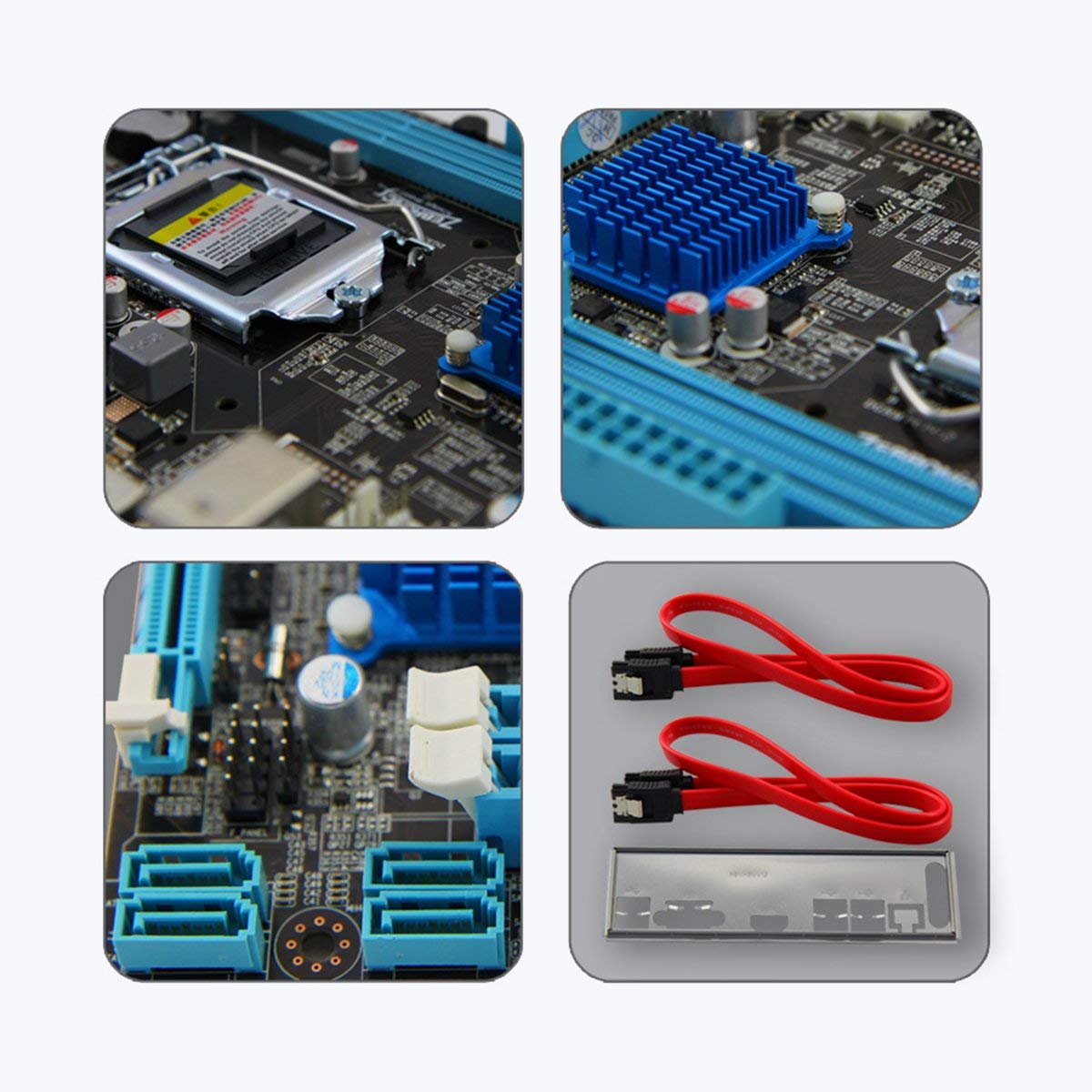
Imaxe 3: Primeiro plano views of motherboard components such as the CPU socket, chipset heatsink, SATA ports, and included accessories like SATA cables and the I/O shield.
4. Instrucións de funcionamento
Unha vez instalados e conectados todos os compoñentes, podes acender o sistema:
- Encendido inicial: After ensuring all connections are secure, connect your monitor, keyboard, and mouse. Plug in the power cord and press the power button on your computer case.
- Configuración da BIOS/UEFI: During startup, repeatedly press the designated key (usually DEL or F2) to enter the BIOS/UEFI setup utility. Here you can configure boot order, system time, and other advanced settings. Save changes and exit to continue booting.
- Instalación do sistema operativo: Insira o soporte de instalación do sistema operativo (unidade USB ou DVD) e siga as instrucións que aparecen na pantalla para instalar o sistema operativo.
- Instalación de controladores: After OS installation, install the necessary drivers for your motherboard (chipset, LAN, audio, graphics) from the included driver CD or the ZEBRONICS websitio.
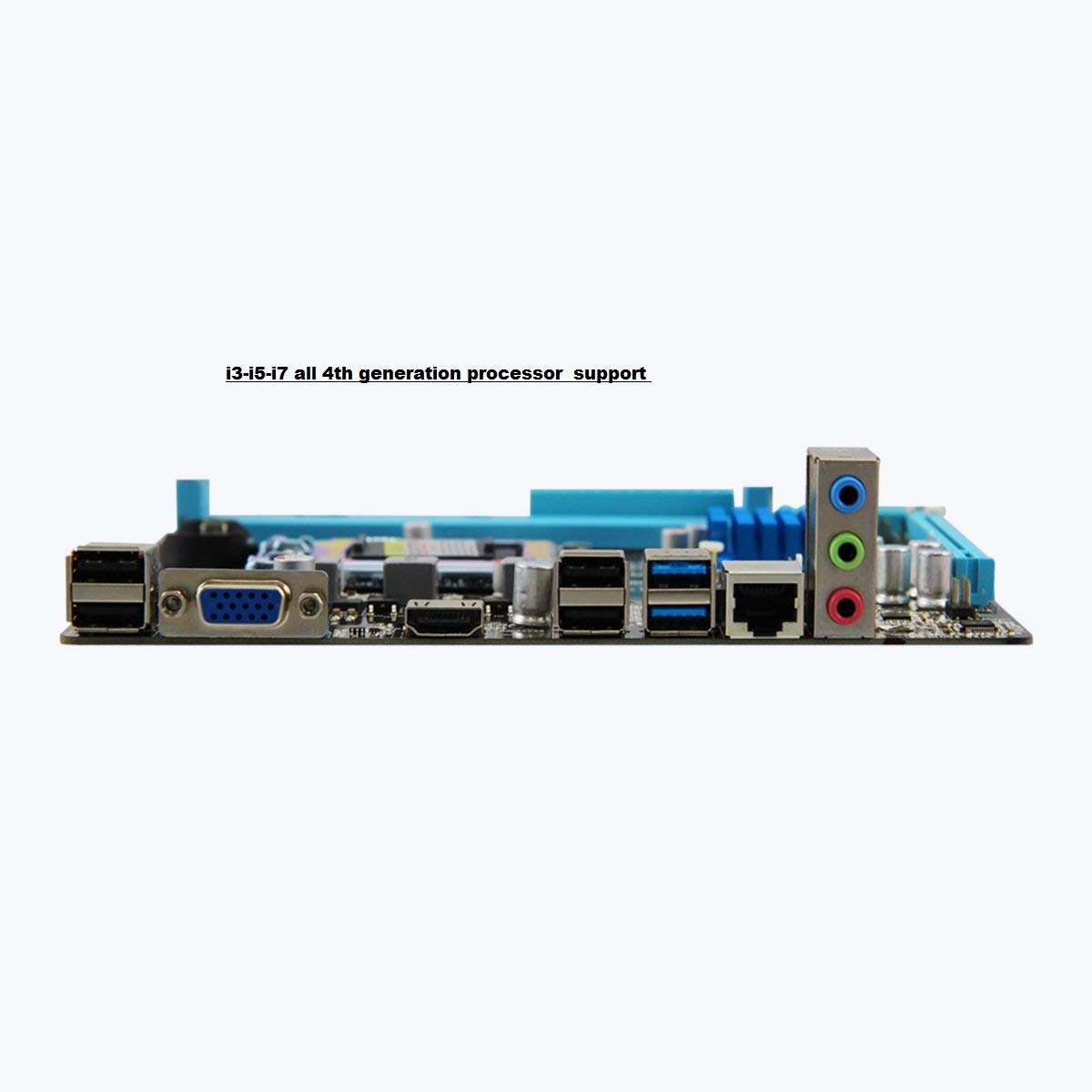
Image 4: Rear I/O panel of the ZEBRONICS H81 Motherboard, showing ports for USB, VGA, HDMI, LAN, and audio.
5. Mantemento
Un mantemento regular axuda a garantir a lonxevidade e o rendemento óptimo da placa base:
- Eliminación de po: Limpa periodicamente o po do interior da carcasa do teu ordenador, especialmente dos disipadores de calor e dos ventiladores, con aire comprimido. Asegúrate de que o sistema estea apagado e desconectado antes de limpalo.
- Actualizacións de controladores: Keep your motherboard drivers (chipset, LAN, audio) updated to the latest versions available from the ZEBRONICS official websitio para garantir a compatibilidade e o rendemento.
- Actualizacións da BIOS/UEFI: Only update the BIOS/UEFI if necessary, following the instructions provided by ZEBRONICS carefully. Incorrect BIOS updates can render your motherboard inoperable.
- Xestión de cables Asegúrate de que os cables internos estean ben colocados para mellorar o fluxo de aire e evitar interferencias.
6 Solución de problemas
Se tes problemas coa túa placa base, consulta os seguintes pasos comúns para a resolución de problemas:
- Sen alimentación/Sen arranque:
- Check all power connections (24-pin ATX, 4-pin ATX 12V, CPU fan).
- Asegúrese de que a fonte de alimentación estea activada e funcione.
- Verifique a conexión do interruptor de alimentación do panel frontal.
- Try clearing the CMOS (refer to the Clear CMOS header on the motherboard).
- Sen visualización:
- Ensure the monitor is connected to the correct video output (VGA or HDMI on the motherboard, or dedicated graphics card).
- Reinstala os módulos de RAM. Tenta arrincar cun só módulo de RAM.
- If using a dedicated graphics card, ensure it is properly seated and powered.
- Inestabilidade/fallos do sistema:
- Check for overheating. Ensure CPU cooler is properly installed and fans are spinning.
- Executa ferramentas de diagnóstico de memoria para comprobar a integridade da RAM.
- Update motherboard drivers and BIOS/UEFI.
- Peripheral Issues (USB, LAN, Audio):
- Ensure drivers for these components are installed and up to date.
- Check physical connections of cables and devices.
- Test with different peripherals to isolate the issue.
7. Garantía e soporte
Your ZEBRONICS H81 Motherboard comes with a 2 ano de garantía provided by CORE COMPUTERS. Please retain your proof of purchase for warranty claims.
For technical support, driver downloads, or further assistance, please visit the official ZEBRONICS support websitio ou póñase en contacto co seu servizo de atención ao cliente.


