1. Introdución
This manual provides instructions for the i-tec USB C Dual Monitor Docking Station (Model C31DUALDPDOCKPD). This docking station is designed to expand the connectivity of your USB-C or Thunderbolt 3 enabled laptop, tablet, or smartphone, allowing for dual external monitor support, multiple USB peripheral connections, Gigabit Ethernet, and power delivery up to 100W.

Image 1.1: i-tec USB C Dual Monitor Docking Station.
2. Produto rematadoview
The i-tec USB C Dual Monitor Docking Station offers a comprehensive set of ports for enhanced productivity and connectivity.
2.1. Disposición de portos

Image 2.1: Front Panel Ports (USB-C 3.1 Gen 2, USB 3.0, Audio/Mic Jack).

Image 2.2: Rear Panel Ports (2x DisplayPort, Gigabit Ethernet, USB-C Power Delivery, Kensington Lock Slot).
2.2. All Connections Diagram

Image 2.3: Comprehensive diagram of all ports and their functions.
3. Instrucións de configuración
Follow these steps to set up your i-tec USB C Dual Monitor Docking Station.
- Conectar a alimentación (opcional pero recomendado): Connect your original USB-C charger (up to 100W) to the USB-C Power Delivery (USB-C PD) port on the docking station. This provides power to the docking station and charges your connected laptop. If not using a power adapter, some USB 3.0 and USB-C data ports may not function optimally with high-power devices.
- Conectar ao dispositivo anfitrión: Use the integrated USB-C cable to connect the docking station to your laptop's USB-C or Thunderbolt 3 port.
- Conectar monitores externos: Connect your monitors to the two DisplayPort outputs on the docking station.
- Windows/Ubuntu: Supports up to two 4K/60Hz external monitors with extended or mirrored display modes.
- macOS: Supports up to one 4K/60Hz external monitor. When connecting two monitors, both will display the same image due to macOS not supporting Multi-Stream Transport (MST) technology.
- Conectar periféricos: Connect your USB devices (keyboard, mouse, external drives) to the available USB 3.0 and USB 2.0 ports. Connect your Ethernet cable to the Gigabit Ethernet (LAN) port for a wired network connection. Connect headphones or a microphone to the combined audio/mic jack.
Video 3.1: Official i-tec USB C Dual Monitor Docking Station setup and feature overview. This video demonstrates the connection process and various functionalities of the docking station.
4. Instrucións de funcionamento
4.1. Botón de acendido
The docking station features a power button on the top panel. Press and hold the power button for approximately 2 seconds to turn the unit on or off. This delay prevents accidental shutdowns.
4.2. Configuración da pantalla
After connecting external monitors, configure your display settings through your operating system. Options typically include:
- Ampliar: Each monitor displays a separate desktop, expanding your workspace.
- Mirror/Duplicate: All monitors display the same content.
- Só segunda pantalla: Only the external monitor(s) display content, with the laptop screen turned off.
4.3. Charging Functionality
When a compatible USB-C charger is connected to the docking station's USB-C PD port, the docking station will pass through up to 100W of power to charge your connected laptop. Additionally, the USB-C 3.1 Gen 2 port on the front panel supports fast charging for smartphones and tablets.
5. Compatibilidade
The docking station is compatible with devices featuring a USB-C or Thunderbolt 3 port that supports video output (DisplayPort Alternate Mode).
5.1. Sistemas operativos compatibles
- Windows 10 e posteriores
- macOS X and later
- Android
- ChromeOS
- Linux
5.2. Display Output Limitations

Image 5.1: Display output capabilities across different operating systems.
Note for macOS Users: macOS does not support Multi-Stream Transport (MST) technology. This means that when two monitors are connected to the docking station on a macOS device, both monitors will display the same image (mirroring), not an extended desktop across two separate displays. For extended desktop functionality on macOS, only one external monitor can be used with the docking station.
5.3. VESA Mounting Support
The docking station features VESA support, allowing for vertical installation behind a VESA compatible monitor. This helps in creating a clean and organized workspace.

Image 5.2: Docking station mounted behind a VESA compatible monitor for a clean desk setup.
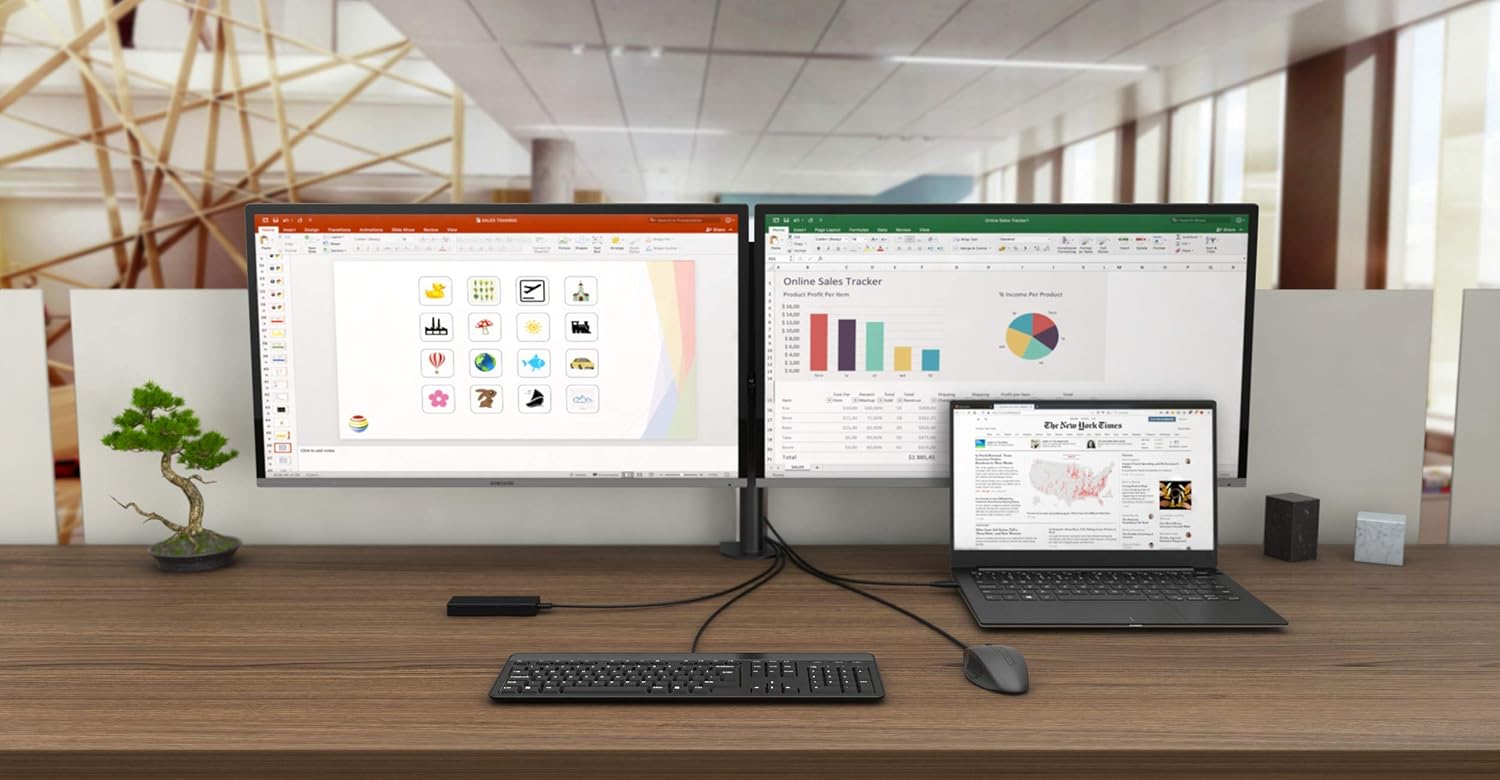
Imaxe 5.3: Ex.ample of a complete workstation setup utilizing the docking station.
6. Mantemento
To ensure optimal performance and longevity of your docking station, follow these maintenance guidelines:
- Garda o dispositivo nun ambiente seco, lonxe da luz solar directa e de temperaturas extremas.
- Evite expoñer o dispositivo á auga ou a outros líquidos.
- Limpa o dispositivo cun pano suave e seco. Non empregues produtos químicos agresivos nin produtos de limpeza abrasivos.
- Asegúrese de que haxa unha ventilación axeitada arredor da estación de acoplamento para evitar o sobrequecemento.
7 Solución de problemas
Se tes problemas coa túa estación de acoplamento, consulta os seguintes problemas e solucións comúns:
- Sen saída de visualización:
- Ensure your laptop's USB-C port supports DisplayPort Alternate Mode.
- Verify that the DisplayPort cables are securely connected to both the docking station and the monitors.
- Check your operating system's display settings to ensure external monitors are detected and configured correctly.
- If using macOS, remember that only one external monitor will extend the desktop; two monitors will mirror.
- USB Devices Not Functioning:
- Ensure the docking station is connected to a power adapter, especially for high-power USB devices like external SSDs. Without a power adapter, USB 3.0 and USB-C data ports may have limited functionality.
- Tenta conectar o dispositivo USB a un porto diferente da estación de acoplamento.
- Ensure device drivers are up to date on your host system.
- Sen conexión de rede:
- Verifique que o cable Ethernet estea conectado correctamente tanto á estación de acoplamento como ao seu enrutador/módem.
- Comproba a configuración de rede no teu dispositivo anfitrión.
- O portátil non carga:
- Ensure your original USB-C charger is connected to the USB-C PD port on the docking station.
- Verifica que o porto USB-C do teu portátil sexa compatible con Power Delivery.
8. Especificacións
| Marca | i-tec |
| Modelo | C31DUALDPDOCKPD |
| Interface de hardware | Thunderbolt 3, USB Type C |
| Dispositivos compatibles | Devices with USB-C or Thunderbolt-3 ports |
| Saída de vídeo | 2x DisplayPort (up to 4K/60Hz each) |
| Portos USB | 3x USB 3.1, 1x USB-C 3.1 (Gen 2), 2x USB 2.0 |
| Ethernet | Gigabit Ethernet RJ-45 (10/100/1000 Mbps) |
| Audio | Combined Audio/Microphone Jack |
| Entrega de enerxía | Up to 100W (via USB-C PD port) |
| Seguridade | Ranura de bloqueo de Kensington |
| Dimensións (L x W x H) | 4.45" x 1.57" x 4.45" (11.3 cm x 4 cm x 11.3 cm) |
| Peso | 245 gramos |
9. Garantía e soporte
i-tec products are covered by a manufacturer's warranty. For detailed warranty information, please refer to the warranty card included with your product or visit the official i-tec websitio.
9.1. Soporte técnico
For technical assistance, product inquiries, or further support, please contact i-tec customer service:
- Websitio: www.i-tec.pro
- Correo electrónico: support@itecproduct.com
- Teléfono: +420 596 637 125