1. Introdución
This manual provides comprehensive instructions for the setup, operation, and maintenance of your Zebronics Zeb-Ultimate Pro Full HD 1080p Webcam. Please read this manual carefully before using the product to ensure optimal performance and longevity. Keep this manual for future reference.
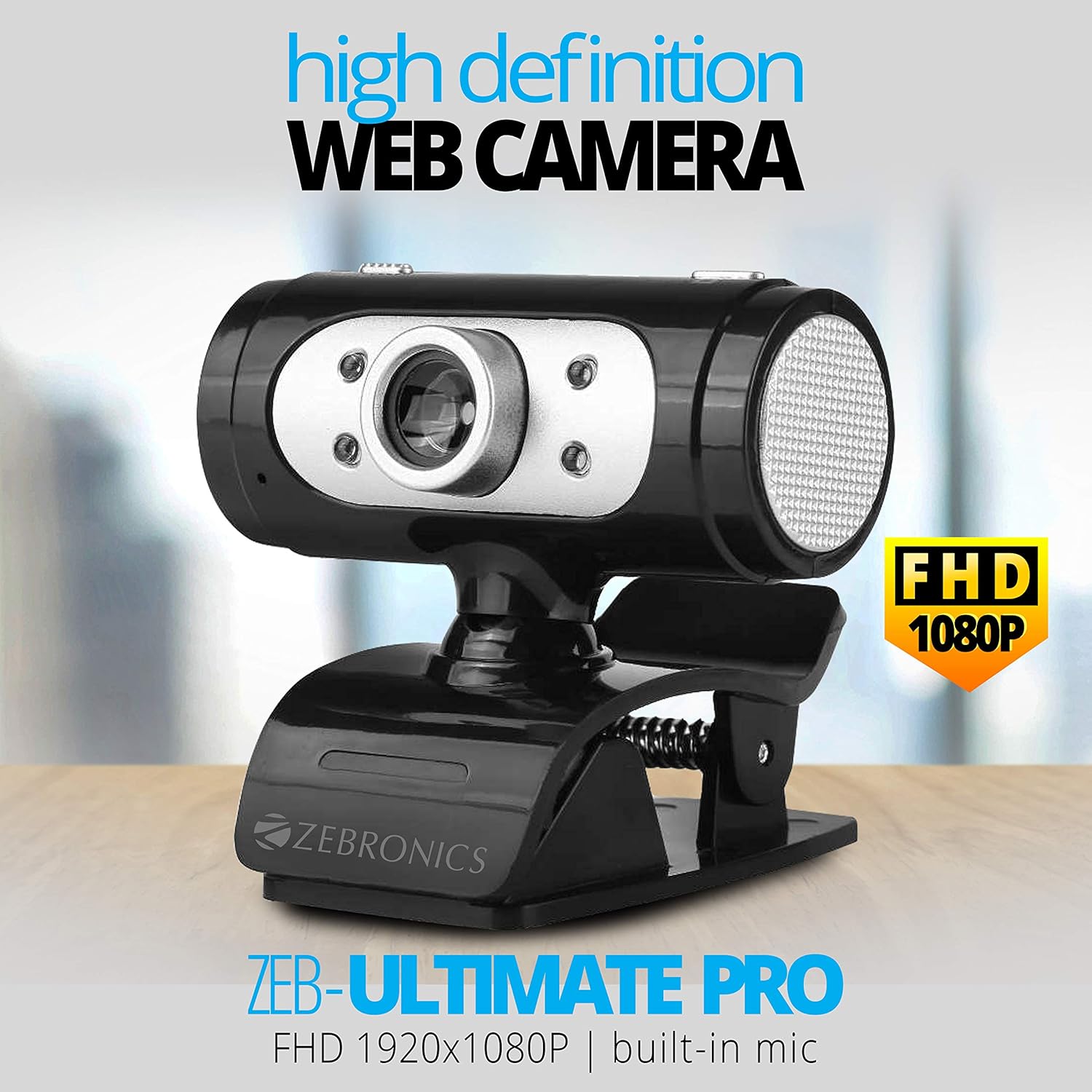
Image 1.1: The Zebronics Zeb-Ultimate Pro Full HD 1080p Webcámara, mostrarasing its design and FHD 1080P capability.
2. Contido do paquete
Verifique que todos os elementos que se indican a continuación estean presentes no paquete do produto:
- Zebronics Zeb-Ultimate Pro Webcam (1 Unit)
3. Produto rematadoview
The Zebronics Zeb-Ultimate Pro is a Full HD webcam designed for clear video communication. It features a 5P quality lens, a built-in microphone, automatic white balance, night vision capabilities, and a manual switch for its integrated LED lighting.
Características principais:
- Resolución Full HD 1080p: Delivers video at 1920x1080 pixels at 30 frames per second.
- 5P Quality Lens: Ensures sharp and clear image capture.
- Micrófono incorporado: Provides integrated audio for video calls.
- Balance de brancos automático: Automatically adjusts color balance for natural-looking video.
- Visión nocturna: Mellora a visibilidade en condicións de pouca luz.
- Interruptor LED manual: Allows user control over the integrated LED light.
- Interface USB: Simple plug-and-play connectivity.

Image 3.1: Diagram illustrating the 5P lens for Full HD videos and the built-in microphone for video calls.

Image 3.2: Visual representation of the USB interface for connectivity and the night vision feature for low-light performance.
4. Instrucións de configuración
Follow these steps to set up your Zebronics Zeb-Ultimate Pro Webleva:
- Desempaquetar o Webleva: Elimina con coidado websaído da súa embalaxe.
- Coloca o Webleva: Coloca o webcam securely on top of your monitor, laptop screen, or a flat surface. The adjustable clip allows for stable placement.
- Conectar ao ordenador: Insert the USB connector of the webcam nun porto USB dispoñible no seu ordenador.
- Instalación automática do controlador: O webcam is designed for plug-and-play operation. Your operating system (Windows, macOS, iOS) should automatically detect and install the necessary drivers. Wait for a notification indicating that the device is ready for use.
- Verificar a instalación: Open a video conferencing application or your computer's camera application to confirm that the webA cámara é recoñecida e mostra vídeo.
5. Instrucións de funcionamento
Once set up, the Zeb-Ultimate Pro WebA cámara está lista para o seu uso con varias aplicacións.
Usando o Webleva:
- Video Calls and Conferences: Launch your preferred video communication software (e.g., Zoom, Microsoft Teams, Google Meet). Select the "Zebronics Zeb-Ultimate Pro" as your video and audio input device in the application's settings.
- Online Classes: O webcam is suitable for participating in or conducting online educational sessions.
- Gravación: Use your computer's native camera application or third-party software to record videos.

Imaxe 5.1: A webcam positioned on a laptop, illustrating its use for webinars e conferencias.

Image 5.2: A child using a laptop with the webcam for online classes, demonstrating its application in education.
Axuste das características:
- Enfoque manual: The lens of the webcam can be rotated to adjust the focus for a sharper image. Turn the lens gently until the image appears clear.
- Luz LED: Use o interruptor manual situado no webcam to turn the integrated LED light on or off, especially useful in low-light environments.
6. Mantemento
Un mantemento axeitado garante a lonxevidade e o rendemento óptimo do seu webleva.
- Limpeza da lente: Gently wipe the lens with a soft, lint-free cloth. Avoid using harsh chemicals or abrasive materials that could scratch the lens.
- Limpeza do corpo: Use un seco ou lixeiramente damp pano para limpar o exterior do webleva.
- Almacenamento: Cando non estea en uso, almacene o webgardar nun lugar limpo e seco, lonxe da luz solar directa e de temperaturas extremas.
- Coidado do cable: Evite dobrar ou retorcer o cable USB excesivamente para evitar danos internos.
7 Solución de problemas
Se tes problemas co teu webcam, refer to the following common problems and solutions:
| Problema | Causa posible | Solución |
|---|---|---|
| Webcam not detected or not working. | Loose USB connection, driver issue, or disabled camera. | Ensure the USB cable is securely connected. Try a different USB port. Restart your computer. Check privacy settings to ensure camera access is enabled for applications. |
| A imaxe está borrosa ou desenfocada. | Axuste incorrecto do enfoque. | Gently rotate the lens of the webcam until the image becomes clear. |
| No audio from the webmicrófono da cámara. | Microphone not selected or muted in software. | In your video conferencing application or system sound settings, ensure the Zebronics webcam's microphone is selected as the input device and is not muted. |
| Mala calidade de imaxe con pouca luz. | Iluminación insuficiente. | Activa o webcam's LED light using its manual switch. Ensure adequate ambient lighting in your environment. |
8. Especificacións
Technical specifications for the Zebronics Zeb-Ultimate Pro Webleva:
- Modelo: Zeb-Ultimate Pro
- Resolución de vídeo: 1920 x 1080 (Full HD)
- Frecuencia de fotogramas: 30 fps
- Sensor de imaxe: CMOS
- Tipo de lente: Lente de calidade 5P
- Interface: USB
- Lonxitude do cable: 1.58 metros
- Características especiais: Built-in Microphone, Auto White Balance, Night Vision, Manual Switch for LED
- Dimensións do produto: 7.2 x 7.2 x 6.4 cm
- Peso do artigo: 90 g
- Sistemas operativos compatibles: Windows, iOS (and generally other USB-compatible systems)
9. Garantía e soporte
For warranty information and technical support, please refer to the official Zebronics website or contact their customer service. Details regarding warranty periods and service centers are typically provided with your purchase documentation or on the manufacturer's websitio.
Fabricante: 13,7, Smith Road, Royapettah CHENNAI-600002


