1. Introdución
Welcome to the Surfans Kids Tablet T57 user manual. This guide provides detailed instructions on how to set up, operate, maintain, and troubleshoot your new 7-inch Android tablet. Designed specifically for children, this tablet features a durable kid-proof case, parental control functions, and pre-installed educational and entertainment applications.
2. Que hai na caixa
Comprobe o contido do seu paquete para asegurarse de que estean presentes todos os elementos:
- 1x Surfans Kids Tablet
- 1x Tablet Stand
- 1x cable USB
- 1x Kids Tablet User Manual (this document)
3. Produto rematadoview e Características
The Surfans Kids Tablet T57 is built with a robust design and features tailored for young users. Below is an overview of its components and key functionalities.
3.1 Compoñentes da tableta
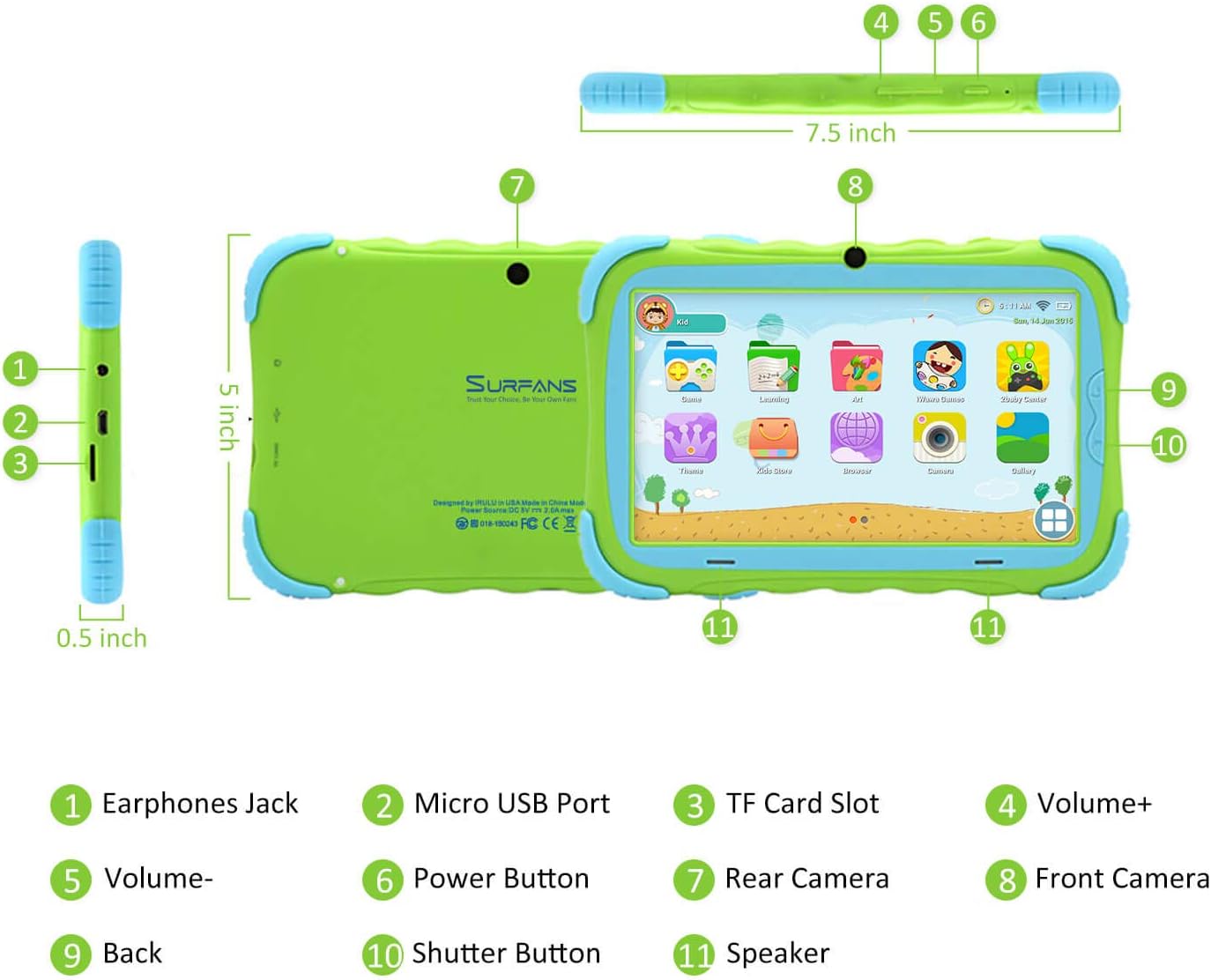
- Conector para auriculares: Para conectar auriculares ou dispositivos de son externos.
- Porto micro USB: Used for charging the tablet and connecting to a computer for data transfer.
- Ranura para tarxetas TF: For inserting a Micro SD card to expand storage capacity (up to 32GB).
- Volume +: Increases the tablet's audio volume.
- Volume-: Decreases the tablet's audio volume.
- Botón de encendido: Press and hold to turn the tablet on/off or restart. Press briefly to turn the screen on/off.
- Cámara traseira: The primary camera located on the back of the tablet.
- Cámara frontal: The camera located on the front, typically used for video calls or selfies.
- Botón Atrás: Navigates back to the previous screen or closes the current application.
- Botón do obturador: Used to capture photos or start/stop video recording in the camera application.
- Relator: Provides audio output from the tablet.
3.2 Características principais
- Kid-Proof Design: Comes with a durable, lightweight, and skin-friendly case designed to protect against drops and bumps.
- 7-inch IPS HD Eye Protection Display: Provides clear visuals while minimizing eye strain.
- OS Android 9.0: Runs on the latest Google Android 9.0 Pie operating system for smooth performance.
- Quad-Core Processor: Ensures responsive performance for apps, games, and videos.
- 1GB RAM & 16GB ROM: Sufficient memory for basic operations and storage, expandable up to 32GB via Micro SD card.
- Modo de control parental: Allows parents to manage content, set time limits, and configure user settings for a safe digital environment.
- Pre-installed Kids Apps: Includes a variety of educational and entertaining apps, with access to the Google Play Store for more content.
- Conectividade Wi-Fi: Supports 802.11g for fast browsing, streaming, and video calls.
- Batería de longa duración: 3000mAh Li-ion Battery provides 3-5 hours of working time, or up to 8 hours of mixed use on a single charge.


4. Guía de configuración
Follow these steps to set up your Surfans Kids Tablet for the first time.
4.1 Cargo inicial
Before first use, fully charge the tablet. Connect the included USB cable to the Micro USB Port (2) on the tablet and plug the other end into a compatible USB power adapter (not included) or a computer USB port. The charging indicator will show the charging status.
4.2 Encendido/apagado
- Para acender: Prema e manteña premido o botón de acendido (6) ata que a pantalla se ilumine.
- Para apagar: Press and hold the Power Button (6) until a power-off menu appears. Select "Power off" and confirm.
- Para reiniciar: Press and hold the Power Button (6) until the power-off menu appears. Select "Restart" and confirm.
- Pantalla activada/desactivada: Briefly press the Power Button (6) to turn the screen on or off without powering down the tablet.
4.3 Conexión Wi-Fi
To access online content and download apps, connect your tablet to a Wi-Fi network:
- From the home screen, swipe down from the top to open the Quick Settings panel.
- Tap and hold the Wi-Fi icon to go to Wi-Fi settings.
- Toggle Wi-Fi ON if it's off.
- Selecciona a rede Wi-Fi desexada da lista.
- Enter the network password if prompted, then tap "Connect".
4.4 Setting Up Parental Control
The Parental Control mode is a key feature for managing your child's tablet usage. This allows you to filter website content, set time limits, and control app access.

Specific steps for setting up parental controls will be available within the tablet's pre-installed Kids app or settings menu. Look for an icon or section labeled "Parental Control" or "Kids Mode" to configure user profiles, allowed applications, and usage schedules.
5. Funcionamento da tableta
This section covers basic operations and how to use the tablet's features.
5.1 Navegación básica
- Touch and Tap: To open apps, select items, or type.
- Pasar o dedo: To scroll through screens, menus, or web páxinas.
- Pinch-to-Zoom: Para ampliar ou reducir imaxes ou web páxinas.
- Pantalla de inicio: A pantalla principal onde podes acceder a aplicacións e widgets.
- Barra de navegación: Situado na parte inferior da pantalla, normalmente inclúe os botóns Atrás, Inicio e Aplicacións recentes.
5.2 Using Kids Mode and Apps
The tablet comes with a dedicated Kids Mode interface, providing a safe and engaging environment for children. This mode typically features a simplified layout and access to pre-approved content.

- Accessing Kids Mode: Usually, there's a specific app icon or a setting to switch to Kids Mode.
- Aplicacións preinstaladas: Explore the various educational games, books, music, and art learning applications.
- Google Play Store: For additional apps, exit Kids Mode (if applicable) and access the Google Play Store. Ensure parental supervision for downloads.


5.3 Media Playback and Camera
- Videos and Music: Use pre-installed media players or download others from the Play Store to enjoy videos and music.
- Cámara: Open the Camera app to use the Front (8) or Rear (7) cameras. Tap the Shutter Button (10) to take photos or record videos.
5.4 Expandable Storage
To expand the tablet's storage, insert a Micro SD card (up to 32GB, not included) into the TF Card Slot (3). This allows for more space for photos, music, movies, and apps.
6. Mantemento
Un mantemento axeitado garante a lonxevidade e o rendemento óptimo da túa tableta.
- Limpeza: Usa un pano suave e sen fiapos para limpar a pantalla e o corpo da tableta. Evita produtos de limpeza abrasivos ou solventes.
- Coidado da batería:
- Evite descargar completamente a batería con frecuencia.
- Non expoñas a tableta a temperaturas extremas.
- Use só o cable USB proporcionado para cargar.
- Actualizacións de software: Comproba periodicamente se hai actualizacións do sistema na configuración da tableta para asegurarte de que tes as últimas funcións e parches de seguridade.
- Xestión de almacenamento: Limpar regularmente o innecesario files e desinstala as aplicacións non utilizadas para liberar espazo de almacenamento e manter o rendemento.
7 Solución de problemas
If you encounter issues with your tablet, refer to the following common problems and solutions.
| Problema | Posible Solución |
|---|---|
| A tableta non se acende. | Ensure the battery is charged. Connect the charger and wait a few minutes before attempting to power on again. If unresponsive, press and hold the Power Button for 10-15 seconds to force a restart. |
| Problemas coa conexión wifi. | Comproba se a wifi está activada na configuración. Reinicia o teu enrutador wifi. Esquécete da rede e volve conectar. Asegúrate de estar dentro do alcance do sinal wifi. |
| Rendemento lento ou aplicacións que se bloquean. | Close unused apps. Clear app caches. Free up storage space by deleting unnecessary files or uninstalling unused apps. Restart the tablet. |
| A pantalla non responde. | Restart the tablet by holding the Power Button. Ensure the screen is clean and dry. |
| Cannot download apps from Google Play Store. | Check your Wi-Fi connection. Ensure sufficient storage space. Verify parental control settings are not blocking downloads. Clear cache and data for Google Play Store app. |
| A tableta non carga. | Check the USB cable and charger for damage. Try a different USB port or power adapter. Ensure the Micro USB Port is clean and free of debris. |
If the problem persists after trying these solutions, please contact Surfans customer support for further assistance.
8. Especificacións
Detailed technical specifications for the Surfans Kids Tablet T57:
| Característica | Detalle |
|---|---|
| Nome do modelo | T57 |
| Sistema Operativo | Android 9 Pie |
| Tamaño da pantalla | 7 polgadas |
| Resolución de pantalla | Pantalla HD IPS de 1024 x 600 |
| Procesador | 1.5 GHz Quad-core Cortex-X7 (ARM) |
| RAM | 1 GB |
| Almacenamento interno (ROM) | 16 GB |
| Almacenamento ampliable | Admite tarxetas Micro SD de ata 32 GB |
| Tipo sen fíos | Wi-Fi 802.11g |
| Cámaras | Front Camera, Rear Camera (2 MP) |
| Batería | Batería de iones de litio de 3000 mAh |
| Duración media da batería | 3-5 hours (working time), 8 hours (mixed use) |
| Dimensións (LxWxH) | 7.5 x 5 x 0.5 polgadas |
| Peso do elemento | 1.22 libras |
| Cor | Verde |
9. Garantía e soporte
For warranty information, technical support, or any inquiries regarding your Surfans Kids Tablet T57, please refer to the contact details provided on the product packaging or the official Surfans website. Surfans is committed to providing fast response and technical assistance for any issues encountered during use.


