1. Introdución
The MOES WiFi WS-EUR-C Intelligent Touch Panel Roller Blind Switch provides versatile control for motorized roller blinds and curtains. This device supports manual touch control, RF remote control, voice commands via smart assistants, and intelligent control through the Smart Life/Tuya App. It allows for flexible operation and integration into smart home systems.
2. Información de seguridade
Warning: Electrical installation should only be performed by a qualified electrician. Ensure power is disconnected before installation to prevent electric shock.
- Desconecte sempre a alimentación do disxuntor antes de instalar ou realizar o mantemento do interruptor.
- Ensure the switch is installed in a dry environment, away from moisture.
- Do not exceed the maximum load rating of 2.5A / 500W.
- Verify all wiring connections are secure and correct according to the wiring diagram.
- Este dispositivo está deseñado só para uso en interiores.
3. Especificacións do produto
| Característica | Especificación |
|---|---|
| Número de modelo | WS-EUR-C |
| Dimensións (LxWxH) | 8.5 x 8.5 x 3.5 cm |
| Material | Plástico |
| Vol. Operativotage | 90-250 V CA 50/60 Hz |
| Máx. Carga | 2.5A / 500W |
| Protocolo sen fíos | Wi-Fi 2.4 GHz + RF |
| Tipo de cambio | Touch Panel, Single Pole |
| Certificacións | CE, IP44 |

4. Guía de instalación
4.1 Diagrama de cableado

Siga estes pasos para o cableado:
- Desconectar a enerxía: Antes de comezar, asegúrese de que a subministración principal de enerxía do circuíto estea desconectada no disyuntor.
- Identificar os cables: Identify the Live (L), Neutral (N), Ground, Open (for curtain up), and Close (for curtain down) wires from your existing setup and the motorized blind.
- Connect Live (L): Connect the Live wire from your power supply to the 'L' terminal on the switch.
- Connect Neutral (N): Connect the Neutral wire from your power supply to the 'N' terminal on the switch.
- Conectar os cables do motor: Connect the 'Open' wire from your motorized blind to the 'OPEN' terminal on the switch. Connect the 'Close' wire from your motorized blind to the 'CLOSE' terminal on the switch.
- Conectar a terra: Connect the Ground wire to the appropriate terminal, typically indicated by a ground symbol.
- Conexións seguras: Ensure all wire connections are tight and properly insulated.
4.2 Instalación física
After wiring, carefully place the switch module into the wall box. Secure the switch to the wall box using screws. Attach the glass touch panel cover. Restore power at the circuit breaker.
5. Configuración e emparellamento da aplicación
The MOES Smart Curtain Switch is compatible with the Smart Life and Tuya Smart applications. Follow these steps to pair your device:
- Descarga a aplicación: Descarga a aplicación "Smart Life" ou "Tuya Smart" desde a tenda de aplicacións do teu dispositivo móbil (iOS ou Android).
- Rexistrarse/Iniciar sesión: Abre a aplicación e rexistra unha conta nova ou inicia sesión cunha xa existente.
- Entrar no modo de emparellamento: With the switch powered on, press and hold the 'Pause' button on the switch for approximately 5-10 seconds until the Wi-Fi indicator light on the switch starts blinking rapidly. This indicates pairing mode.
- Engadir dispositivo: In the app, tap the '+' icon (usually in the top right corner) to add a device. The app should automatically detect the switch via Wi-Fi and Bluetooth for quick pairing.
- Confirm Network: Select your 2.4GHz Wi-Fi network and enter the password. The switch does not support 5GHz Wi-Fi.
- Emparellamento completo: Follow the on-screen prompts to complete the pairing process. Once successfully paired, the Wi-Fi indicator light on the switch will stop blinking and remain solid.

6. Instrucións de funcionamento
6.1 Control táctil manual
The touch panel allows for direct control of your roller blinds:
- Open Button (<>): Touch to open the roller blind.
- Pause Button (||): Touch to pause the roller blind at its current position.
- Close Button (X): Touch to close the roller blind.
6.2 Control de aplicacións
Once paired with the Smart Life/Tuya app, you can control your blinds remotely and set schedules:
- Control remoto: Use the app interface to open, close, or pause your blinds from anywhere.
- Programación: Set timers and schedules for automatic opening and closing of blinds at specific times (e.g., 7:30 AM open, 6:00 PM close).
- Conta atrás: Utilize countdown functions (e.g., 1/5/30 minutes, 1 hour) for temporary operations.
- Estado do relé: Configure the switch to remember its last state (open/closed/paused) after a power outage.


6.3 Control por voz
Integrate the switch with Amazon Alexa or Google Home for hands-free voice control:
- Vincular contas: In the Alexa or Google Home app, link your Smart Life/Tuya account.
- Descubra dispositivos: Pídelle ao teu asistente intelixente que descubra novos dispositivos.
- Comandos de voz: Use commands like "Alexa, open the curtains" or "Hey Google, close the blinds."

Control remoto 6.4 RF
The switch supports RF433 remote control for an additional layer of convenience. Pair a compatible RF remote (sold separately) to control your blinds without Wi-Fi or app access.

Control de retroiluminación 6.5
The switch features an optional backlight. You can turn the backlight ON or OFF via the Smart Life/Tuya app settings to avoid disturbance during sleep or to suit your preference.

6.6 Control e uso compartido de grupos
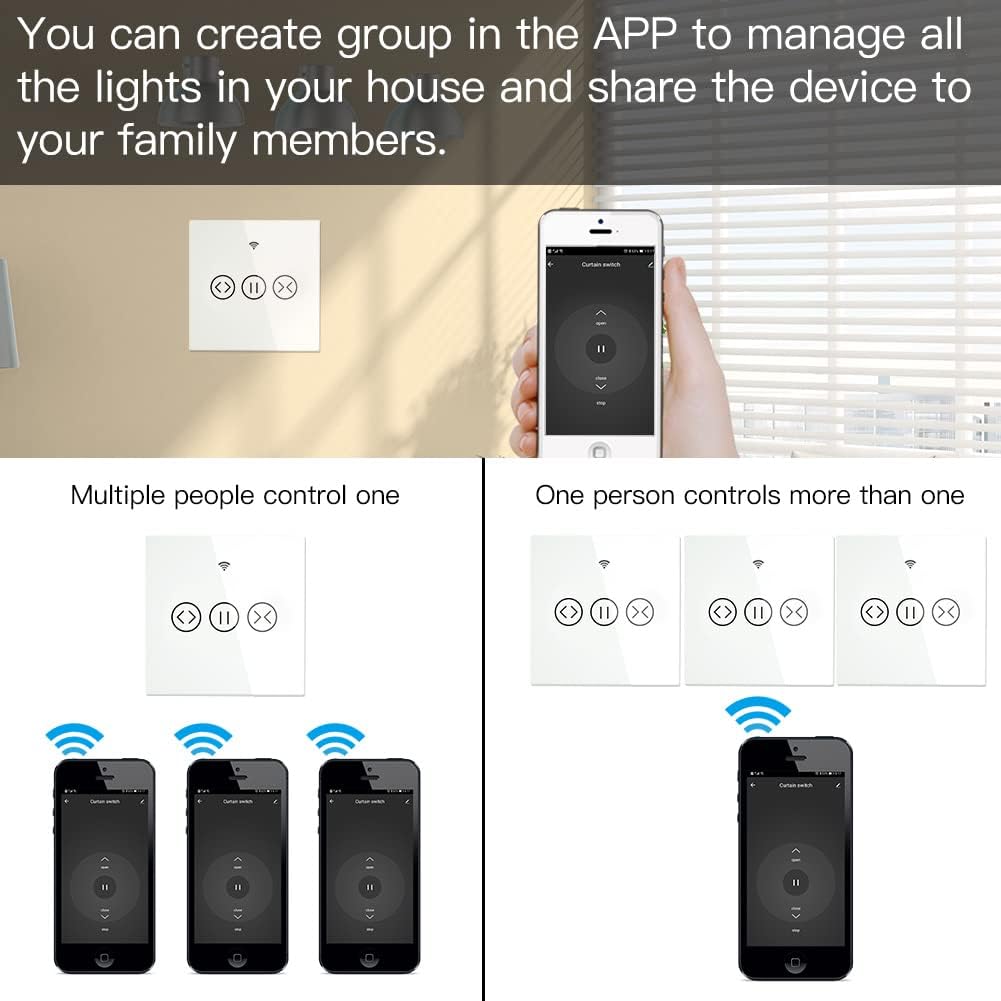
The app allows you to create groups of switches for simultaneous control and share device access with family members.
- Control de grupo: Manage multiple switches as a single group within the app.
- Compartir dispositivos: Share control of the switch with other users who have the Smart Life/Tuya app, granting them access to operate the blinds.
7. Mantemento
- Limpeza: Use a soft, dry cloth to clean the touch panel. Avoid abrasive cleaners or solvents.
- Actualizacións de firmware: Consulta periodicamente a aplicación Smart Life/Tuya para ver se hai actualizacións de firmware dispoñibles para garantir un rendemento e unha seguridade óptimos.
- Condicións ambientais: Ensure the switch is not exposed to extreme temperatures or humidity, which can affect its operation and lifespan.
8 Solución de problemas
- O interruptor non responde: Check if the power supply is connected correctly. Ensure the circuit breaker is ON.
- App Pairing Failure:
- Asegúrate de que a túa rede wifi sexa de 2.4 GHz. As redes de 5 GHz non son compatibles.
- Verify the switch is in pairing mode (Wi-Fi indicator blinking rapidly).
- Comproba que o contrasinal da túa wifi sexa correcto.
- Achega o interruptor ao enrutador Wi-Fi durante o emparellamento.
- O control por voz non funciona:
- Confirm that your Smart Life/Tuya account is correctly linked to Alexa or Google Home.
- Ensure the device is discovered and named appropriately in the smart assistant app.
- Comproba a túa conexión a internet.
- RF Remote Not Controlling: Ensure the RF remote is properly paired with the switch according to its own instructions.
- Conexión intermitente: Check your Wi-Fi signal strength. Consider repositioning your router or using a Wi-Fi extender.
9. Garantía e soporte
This MOES product comes with a 2 ano de garantía e a Garantía de reembolso de 60 días to ensure your satisfaction. For technical support or warranty claims, please contact MOES customer service through the retailer where you purchased the product or visit the official MOES websitio para información de contacto.


