1. Produto rematadoview
The BUSICOM BC-BR1000-C17 is a dedicated USB Type-C cable designed for use with the BUSICOM BC-BR1000 barcode reader. This 1.7-meter cable facilitates a reliable connection between the barcode reader and devices equipped with a USB Type-C port, such as tablet terminals. Its modular design allows for easy replacement and secure attachment to the barcode reader.
2. Instrucións de configuración
Follow these steps to connect your BC-BR1000 barcode reader using the BC-BR1000-C17 USB Type-C cable:
- Prepare the Barcode Reader: Ensure your BUSICOM BC-BR1000 barcode reader is powered off before connecting or disconnecting cables.
- Connect to Barcode Reader: Locate the modular port on your BC-BR1000 barcode reader. Align the modular connector of the BC-BR1000-C17 cable with this port and gently push until it clicks securely into place.
- Conectar ao dispositivo anfitrión: Insert the USB Type-C end of the cable into an available USB Type-C port on your tablet, computer, or other compatible host device. The USB Type-C connector is reversible, so it can be inserted in either orientation.
- Encendido: Once both ends of the cable are securely connected, power on your barcode reader and the host device. The device should automatically detect the barcode reader.

En xeral view of the BUSICOM BC-BR1000-C17 USB Type-C cable, showing both the USB Type-C connector and the modular connector for the barcode reader.
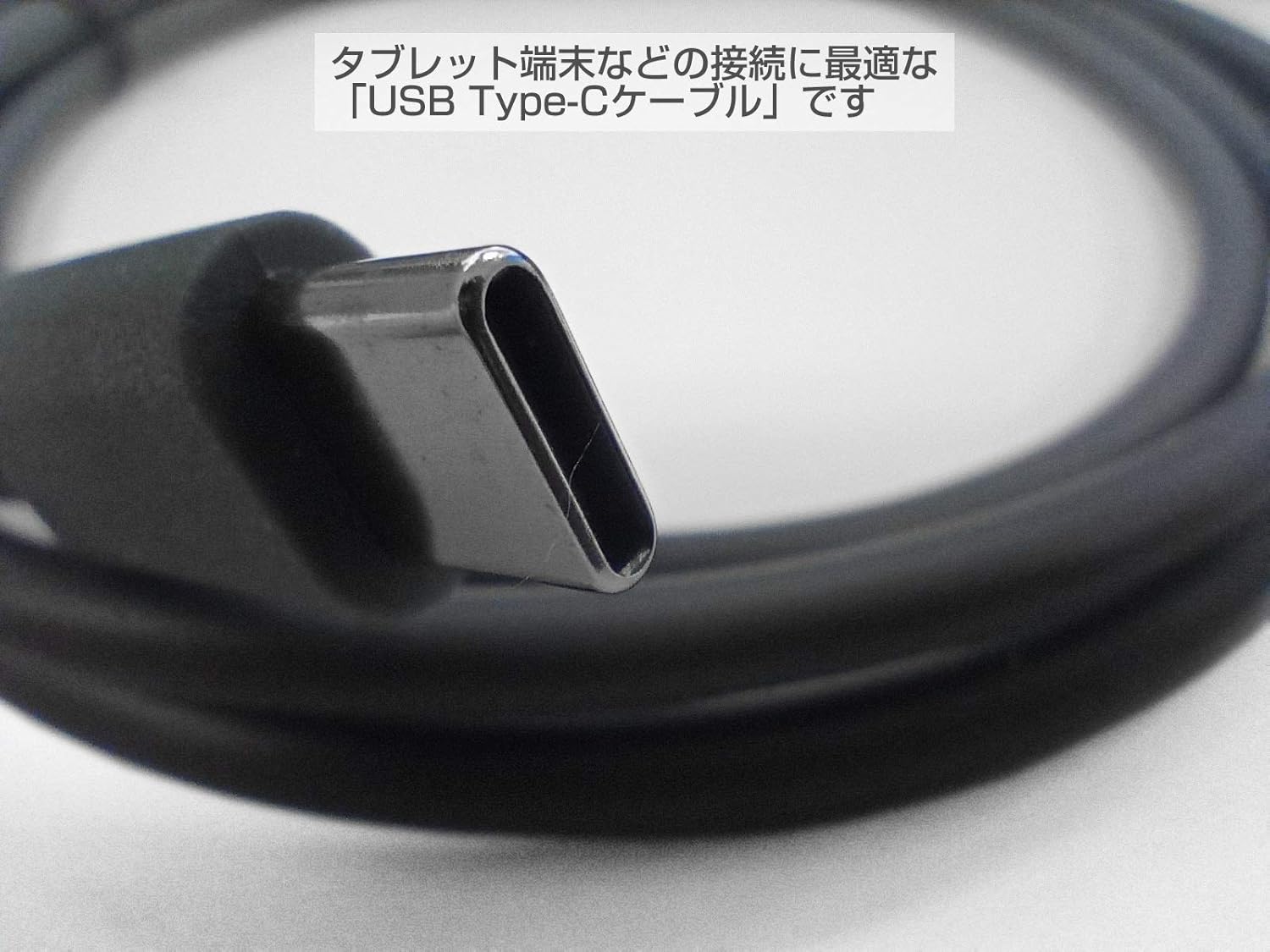
Primeiro plano view of the USB Type-C connector, highlighting its reversible design and robust construction. This connector is suitable for modern tablet terminals.
3. Instrucións de funcionamento
Once the BC-BR1000-C17 cable is connected, the barcode reader will communicate with your host device. The cable acts as a data and power conduit. Ensure your host device's operating system or application is configured to receive input from the barcode reader.
- Transmisión de datos: The cable enables the barcode reader to send scanned data directly to the connected tablet or computer.
- Fonte de alimentación: Depending on the barcode reader model and host device, the cable may also provide power to the barcode reader, eliminating the need for a separate power adapter.

Example of the BC-BR1000 barcode reader connected via the USB Type-C cable to a tablet, demonstrating a typical usage scenario for data input.
4. Mantemento
Proper care of your BC-BR1000-C17 USB Type-C cable will ensure its longevity and reliable performance:
- Almacenamento: Store the cable in a cool, dry place away from direct sunlight and extreme temperatures. Avoid tightly coiling or bending the cable, especially near the connectors.
- Limpeza: Usa un pano suave e seco para limpar o cable e os conectores. Non empregues produtos químicos agresivos nin materiais abrasivos.
- Manexo: Always grasp the connector housing when plugging or unplugging the cable. Avoid pulling on the cable itself, as this can damage the internal wires.
- Inspección: Periodically inspect the cable for any signs of wear, fraying, or damage to the connectors. Replace the cable if any damage is observed.
5 Solución de problemas
If you encounter issues with your BC-BR1000-C17 USB Type-C cable, consider the following:
- Barcode Reader Not Detected:
- Asegúrese de que os dous extremos do cable estean ben conectados.
- Try connecting the cable to a different USB Type-C port on your host device.
- Test the barcode reader with a different, known-working cable if available.
- Verify that the host device's drivers for the barcode reader are installed and up to date.
- Conexión intermitente:
- Comprobe se o cable ou os conectores presentan danos físicos.
- Ensure the cable is not being strained or bent sharply during use.
- Clean the connectors to remove any dust or debris.
- No Power to Barcode Reader:
- Confirm that the host device's USB Type-C port provides power. Some ports may be data-only.
- If the barcode reader requires external power, ensure its power adapter is correctly connected.
6. Especificacións
| Característica | Especificación |
|---|---|
| Número de modelo | BC-BR1000-C17 |
| Marca | BUSICOM |
| Compatible Barcode Reader | BUSICOM BC-BR1000 |
| Connector Type (Host) | USB tipo C |
| Connector Type (Barcode Reader) | Modular (Dedicated for BC-BR1000) |
| Lonxitude do cable | 1.7 metros |
| Tecnoloxía de conexión | Cable USB |
| Dimensións do paquete | 14.9 x 11.6 x 1.9 cm |
| Peso | 40 g |

Comparison of two cables, illustrating different lengths. This image shows the 1.7m cable alongside another length, emphasizing the available options (though only 1.7m is for this product).
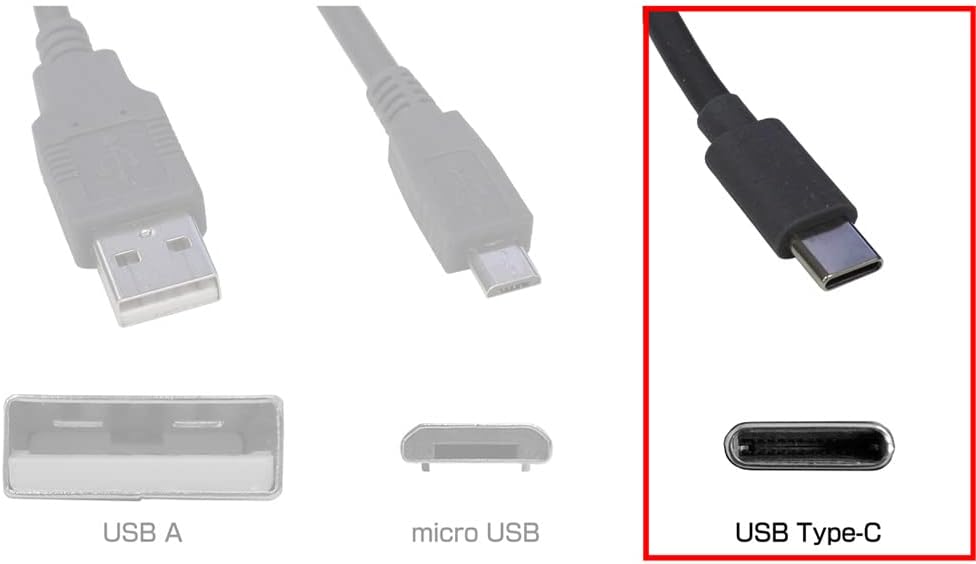
Diagram illustrating different USB connector types: USB-A, Micro USB, and USB Type-C. The USB Type-C connector is highlighted, indicating its compatibility with the BC-BR1000-C17 cable.
7. Información da garantía
For warranty details regarding the BUSICOM BC-BR1000-C17 USB Type-C cable, please refer to the product packaging or contact BUSICOM customer support directly. Warranty terms may vary based on region and purchase date.
8. Apoio
If you require further assistance or have questions not covered in this manual, please contact BUSICOM customer support. You can typically find contact information on the official BUSICOM websitio web ou na embalaxe do produto.
BUSICOM Official Websitio: www.busicom.co.jp


