1. Introdución
This manual provides comprehensive instructions for the ZAGG Pro Keys Detachable Case and Wireless Keyboard. This product is designed to enhance the functionality and protection of your compatible iPad Air device, transforming it into a versatile workstation.

Image: ZAGG Pro Keys Detachable Case and Wireless Keyboard with iPad Air.
2. Compatibilidade
The ZAGG Pro Keys Detachable Case and Wireless Keyboard is compatible with the following Apple iPad Air models:
- iPad Air de 10.9 polgadas (4ª xeración)
- iPad Air de 10.9 polgadas (5ª xeración)
- iPad Air de 11 polgadas (M2)
- iPad Air de 11 polgadas (M3)

Image: Compatibility graphic for 10.9-inch iPad Air (Gen 4-5).
3. Contido do paquete
Your ZAGG Pro Keys package includes:
- ZAGG Pro Keys Detachable Case
- Teclado sen fíos
- Cable de carga USB-C
- Guía de inicio rápido (non incluída neste manual dixital)
4. Instrucións de configuración
4.1 Conectar o teu iPad
- Carefully insert your iPad Air into the protective case. Ensure all edges are securely seated within the case's frame.
- The case features rubberized edges and corner bumpers for enhanced protection.

Image: Durable impact protection of the Pro Keys case.
4.2 Emparejamento Bluetooth
- Ensure the keyboard is charged. Connect the provided USB-C cable to the keyboard and a power source if needed.
- Turn on the keyboard using the power button, typically located on the side or top edge.
- No teu iPad, vai a Configuración > Bluetooth.
- Toggle Bluetooth to the On posición.
- On the ZAGG Pro Keys keyboard, press and hold the Bluetooth pairing key (often marked with a Bluetooth symbol or a number like '1' or '2' for multi-device pairing) for a few seconds until the indicator light flashes.
- Your iPad should detect "ZAGG Pro Keys" in the "Other Devices" list. Tap on it to connect.
- Siga as indicacións en pantalla para completar o proceso de vinculación.
The keyboard supports multi-device pairing, allowing you to connect to two devices simultaneously and switch between them using dedicated keys.
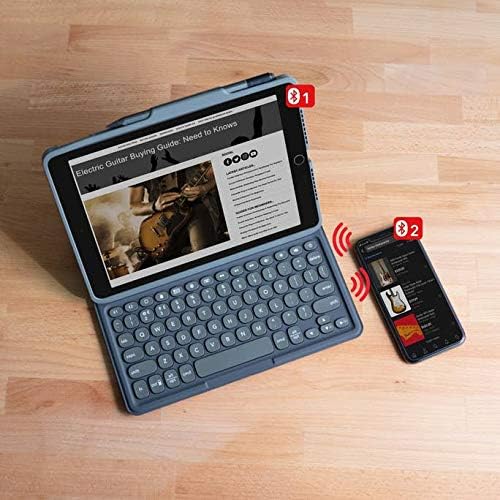
Image: Multi-device pairing functionality.
5. Instrucións de funcionamento
5.1 Uso do teclado
- Laptop-Style Keys: The keyboard features a Pro keyframe design with comfortably-spaced, low-profile keys for a precise typing experience.
- Teclas retroiluminadas: The keys are backlit in 7 different colors. Use the dedicated backlight key (often a sun icon) to cycle through colors and adjust brightness levels.

Image: Backlit, laptop-style keys for typing in various lighting conditions.
5.2 Detachable Case and Adjustable Stand
- The keyboard and case are detachable, allowing for flexible use. You can remove the iPad in its protective case from the keyboard when not needed.
- The integrated adjustable stand allows you to set your iPad at various viewing angles for optimal comfort and productivity.

Image: Detachable keyboard and case design.
5.3 Apple Pencil Holder
The case includes a dedicated holder for your Apple Pencil or other stylus, ensuring it is securely stored and readily accessible.

Image: Integrated Apple Pencil holder.
6. Mantemento
6.1 Carga do teclado
- Connect the provided USB-C charging cable to the keyboard's charging port and a compatible USB power adapter.
- A full charge can provide up to one year of battery life, depending on backlight usage.
- The keyboard features a sleep/wake function to conserve battery when not in use.

Image: Long-lasting battery feature of the keyboard.
6.2 Limpeza
To clean your ZAGG Pro Keys case and keyboard, use a soft, damp cloth. Avoid harsh chemicals or abrasive materials that could damage the surfaces.
7 Solución de problemas
| Problema | Solución |
|---|---|
| Keyboard does not pair with iPad. |
|
| Keys are not responding or are duplicating characters. |
|
| A retroiluminación non funciona. |
|
8. Especificacións
- Número de modelo: 103406884
- Marca: ZAGG
- Serie: Pro Keys
- Dispositivos compatibles: iPad Air 10.9-inch (Gen 4, Gen 5), iPad Air 11-inch (M2), iPad Air 11-inch (M3)
- Tecnoloxía de conectividade: Bluetooth (sen fíos)
- Descrición do teclado: iPad Air Keyboard and Case
- Característica especial: Backlit keys (RGB, 7 colors)
- Cor: Negro
- Peso do artigo: Aproximadamente 1.48 libras
- Dimensións do produto: 9.98 x 7.73 x 0.89 polgadas (L x W x H)
- Fonte de enerxía: Funciona con batería (1 batería de polímero de litio incluída)
- Duración da batería: Up to 1 year between charges (varies with backlight usage)
- Protección contra caídas: 6.6 pés (2 metros)
9. Garantía e soporte
For warranty information, product registration, or technical support, please visit the official ZAGG websitio web ou póñase en contacto co seu departamento de atención ao cliente. Garde o comprobante de compra para reclamacións de garantía.
The product is designed with durable materials to provide 6.6ft (2m) drop protection for your device.


