1. Introdución
This manual provides detailed instructions for the setup, operation, maintenance, and troubleshooting of your HP Sprocket Studio Plus 4x6 Instant Photo Printer. Please read this manual thoroughly before using the device to ensure optimal performance and longevity.
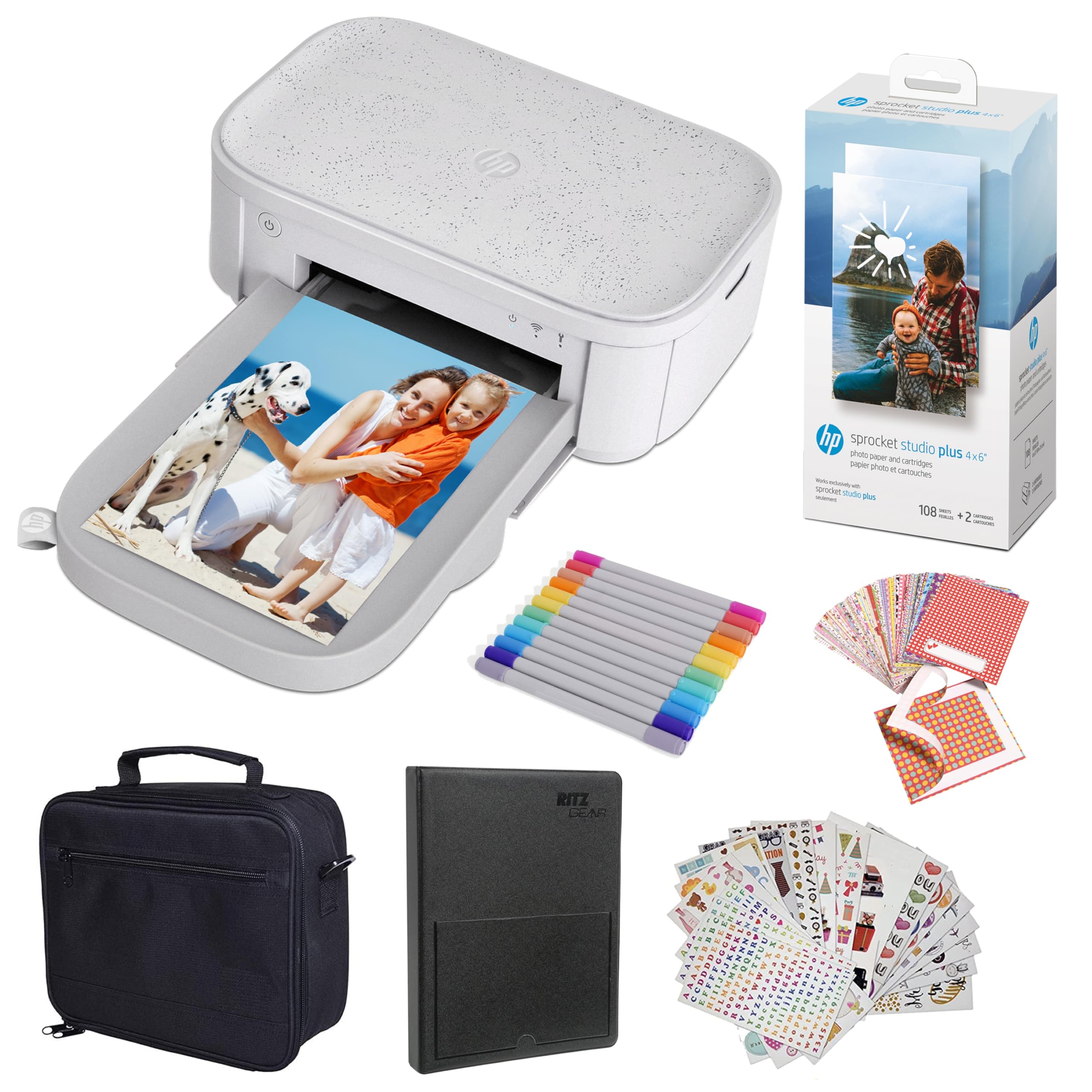
Image: The HP Sprocket Studio Plus 4x6 Instant Photo Printer, shown in white, with a smartphone displaying an image and a printed photo emerging from the printer.
2. Que hai na caixa
Verifica que todos os elementos estean presentes no paquete:
- HP Sprocket Studio Plus 4x6 Instant Photo Printer
- Álbum de fotos
- Caso
- Photo paper and cartridges
- Marcadores
- Sticker sets
- Adaptador de alimentación

Image: A pack of HP Sprocket Studio Plus 4x6 photo paper and two ink cartridges, ready for installation.
3. Guía de configuración
3.1 Encendido inicial
- Conecte o adaptador de corrente á impresora e a unha toma de corrente.
- Press and hold the power button on the printer to turn it on.
- Wait for the indicator lights to stabilize, indicating the printer is ready.
3.2 Loading Photo Paper and Cartridge
- Abra a tapa da bandexa de papel.
- Insert the photo paper stack into the tray, glossy side up. Ensure the paper is aligned correctly.
- Open the cartridge compartment.
- Insert the ink cartridge until it clicks into place.
- Peche as dúas tapas de forma segura.

Imaxe: Primeiro plano view demonstrating the correct way to insert the ink cartridge (1) and load photo paper (2) into the HP Sprocket Studio Plus printer.
3.3 Installing the HP Sprocket App
The HP Sprocket app is required to operate your printer. Download it from your device's app store (iOS or Android).
- Para dispositivos iOS: Busca "HP Sprocket" in the Apple App Store.
- Para dispositivos Android: Busca "HP Sprocket" in the Google Play Store.
- Install the app and follow the on-screen prompts.
3.4 Conexión da impresora
Your HP Sprocket Studio Plus printer can connect via Wi-Fi or Hotspot mode. Refer to the video below for a visual guide on connecting your printer.
Video: This video demonstrates how to connect the HP Sprocket Studio Plus printer to your mobile device via Wi-Fi and Hotspot mode using the HP Sprocket app. It covers turning on the printer, navigating the app's printer management settings, and entering Wi-Fi credentials or the default hotspot password.
3.4.1 Conexión Wi-Fi
- Asegúrate de que a impresora estea acendida.
- Open the HP Sprocket app on your mobile device.
- Navigate to the main menu (usually a hamburger icon).
- Select "Manage Printers".
- Tap "Add New Printer".
- Select your printer from the list of available printers (e.g., "HP Sprocket Studio Plus OB78").
- The app will prompt you to connect the printer to your Wi-Fi network. Enter your Wi-Fi credentials (network name and password).
- Confirm the setup is complete.
3.4.2 Hotspot Mode Connection
Use Hotspot Mode if a Wi-Fi network is not available or for direct connection.
- Asegúrate de que a impresora estea acendida.
- Open the HP Sprocket app on your mobile device.
- Navega ata o menú principal.
- Select "Manage Printers".
- Tap "Add New Printer".
- Select your printer from the list.
- When prompted to connect to Wi-Fi, select "No network available" or similar option to initiate Hotspot Mode.
- Go to your mobile device's Wi-Fi settings.
- Select the printer's direct Wi-Fi network (e.g., "DIRECT-6C-HPISPS").
- Introduza o contrasinal predeterminado: 12345678.
- Return to the HP Sprocket app and confirm the connection.
4. Funcionamento da impresora
4.1 Impresión de fotos
- Open the HP Sprocket app.
- Select the photo(s) you wish to print from your gallery or social media accounts.
- Use the in-app editing tools to customize your photos (see section 4.2).
- Toca a icona de impresión.
- Confirm print settings (e.g., number of copies).
- The printer will begin printing your photo(s).

Image: A smartphone screen showing the HP Sprocket app interface with a photo selected for printing, next to the HP Sprocket Studio Plus printer.
4.2 Customization Features
The HP Sprocket app offers various tools to enhance your photos before printing:
- Filtros: Apply different visual effects to your photos.
- Cadros: Add decorative borders around your images.
- Adhesivos: Place digital stickers on your photos for a personalized touch.
- Collages: Combine multiple photos into a single print.
- Photo IDs: Create passport-style photos.

Image: The HP Sprocket app displaying a collage feature, allowing users to arrange multiple photos into a single layout for printing.

Image: The HP Sprocket app interface showing options for creating photo IDs, with a portrait photo displayed on the screen.
4.3 Soporte multiusuario
Multiple users can connect to the HP Sprocket Studio Plus printer simultaneously, allowing for shared printing experiences.
5. Mantemento
5.1 Replacing Ink Cartridges and Photo Paper
The HP Sprocket Studio Plus uses dye-sublimation technology, requiring specific photo paper and cartridges. It is recommended to replace both the paper and cartridge at the same time, as they are designed to run out concurrently (approximately 108 sheets per cartridge).
- When the printer indicates low ink or paper, open the paper tray and cartridge compartment.
- Remove the used ink cartridge and empty paper stack.
- Insert a new HP Sprocket Studio Plus ink cartridge and a fresh stack of 4x6 photo paper.
- Pecha as tapas de forma segura.

Image: A package of HP Sprocket Studio Plus 4x6 photo paper and cartridges, indicating it includes 108 sheets and 2 cartridges.
5.2 Limpeza da impresora
To maintain print quality, periodically clean the exterior of the printer with a soft, dry cloth. Avoid using liquid cleaners directly on the printer.
6 Solución de problemas
6.1 Problemas comúns e solucións
- A impresora non se conecta á wifi:
- Ensure your Wi-Fi network is 2.4GHz, as the printer may not be compatible with 5GHz networks.
- Verifica que o contrasinal da wifi estea introducido correctamente.
- Reinicie tanto a impresora como o dispositivo móbil.
- Try connecting using Hotspot Mode as an alternative.
- Atascos de papel:
- Turn off the printer and carefully open the paper tray.
- Gently remove any jammed paper. Do not force it.
- Asegúrate de que o papel estea cargado correctamente e que non estea demasiado cheo.
- Reinicie a impresora.
- Mala calidade de impresión:
- Check if the ink cartridge and photo paper are correctly installed and not expired.
- Ensure you are using genuine HP Sprocket Studio Plus photo paper and cartridges.
- Clean the printer as described in the maintenance section.
- A impresora non responde:
- Asegúrate de que a impresora estea acendida e conectada a unha fonte de alimentación.
- Reinicie a impresora.
- Check the app for any error messages or connection issues.
7. Especificacións
| Característica | Especificación |
|---|---|
| Dimensións do produto | 6.65" D x 10.75" W x 2.68" H |
| Tipo de controlador | Android, iOS |
| Tamaño máximo do soporte | 4x6 polgadas |
| Medios impresos | Papel fotográfico brillante |
| Capacidade máxima da folla de entrada | 80 follas |
| Dispositivos compatibles | Smartphones |
| Resolución máxima de impresión en cor | [ALTO] |
| Resolución máxima de impresión en branco e negro | 1200 ppp |
| Impresión a dúas caras | Non |
| Interface de hardware | Bluetooth |
| Cor da tinta | A toda cor |
| Método de control | Aplicación |
| Serie modelo | Sprocket Studio Plus |
| Tipo de tinta da impresora | Cartucho de tinta de cor |
| Peso do elemento | 1 libras |
| Tecnoloxía de conectividade | Bluetooth |
| Tecnoloxía de impresión | Sublimación de tintura |
| Característica especial | Network-Ready, Portable |
| Cor | Branco |
| Velocidade de impresión máxima (cor) | 1 ppm |
8. Garantía e soporte
8.1 Información da garantía
The HP Sprocket Studio Plus 4x6 Instant Photo Printer comes with a 1 ano de garantía limitada. For specific terms and conditions, please refer to the warranty documentation included with your product or visit the official HP support websitio.
8.2 Atención ao cliente
For further assistance, technical support, or to purchase replacement supplies, please visit the official HP support website or contact HP customer service. You can find contact information on the HP websitio web ou na embalaxe do produto.
- Soporte HP Websitio: www.hp.com/support