1. Produto rematadoview
O ViewSonic VB-CAM-201 is a 4K video conferencing camera designed for medium to large-sized conference rooms and boardrooms. It features 4K Ultra HD resolution and a 120° super wide-angle lens to capture all participants with clarity. The camera incorporates voice-tracking technology and 5x digital zoom to keep the speaker in focus. An integrated 8W speaker and a four-microphone array with noise and echo cancellation ensure clear audio for all participants. This device offers plug-and-play connectivity, making it compatible with ViewSonic ViewBoard interactive displays and commercial displays.
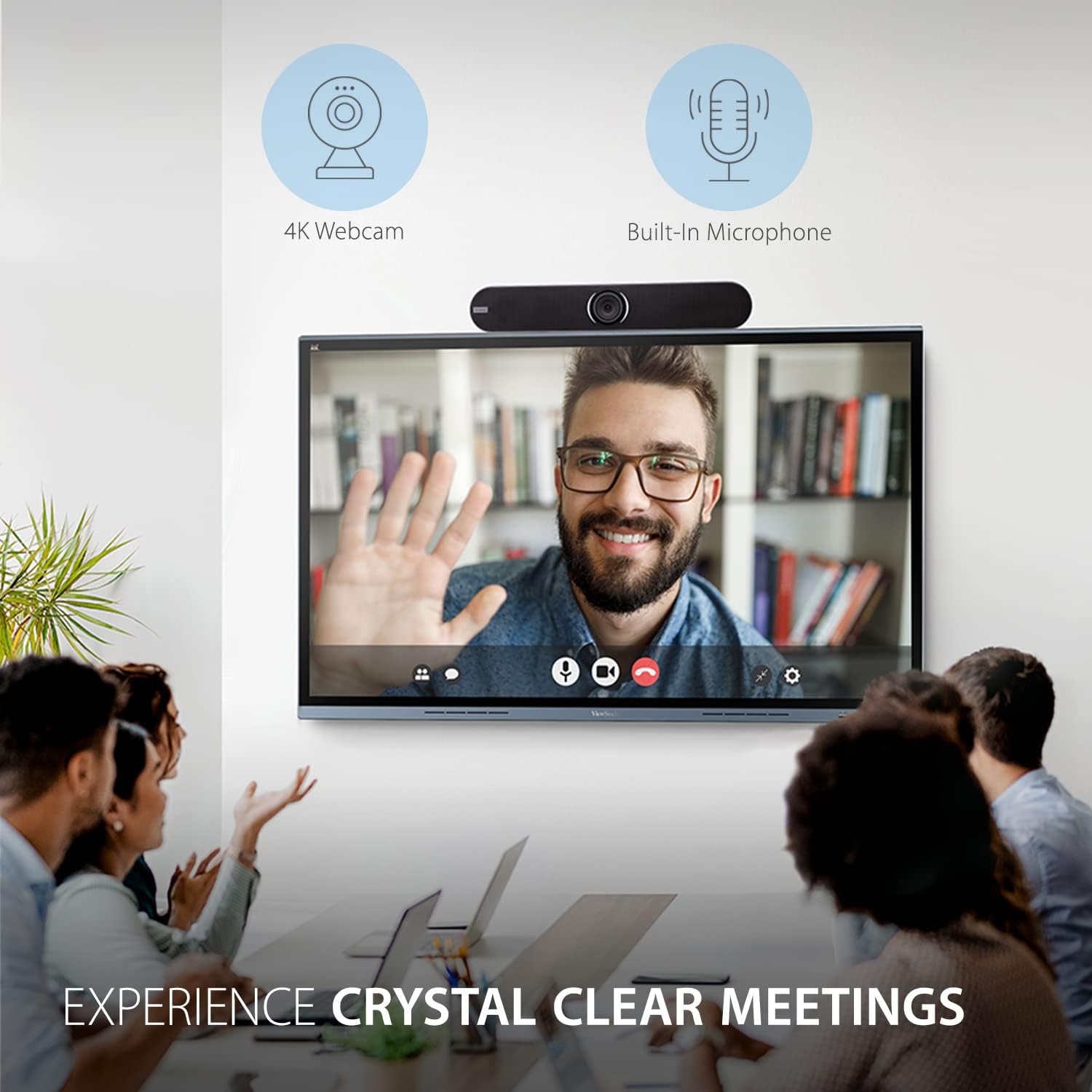
Image: The VB-CAM-201 camera positioned above a large display in a conference room, showing a clear video conference in progress.
2. Que hai na caixa
Carefully unpack the contents of your VB-CAM-201 package. The following items should be included:
- VB-CAM-201 Webcam Unit
- Power Adapter (with multiple regional adapters)
- Cable USB-C
- Control remoto
- Soporte de montaxe
- Parafusos de soporte (x6)
- Anclas de parede (x6)
- Documentación (Guía de inicio rápido, Tarxeta de garantía)

Image: All components included with the VB-CAM-201, neatly arranged: the camera, remote control, power adapter, USB-C cable, and mounting accessories.
Video: An unboxing video demonstrating the contents of the ViewSonic VB-CAM-201 package and initial setup steps.
3. Configuración e instalación
The VB-CAM-201 offers versatile mounting options and plug-and-play connectivity for easy setup.
3.1 Opcións de montaxe
The camera can be installed in several ways to suit your conference room layout:
- Soporte de mesa: Place the camera on a flat surface using its integrated stand.
- Montaxe na parede: Use the provided mounting bracket, screws, and wall anchors to secure the camera directly to a wall.
- Montaxe da pantalla: Attach the camera to the top of a large digital display or interactive whiteboard using the bracket.

Image: Visual representation of the flexible mounting solutions for the VB-CAM-201 camera, including wall, table, and display placements.
3.2 Conectando a cámara
- Connect the power adapter to the camera's DC 12V input and plug it into a power outlet.
- Connect the supplied USB-C cable from the camera's USB 3.0 port to your computer or compatible display.
- For network connectivity, connect an Ethernet cable to the LAN port (optional).
- The camera is plug-and-play and should be automatically recognized by your operating system.
The VB-CAM-201 is compatible with Windows 7/8.1/10, MacOS 10.10 or higher, Linux, and Google Chromebook version 29.0.1547.70 or higher.
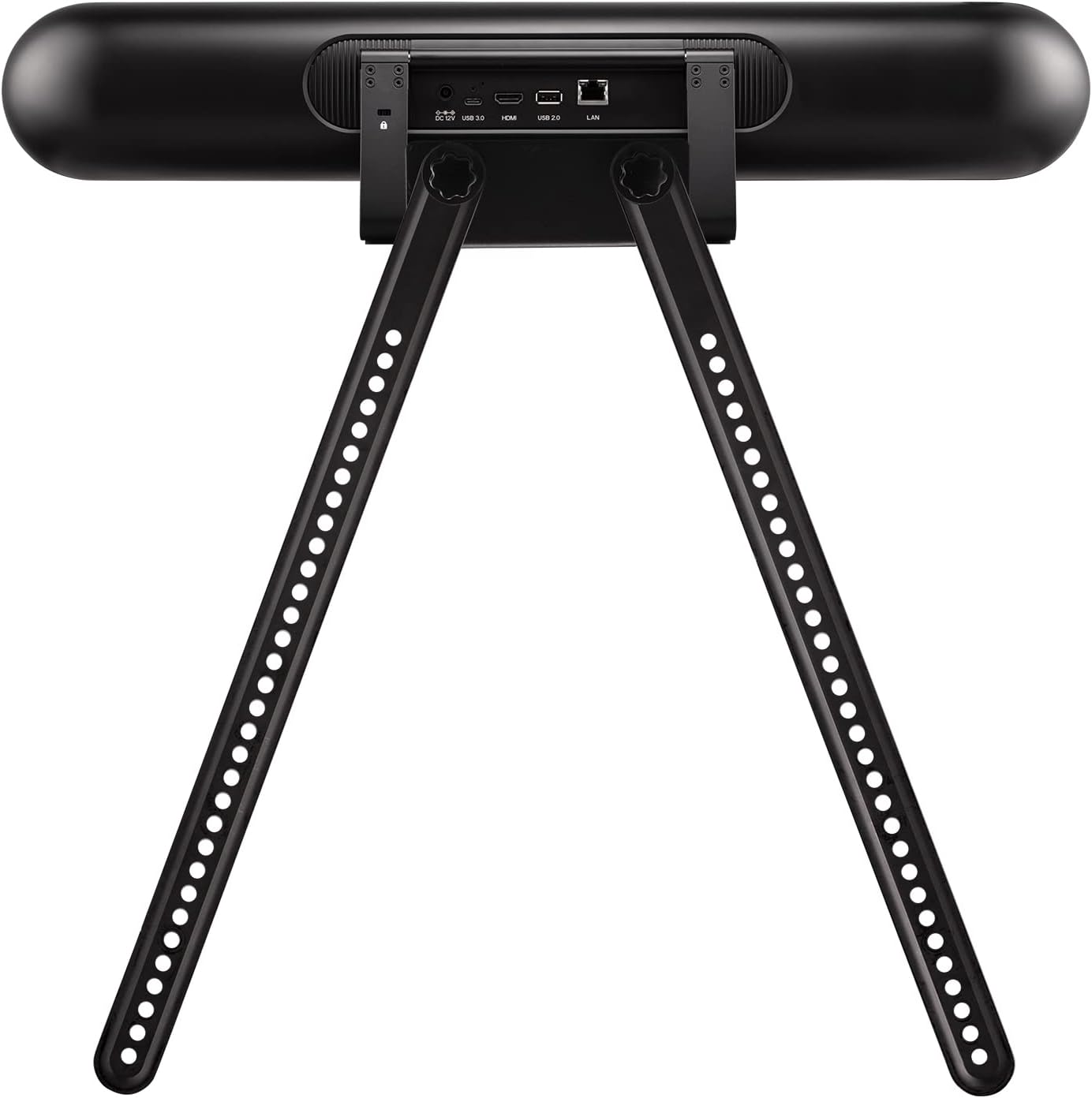
Image: Close-up of the rear panel of the VB-CAM-201, highlighting the power input, USB-C, HDMI, USB 2.0, and LAN ports for connectivity.
4. Instrucións de funcionamento
The VB-CAM-201 is designed for intuitive operation, enhancing your video conferencing experience.
4.1 Características da cámara
- Resolución 4K UHD: Delivers crystal clear video quality for meetings and calls.
- Lente gran angular de 120 graos: Captura un amplo campo de view, ensuring all participants in a medium to large room are visible.
- Seguimento de voz: The motorized lens automatically adjusts to follow the active speaker, keeping them in focus.
- Zoom dixital 5x: Permite un achegamento máis próximo views of participants or specific areas of the room.
- Micrófonos integrados: A built-in beamforming microphone array with automatic noise reduction captures voices from up to 10 feet away.
- Altavoz incorporado: An 8W speaker provides clear audio output for meeting participants.

Imaxe: De arriba abaixo view of a conference table with participants, showing the 120-degree wide-angle coverage of the VB-CAM-201 camera.

Image: An icon symbolizing the voice and camera tracking capability, showing a person's face within a tracking frame.
4.2 Uso do mando a distancia
The included wireless remote control allows you to manage various camera functions, especially useful when the camera is mounted out of reach. Functions include pan, tilt, and zoom adjustments to ensure optimal framing of participants.
5. Especificacións
| Característica | Especificación |
|---|---|
| Número de modelo | VB-CAM-201 |
| Resolución máxima de pantalla | UHD Pixels (4K UHD) |
| Resolución de captura de vídeo | 1080p, 4K |
| Traseira WebResolución de cámara | 8.51 MP |
| Tecnoloxía do sensor fotográfico | CMOS |
| Apertura máxima | 3.5 f |
| Características especiais | Bluetooth, Face Detection, Microphone Input, Voice tracking, Wind Noise Reduction |
| Tecnoloxía de conectividade | HDMI, USB |
| Tipo sen fíos | Bluetooth |
| Formato de audio compatible | AAC, PCM |
| Compatibilidade do sistema operativo | Windows 7/8.1/10, MacOS 10.10+, Linux, Google Chromebook 29.0.1547.70+ |
| Peso do elemento | 4.86 libras |
| Dimensións do produto (LxWxH) | 4.53 x 23.62 x 5.31 polgadas |

Image: Detailed dimensions of the VB-CAM-201 camera, indicating its length, height, and depth in both centimeters and inches.
6. Mantemento
Para garantir a lonxevidade e o rendemento óptimo do seu ViewSonic VB-CAM-201 camera, follow these maintenance guidelines:
- Limpeza: Use a soft, dry cloth to clean the camera's exterior. For the lens, use a specialized lens cleaning cloth and solution to avoid scratches. Do not use harsh chemicals or abrasive cleaners.
- Almacenamento: Cando non a use durante períodos prolongados, garde a cámara nun lugar fresco e seco, lonxe da luz solar directa e de temperaturas extremas.
- Actualizacións de firmware: Comprobe periodicamente o ViewSonic websitio web para obter actualizacións de firmware dispoñibles para garantir que a cámara teña as últimas funcións e melloras de rendemento.
7 Solución de problemas
If you encounter issues with your VB-CAM-201, try the following basic troubleshooting steps:
- Sen enerxía: Asegúrate de que o adaptador de corrente estea conectado correctamente tanto á cámara como a unha toma de corrente que funcione. Comproba se a luz indicadora de acendido da cámara está acesa.
- Sen vídeo/audio: Verify that the USB-C cable is firmly connected to both the camera and your computer/display. Try a different USB port or cable. Ensure the camera is selected as the active video and audio device in your conferencing software settings.
- Baixa calidade do vídeo: Check your internet connection speed. Ensure the camera lens is clean and free from obstructions. Confirm that your conferencing software is set to use 4K resolution if supported.
- O control remoto non funciona: Check the batteries in the remote control. Ensure there are no obstructions between the remote and the camera's IR receiver.
- Voice Tracking Issues: Ensure the room is adequately lit and there are no excessive background noises that might interfere with the microphone array.
For more advanced troubleshooting or persistent issues, please refer to the full user manual available on the ViewSoporte de Sonic websitio ou póñase en contacto co servizo de atención ao cliente.
8. Garantía e soporte
For detailed warranty information, please refer to the warranty card included in your product packaging or visit the official ViewSonic websitio. ViewSonic provides customer support for product inquiries, technical assistance, and service requests.
Soporte en liña: Visita o ViewSonic websitio for FAQs, driver downloads, and support resources.
Contacte con Soporte: Refer to your product documentation for regional contact information for customer service.