1. Introdución
The Xprinter XP-C300H is a high-speed thermal receipt printer designed for various business environments. It features robust construction with water, oil, and dust resistance, ensuring durability and reliable performance. This printer offers versatile connectivity options including USB, Serial, and LAN, making it compatible with a wide range of operating systems. With a printing speed of 300mm per second, it efficiently handles high-volume printing tasks. This manual provides detailed instructions for setting up, operating, and maintaining your XP-C300H printer.
2. Información de seguridade
- Conecte sempre a impresora a unha toma de corrente con conexión a terra.
- Non expoña a impresora á auga nin a humidade excesiva.
- Evite colocar a impresora baixo a luz solar directa ou preto de fontes de calor.
- Empregue só o adaptador de corrente e os accesorios especificados.
- Manter fóra do alcance dos nenos.
- Non intente desmontar nin reparar a impresora vostede mesmo. Póñase en contacto co persoal de servizo cualificado para obter axuda.
3. Contido do paquete
Please check the package contents upon unpacking. If any items are missing or damaged, contact your vendor.
- Xprinter XP-C300H Thermal Receipt Printer
- Cable de alimentación
- USB Cable (may vary by model/region)
- Thermal Paper Roll (for initial testing)
4. Produto rematadoview
Familiarize yourself with the components of your XP-C300H printer.
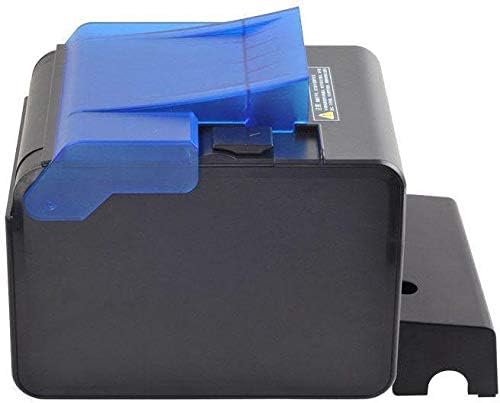
Figura 4.1: Lado view of the XP-C300H printer. This image shows the compact design and the blue transparent cover for the paper compartment.
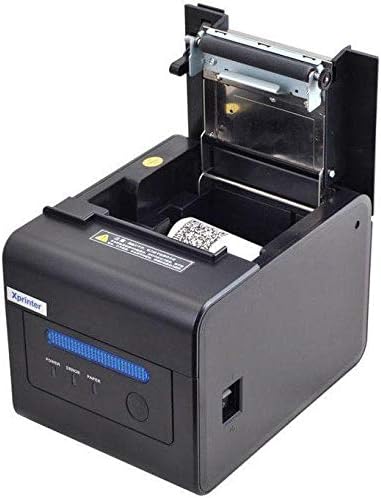
Figura 4.2: Parte superior frontal view of the XP-C300H printer with the paper cover open. This reveals the thermal print head mechanism and the area for loading the thermal paper roll. Status indicator lights (Power, Error, Paper) are visible on the front panel.
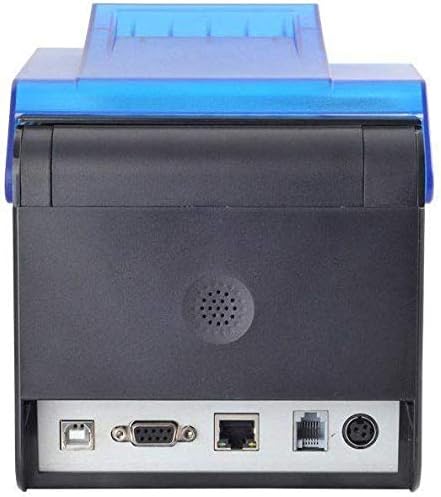
Figura 4.3: Traseira view of the XP-C300H printer. This image highlights the multiple connectivity ports including USB, Serial (DB9), LAN (Ethernet), and the power input port, offering flexible integration options.
5. Configuración
5.1 Conexión do adaptador de corrente
- Asegúrese de que a impresora estea apagada.
- Conecte o cable de alimentación ao adaptador de alimentación.
- Plug the power adapter into the printer's power input port (refer to Figure 4.3).
- Conecte o outro extremo do cable de alimentación a unha toma de corrente con conexión a terra.
5.2 Cargar papel térmico
- Open the printer's top cover by pressing the release latch (refer to Figure 4.2).
- Insert a new thermal paper roll into the compartment, ensuring the paper feeds from the bottom and the leading edge is straight.
- Tire dunha pequena cantidade de papel para sacalo do cortador.
- Close the top cover firmly until it latches.
5.3 Conectando a un ordenador
The XP-C300H supports USB, Serial, and LAN connections.
- Conexión USB: Conecta un extremo do cable USB ao porto USB da impresora e o outro extremo ao teu ordenador.
- Conexión en serie: Connect a serial cable (DB9) from the printer's serial port to your computer's serial port.
- Conexión LAN: Conecta un cable Ethernet desde o porto LAN da impresora ao enrutador ou conmutador de rede.
5.4 Instalación do controlador
After connecting the printer, you may need to install the appropriate drivers for your operating system (Windows, Linux, etc.). Drivers are typically provided on a CD with the printer or can be downloaded from the Xprinter official websitio. Siga as instrucións que aparecen na pantalla para instalar o controlador.
6. Instrucións de funcionamento
6.1 Acendido/Apagado
Press the power switch located on the printer to turn it on or off. The 'Power' indicator light will illuminate when the printer is on.
6.2 Indicadores de estado
The printer features indicator lights on the front panel:
- Potencia: Indica que a impresora está acendida.
- Erro: Illuminates or flashes to indicate an error condition (e.g., paper out, print head overheat, cover open).
- Papel: Illuminates when paper is present, flashes when paper is low, or off when paper is out.
6.3 Impresión
Once the printer is connected and drivers are installed, you can print receipts or other documents from your POS software or application. The printer supports EPSON ESC/POS command sets for various printing functions.
6.4 Cortador automático
The XP-C300H features an auto-cutter that can perform full or partial cuts of the thermal paper, depending on the software commands sent to the printer.
7. Mantemento
7.1 Limpeza do cabezal de impresión
Regular cleaning of the print head ensures optimal print quality. Turn off the printer and disconnect the power cable before cleaning. Use a soft cloth dampened with isopropyl alcohol to gently wipe the thermal elements on the print head. Allow it to dry completely before use.
7.2 Limpeza do exterior
Wipe the exterior of the printer with a soft, dry cloth. For stubborn dirt, use a cloth lightly dampened with water and mild detergent. Do not use strong solvents or abrasive cleaners.
7.3 Substitución do rolo de papel
When the 'Paper' indicator shows low paper or is off, replace the paper roll following the steps in Section 5.2.
8 Solución de problemas
| Problema | Causa posible | Solución |
|---|---|---|
| A impresora non se acende | Cable de alimentación non conectado; Toma de corrente avariada | Comprobe a conexión do cable de alimentación; probe cunha toma de corrente diferente |
| Sen impresión | Paper out; Printer cover open; Incorrect driver/connection; Error state | Load paper; Close cover; Verify driver installation and cable connection; Check error indicator |
| Mala calidade de impresión | Print head dirty; Low quality thermal paper | Clean print head (Section 7.1); Use recommended thermal paper |
| Atasco de papel | Carga incorrecta de papel; Obxecto estraño | Open cover and clear jammed paper; Reload paper correctly (Section 5.2) |
If the problem persists after trying these solutions, please contact technical support.
9. Especificacións
| Característica | Descrición |
|---|---|
| Modelo | XP-C300H |
| Método de impresión | Térmica directa |
| Velocidade de impresión | 300 mm/segundo |
| Interface | USB, Serial (RS232), LAN (Ethernet) |
| Ancho do papel | Máximo 198 mm (Note: Standard receipt printers typically use 80mm or 58mm width. Please verify actual supported paper width with product documentation.) |
| Cortador automático | Full/Partial Cut |
| Fiabilidade | Water, Oil, and Dust Resistant |
| Conxunto de comandos | Compatible con EPSON ESC/POS |
| Soporte do sistema operativo | Windows, Linux, various others |
| Dimensións (D x W x H) | 198 x 148 x 138 mm |
| Peso | 1.78 kg |
| Cor | Negro |
| Compoñentes incluídos | Printer, Power Cable |
| Medios impresos | Etiquetas (Primary media for receipt printers is typically thermal paper rolls) |
| Impresión dúplex | Si (Note: This feature is generally not applicable to thermal receipt printers. Please refer to official product documentation for clarification.) |
10. Garantía e soporte
For detailed warranty information, technical support, and service inquiries, please refer to the documentation included with your purchase or visit the official Xprinter websitio. Tamén podes contactar co teu distribuidor ou concesionario local para obter axuda.
Garda o teu recibo de compra como xustificante de compra para reclamacións de garantía.


