1. Introdución
The Rapoo MT550 is a versatile multi-device wireless mouse designed for enhanced productivity and comfort. This manual provides detailed instructions for setting up, operating, and maintaining your MT550 mouse, ensuring optimal performance across various devices.
As características principais inclúen:
- Multi-device connectivity (Bluetooth 3.0, Bluetooth 4.0, and 2.4G wireless)
- Adjustable DPI settings (600/1000/1300/1600)
- Deseño ergonómico para un uso cómodo
- Long battery life of up to 12 months
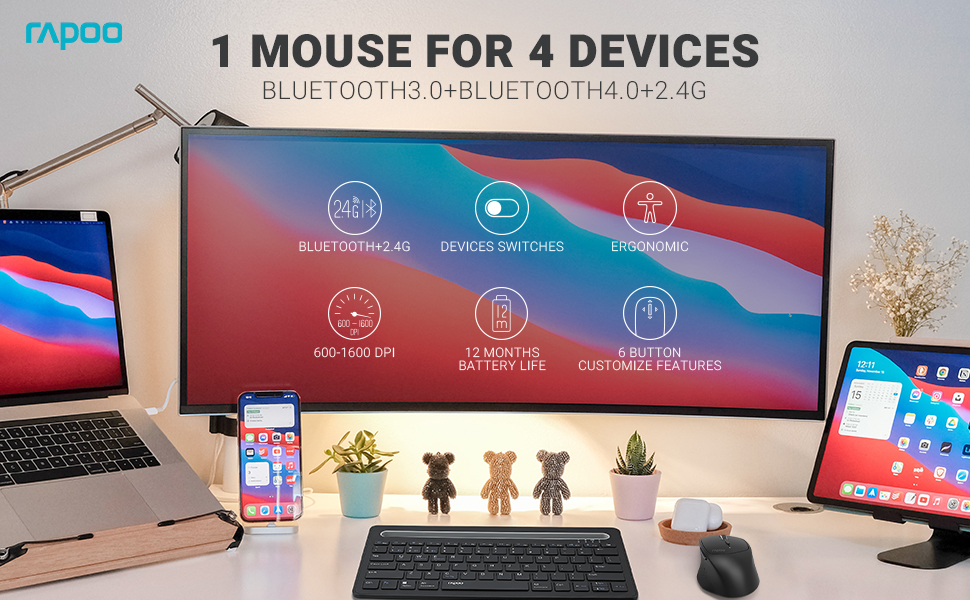
Image: The Rapoo MT550 mouse, highlighting its design for endurance, versatility, and comfort.
2. Configuración
2.1. Instalación da batería
The Rapoo MT550 mouse requires two AA batteries (included). To install:
- Localiza a tapa do compartimento da batería na parte inferior do rato.
- Deslice a tapa para abrir.
- Introduza dúas pilas AA, asegurándose de manter a polaridade correcta (+/-).
- Pecha a tapa do compartimento da batería.
2.2. Conexión mediante rede sen fíos 2.4 G (receptor USB)
For a 2.4G wireless connection:
- Acenda o rato usando o interruptor ON/OFF que se atopa na parte inferior.
- Locate the USB receiver stored in the battery compartment.
- Insira o receptor USB nun porto USB dispoñible no seu ordenador.
- The mouse should automatically connect. If not, press the device switch button until the indicator for channel 4 (usually indicated by a specific light pattern or number) is active.
2.3. Conectando a través de Bluetooth
The Rapoo MT550 supports up to three Bluetooth connections. To connect:
- Acenda o rato usando o interruptor ON/OFF.
- Short press the device switch button to select a Bluetooth channel (1, 2, or 3). The corresponding indicator light will illuminate.
- Press and hold the Bluetooth pairing button (often located near the device switch button) for approximately 3 seconds until the indicator light for the selected channel starts flashing rapidly. This indicates the mouse is in pairing mode.
- On your device (computer, laptop, tablet, phone), enable Bluetooth and search for new devices.
- Select "Rapoo MT550" from the list of available devices to complete the pairing process.
- Repeat these steps to pair with up to two additional Bluetooth devices on channels 2 and 3.

Image: Labeled diagram of the Rapoo MT550 mouse, indicating the location of the ON/OFF switch, Bluetooth button, device switch button, battery slot, USB receiver, DPI button, scroller, and other buttons.
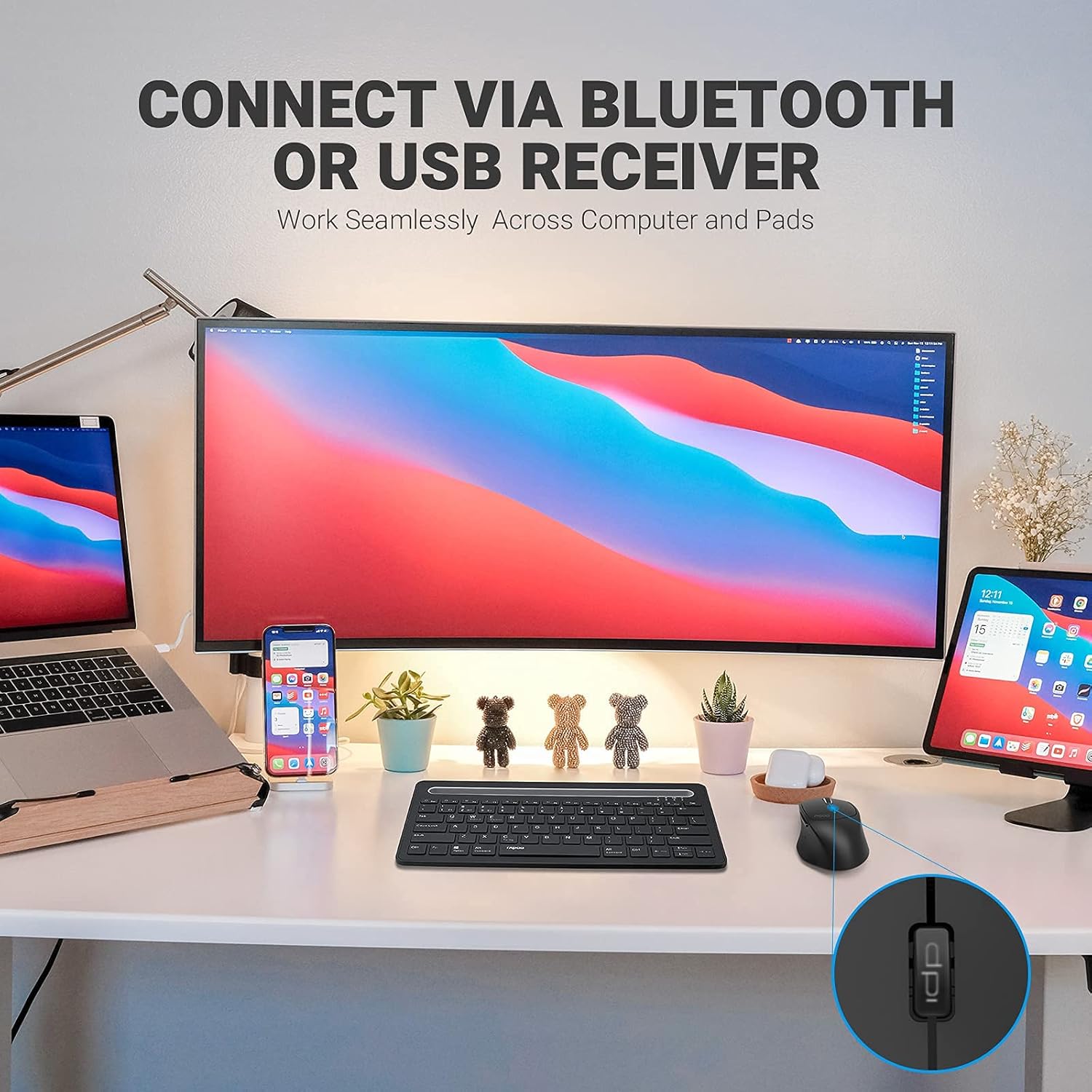
Image: A workstation demonstrating the Rapoo MT550 mouse connecting to multiple devices via Bluetooth or USB receiver.
3. Instrucións de funcionamento
3.1. Cambio entre dispositivos
Para cambiar entre os dispositivos conectados:
- Short press the device switch button located on the underside of the mouse.
- Each press will cycle through the connected channels (1, 2, 3 for Bluetooth, 4 for 2.4G USB receiver). The corresponding indicator light will show the active channel.
3.2. Axuste de DPI (sensibilidade)
The MT550 mouse features four adjustable DPI settings for precise control:
- Press the DPI button, located behind the scroll wheel, to cycle through the available settings: 600, 1000, 1300, and 1600 DPI.
- The indicator light will briefly change to reflect the selected DPI level.

Imaxe: Primeiro plano view of the DPI button on the Rapoo MT550 mouse, with the indicator light showing the current DPI setting.
3.3. Using Forward/Back Buttons
The two thumb buttons on the side of the mouse provide quick navigation:
- The forward button advances to the next page or folder.
- The back button returns to the previous page or folder.
4. Mantemento
4.1. Limpeza
To maintain the appearance and functionality of your mouse:
- Use un pano suave e seco para limpar a superficie do rato.
- Evita o uso de produtos químicos agresivos, limpadores abrasivos ou solventes, xa que poden danar o acabado.
4.2. Substitución da batería
When the low battery indicator appears or the mouse becomes unresponsive, it's time to replace the batteries:
- Siga os pasos de instalación da batería descritos na Sección 2.1.
- Ensure you use two fresh AA batteries and insert them with the correct polarity.
4.3. Almacenamento
When not in use for extended periods, store the mouse in a dry, cool environment away from direct sunlight and extreme temperatures.
5 Solución de problemas
If you encounter issues with your Rapoo MT550 mouse, refer to the following troubleshooting steps:
5.1. O rato non responde
- Comprobar a potencia: Ensure the mouse is turned on using the ON/OFF switch.
- Comprobe as baterías: Verify that the batteries are correctly installed and have sufficient charge. Replace them if necessary.
- Receptor 2.4G: For 2.4G connection, ensure the USB receiver is securely plugged into a working USB port on your computer. Try a different USB port.
- Conexión Bluetooth: For Bluetooth, ensure Bluetooth is enabled on your device and the mouse is paired to the correct channel. Try re-pairing the mouse if the connection is lost.
5.2. Intermittent Connection or Lag
- Proximidade: Move the mouse closer to your computer or device to ensure a strong signal.
- Interferencia: Avoid using the mouse near other wireless devices (e.g., Wi-Fi routers, cordless phones) that might cause interference.
- Superficie: Ensure you are using the mouse on a suitable surface. While the MT550 is designed for various surfaces, extreme textures or reflective surfaces can affect tracking.
5.3. Os DPI non cambian
- Ensure you are pressing the dedicated DPI button, not another button.
- If the issue persists, try turning the mouse off and on again.
6. Especificacións
| Dimensións do produto | 3.93 x 2.55 x 1.57 polgadas |
| Peso do elemento | 5.3 onzas |
| Baterías | 2 pilas AA (incluídas) |
| Tecnoloxía de conectividade | Bluetooth (3.0/4.0) and 2.4G Wireless |
| Tecnoloxía de detección de movemento | Óptica |
| DPI axustable | 600 / 1000 / 1300 / 1600 |
| Número de botóns | 6 (Esquerda, Dereita, Desprazamento, DPI, Adiante, Atrás) |
| Duración da batería | Ata 12 meses (en condicións normais) |
7. Garantía e soporte
Rapoo provides the following coverage for your MT550 Multi-Device Wireless Mouse:
- Garantía: 3-year worry-free warranty.
- Política de devolución: Garantía de devolución de diñeiro de 180 días.
For further assistance, technical support, or warranty claims, please visit the official Rapoo websitio ou póñase en contacto co seu departamento de atención ao cliente.


