1. Introdución
This manual provides detailed instructions for the installation, operation, and maintenance of your HARFO D02 Smart Deadbolt. The HARFO D02 is an advanced 4-in-1 keyless entry door lock designed for enhanced security and convenience in homes and offices. It offers multiple unlocking methods including fingerprint, passcode, access card, and traditional key.
Please read this manual carefully before installation and use to ensure proper functionality and to maximize the lifespan of your smart deadbolt. Keep this manual for future reference.
2. Produto rematadoview e Características
The HARFO D02 Smart Deadbolt combines modern design with robust security features, providing a versatile access solution.
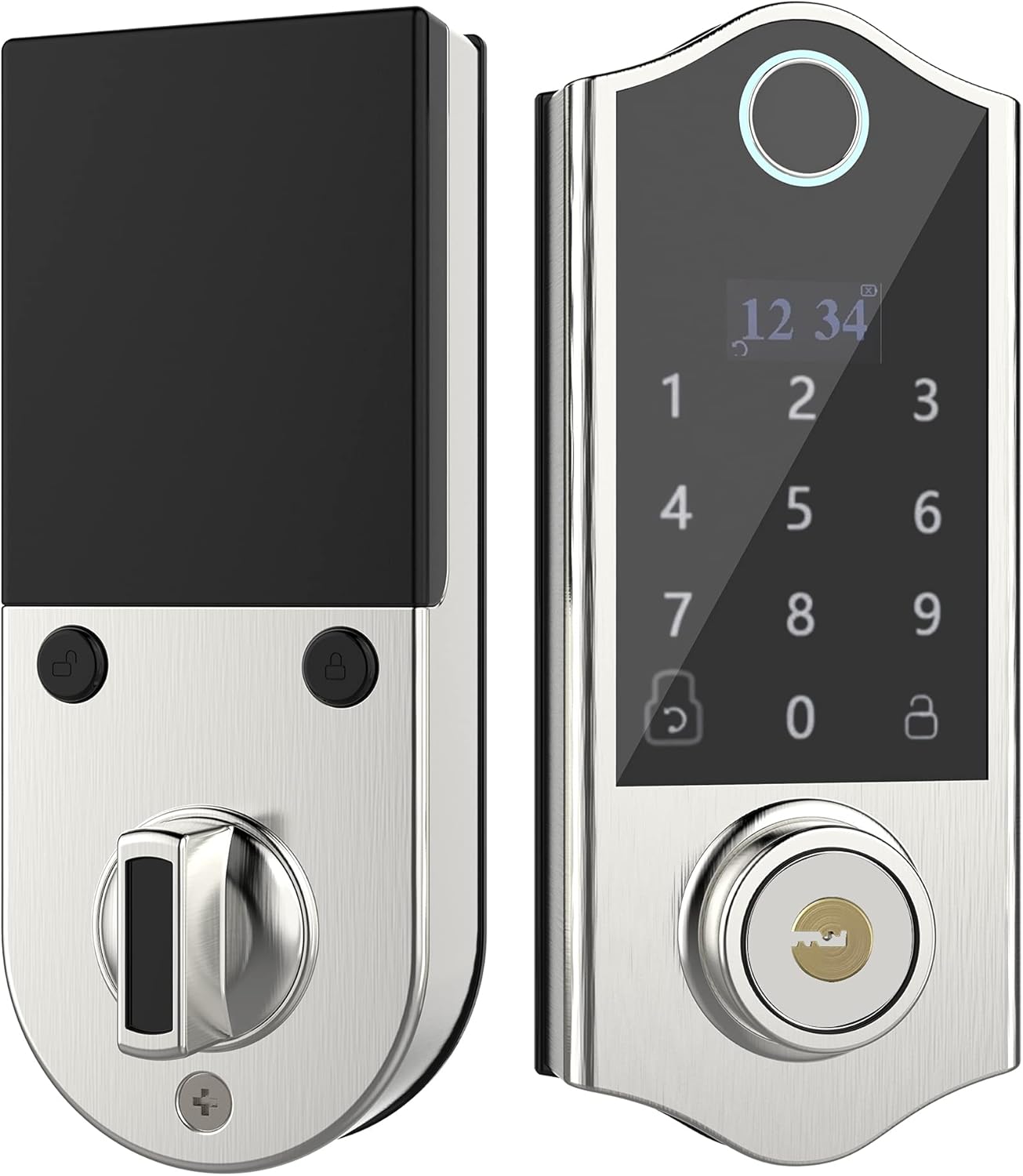
Imaxe: Anverso e reverso view of the HARFO D02 Smart Deadbolt, showcasing its sleek silver finish and integrated keypad and fingerprint sensor on the exterior unit, and the thumb-turn on the interior unit.
Características principais:
- Métodos de desbloqueo 4 en 1: Fingerprint, Passcode, Access Card, and Mechanical Key.
- Intuitive OLED Display: Provides clear visual guidance for programming and operation.
- Guía de voz: Assists users through the setup and programming process.
- Advanced Fingerprint Sensor: Fast and secure recognition system.
- Anti-peep Touchscreen: Supports virtual passwords to prevent unauthorized viewing of your code.
- Hidden Backup Key Hole: Provides traditional key access for emergencies.
- Micro USB Emergency Power: Allows temporary power supply in case of battery depletion.
- Bloqueo automático: Configurable auto-lock feature (5-20 seconds).
- Alta capacidade de usuario: Admite ata 300 usuarios.
- Adjustable for Left & Right Doors: Easily configured to fit various door orientations.

Image: A visual representation of the four unlocking methods: entering a password on the keypad, swiping an access card, using a fingerprint, and inserting a physical key.

Image: An infographic detailing various features of the HARFO D02 lock, including its voice guide, OLED display, advanced fingerprint sensor, anti-peep touchscreen, and emergency power options.
3. Especificacións
| Especificación | Valor |
|---|---|
| Marca | HARFO |
| Modelo | D02 |
| Tipo de bloqueo | Peche de teclado |
| Características especiais | Fingerprint, Touchscreen, Voice Guide, OLED Display |
| Cor | Prata |
| Rango de espesor da porta | 1 3/8 inch to 2 3/16 inch (35mm-55mm) |
| Fonte de enerxía | 4 x 1.5V AA Dry Batteries (not included) |
| Potencia de emerxencia | Micro USB |
| Peso do elemento | 1 libra |
| Dimensións do paquete | 9.25 x 7.64 x 4.02 polgadas |
| Protocolo de conectividade | Wi-Fi (for potential future features, not for direct app control) |

Image: Detailed dimensions of the HARFO D02 Smart Deadbolt, including overall height (168mm / 6-3/5"), and depth measurements for the exterior and interior units, along with the compatible door thickness range of 35-55mm (1-3/8" ~ 2-3/16").
4. Guía de instalación (configuración)
The HARFO D02 Smart Deadbolt is designed for easy installation without the need for drilling additional holes for standard door preparations.
4.1 Before Installation:
- Ensure your door thickness is within the supported range: 1 3/8 inch to 2 3/16 inch (35mm-55mm).
- Reúne as ferramentas necesarias: un destornillador Phillips.
- Do not install batteries until the lock is fully installed.
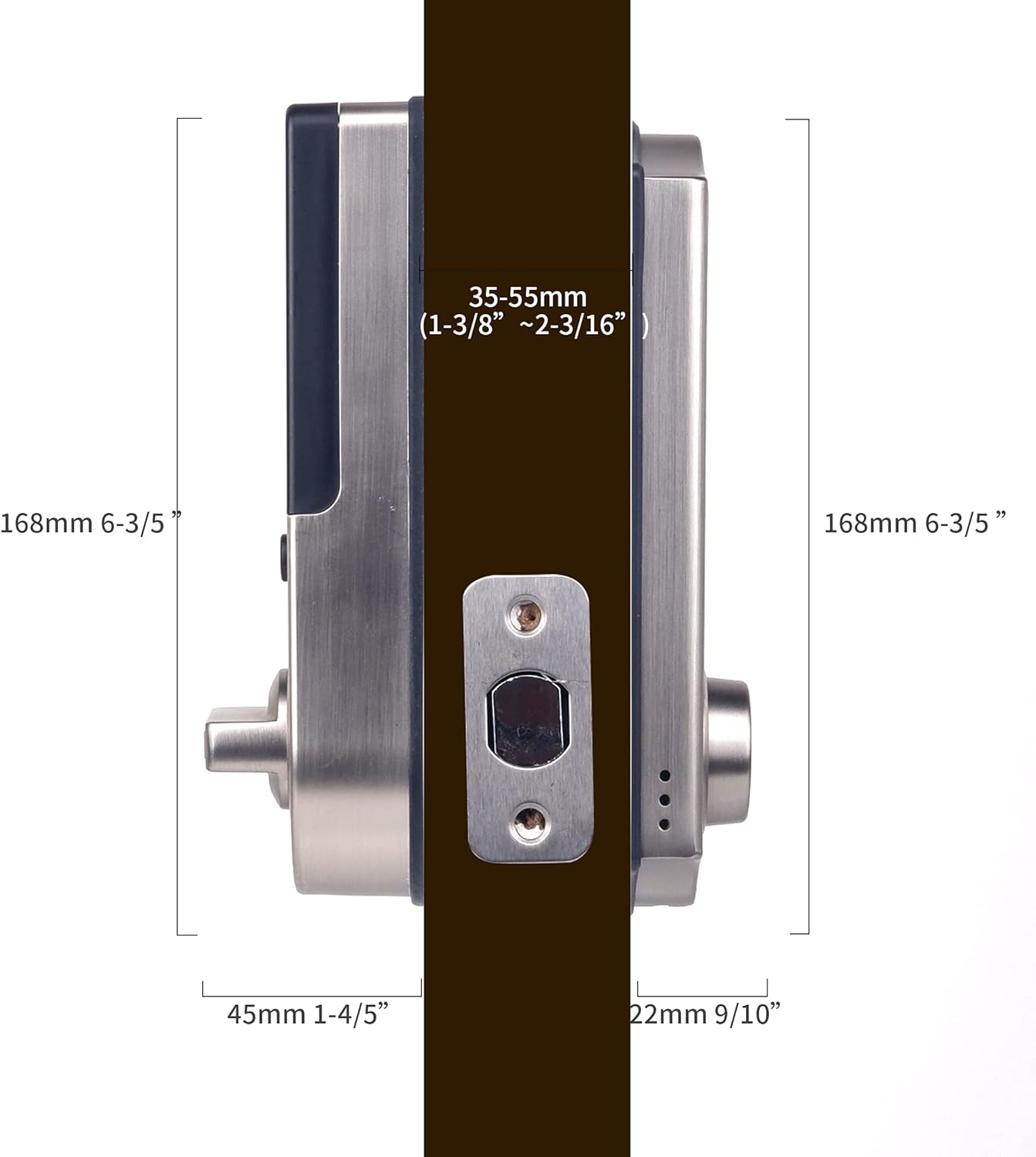
Image: A visual demonstrating the straightforward installation process of the HARFO D02 Smart Deadbolt, emphasizing that no additional drilling is required.
4.2 Adjusting for Left or Right Handed Doors:
The HARFO D02 is compatible with both left-handed and right-handed doors. You will need to adjust the rotary knob and the 'L/R Button' on the interior unit to match your door's orientation.
- Locate the rotary knob and the L/R button on the interior assembly.
- Follow the instructions provided by the voice guide during initial setup or refer to the detailed steps in the full user manual for specific adjustment procedures.
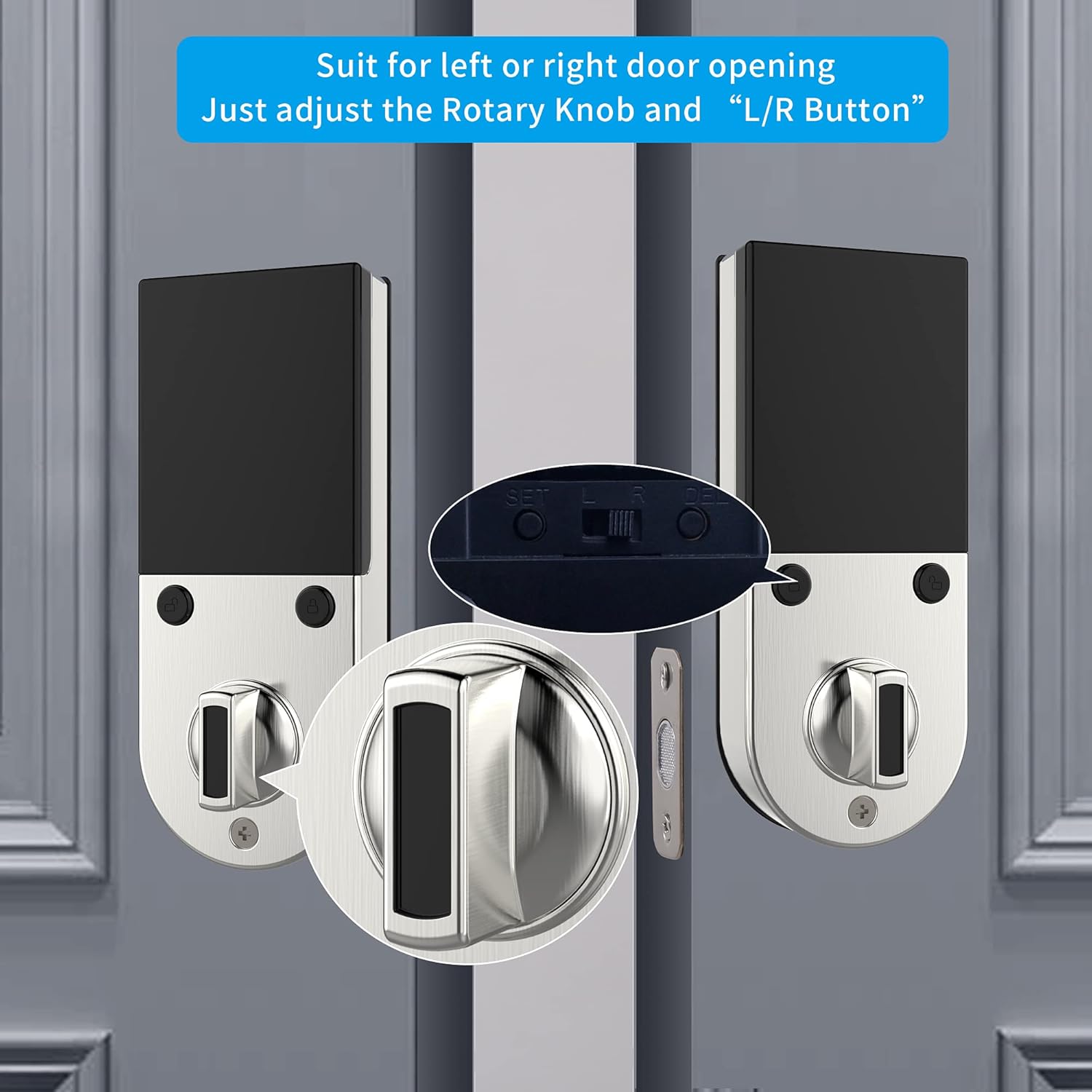
Imaxe: Primeiro plano view illustrating the rotary knob and the L/R button on the interior side of the lock, which are used to configure the deadbolt for either left-handed or right-handed door installations.
4.3 Step-by-Step Installation:
- Instale o pestillo do ferrollo no bordo da porta.
- Install the exterior assembly, ensuring the spindle passes through the latch.
- Install the mounting plate on the interior side.
- Conecte o cable do conxunto exterior ao conxunto interior.
- Secure the interior assembly to the mounting plate.
- Insert 4 AA dry batteries into the battery compartment.
- Perform the door handing identification process as prompted by the voice guide.
For a detailed visual guide, please refer to the installation video provided by HARFO (if available on the product page or manufacturer's websitio).
5. Instrucións de funcionamento
The HARFO D02 Smart Deadbolt offers multiple convenient ways to lock and unlock your door.
5.1 Initial Setup and Programming:
Upon first power-up, the lock will guide you through the initial setup using its OLED display and voice prompts. This includes setting the master code and performing door handing identification.
- Follow the voice guide to set up your master passcode. This code is essential for all programming functions.
- The voice guide will prompt you to register fingerprints, passcodes, and access cards for regular users.
5.2 Unlocking the Door:
- Pegada dixital: Coloca o dedo rexistrado no sensor de impresión dixital. O bloqueo desbloquearase ao recoñecelo correctamente.
- Contrasinal: Enter your registered passcode on the touchscreen keypad, followed by the '#' key.
- Tarxeta de acceso: Present your registered access card to the card reader area on the lock.
- Chave mecánica: Insert the physical key into the hidden keyhole and turn to unlock.
- Contrasinal virtual: To enhance security, you can enter random digits before or after your actual passcode. For example, if your passcode is 123456, you can enter **123456** or 7891234560. This prevents others from guessing your code by observing finger movements.

Image: A visual explanation of the virtual password feature, showing how random digits can be added before or after the actual passcode to obscure it from onlookers.
5.3 Pechando a porta:
- Bloqueo automático: The lock can be set to automatically lock after a configurable delay (5-20 seconds) once the door is closed.
- Bloqueo manual: Press and hold the '#' key on the keypad, or use the thumb-turn on the interior unit.

Image: An icon representing the automatic locking feature, indicating a configurable delay of 5 to 20 seconds before the deadbolt automatically engages.
5.4 Emergency Access:
- Clave de copia de seguridade: Always keep at least one physical key in a safe place outside your home for emergency access.
- Micro USB Emergency Power: If the batteries are completely drained, connect a standard Micro USB power bank to the Micro USB port located on the bottom of the exterior unit to temporarily power the lock and gain entry.

Imaxe: Primeiro plano view highlighting the hidden backup keyhole and the Micro USB port on the exterior unit of the HARFO D02 Smart Deadbolt, used for emergency access and power.
6. Mantemento
6.1 Substitución da batería:
The HARFO D02 Smart Deadbolt requires 4 x 1.5V AA dry batteries. Rechargeable batteries are not recommended as their typical voltage (1.2V) may not provide optimal performance.
- The lock will provide a low battery warning via the OLED display and voice prompt when batteries are running low. Replace all four batteries promptly when this warning appears.
- To replace batteries, remove the battery cover on the interior unit, replace old batteries with new ones, and reattach the cover.

Image: A visual icon representing a low battery warning, prompting the user to replace the batteries in the smart deadbolt.
6.2 Limpeza:
- Limpa a superficie da fechadura cun pano suave e seco.
- Evita o uso de produtos de limpeza abrasivos, solventes ou produtos químicos agresivos, xa que poden danar o acabado e os compoñentes electrónicos.
- Keep the fingerprint sensor and touchscreen clean and free of debris for optimal performance.
7 Solución de problemas
If you encounter issues with your HARFO D02 Smart Deadbolt, please refer to the following common solutions:
| Problema | Causa posible | Solución |
|---|---|---|
| Lock does not respond / No power. | Drained batteries. | Replace all 4 AA dry batteries. Use Micro USB emergency power to gain entry if needed. |
| Pegada dixital non recoñecida. | O dedo está sucio/mollado, o sensor está sucio ou a pegada dixital non está rexistrada correctamente. | Ensure finger and sensor are clean and dry. Try a different registered finger. Re-register fingerprint if issue persists. |
| O contrasinal non funciona. | Incorrect passcode entered, or passcode not registered. | Verify the correct passcode. Ensure you are pressing '#' after the code. Try using the virtual password feature. Re-register passcode if necessary. |
| Lock does not lock/unlock smoothly. | Misalignment of lock components or door frame. Incorrect door handing setting. | Check door and frame alignment. Ensure the deadbolt latch moves freely. Verify the L/R button setting is correct for your door. |
| Voice guide is unclear or not working. | Volume setting too low or a temporary glitch. | Adjust volume settings (refer to full manual). Remove and reinsert batteries to reset the lock. |
If the problem persists after trying these solutions, please contact HARFO customer support for further assistance.
8. Garantía e soporte
HARFO stands behind the quality of its products. For specific warranty information regarding your D02 Smart Deadbolt, please refer to the warranty card included with your product or visit the official HARFO websitio.
Atención ao cliente:
If you have any questions, require technical assistance, or need to report an issue, please contact HARFO customer support through the following channels:
- Websitio: Visit the official HARFO websitio con preguntas frecuentes, recursos de asistencia e formularios de contacto.
- Correo electrónico: Refer to your product packaging or the HARFO websitio para o enderezo de correo electrónico de atención ao cliente.
- Teléfono: Check the HARFO websitio web para ver os números de teléfono de atención ao cliente dispoñibles.
Please have your product model (D02) and purchase information ready when contacting support to ensure efficient service.


