Introdución
Thank you for choosing the Keychron K1 Ultra-Slim Mechanical Keyboard. This manual provides detailed instructions on setting up, operating, and maintaining your keyboard to ensure optimal performance and longevity. The Keychron K1 is a versatile 87-key tenkeyless layout keyboard designed for both wireless (Bluetooth) and wired (USB) connectivity, featuring low-profile Gateron mechanical switches and white LED backlighting.

Image: Keychron K1 Ultra-Slim Tenkeyless Layout Mechanical Keyboard overview.
Contido do paquete
Antes de comezar, asegúrate de que todos os elementos estean presentes no teu paquete:
- Teclado mecánico Keychron K1
- Cable USB Tipo-C
- Tirador de chaves
- Switch Puller (if hot-swappable version)
- Teclas adicionais para sistemas operativos Windows e Mac

Imaxe: De arriba abaixo view of the Keychron K1 mechanical keyboard, showing the 87-key tenkeyless layout.
Configuración
1. Carga inicial
For optimal performance, it is recommended to fully charge the keyboard before first use. Connect the provided USB Type-C cable to the keyboard's USB-C port and the other end to a USB power source (e.g., computer USB port, wall adapter). The battery indicator LED will show charging status.
2. Modos de conectividade
The Keychron K1 supports both Bluetooth wireless and USB wired connections.
Conexión Bluetooth:
- Ensure the keyboard's mode switch (located on the side/back) is set to "BT" (Bluetooth).
- Para entrar no modo de vinculación, manteña premido fn+1 (for Device 1), fn+2 (for Device 2), or fn+3 (for Device 3) for 4 seconds until the corresponding key (1, 2, or 3) flashes rapidly.
- On your device (computer, tablet, smartphone), enable Bluetooth and search for "Keychron K1".
- Select the keyboard from the list of available devices to complete pairing. The flashing light will become solid once connected.
- Para cambiar entre dispositivos emparellados, simplemente prema fn+1, fn+2, ou fn+3.

Image: Diagram illustrating how the Keychron K1 keyboard connects to up to three Bluetooth devices (e.g., desktop, laptop, tablet) using Fn+1, Fn+2, and Fn+3.
Conexión por cable:
- Set the keyboard's mode switch to "Cable" (or "USB").
- Connect the USB Type-C cable from the keyboard to your computer's USB port. The keyboard will be recognized automatically.
3. Compatibilidade do sistema operativo
The Keychron K1 is compatible with both Mac and Windows operating systems. Use the OS switch (located on the side/back) to select the appropriate layout for your system. Extra keycaps for both operating systems are included for customization.
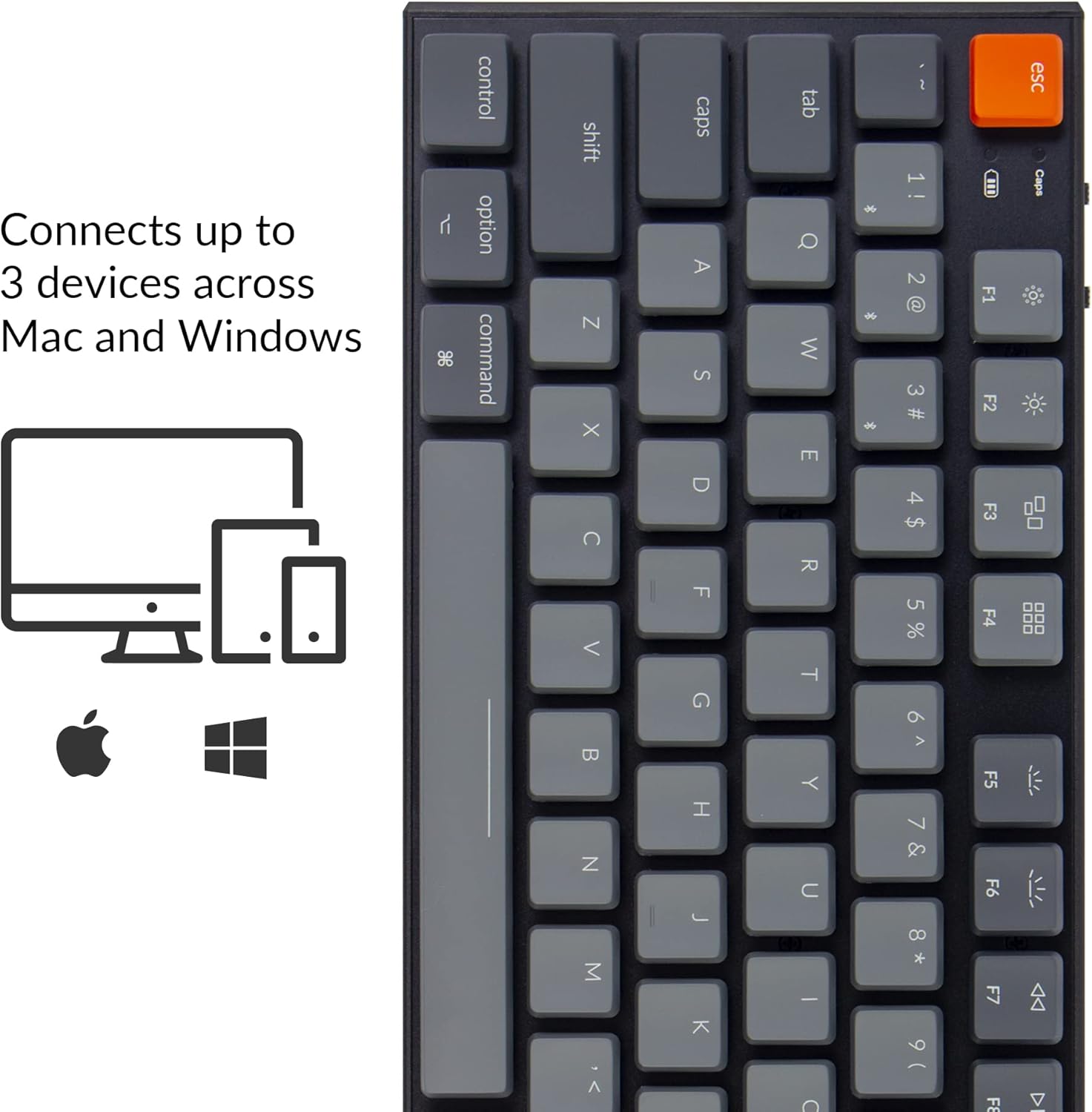
Image: Visual representation of the Keychron K1's compatibility with Mac and Windows operating systems, connecting to up to 3 devices.
Instrucións de funcionamento
1. Funcións clave
The K1 features an 87-key tenkeyless layout. Many keys have dual functions accessible via the Fn chave.
- Teclas multimedia: Access media controls (play/pause, volume up/down, mute) using Fn + F7 a Fn + F12.
- Control de retroiluminación: Adjust backlight brightness and effects using Fn + F5 (decrease brightness), Fn + F6 (increase brightness), and Fn + tecla Lámpada (change backlight effect).
- Substitución da tecla N (NKRO): In wired mode, the keyboard supports N-Key Rollover, allowing all keys to be registered simultaneously. In wireless mode, it supports 6-Key Rollover (6KRO).

Image: The Keychron K1 keyboard with its white LED backlight illuminated, showcasing the key layout.
2. Indicador de batería
The battery indicator LED (located near the Esc key) provides information on battery status:
- Vermello (intermitente): Low battery. Please charge the keyboard.
- Verde (sólido): Totalmente cargado.
- Orange (solid): Cargando.

Imaxe: Primeiro plano view of the top-left corner of the Keychron K1 keyboard, highlighting the orange Esc key and the battery indicator light.
Mantemento
1. Limpeza
To clean your keyboard, power it off and disconnect it from any devices. Use a soft, lint-free cloth slightly dampened with water or a mild cleaning solution. For dust and debris between keycaps, use compressed air or the provided keycap puller to remove keycaps and clean underneath. Avoid excessive moisture.
2. Coidado da batería
The Keychron K1 is equipped with a 2000 mAh Lithium Polymer battery. To prolong battery life:
- Evite descargar completamente a batería con regularidade.
- Garde o teclado nun lugar fresco e seco se non o vai usar durante períodos prolongados.
- Charge the keyboard using a standard 5V USB power source.
Resolución de problemas
| Problema | Causa posible | Solución |
|---|---|---|
| O teclado non se conecta por Bluetooth | Keyboard not in pairing mode; device Bluetooth off; interference; already connected to 3 devices. | Ensure keyboard is in BT mode and pairing mode (Fn+1/2/3 held for 4s). Check device Bluetooth. Try forgetting and re-pairing the device. Ensure no more than 3 devices are paired. |
| Keys not responding in wired mode | Keyboard not in Cable mode; faulty USB cable; loose connection. | Set keyboard to "Cable" mode. Try a different USB port or cable. Ensure cable is securely connected. |
| A retroiluminación non funciona ou é tenue | Backlight turned off or set to lowest brightness; low battery. | Increase brightness using Fn+F6. Change backlight effect using Fn+Light Bulb key. Charge the keyboard. |
| Keyboard randomly disconnects | Batería baixa; interferencia de Bluetooth; distancia do dispositivo. | Charge the keyboard. Reduce distance to device. Minimize other wireless interference. |
Especificacións
| Característica | Detalle |
|---|---|
| Modelo | K1-A2 |
| Maquetación | Sen teclas (87 teclas) |
| Tipo de cambio | Low-Profile Gateron Mechanical Blue Switch |
| Cambiar a vida útil | Ata 50 millóns de pulsacións de teclas |
| Conectividade | Bluetooth 5.1 (Broadcom chipset) & USB Type-C Wired |
| Capacidade da batería | Polímero de litio de 2000 mAh |
| Duración da batería | Up to 110 hours (with backlight off) |
| Retroiluminación | LED branco |
| Dimensións (L x W x H) | 13.98 x 5.31 x 1.02 polgadas (355 x 135 x 26 mm) |
| Peso | 2.27 libras (1.03 kg) |
| Compatibilidade con SO | Mac, Windows, iOS, Android |

Image: Diagram showing the ultra-slim profile and dimensions of the Keychron K1 keyboard.

Imaxe: Primeiro plano view of the Keychron K1 keyboard with several keycaps removed, revealing the low-profile Gateron Mechanical Blue switches and their specifications.
Garantía e Soporte
Keychron products are manufactured with high-quality standards. For warranty information, technical support, or service inquiries, please visit the official Keychron websitio web ou póñase en contacto directamente co servizo de atención ao cliente. Garde o recibo da compra como proba de compra para reclamacións de garantía.
Keychron oficial Websitio: www.keychron.com


