1. Introdución
The Verizon Wireless 4G & 5G LTE Network Extender is designed to significantly improve your cellular signal strength and LTE data speeds within your home or office environment. It connects to your existing high-speed internet connection to create a strong, reliable Verizon network signal, supporting up to 16 active devices simultaneously.
This device is particularly beneficial in areas with weak macro base station signals, helping to eliminate dropped calls and improve text message delivery. It features a large LCD screen for easy setup and operation, and offers flexible mounting options for desks, walls, or ceilings.
2. Que hai na caixa
- Verizon Wireless 4G & 5G LTE Network Extender (ASK-SFE116)
- Adaptador de alimentación
- Cable Ethernet
- GPS Antenna Module with adhesive backing
- Cable Management Hooks (3M stickers with hooks)
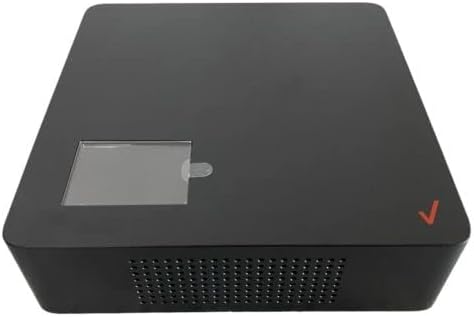
Figura 2.1: Fronte view of the Verizon Wireless 4G & 5G LTE Network Extender.
3. Instrucións de configuración
Follow these steps to set up your Network Extender:
- Conectar o cable Ethernet: Locate the Ethernet port on the back of the Network Extender. Connect one end of the provided Ethernet cable to this port and the other end to an available LAN port on your internet router or modem.
- Conectar o adaptador de alimentación: Plug the power adapter into the power port on the back of the Network Extender. The device will automatically power on once connected to power, as there is no ON/OFF switch.
- Colocación da antena GPS: The GPS antenna is crucial for the device's operation. It is initially stored within a compartment on the bottom of the extender. To access it, remove the circular cover on the bottom. Unwind enough cable from the GPS antenna module to place it near a window with a clear view of the sky. This ensures optimal GPS signal reception, which is necessary for the extender to function correctly. Use the provided adhesive backing to secure the GPS antenna module to a wall or window frame.
- Conexión inicial: Once powered on, the LCD screen on the front of the extender will display initialization messages, including "Connecting to Router" and "Searching for GPS signal." This process may take up to 10 minutes.

Figura 3.1: Abaixo view of the Network Extender with the cover on, showing the Ethernet and power ports.

Figura 3.2: Abaixo view of the Network Extender with the cover removed, revealing the GPS antenna module.
4. Instrucións de funcionamento
Once the setup is complete and the device displays "Service Active," your Network Extender is ready for use. The LCD screen provides vital information about its status.
- Pantalla LCD: The front LCD screen will cycle through various status updates, including the number of connected satellites and the number of connected devices.
- Checking Connection: To confirm your phone is connected to the Network Extender, dial #48 from your Verizon phone. An automated message will confirm if you are under 4G LTE Network Extender coverage.
- Conexión automática: In most cases, your phone will automatically connect to the LTE Network Extender after a few minutes of it being active. If your phone does not connect automatically, try power cycling your phone (turning it off and then back on).
5 Solución de problemas
If you encounter issues with your Network Extender, refer to the following common problems and solutions:
- "Server Error 5A": This error typically indicates an issue with the GPS signal. Ensure the GPS antenna module is unwound from its compartment and placed near a window with a clear view of the sky. A strong GPS signal is essential for the extender to register and operate correctly.
- Sen mellora do sinal: If your phone's signal bars do not improve after the extender is active, try power cycling your phone. Allow a few minutes for your phone to re-establish connection with the extender.
- Sen conexión a Internet: Verify that your internet router/modem is functioning correctly and has an active internet connection. Ensure the Ethernet cable is securely connected to both the extender and your router.
6. Especificacións
| Dimensións do produto | 6 x 6 x 4 polgadas |
| Peso do elemento | 2.77 libras |
| ASIN | B09L79CWZ2 |
| Data de primeira dispoñibilidade | 7 de novembro de 2021 |
| Fabricante | Verizon |
| País de Orixe | Samoa Americana |
| Estándar de comunicación sen fíos | 802.11ac |
| Taxa de transferencia de datos | 10 megabits por segundo |
| Característica especial | Xestión remota |
| Tipo de conector | RJ45 |
7. Garantía e soporte
This Certified Refurbished product is tested and certified to look and work like new. The refurbishing process includes functionality testing, basic cleaning, inspection, and repackaging. The product ships with all relevant accessories and may arrive in a generic box.
Protection plans are available for purchase to extend coverage beyond the standard refurbished warranty:
- Plan de protección de 3 anos: 36.99 $
- Plan de protección de 4 anos: 47.99 $
- Protección completa: 16.99 $/mes (cobre todas as compras pasadas e futuras válidas)
For technical support, please contact Tech Proz, the third-party seller. For details on protection plans, refer to the respective product pages.


