1. Introdución
Thank you for choosing the AZDOME M01 Pro Dual Dash Cam. This device is designed to provide reliable video recording of your journeys, enhancing driving safety and providing evidence in case of incidents. It features a front camera for road ahead recording and a rear camera for simultaneous rear view coverage. This manual provides detailed instructions for installation, operation, and maintenance of your dash cam.
2. Contido do paquete
Comprobe se o paquete contén os seguintes elementos:
- AZDOME M01 Pro Dash Cam (Main Unit)
- Rear Camera (6m/20ft cable)
- Tarxeta SD de 32 GB
- Dual USB Car Charger (5V/2.4A)
- Cable de alimentación (3.5 m/12 pés)
- 360° Suction Mount
- 360° 3M Spare Sticky Mount
- Mirror Mount Holder (Optional, if included in your bundle)

Image: Contents of the AZDOME M01 Pro Dash Cam package.
3. Produto rematadoview
3.1 Main Unit (Front Dash Cam)
The main unit features a 3-inch 2.5D curved IPS screen, a 150° wide-angle lens with F2.0 large aperture, and various control buttons for navigation and settings. It supports 1080P Full HD recording.

Image: AZDOME M01 Pro Dash Cam main unit with key features.
3.2 Cámara traseira
The compact rear camera provides VGA resolution recording and is designed to be mounted at the rear of your vehicle for comprehensive coverage.
3.3 Opcións de montaxe
The dash cam comes with a 360° suction mount for windshield attachment and a 360° 3M sticky mount for alternative placements. A mirror mount holder is also included for integration with your vehicle's rearview espello.

Image: Mirror mount holder for the dash cam.
4. Configuración
4.1 Inserción da tarxeta SD
- Asegúrate de que a cámara do salpicadero estea apagada.
- Localiza a ranura para tarxetas SD no lateral da cámara do salpicadero.
- Insert the provided 32GB SD card with the gold contacts facing the back of the camera until it clicks into place.
- Para retirala, empurre a tarxeta con coidado ata que saia de golpe.
Nota: It is recommended to format the SD card within the dash cam's settings before first use and periodically thereafter to ensure optimal performance.
4.2 Montaxe da cámara para o salpicadero
Choose between the suction mount or the mirror mount holder.
Using the Suction Mount:
- Limpa a zona do parabrisas onde pretendes montar a cámara.
- Fixe a ventosa á cámara do salpicadero.
- Prema a ventosa firmemente contra o parabrisas e xire a palanca para suxeitala.
- Axusta o ángulo da cámara segundo sexa necesario.
Using the Mirror Mount Holder:
- Attach the mirror mount holder to the dash cam.
- Con seguridade clamp the mirror mount holder onto your vehicle's rearview mirror stem.
- Aperte todos os parafusos para garantir a estabilidade.
- Adjust the camera angle for an optimal view.
4.3 Conexión de enerxía
- Plug the small end of the power cable into the dash cam's power port.
- Plug the other end of the power cable into the dual USB car charger.
- Insert the car charger into your vehicle's 12V power outlet (cigarette lighter socket).
- Route the cable neatly along the windshield trim to avoid obstructing your view.
4.4 Instalación da cámara traseira
- Conecta o cable da cámara traseira ao porto designado da unidade principal da cámara do salpicadero.
- Route the rear camera cable from the front unit to the rear of your vehicle, typically along the headliner and side panels.
- Mount the rear camera on the rear windshield using its adhesive pad, ensuring a clear view.
- Adjust the angle of the rear camera for optimal coverage.
5. Instrucións de funcionamento
5.1 Encendido/apagado
- Automático: The dash cam will power on and begin recording automatically when your vehicle's ignition is turned on (and power is supplied to the 12V outlet).
- Manual: Press and hold the Power button to manually turn the device on or off.
5.2 Gravación básica
Once powered on, the dash cam will automatically start continuous loop recording. The front camera records in 1080P FHD, and the rear camera records in VGA resolution simultaneously.

Image: High-resolution 1080P FHD recording display.
5.3 Gravación en bucle
The dash cam records video in segments (e.g., 1, 3, or 5 minutes). When the SD card is full, the oldest unlocked video fileas novas gravacións sobrescribiranse. Isto garante a gravación continua sen intervención manual.
5.4 Sensor G (gravación de emerxencia)
The built-in G-sensor detects sudden impacts or collisions. When triggered, it automatically locks the current video segment, preventing it from being overwritten by loop recording. The sensitivity of the G-sensor can be adjusted in the settings menu.
5.5 Modo de aparcamento
With Parking Mode enabled, the dash cam will automatically start recording if it detects a collision or vibration while your vehicle is parked. This feature requires a continuous power supply (e.g., a hardwire kit, sold separately) to function when the vehicle is off.
5.6 Salvapantallas
To avoid distraction while driving, you can set the screen to turn off automatically after a set period (e.g., 1, 3, or 5 minutes) while recording continues in the background. The screen can be reactivated by pressing any button.
5.7 ADAS (Advanced Driver-Assistance Systems)
The ADAS feature provides alerts for potential road hazards, such as Lane Departure Warning (LDW) or Forward Collision Warning (FCW). Refer to the dash cam's settings to enable and configure these features.
5.8 Fatigue Driving Alert
This feature reminds drivers to take a break after a preset duration of continuous driving, promoting safer driving habits.
5.9 Dual Recording and Reverse View
The AZDOME M01 Pro records simultaneously from both the front and rear cameras. When the vehicle is in reverse gear (if properly wired), the screen can display the rear camera feed with parking guidelines, assisting with parking maneuvers.
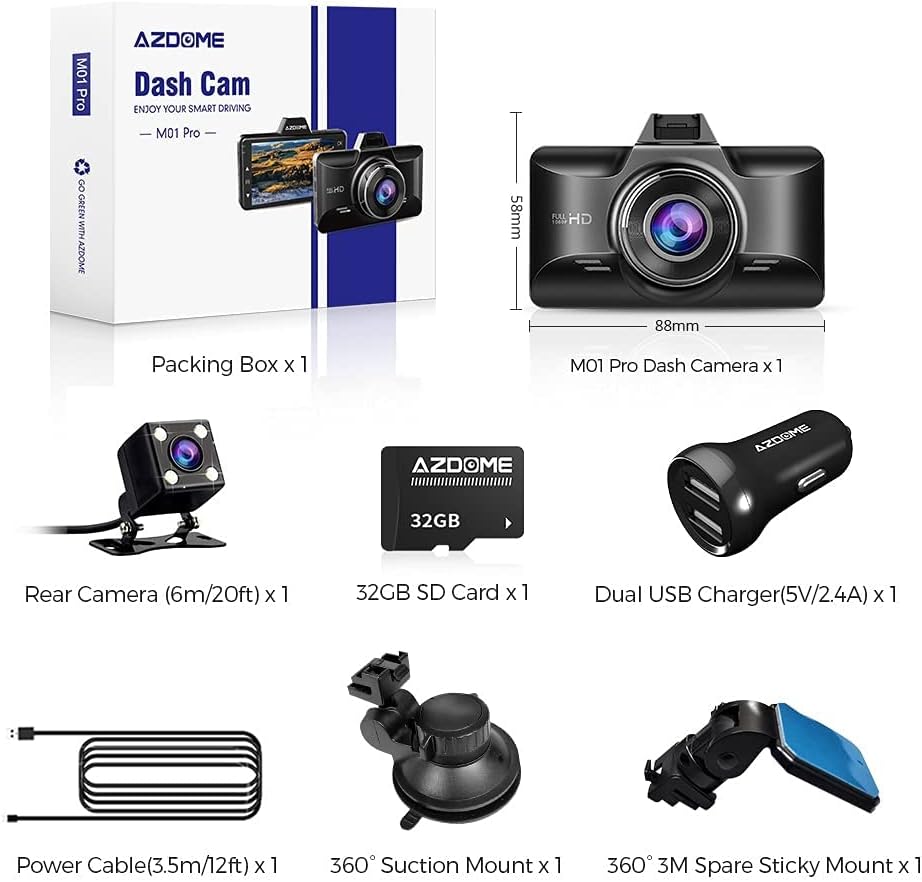
Image: Dual recording display with reverse view parking assistance.
5.10 Reprodución
Para view recorded videos, stop recording (if active) and enter the playback mode via the menu. You can browse through video files and play them directly on the dash cam screen or transfer the SD card to a computer for viewing.
6. Mantemento
- Limpeza: Use a soft, dry cloth to clean the camera lenses and screen. Avoid using abrasive cleaners.
- Formato da tarxeta SD: Format the SD card regularly (e.g., once a month) within the dash cam's settings to maintain optimal recording performance and prevent data corruption.
- Temperatura: Evite expoñer a cámara do salpicadero a temperaturas extremas durante períodos prolongados.
7 Solución de problemas
| Problema | Solución |
|---|---|
| A cámara do salpicadero non se acende. | Check if the power cable is securely connected to both the dash cam and the car charger. Ensure the car charger is properly inserted into the 12V outlet and the vehicle's ignition is on. Test the 12V outlet with another device. |
| Dash cam stops recording. | Ensure the SD card is inserted correctly and has sufficient free space. Format the SD card. Check if loop recording is enabled. If the G-sensor is too sensitive, it might lock too many files, filling the card. Adjust G-sensor sensitivity. |
| Vídeo footage está borroso. | Clean the camera lenses with a soft cloth. Ensure the protective film has been removed from the lenses. Check if the windshield area is clean. |
| Mensaxe de erro da tarxeta SD. | Format the SD card within the dash cam settings. If the issue persists, try a different high-speed (Class 10 or U3) SD card from a reputable brand. |
| A cámara traseira non se mostra. | Check the connection of the rear camera cable to the main unit. Ensure the cable is not damaged. |
8. Especificacións
| Característica | Detalle |
|---|---|
| Nome do modelo | M01 Pro |
| Marca | AZDOME |
| Resolución de captura de vídeo | Front: 1080p FHD; Rear: VGA |
| Tamaño da pantalla | 3 Inches (2.5D Curved IPS) |
| Características especiais | 360 Degree (Mount), Loop Recording, G-Sensor, Parking Mode, Screen Saver, ADAS, Fatigue Driving Alert, Super Night Vision |
| Tecnoloxía de conectividade | USB |
| Tipo de montaxe | Suction Mount, Mirror Mount |
| Tipo de memoria flash | SD (Supports up to 64GB, 32GB included) |
9. Garantía e soporte
AZDOME products are designed for reliability and performance. For warranty information, technical support, or any inquiries regarding your AZDOME M01 Pro Dash Cam, please refer to the contact information provided on the official AZDOME websitio web ou a documentación da súa compra. Conserve o comprobante de compra para reclamacións de garantía.
Soporte en liña: www.azdome.com/support


