1. Introdución
This manual provides detailed instructions for the proper use and maintenance of your GMKtec Xpanel2 15.6-inch 4K Portable Touchscreen Monitor. Please read this manual thoroughly before operating the device to ensure optimal performance and longevity.
Características clave
- Pantalla de alta resolución: Features a 3840x2160 4K IPS panel with a 178-degree ultra-wide viewing angle, ensuring consistent image quality from various perspectives.
- Reprodución de cores vibrantes: Boasts 550 cd/m² brightness, a 1500:1 contrast ratio, and 100% Adobe RGB color gamut coverage for accurate and vivid visuals.
- Deseño ultraportátil: With a thickness of approximately 4mm, this monitor is designed for easy transport, fitting conveniently into bags for on-the-go productivity or entertainment.
- Conectividade ampla: Equipped with multiple ports including two Type-C, one Mini HDMI, one headphone jack, and one OTG port, allowing connection to a wide range of devices such as laptops, smartphones, gaming consoles (PS4, Xbox, Nintendo Switch), and more.
- Funcionalidade da pantalla táctil: Offers intuitive interaction with supported devices.

Image 1.1: The GMKtec Xpanel2 portable monitor showcasing its 4K UHD display and touchscreen capability.
2. Configuración e conexións
Follow these steps to connect your GMKtec Xpanel2 monitor to various devices.
2.1 Contido do paquete
Verifica que todos os elementos estean incluídos no teu paquete:
- GMKtec Xpanel2 Portable Monitor
- Type-C to Type-C Cable (x2)
- Standard HDMI to Mini HDMI Cable (x1)
- Cable USB tipo A a tipo C (x1)
- Adaptador de alimentación (x1)
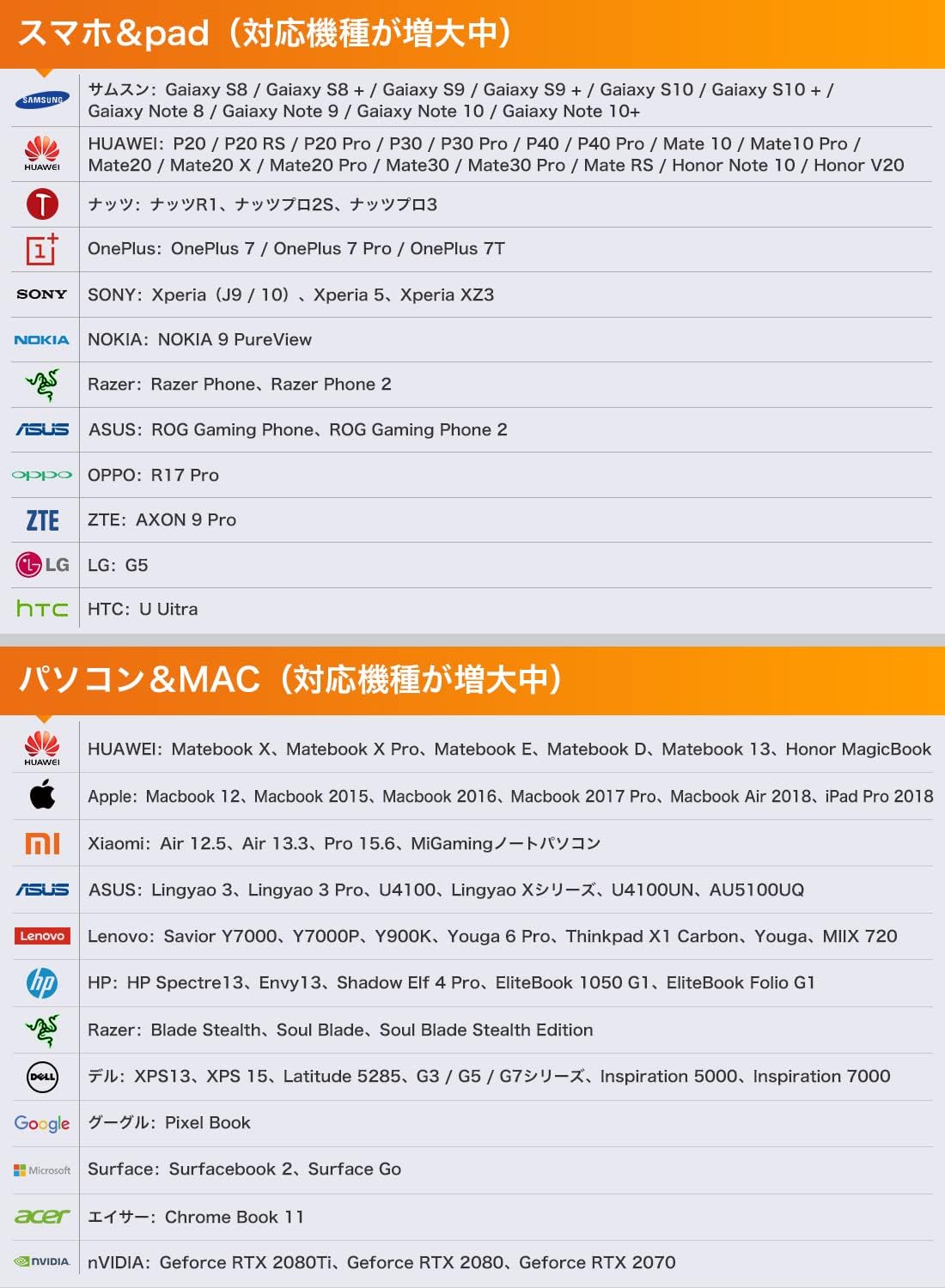
Imaxe 2.1: Acabadoview of the GMKtec Xpanel2 monitor and its included cables and power adapter.
2.2 Port Overview
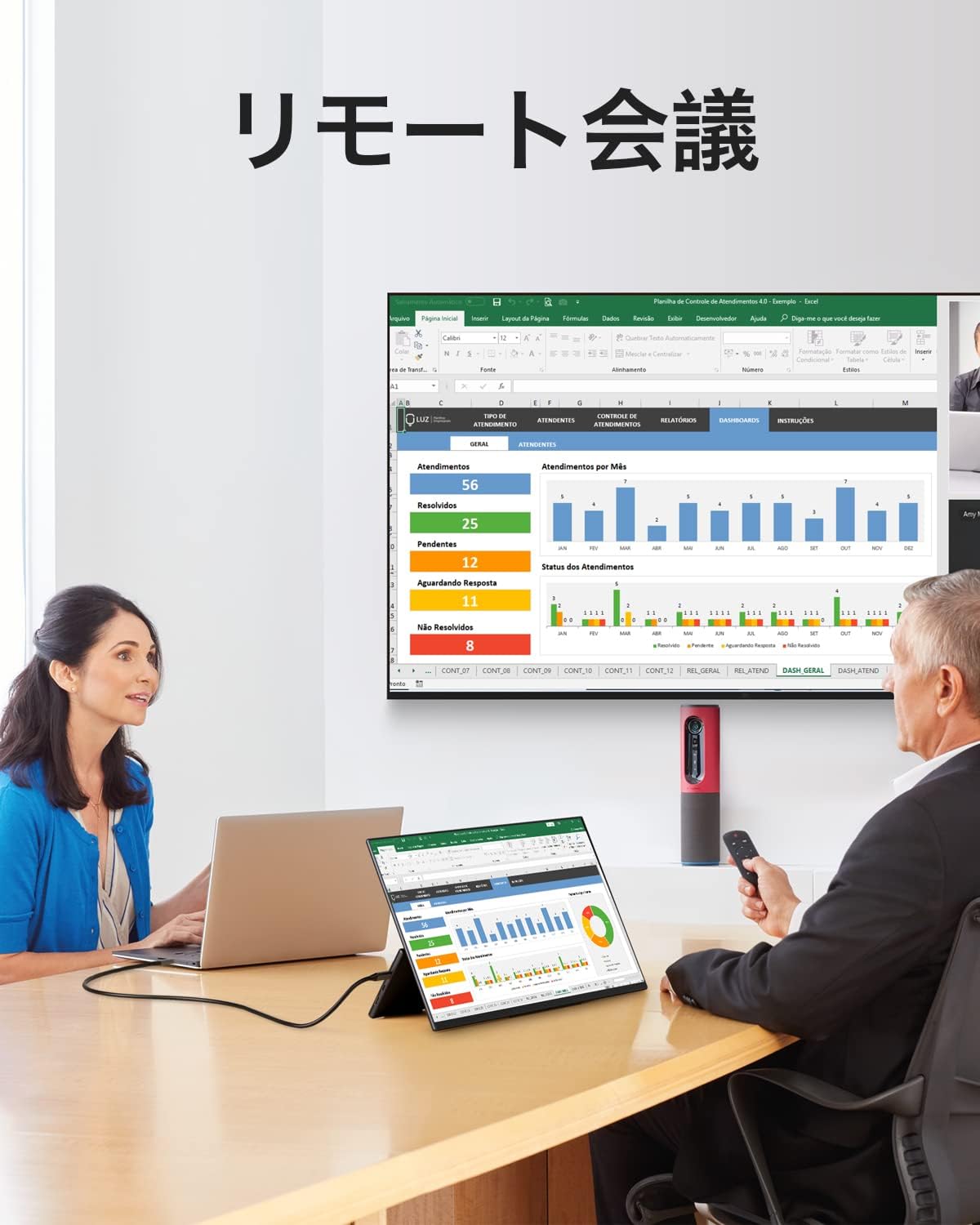
Image 2.2: Detailed diagram showing the various ports on the GMKtec Xpanel2 monitor.
- Mini HDMI: Connects to HDMI output devices for video and audio.
- Full-function Type-C (x2): Supports video input, touch signal, and power delivery.
- Conector para auriculares (3.5 mm): Para conectar dispositivos de audio externos.
- OTG: For data transmission only, typically for connecting a mouse or keyboard.
- Botón de encendido: Short press to display the power menu, long press to turn on/off.
2.3 Conexión a dispositivos
The monitor offers versatile connectivity options. Ensure your device supports the necessary output modes.
2.3.1 Connecting to a Smartphone (Full-function Type-C)
If your smartphone has a full-function Type-C port (supporting DisplayPort Alt Mode), you can connect it using a single Type-C to Type-C cable for video, audio, and touch functionality. If power is insufficient, an external power source is required. Failure to connect external power simultaneously may result in flickering or a black screen.

Image 2.3: A smartphone connected to the portable monitor via a single Type-C cable, extending the display.

Image 2.4: Diagram illustrating a Type-C phone connection, highlighting the need for external power if the phone's power output is insufficient.
2.3.2 Connecting to a Laptop/PC (Type-C or HDMI)
For laptops or PCs with a full-function Type-C port, use a Type-C to Type-C cable. For devices without DisplayPort Alt Mode support via Type-C, use the Mini HDMI port with the provided Standard HDMI to Mini HDMI cable. An external power source may be required for the monitor, especially if the laptop's USB-C port does not provide sufficient power.

Image 2.5: A laptop connected to the portable monitor via a Type-C cable, extending the desktop.
2.3.3 Connecting to Gaming Consoles (Nintendo Switch, PS4, Xbox)
Connect gaming consoles using the Mini HDMI port. For Nintendo Switch, an external power source (45W PD or higher) is required to power both the display and the Switch simultaneously. The touch function is not available when connected to Nintendo Switch.

Image 2.6: A Nintendo Switch connected to the portable monitor, demonstrating a gaming setup.
3. Instrucións de funcionamento
3.1 Encendido/apagado
Press and hold the Power Button (refer to Image 2.2) for a few seconds to turn the monitor on or off. A short press will bring up the on-screen display (OSD) menu.
3.2 Menú de visualización en pantalla (OSD).
Use the control buttons (usually a joystick or a combination of buttons near the power button) to navigate the OSD menu. This menu allows you to adjust settings such as brightness, contrast, color mode, input source, and other display parameters.
3.3 Funcionalidade da pantalla táctil
The monitor supports 10-point multi-touch input. Ensure your connected device supports touch input over Type-C (DisplayPort Alt Mode) for this feature to work. For optimal responsiveness, keep the screen clean.
3.4 Gravity Sensor and Screen Rotation
The monitor features a gravity sensor that supports 90-degree automatic screen rotation. This allows the display to switch between landscape and portrait modes based on its orientation, enhancing versatility for different applications.

Image 3.1: The monitor's integrated metal bracket allows for flexible viewing angles from 0 to 90 degrees, supporting various orientations.

Image 3.2: Visual comparison highlighting the superior clarity and detail of 4K UHD resolution compared to 1080p.
4. Mantemento
Un mantemento axeitado garante a lonxevidade e o rendemento do teu monitor.
4.1 Limpeza da pantalla
- Turn off the monitor and disconnect all cables before cleaning.
- Use un pano suave e sen fiapos, lixeiramente dampened with water or a screen-cleaning solution.
- Wipe the screen gently to remove dust and smudges. Avoid excessive pressure.
- Non empregues alcol, amoníaco nin produtos de limpeza abrasivos, xa que poden danar a superficie da pantalla.
4.2 Coidados xerais
- Evite expoñer o monitor a temperaturas extremas, humidade ou luz solar directa.
- Do not place heavy objects on the monitor.
- Handle the monitor with care to prevent drops or impacts.
- Store the monitor in a protective sleeve or case when traveling.
5 Solución de problemas
If you encounter issues with your GMKtec Xpanel2 monitor, refer to the following common problems and solutions.
5.1 Sen pantalla / Pantalla negra
- Comprobar a potencia: Ensure the monitor is properly connected to a power source using the provided adapter or a compatible Type-C cable. If using a single Type-C cable for both power and video, ensure the connected device can supply sufficient power, or connect an external power adapter to the monitor.
- Fonte de entrada: Verify that the correct input source (Type-C or HDMI) is selected in the monitor's OSD menu.
- Conexión por cable: Ensure all cables (Type-C, HDMI) are securely connected to both the monitor and the source device. Try using different cables if available.
- Compatibilidade do dispositivo: Confirm that your source device's Type-C port supports DisplayPort Alt Mode for video output.
5.2 Flickering Screen
- Potencia insuficiente: Flickering often indicates insufficient power. Connect the monitor to its dedicated power adapter. If using a single Type-C cable, ensure the power adapter is also connected to the monitor's second Type-C port.
- Calidade do cable: Use the high-quality cables provided with the monitor. Faulty or low-quality cables can cause display issues.
- Refresh Rate/Resolution: Ensure the display settings on your source device are compatible with the monitor's capabilities.
5.3 Touchscreen Not Responding
- Conexión tipo C: Touch functionality typically requires a full-function Type-C connection (DisplayPort Alt Mode). Ensure your device and cable support this. Touch is not supported via HDMI.
- Instalación de controladores: For some operating systems, specific drivers might be required for touch functionality. Check the GMKtec support websitio.
- Pantalla limpa: Ensure the screen is clean and free of debris that might interfere with touch input.
- Reiniciar dispositivos: Restart both the monitor and the connected device.
5.4 OSD Menu Not Appearing or Unresponsive
- Botón de encendido: Ensure you are performing a short press on the power button to access the OSD menu.
- Botóns de control: If the menu appears but is unresponsive, check the control buttons for any physical obstruction or damage.
- Firmware: In rare cases, a firmware update might resolve OSD issues. Contact support for guidance.
6. Especificacións
| Característica | Especificación |
|---|---|
| Marca | GMKtec |
| Número de modelo | Xpanel2 |
| Tamaño da pantalla | 15.6 polgadas |
| Tipo de panel | IPS |
| Resolución | 3840 x 2160 (4K UHD) |
| Relación de aspecto | 16:9 |
| Brillo | 550 cd/m² |
| Relación de contraste | 1500:1 |
| Gama de cores | 100% Adobe RGB |
| Portos HDMI | 1 (Mini HDMI) |
| Portos tipo C | 2 (Full-function) |
| Conector para auriculares | 1 (3.5 mm) |
| Porto OTG | 1 |
| Dimensións do produto | 35.6 x 22.6 x 1.2 cm |
| Peso do produto | 1.84 kg |
7. Garantía e soporte
7.1 Información da garantía
Your GMKtec Xpanel2 monitor comes with the following warranty and return policies:
- 1-Year Free Repair Warranty: Covers manufacturing defects and malfunctions for one year from the purchase date.
- 1-Month Free Return: Eligible for free returns within one month of the purchase date.
- Servizo posvenda de por vida: GMKtec is committed to providing lifetime technical support for its products.
7.2 Atención ao cliente
For any questions or technical assistance, please contact GMKtec customer support:
- Order-Related Inquiries: Locate your "GMKtec" order and click the "Ask a question" button to contact us.
- Soporte técnico: For professional technical support, please email support@gmktec.com. Our team aims to respond within 24 business hours.


