1. Introdución
Thank you for choosing the LeadsaiL Wireless Keyboard and Mouse Combo. This product is designed to provide a convenient and efficient input solution for your computer. Featuring a compact design, silent keys, and a reliable 2.4G wireless connection, it is compatible with various operating systems including Windows and Mac OS.
2. Contido do paquete
The LeadsaiL Wireless Keyboard and Mouse Combo package includes the following items:
- 1 x teclado sen fíos
- 1 x rato sen fíos
- 1 x Receptor USB (gardado dentro do compartimento da batería do rato)
- 1 x Manual de usuario
Vídeo: Desempaquetado e máisview of the LeadsaiL Wireless Keyboard and Mouse Combo. This video demonstrates the items included in the package and provides a visual introduction to the product's features.
3. Configuración
3.1 Instalación da batería
The keyboard and mouse require AA batteries (not included). Follow these steps to install them:
- Para o rato: Open the battery compartment cover on the underside of the mouse. Insert one (1) AA battery, ensuring correct polarity. The USB receiver is located in this compartment. Close the cover.
- Para o teclado: Open the battery compartment cover on the underside of the keyboard. Insert two (2) AA batteries, ensuring correct polarity. Close the cover.

Imaxe: Illustration of battery placement for both the wireless mouse (1x AA battery) and keyboard (2x AA batteries). The image also highlights the storage location of the USB receiver within the mouse.
3.2 Conexión do receptor USB
The keyboard and mouse share a single USB receiver for connection. This receiver is stored in the mouse's battery compartment.
- Remove the USB receiver from the mouse's battery compartment.
- Conecte o receptor USB a un porto USB dispoñible no seu ordenador.
- The system will automatically detect and install the necessary drivers. No additional driver installation is required.

Imaxe: A visual representation of the 2.4G wireless connection setup. The USB receiver is shown plugged into a laptop, enabling wireless communication with both the keyboard and mouse.
4. Instrucións de funcionamento
4.1 Encendido/apagado
Ensure the power switch on both the keyboard and mouse is in the 'ON' position. The mouse typically has a switch on its underside. The keyboard may have an indicator light to confirm it is active.
4.2 Características do teclado
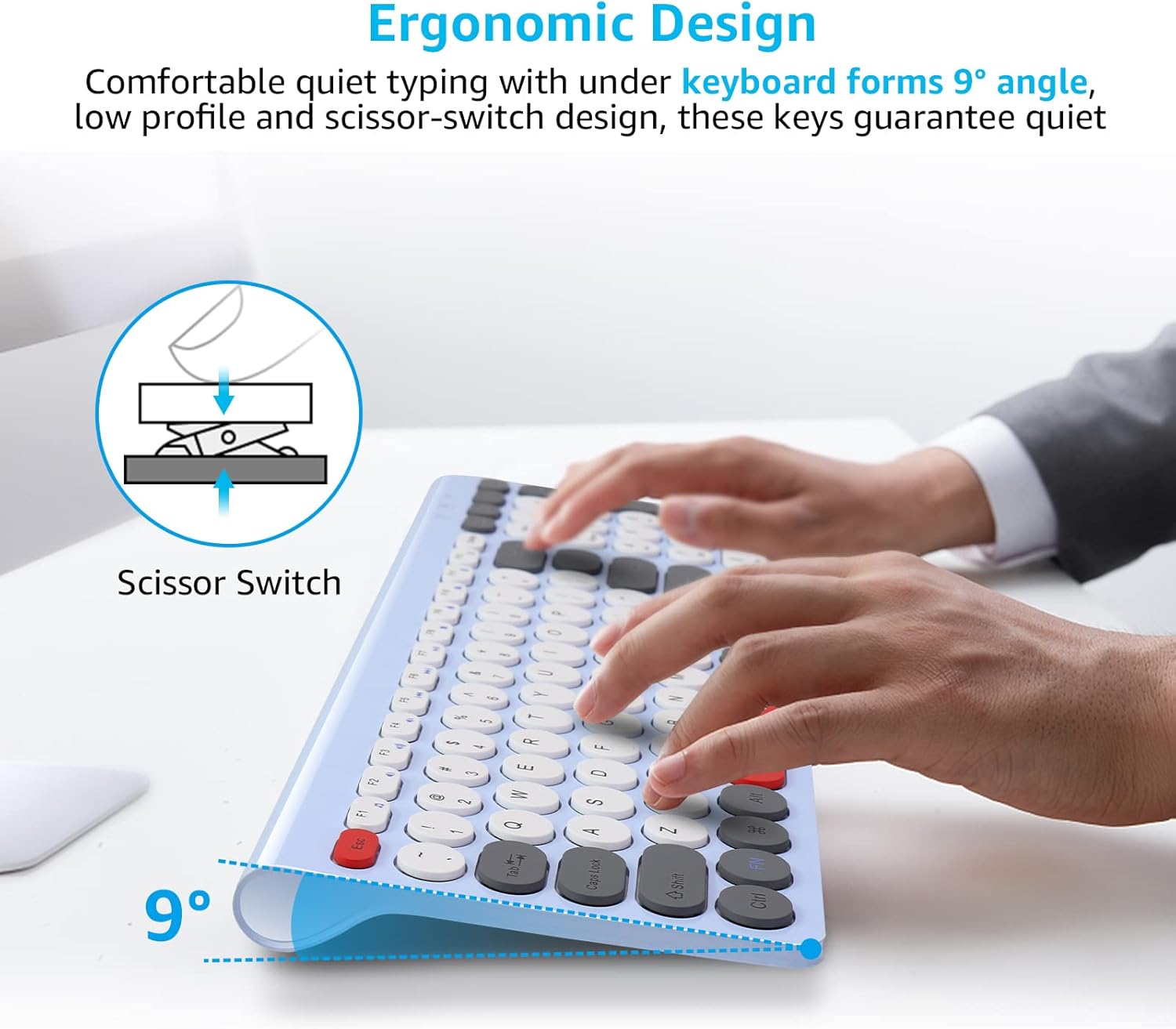
The keyboard features a compact layout with a full numeric keypad. It utilizes a scissor-structure button design for reduced noise and a comfortable typing experience.
- FN+ Shortcuts: The keyboard includes 12 FN+ shortcuts for quick access to multimedia functions such as mute, play/pause, backward, forward, and volume control. Press the 'FN' key simultaneously with the desired function key (F1-F12) to activate.
- Luces indicadoras: The keyboard has indicator lights for Num Lock, Caps Lock, and low battery status.

Imaxe: The keyboard layout showcasing the 12 multimedia keys. These keys, when used with the FN key, provide quick access to various functions, enhancing efficiency.

Imaxe: Un detallado view of the keyboard's scissor-structure keys, designed for quiet operation. The image also illustrates the ergonomic 10-degree tilt for comfortable typing.
4.3 Características do rato
The wireless mouse offers silent clicks and an ambidextrous design for comfortable use by both left and right-handed users.
- DPI axustable: The mouse features 3 adjustable DPI levels (800, 1200, 1600) to customize cursor sensitivity. Press the DPI button (usually located near the scroll wheel) to cycle through the settings.
Imaxe: The wireless mouse highlighting its quiet click buttons and three adjustable DPI settings (800, 1200, 1600) for precise control.
4.4 Modo de aforro de enerxía
To conserve battery life, both the keyboard and mouse will enter a sleep mode after 3 minutes of inactivity. To wake them up, simply click any button on the mouse or press any key on the keyboard.

Imaxe: A graphic depicting the automatic energy-saving function, showing the keyboard and mouse entering sleep mode after a period of inactivity to extend battery life.
5. Mantemento
To ensure the longevity and optimal performance of your LeadsaiL Wireless Keyboard and Mouse Combo, follow these maintenance guidelines:
- Limpeza: Usa un pano suave e seco para limpar as superficies do teclado e do rato. Para a sucidade persistente, usa un pano lixeiramente seco.amp Pódese usar un pano con xabón suave, garantindo que non entre líquido no dispositivo.
- Substitución da batería: Replace batteries promptly when the low battery indicator illuminates or when performance degrades. Use high-quality AA batteries.
- Almacenamento: Cando non os uses durante períodos prolongados, apágaos para aforrar batería. Gardaos nun lugar fresco e seco, lonxe da luz solar directa e de temperaturas extremas.
- Evitar verteduras: Manteña os líquidos lonxe do teclado e do rato para evitar danos.
6 Solución de problemas
If you encounter issues with your LeadsaiL Wireless Keyboard and Mouse Combo, refer to the following common solutions:
- Sen conexión/Retardo:
- Asegúrate de que o receptor USB estea conectado correctamente a un porto USB que funcione no teu ordenador.
- Comprobe se o teclado e o rato están acesos.
- Replace the batteries in both the keyboard and mouse.
- Move the devices closer to the USB receiver to reduce interference.
- Proba a conectar o receptor USB a un porto USB diferente.
- As teclas non responden:
- Comproba os niveis da batería.
- Asegúrate de que non haxa residuos aloxados debaixo das teclas.
- Reinicia o teu ordenador.
- O cursor do rato salta ou é errático:
- Limpa o sensor óptico da parte inferior do rato.
- Asegúrate de usar o rato sobre unha superficie axeitada (recoméndase unha alfombrilla de rato).
- Comproba os niveis da batería.
7. Especificacións
| Característica | Detalle |
|---|---|
| Dimensións do produto | 14.57 x 5.51 x 0.2 polgadas |
| Peso do elemento | 1.37 libras |
| Número de modelo | KF29 |
| Pilas necesarias | 3 AA batteries (1 for mouse, 2 for keyboard) |
| Tecnoloxía de conectividade | Sen fíos 2.4G (receptor USB) |
| Característica especial | Ergonomic, Silent Click, Adjustable DPI |
| Dispositivos compatibles | Windows XP/7/8/10/11, Mac OS, Asus, Dell, HP, Lenovo, MacBook Air |

Imaxe: Detailed dimensions of the LeadsaiL wireless keyboard and mouse, illustrating their compact and ultra-thin design for space-saving and portability.
8. Garantía e soporte
LeadsaiL products are manufactured to high-quality standards. For warranty information, technical support, or customer service inquiries, please refer to the contact details provided on the product packaging or visit the official LeadsaiL websitio. Garde o comprobante de compra para reclamacións de garantía.