Introdución
The OWC Mercury Elite Pro Quad is a versatile 4-bay storage enclosure designed to provide flexible storage solutions for both Mac and Windows PC users. It supports both 2.5-inch and 3.5-inch drives, offering substantial capacity for various workflows. This enclosure is RAID-ready, allowing users to implement their preferred RAID software for enhanced performance or data redundancy.
Key features include a powerful USB-C interface with 10Gb/s USB 3.2 Gen 2 bandwidth, backward compatibility with legacy USB ports via an included USB-C to USB-A cable, and a robust aluminum enclosure with a whisper-quiet fan for optimal heat dissipation.

Image: The OWC Mercury Elite Pro Quad 4-Bay Storage Enclosure, showcasing its sleek silver design and front panel.
Contido do paquete
- OWC Mercury Elite Pro Quad 4-Bay Storage Enclosure
- Cable USB-C a USB-C
- Cable USB-C a USB-A
- Adaptador de alimentación
- Keys for front panel lock
- Documentación
Configuración
- Unpack the Enclosure: Retire coidadosamente todos os compoñentes da embalaxe.
- Instalar unidades:
- Unlock and open the front panel of the enclosure.
- Deslice cara a fóra as bandexas das unidades baleiras.
- Attach your 2.5-inch or 3.5-inch SATA hard drives or SSDs to the drive trays using the provided screws. Ensure the connectors align correctly.
- Slide the populated drive trays back into the enclosure until they click into place.
- Pecha e bloquea o panel frontal.
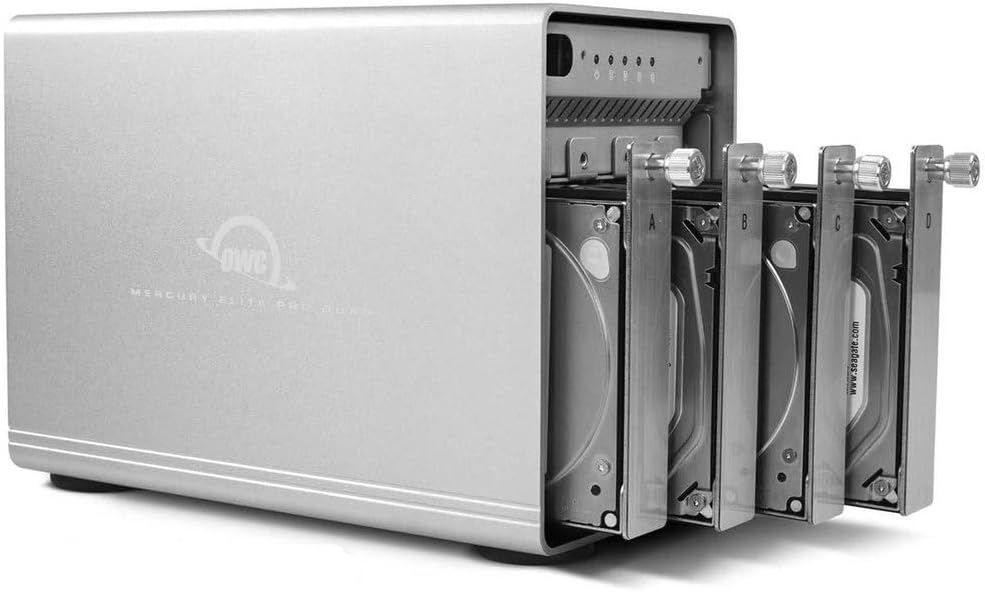
Image: The OWC Mercury Elite Pro Quad with four drive trays partially extended, showing how drives are accessed.

Image: A 2.5-inch SSD securely mounted onto a drive tray, ready for insertion into the enclosure.
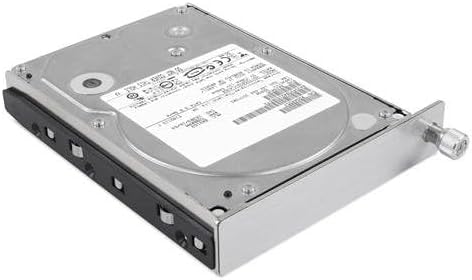
Image: A 3.5-inch HDD securely mounted onto a drive tray, illustrating the larger drive compatibility.
- Conectar ao ordenador:
- Connect one end of the included USB-C cable to the USB-C port on the rear of the Mercury Elite Pro Quad.
- Connect the other end of the USB-C cable to an available USB-C or Thunderbolt 3 port on your Mac or Windows PC. If your computer uses a traditional USB-A port, use the included USB-C to USB-A cable.
- Conectar enerxía: Plug the power adapter into the enclosure's AC IN port and then into a wall outlet.
- Encendido: Flip the power switch on the rear of the enclosure to the 'ON' position. The power indicator LED on the front will illuminate.
- Format Drives: Once connected and powered on, your operating system will detect the new drives. You may need to initialize and format the drives using your computer's disk utility software (e.g., Disk Utility on macOS, Disk Management on Windows) before they can be used.

Image: The rear panel of the OWC Mercury Elite Pro Quad, showing the USB 3.1 Gen 2 port, power input, and power switch.
Operating the Enclosure
The OWC Mercury Elite Pro Quad is designed as a JBOD (Just a Bunch Of Disks) enclosure, meaning each installed drive is recognized as an independent volume by your computer. This provides maximum flexibility for managing your storage.
- Transferencia de datos: Once formatted, the drives will appear as separate volumes on your computer. You can drag and drop files, use backup software, or access them like any other connected storage device. The USB 3.2 (10Gb/s) interface ensures high-speed data transfer, up to 947MB/s depending on your drives and system.
- Configuración RAID: While this model is RAID-ready, it does not include SoftRAID software. Users wishing to configure RAID arrays (e.g., RAID 0, RAID 1, RAID 5, RAID 10) will need to acquire and install compatible RAID software separately. This allows for customized performance and data redundancy based on your specific needs.
- Drive Activity LEDs: The front panel features individual LEDs for each drive bay, indicating drive activity (read/write operations).
Mantemento
- Limpeza: Regularly wipe the exterior of the enclosure with a soft, dry cloth. Avoid using harsh chemicals or abrasive materials. Ensure the ventilation grilles are free from dust buildup to maintain proper airflow.
- Ventilación: Position the enclosure in a well-ventilated area. Do not block the fan or air vents. The aluminum casing and quiet fan are designed to dissipate heat efficiently, but proper airflow is crucial for drive longevity.
- Drive Handling: When replacing or installing drives, handle them carefully to avoid static discharge or physical damage. Always power off and disconnect the enclosure before opening it to access the drive bays.
Resolución de problemas
- Enclosure Not Powering On:
- Ensure the power adapter is securely connected to both the enclosure and a working power outlet.
- Verify the power switch on the rear of the enclosure is in the 'ON' position.
- Proba cunha toma de corrente diferente.
- Drives Not Recognized by Computer:
- Check all cable connections (USB and power) to ensure they are secure.
- Proba a conectarte a un porto USB diferente do teu ordenador.
- Ensure the drives are properly seated in their trays and the trays are fully inserted into the enclosure.
- Verify that the drives are initialized and formatted for your operating system using Disk Utility (macOS) or Disk Management (Windows).
- Test the enclosure with different drives if possible to rule out drive issues.
- Rendemento lento:
- Ensure you are using a USB 3.0/3.1/3.2 compatible port on your computer for optimal speeds.
- Check the health of your installed drives.
- Verify that your computer's drivers for USB or Thunderbolt are up to date.
- Ruído inusual:
- Some hard drives can produce operational noise. If the noise is excessive or unusual, it may indicate a drive issue.
- Ensure the enclosure is placed on a stable, flat surface to minimize vibrations.
- While the fan is designed to be quiet, check for any obstructions or debris that might be causing fan noise.
Especificacións
| Característica | Especificación |
|---|---|
| Marca | OWC |
| Número de modelo | 8648289 |
| Material | Metal |
| Peso do elemento | 10.45 libras (4.75 quilogramos) |
| Capacidade de almacenamento da memoria | Up to 48 TB (with compatible drives) |
| Dispositivos compatibles | Desktop (Mac, Windows PC) |
| Factor de forma do disco duro | 2.5 polgadas, 3.5 polgadas |
| Número máximo de dispositivos compatibles | 4 |
| Taxa de transferencia de datos | Up to 10 Gigabits Per Second (USB 3.2 Gen 2) |
| Dimensións do produto | 11 x 7 x 8 inches (approx. 9.4"L x 5.3"W x 7.3"H) |
| Interface de hardware | USB (USB-C, USB-A compatible) |
Garantía e Soporte
The OWC Mercury Elite Pro Quad RAID Ready (JBOD) 4-Bay Storage Enclosure comes with a 1 ano de garantía limitada OWC.
For technical assistance, troubleshooting, or any product-related inquiries, OWC provides Atención ao cliente 24 horas ao día, 7 días á semana. Please refer to the official OWC websitio web para obter información de contacto e recursos adicionais.
Para obter máis información e apoio, visite o OWC Official Websitio.


