1. Produto rematadoview
The Plugable UD-3900C4 is a versatile 14-in-1 USB-C docking station designed to expand your connectivity and enhance productivity. It supports up to four HDMI displays, provides 96W laptop charging, and offers a variety of ports for peripherals and data transfer.

Figura 1: Parte dianteira e traseira view of the Plugable UD-3900C4 docking station with all ports labeled, including 4x USB 3.0, Gigabit Ethernet, 4x HDMI, Audio Out, Audio In, SD Card Reader, USB-C 20W Charging, To Host 100W Charging, and Power In.
2. Que está incluído
The package for your Plugable UD-3900C4 docking station includes the following components:
- Estación de acoplamento conectable UD-3900C4
- Power Cord (6ft / 1.8m)
- Power Adapter (5.2ft / 1.5m cable)
- Cable USB-C a USB-C de 1 m
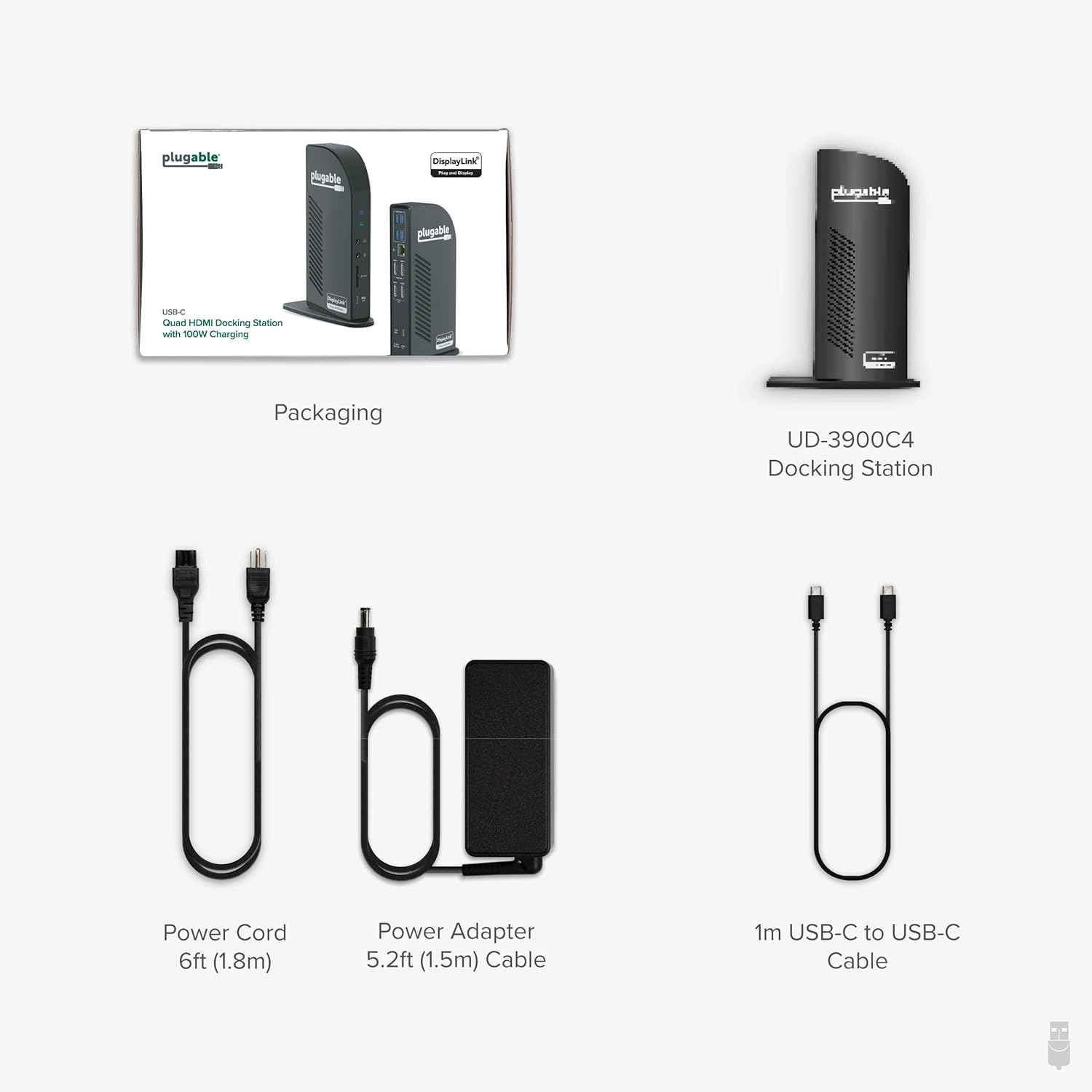
Figure 2: Contents of the Plugable UD-3900C4 docking station packaging.
3. Configuración
3.1 Connecting the Dock
- Connect the power adapter to the docking station and then to a power outlet.
- Connect the included USB-C to USB-C cable from the docking station's host port (identified by a laptop symbol) to your computer's USB-C port.
- Connect your monitors to the HDMI ports on the docking station.
- Connect any desired peripherals (keyboard, mouse, Ethernet, etc.) to the available ports on the docking station.
3.2 Instalación do controlador
For the HDMI 1 and HDMI 2 ports, DisplayLink drivers are required. These are typically installed automatically via Windows Update for most users. For macOS or in corporate environments, manual installation may be needed.

Figure 3: Instructions for downloading and installing DisplayLink drivers.
3.3 Common Setup Issues
If you encounter issues during setup, please refer to the following video for common troubleshooting steps:
Video 1: This video addresses common setup issues encountered with docking stations and hubs, providing tips for proper cable connection, host port identification, and ensuring the power adapter is correctly connected for optimal functionality.
4. Instrucións de funcionamento
Once the docking station is set up and drivers are installed, your connected displays and peripherals should function automatically. You can manage display settings through your operating system's display preferences.
5. Configuración da pantalla
5.1 Windows Multi-Display Setup
The UD-3900C4 supports up to four extended 1080p displays at 60Hz on Windows 10+ and ChromeOS 100+. HDMI 1-2 utilize DisplayLink technology, while HDMI 3-4 rely on DisplayPort Alt Mode MST. A compatible USB-C port with DisplayPort Alt Mode is required for HDMI 3 and 4 to function.
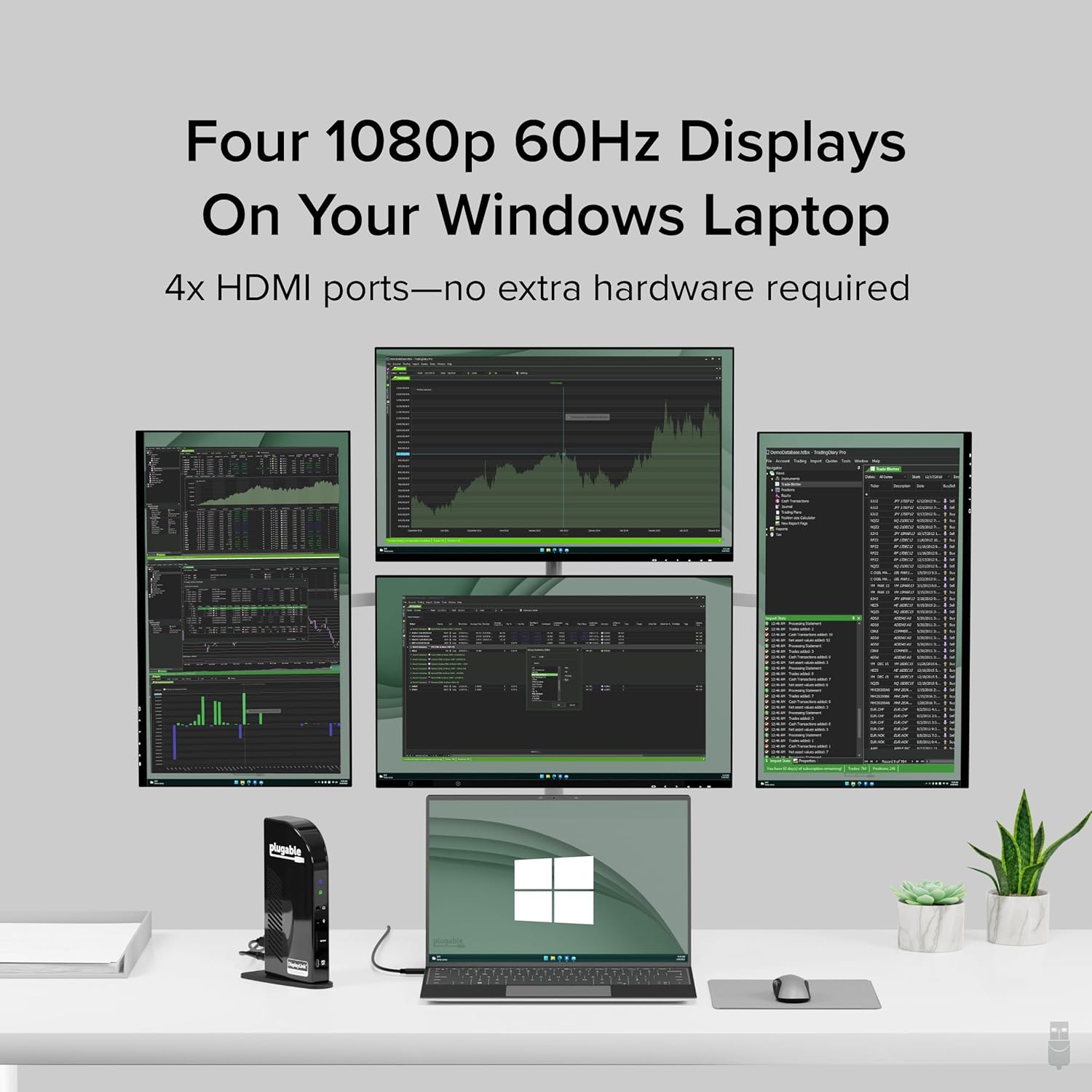
Figure 4: Four 1080p 60Hz displays connected to a Windows laptop via the docking station.
5.2 macOS Multi-Display Setup
On macOS, the docking station supports three extended displays. The fourth display will mirror one of the other displays due to macOS's lack of Multi-Stream Transport (MST) support.
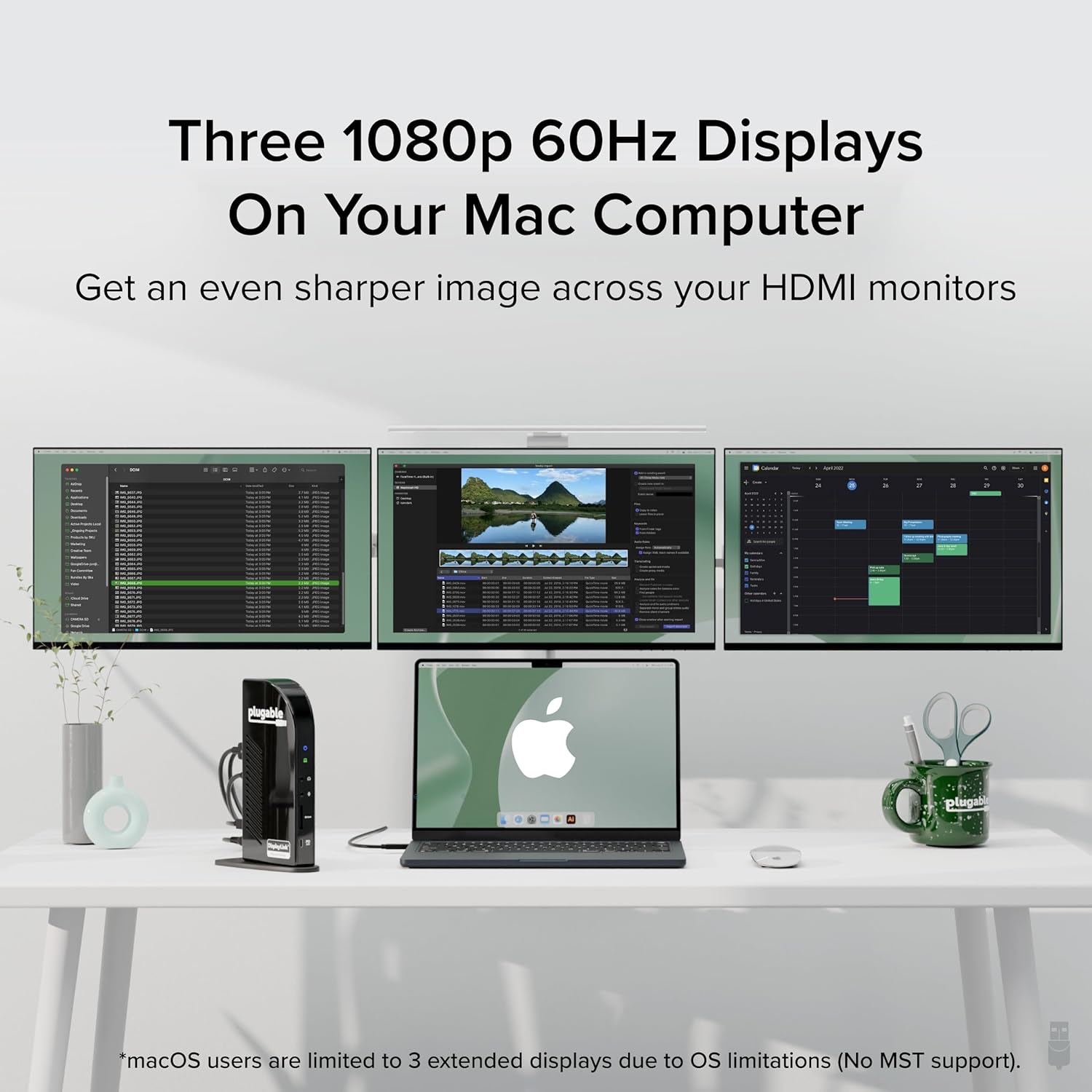
Figure 5: Three 1080p 60Hz displays connected to a Mac computer via the docking station.
5.3 Adding Multiple Screens
For a visual guide on adding multiple screens, refer to the following video:
Video 2: This video demonstrates how to connect and configure four external displays to your laptop using the Plugable UD-3900C4 docking station via a single USB-C cable, highlighting the DisplayLink and Multi-Stream Transport (MST) technologies.
6. Connectivity and Charging
The UD-3900C4 docking station offers extensive connectivity options:
- Portos de visualización: 4x HDMI ports (1080p @ 60Hz)
- Portos de datos USB: 4x USB 3.0 (5 Gbps)
- Porto USB-C: 1x USB-C (5Gbps data + 20W charging)
- Rede: Porto Gigabit Ethernet
- Lector de tarxetas: Lector de tarxetas SD
- Audio: Audio in/out (3.5mm stereo)
The docking station provides up to 96W of power delivery to charge your connected laptop via the host USB-C cable. The front USB-C port also offers 20W charging for phones or tablets.

Figure 6: 100W Power Delivery to laptop and 20W charging to devices.
7. Compatibilidade
The Plugable UD-3900C4 is compatible with a wide range of systems:
- Conexión do servidor: Works with USB4, Thunderbolt 3/4, and USB-C systems that support DisplayPort Alt Mode MST.
- Sistemas operativos: Supports Windows 10 / 11 and ChromeOS 100+ for up to four extended monitors.
- macOS: Supports macOS 11+ for up to three extended displays (the fourth will mirror due to lack of MST support on macOS).
- Supported Laptops: Includes HP ProBook / EliteBook / Spectre x360 series, Dell XPS / Latitude / Inspiron series, Lenovo ThinkPad / IdeaPad / Yoga, Microsoft Surface Pro / Go / Book / Laptop models, LG Gram, and other full-featured, standards-compliant USB-C laptops.

Figure 7: Operating System and Host Connection Compatibility.
8. Mantemento
Para garantir un rendemento e unha lonxevidade óptimos da súa estación de acoplamento:
- Manteña o dispositivo nunha zona ben ventilada para evitar o sobreenriquecido.
- Avoid exposing the docking station to liquids or extreme temperatures.
- Regularly check for and install the latest DisplayLink drivers from the Enchufable websitio to ensure compatibility and performance updates.
- Limpa o exterior cun pano suave e seco. Non empregues produtos químicos agresivos nin materiais abrasivos.
9 Solución de problemas
If you experience issues with your docking station, consider the following:
- Sen visualización: Ensure all HDMI cables are securely connected to both the docking station and the monitors. Verify that the docking station's host cable is properly connected to your computer's USB-C port. Check your computer's display settings to detect and extend displays.
- Sen alimentación/Carga: Confirm the power adapter is firmly connected to the docking station and a working power outlet. Ensure your laptop's USB-C port supports power delivery.
- Peripheral Malfunction: Try connecting the peripheral directly to your computer to rule out device issues. Ensure the correct drivers for the docking station are installed.
- Conectividade intermitente: Check all cable connections for looseness. Restart your computer and the docking station.
For further assistance, refer to the common setup issues video in Section 3.3 or contact Plugable support.
10. Especificacións
| Característica | Especificación |
|---|---|
| Número de modelo | UD-3900C4 |
| Número de portos | 14 |
| Total de portos HDMI | 4 |
| Resolución HDMI | Up to 1080p @ 60Hz (all 4 ports) |
| Número de portos USB 3.0 | 4 |
| Puerto de carga/datos USB-C | 1x (5Gbps data, 20W charging) |
| Host Charging (Power Delivery) | Ata 96W |
| Ethernet | Gigabit Ethernet |
| Lector de tarxetas | Lector de tarxetas SD |
| Audio | Entrada/saída de audio de 3.5 mm |
| Interface de hardware | USB tipo C |
| Peso do elemento | 1.07 libras (486 gramos) |
| Dimensións do produto | 10 x 6 x 4 polgadas (9.8" de longo x 3.7" de ancho x 6.3" de alto) |
11. Garantía e soporte
Every Plugable product, including the UD-3900C4 14-in-1 USB-C docking station, is covered against defects for 2 years. Additionally, Plugable provides lifetime support for its products. If you have any questions or require assistance, please contact our North American-based support team.
For more information, visit the official Plugable website or your product's support page.