1. Introdución
Thank you for choosing the Combrite XS Pro Wireless Mouse. This user manual provides detailed instructions on how to set up, operate, and maintain your new mouse. The Combrite XS Pro is designed for both intense gaming and daily productivity, offering versatile connectivity and ergonomic comfort.

Image: The Combrite XS Pro Wireless Mouse shown with its accompanying USB receiver, highlighting its sleek design and wireless capability.
2. Contido do paquete
Comprobe o contido do paquete para asegurarse de que estean presentes todos os elementos:
- 1 x Combrite XS Pro Wireless Mouse
- 1 x USB Receiver (stored in the bottom of the mouse)
- 1 x Type-C Charging Cable (70 cm)
- 1 x Manual de usuario
3. Características do produto
The Combrite XS Pro Wireless Mouse offers a range of features designed for optimal performance and user comfort:
- Dual Wireless Mode: Seamlessly switch between 2.4 GHz RF and Bluetooth 5.0 connectivity.
- Batería recargable: Built-in 750 mAh Li-on battery with convenient USB-C charging.
- Deseño ergonómico: Lightweight, ambidextrous design with a rubber-coated surface for a comfortable and secure grip during extended use.
- DPI axustable: Cycle through 800, 1200, and 1600 DPI settings for precise control.
- Iluminación RGB: Features 10 different RGB lighting modes to personalize your setup.
- Botóns programables: Equipped with 6 programmable buttons for enhanced functionality.
- Durable Switches: Designed for a lifespan of 10 million clicks.

Imaxe: De arriba abaixo view of the mouse illustrating its key features such as dual wireless mode, USB-C charging, high-capacity battery, high-precision optical sensor, and adjustable DPI settings.

Image: A hand comfortably gripping the Combrite XS Pro mouse, demonstrating its ergonomic design and comfortable fit for prolonged use.
4. Configuración
4.1 Cargar o rato
Before first use, it is recommended to fully charge the mouse.
- Locate the USB-C charging port on the front of the mouse.
- Connect the provided Type-C charging cable to the mouse and the other end to a USB power source (e.g., computer USB port, USB wall adapter).
- The LED indicator on the mouse will show charging status. Once fully charged, the indicator will change or turn off.
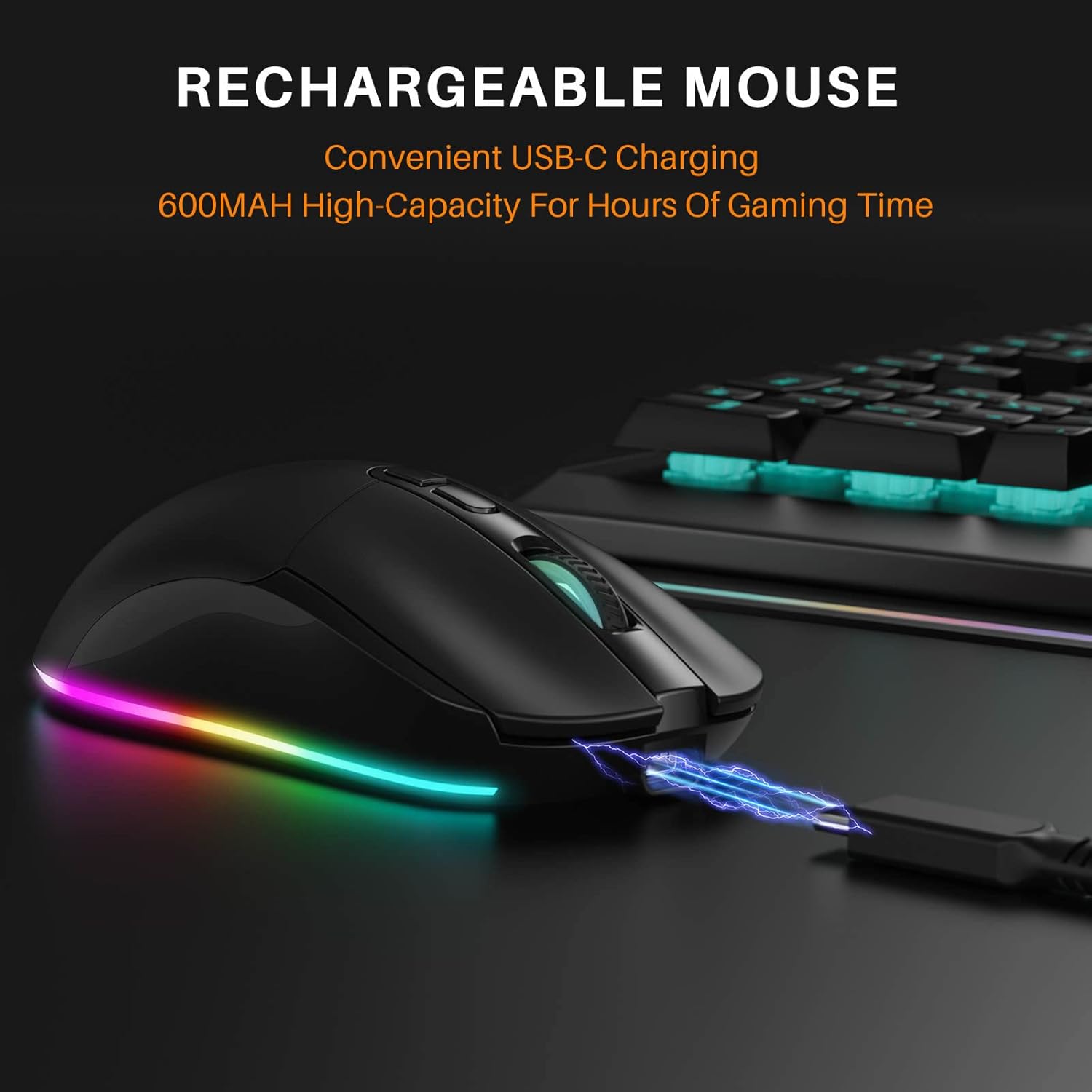
Image: The Combrite XS Pro mouse connected to a charging cable via its USB-C port, illustrating the charging process next to a keyboard.
4.2 Connecting via 2.4 GHz Wireless (USB Receiver)
This mode provides a stable and fast wireless connection.
- Remove the USB receiver from its storage slot at the bottom of the mouse.
- Conecte o receptor USB a un porto USB dispoñible no seu ordenador.
- Acende o rato usando o interruptor de acendido situado na parte inferior.
- The mouse should automatically connect to your computer. No drivers are typically required.
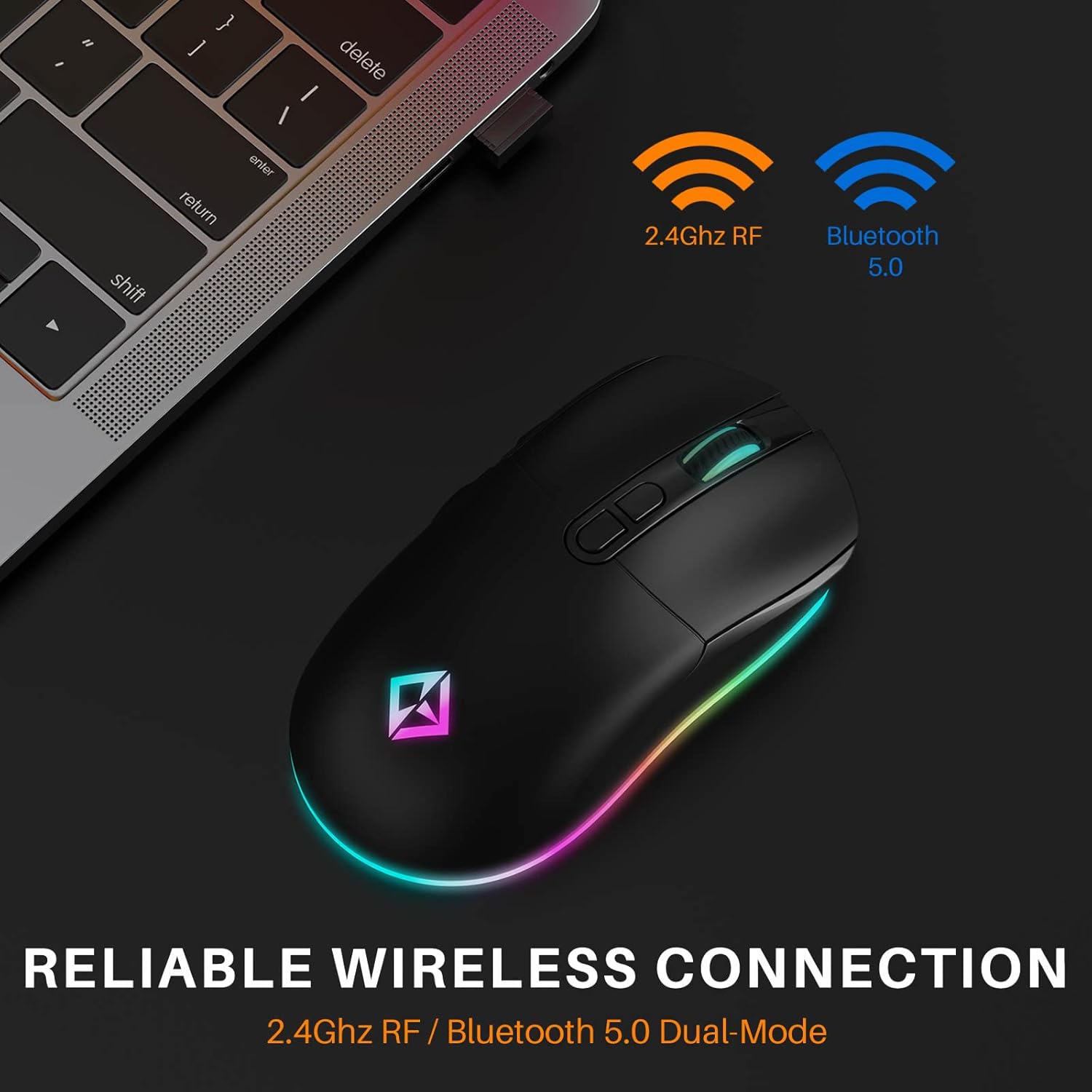
Image: The Combrite XS Pro mouse positioned next to a laptop, indicating its reliable wireless connection via 2.4GHz RF.
4.3 Conexión mediante Bluetooth 5.0
This mode allows connection to Bluetooth-enabled devices without a USB receiver.
- Asegúrese de que o rato estea acendido.
- Switch the connection mode on the bottom of the mouse to Bluetooth.
- No teu ordenador ou dispositivo, vai á configuración de Bluetooth e activa Bluetooth.
- Busca new devices. The mouse should appear as "Combrite XS Pro" or similar.
- Select the mouse to pair. Follow any on-screen prompts if necessary.
Consello: The dual wireless design allows you to connect the USB receiver to one device (e.g., desktop) and use Bluetooth for another (e.g., laptop), enabling easy switching between devices.
5. Instrucións de funcionamento
5.1 Axuste de DPI
The mouse features a dedicated DPI button to adjust cursor sensitivity.
- Press the DPI button (located behind the scroll wheel) to cycle through the available DPI settings: 800, 1200, and 1600.
- Each press will change the sensitivity, allowing you to find the optimal speed for your tasks.
5.2 Modos de iluminación RGB
Customize the aesthetic of your mouse with various RGB lighting effects.
- Press the LED Mode Button (located on the top, near the left click button) to cycle through the 10 available RGB lighting modes.
- Continue pressing to find your preferred lighting effect.
- To turn off the RGB lighting, cycle through all modes until the lights are off. This is useful for office or meeting environments.

Imaxe: Primeiro plano view of the Combrite XS Pro mouse, highlighting the LED Mode Button and the vibrant RGB lighting effects around its base.
5.3 Botóns programables
The mouse features 6 programmable buttons (Left Click, Right Click, Scroll Wheel Click, DPI Button, Forward Button, Backward Button).
- The functionality of the forward and backward buttons (side buttons) can often be customized through your operating system's mouse settings or third-party software, if available.
- Refer to your operating system's documentation for advanced button customization.
6. Mantemento
6.1 Limpeza
- To clean the mouse, use a soft, dry cloth.
- Para a sucidade persistente, d lixeiramenteampgl o pano con auga ou unha solución de limpeza suave.
- Do not use harsh chemicals or abrasive materials, as they may damage the surface.
- Evite a entrada de humidade en calquera abertura.
6.2 Almacenamento
- When not in use for extended periods, turn off the mouse to conserve battery life.
- Store the USB receiver in its designated slot at the bottom of the mouse to prevent loss.
- Keep the mouse in a cool, dry place away from direct sunlight and extreme temperatures.
7 Solución de problemas
| Problema | Posible Solución |
|---|---|
| Mouse not responding (2.4 GHz) |
|
| O rato non responde (Bluetooth) |
|
| O movemento do cursor é errático ou brusco |
|
| RGB lights are off or not cycling |
|
| O rato non carga |
|
8. Especificacións
| Característica | Detalle |
|---|---|
| Modelo | WGM-400 / XS Pro |
| Conectividade | 2.4 GHz Wireless, Bluetooth 5.0, USB-C (for charging) |
| Tipo de potencia | Recargable |
| Batería | Li-on, 750 mAh |
| Número de chaves | 7 (including scroll click and DPI) |
| Cambiar a vida útil | 10 millóns de clics |
| Iluminación | 10 Modos de iluminación RGB |
| distancia wireless | Ata 10 m |
| Configuración de DPI | 800-1200-1600 |
| Voltage | 3.7 V / 15 mA |
| Peso do produto | 95 g |
| Dimensións do produto | 13.5 x 7 x 4 cm (aprox. 5.3 x 2.7 x 1.6 polgadas) |
| Material | Rubber (coating) |
| Orientación das mans | Ambidiestro |

Imaxe: Unha interna view of the Combrite XS Pro mouse, revealing its high-precision optical sensor and internal circuitry, which contribute to accurate tracking and smooth movement.
9. Garantía e soporte
Combrite products are manufactured to the highest quality standards. For information regarding warranty coverage, technical support, or service inquiries, please refer to the contact information provided on the product packaging or visit the official Combrite websitio.
Conserve o comprobante de compra para reclamacións de garantía.


