1. Introdución
The EMEET OfficeCore M1A is a Zoom Certified USB speakerphone designed for clear and efficient audio conferencing. Featuring AI-powered microphones with 360° voice pickup, noise reduction, and echo cancellation, it ensures all participants are heard clearly. Its plug-and-play functionality and broad compatibility make it suitable for various professional and personal communication needs.
2. Que hai na caixa
- EMEET OfficeCore M1A USB Speakerphone
- USB Type C-A Cable
- Manual de usuario
3. Características clave
- Zoom Certified: Officially recognized for compatibility with Zoom, and works seamlessly with other platforms like Skype, Microsoft Teams, Google Hangout, and more.
- 360° Smart Voice Pickup: Equipped with EMEET's exclusive VoiceIA Tech, featuring 2 omnidirectional microphones for 360° voice coverage.
- AI-Powered Audio Enhancement: Includes noise reduction, echo cancellation, voice amplification, and full duplex audio for crystal-clear communication.
- Smart Speaker: Delivers sound in 9 adjustable volumes, indicated by blue LED lights on the control panel.
- Conectividade Plug & Play: Connects easily via USB-C or USB-A adapter for a stable wired connection.
- Protección da privacidade: Fast mute function for microphone and speaker to ensure privacy during calls.
- Compatibilidade universal: Supports various operating systems including Windows, Mac OS, Vista, and Linux.
4. Instrucións de configuración
4.1 Conexión do altofalante
The EMEET OfficeCore M1A is designed for simple plug-and-play setup. No driver installation is typically required.
- Locate the USB-C connector on the speakerphone.
- Connect the provided USB-C cable to the speakerphone.
- Plug the other end of the USB cable into an available USB-C port on your computer. If your computer only has USB-A ports, use the included USB-A adapter.
- The device will automatically be recognized by your operating system.

Image: EMEET OfficeCore M1A connected to a laptop via USB-C cable, illustrating the plug-and-play setup with an optional USB-A adapter.
4.2 Encendido inicial
Once connected, the speakerphone should power on automatically. Indicators on the device will confirm its status.

Image: The convenient control panel of the EMEET OfficeCore M1A, showing blue/red indicators for various operations like calls, volume adjustment, and microphone mute.
5. Instrucións de funcionamento
5.1 Facer e recibir chamadas
After connecting, select the EMEET OfficeCore M1A as your audio input and output device in your preferred conferencing software (e.g., Zoom, Skype, Teams).
5.2 Axuste do volume
Use the '+' and '-' buttons on the control panel to adjust the speaker volume. The blue LED lights will indicate the current volume level (9 levels available).
5.3 Silenciar o micrófono
Press the microphone mute button on the control panel to mute or unmute your microphone. Red LED indicators will light up when the microphone is muted, ensuring your privacy.
5.4 VoiceIA Technology
The integrated VoiceIA technology automatically handles noise reduction, echo cancellation, and voice amplification to provide clear audio for all participants, even in noisy environments.

Image: Visual representation of the VoiceIA technology's benefits, including noise reduction, echo cancellation, voice enhancing, and full duplex capabilities.
5.5 360° Voice Pickup
The two omnidirectional microphones ensure that voices are picked up from all directions within a 360° radius, making it ideal for huddle rooms and small to medium-sized meetings.
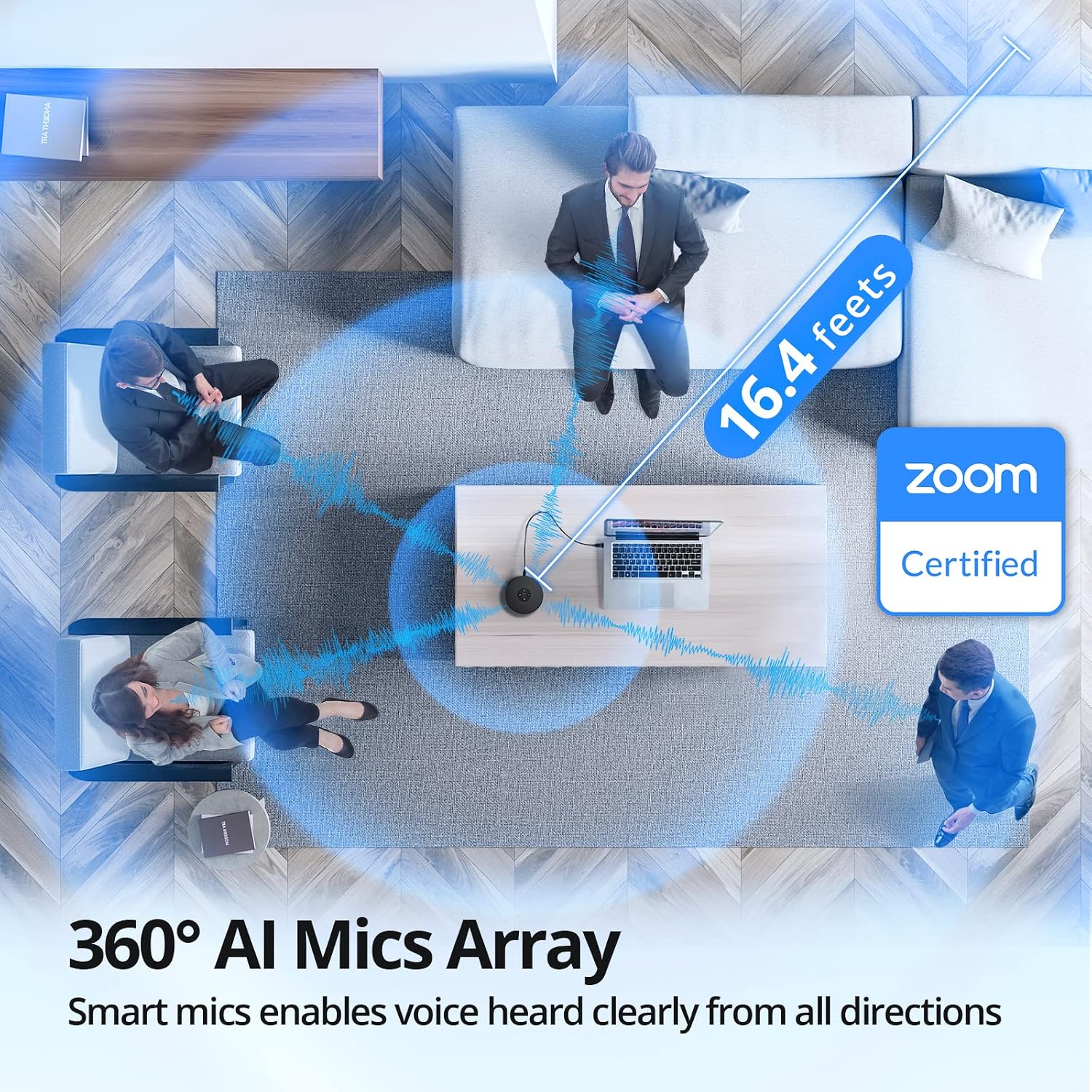
Imaxe: Unha vista aérea view demonstrating the 360° AI Mics Array of the EMEET OfficeCore M1A, capturing voices clearly from all directions within a 16.4 feet range, Zoom Certified.
6. Mantemento
To ensure the longevity and optimal performance of your EMEET OfficeCore M1A speakerphone, follow these simple maintenance guidelines:
- Limpeza: Use a soft, dry cloth to clean the exterior of the device. Avoid using liquid cleaners or aerosols, as they may damage the components.
- Almacenamento: When not in use, store the speakerphone in a cool, dry place, away from direct sunlight and extreme temperatures.
- Manexo: Manexa o dispositivo con coidado para evitar caídas ou impactos que poidan danar os compoñentes internos.
7 Solución de problemas
7.1 Audio Issues with Docking Station
Some users may experience audio disconnection issues when the EMEET OfficeCore M1A is connected via a docking station, particularly when both speaker and microphone functions are active during calls.
Solución:
- Connect the EMEET OfficeCore M1A to your laptop via Bluetooth.
- Ensure the USB cable is also connected to the docking station.
- On Windows, navigate to System > Sound > Output.
- You should see two EMEET sources: one labeled
Documentos relacionados - E1102

Manual do usuario do altofalante sen fíos eMeet Luna
Comprehensive user manual for the eMeet Luna wireless speakerphone. Learn about its AI Noise Reduction, Bluetooth connectivity, USB/AUX ports, Daisy Chain feature, and 360° voice pickup for clear conference calls in home office environments.
Manual do usuario do altofalante portátil USB/Bluetooth eMeet OfficeCore M2 MAX
Manual de usuario do altofalante portátil USB/Bluetooth eMeet OfficeCore M2 MAX, que detalla as súas características, funcionamento, conectividade e especificacións técnicas.
Guía de inicio rápido da EMEET SmartCam C960 4K: mellora as túas videochamadas
Comeza rapidamente coa EMEET SmartCam C960 4K webcámara. Esta guía proporciona instrucións esenciais de configuración e uso para un rendemento óptimo das videoconferencias.
EMEET OfficeCore M1A USB Speakerphone User Manual
Comprehensive user manual for the EMEET OfficeCore M1A USB speakerphone, detailing product functions, setup, LED indicators, parameters, and troubleshooting.
M3 eMeetLink User Manual - EMEET
User manual for the M3 eMeetLink device, covering device settings, software updates, FAQs, and contact information for EMEET customer support.
eMeet M2 Max Conference Speaker - User Manual and Features
Comprehensive guide to the eMeet M2 Max conference speaker, covering its buttons, overview, power management, VoiceIA and MIC mute functions, call handling, volume control, Bluetooth and USB connectivity, dongle usage, headset integration, daisy chain capability, lock port, charging, and application download.