Introdución
This manual provides detailed instructions for the setup, operation, and maintenance of your BISOFICE H5 Handheld POS Terminal. Please read this manual thoroughly before using the device to ensure proper functionality and to prevent damage. Keep this manual for future reference.
Produto rematadoview
The BISOFICE H5 is a versatile handheld POS terminal designed for various business applications, integrating a barcode scanner, thermal printer, and robust communication capabilities within an Android 8.1 operating system.
Características principais:
- Android 8.1 OS for smooth and stable operation.
- Compact and wireless design with a 2550mAh rechargeable battery.
- Built-in 58mm thermal receipt printer with a printing speed of over 75mm/s.
- Intelligent payment terminal with 3G, WiFi, BT4.0, and WCDMA network support.
- 2MP focus camera for 1D/2D barcode scanning.
- 5.0-inch IPS touchscreen display (1280x720 resolution).
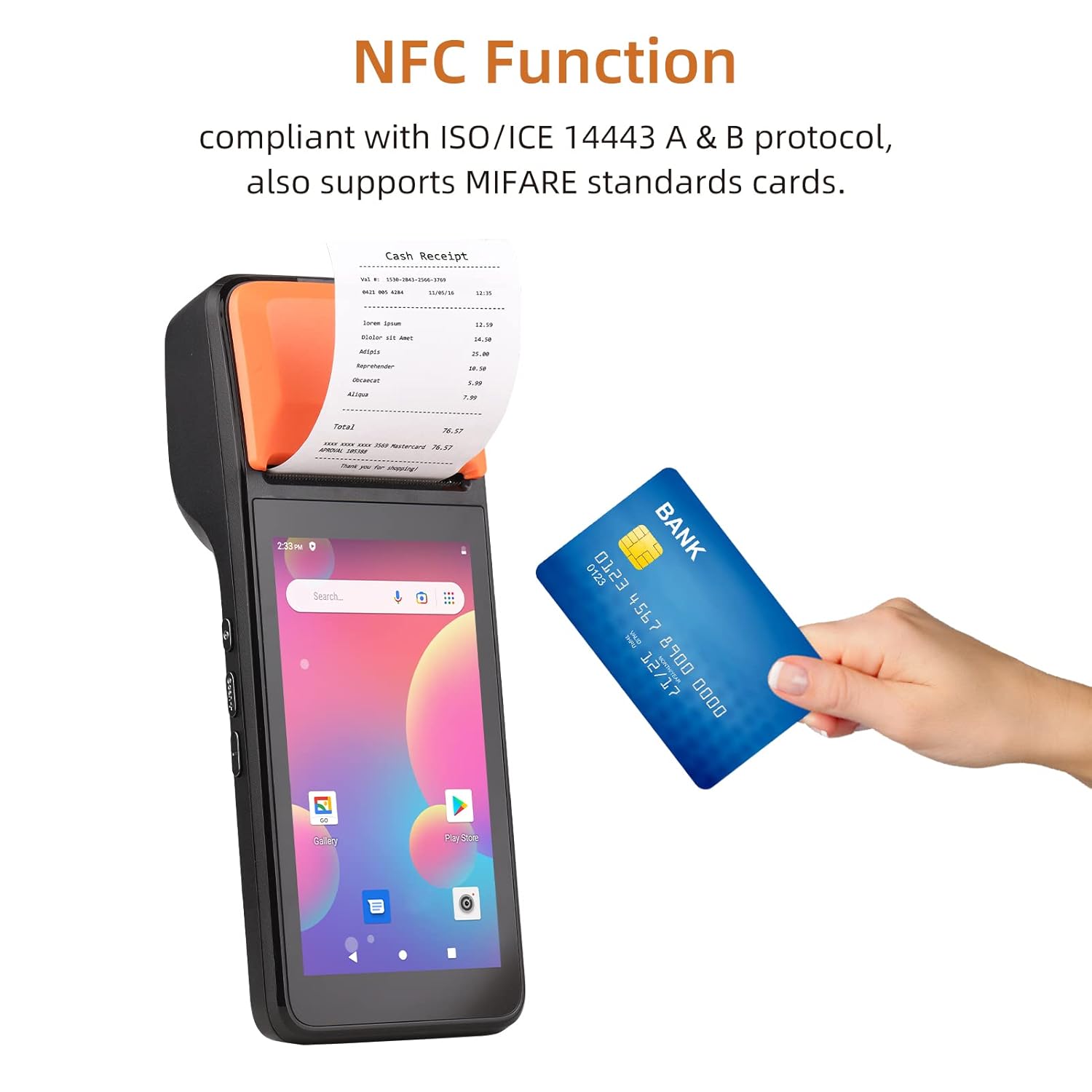
- NFC function compliant with ISO/ICE 14443 A & B protocol, supporting MIFARE standard cards.
Xeral View:

Dimensións do dispositivo:

Operación portátil:

Funcionalidade NFC:
Thermal Printer Details:

Camera and Barcode Reader:

Especificacións
The following table details the technical specifications of the BISOFICE H5 Handheld POS Terminal:
| Característica | Detalle |
|---|---|
| Modelo | H5 |
| CPU | MTK Dual CPU, 4-core 1.3GHz |
| Sistema Operativo | Android 8.1 |
| Memoria | 8 GB de ROM + 1 GB de RAM |
| Mostrar | 5.0" HD IPS (1280x720), G+FF features, Touch Screen |
| Impresora | High-speed 58mm thermal printer, >75mm/s print speed, 58x40mm paper roll |
| Cámara traseira | 2 million focus camera (2MP), supports 1D/2D barcode recognition |
| Batería | 8.8V, 2550mAh Lithium ion polymer Battery |
| Tempo de carga | 2 horas |
| Tempo de descarga | 30 horas |
| Tempo de espera | 85 horas |
| Comunicación sen fíos | GSM: B2/B3/B5/B8; WCDMA: B1/B2/B5/B8 |
| WiFi | 2.4G, support IEEE 802.11 a/b/g/n |
| Bluetooth | BT2.1/3.0/4.0 BLE |
| NFC | Yes, compliant with ISO/ICE 14443 A & B protocol |
| Ranura para tarxeta SIM | Standard SIM card holder |
| Interface de comunicación | Type-C (supports OTG) |
| Charger Input/Output | Input: AC 100-240V, Output: 5V, 2A |
| Dimensións (LxWxH) | 20.83 x 7.62 x 8.89 cm |
| Peso do elemento | 499 g |
| Compoñentes incluídos | PDA Machine, Type-C Cable, Thermal Paper Roll |

Guía de configuración
1. Cargando o dispositivo
Before first use, fully charge the device. Connect the provided Type-C cable to the device's charging port and the other end to the AC adapter. Plug the adapter into a power outlet. The charging indicator will illuminate. A full charge takes approximately 2 hours.
2. Installing the SIM Card (Optional)
If you require 3G network connectivity, install a standard SIM card:
- Locate the SIM card slot, usually under the battery cover or on the side.
- Insert the standard SIM card into the slot with the metal contacts facing down, ensuring it clicks into place.
- Pecha a tapa de forma segura.
3. Loading Thermal Paper Roll
The device uses 58mm wide thermal paper rolls with a maximum diameter of 40mm.
- Open the printer cover by gently pushing the latch or button.
- Insert the thermal paper roll with the printing surface facing the print head. Ensure the paper feeds smoothly.
- Tire dunha pequena cantidade de papel máis alá do bordo de corte.
- Peche a tapa da impresora firmemente ata que encaixe no seu lugar.
4. Acendido/apagado
- Para acender: Press and hold the power button (typically on the side) until the screen illuminates.
- Para apagar: Mantén premido o botón de acendido/apagado ata que apareza un menú de apagado. Selecciona "Apagar" e confirma.
Instrucións de funcionamento
1. Basic Android Navigation
The BISOFICE H5 operates on Android 8.1. Navigate using the 5.0-inch touchscreen:
- Toca: Para seleccionar un elemento ou abrir unha aplicación.
- Pasar o dedo: To scroll through lists or screens.
- Beliscar: To zoom in or out (if supported by the application).
- Botón de inicio: Volve á pantalla de inicio.
- Botón Atrás: Volve á pantalla anterior.
- Botón de aplicacións recentes: Mostra aplicacións usadas recentemente.
2. Conexión a Redes
- Wi-Fi: Ir a Configuración > Rede e Internet > Wi-Fi. Turn Wi-Fi on, select your desired network, and enter the password if prompted.
- Datos 3G/móbiles: Se hai unha tarxeta SIM instalada, vaia a Configuración > Rede e Internet > Rede móbil e asegúrate de que os datos móbiles estean activados.
- Bluetooth: Ir a Configuración > Dispositivos conectados > BluetoothActiva o Bluetooth para emparellalo con outros dispositivos.
3. Using the Barcode Scanner
The device features a 2MP camera and CCD 1D reader for scanning barcodes.
- Open an application that supports barcode scanning (e.g., a POS application or a dedicated scanner app).
- Point the camera/scanner lens at the barcode, ensuring it is within the focus area.
- The device will typically emit a sound or vibrate upon successful scan.
4. Printing Receipts/Labels
The integrated thermal printer allows for quick printing of receipts or labels.
- Ensure thermal paper is correctly loaded.
- Within your POS or printing application, select the print option.
- Confirm print settings if prompted (e.g., number of copies).
- The device will automatically print the document. Tear off the receipt using the serrated edge.
5. Using NFC Function
The NFC function enables contactless transactions and data exchange.
- Ensure NFC is enabled in Configuración > Dispositivos conectados > NFC.
- Open an application that supports NFC (e.g., a payment app).
- Hold the NFC-enabled card or device near the NFC reader area (typically near the printer section) until the transaction is confirmed.
Mantemento
1. Limpeza do dispositivo
- Use un pano suave, seco e sen fiapos para limpar o exterior do dispositivo.
- For the touchscreen, use a screen cleaner specifically designed for electronic displays. Do not spray cleaner directly onto the screen.
- Evite o uso de produtos químicos agresivos, solventes ou materiais abrasivos.
2. Printer Head Maintenance
Regularly clean the thermal print head to ensure clear print quality.
- Apague o dispositivo antes de limpar.
- Abra a tapa da impresora.
- Gently wipe the print head with an alcohol swab or a soft cloth dampcon alcohol isopropílico.
- Allow the print head to dry completely before closing the cover and powering on the device.
3. Coidado da batería
- Evite expoñer o dispositivo a temperaturas extremas.
- Do not fully discharge the battery frequently. Charge it before it drops too low.
- Se garda o dispositivo durante un período prolongado, cárgueo nun 50 % aproximadamente e gárdeo nun lugar fresco e seco.
Resolución de problemas
| Problema | Causa posible | Solución |
|---|---|---|
| O dispositivo non se acende. | Batería baixa; fallo do dispositivo. | Charge the device for at least 30 minutes. If still unresponsive, perform a forced restart (refer to device documentation for specific key combination, usually holding power button for 10-15 seconds). |
| Non se pode imprimir. | No paper; paper jammed; printer cover not closed; print head dirty; application error. | Check and load paper. Clear any paper jams. Ensure printer cover is securely closed. Clean the print head. Restart the printing application or the device. |
| Mala calidade de impresión. | Dirty print head; low quality thermal paper; paper loaded incorrectly. | Clean the print head. Use high-quality thermal paper. Ensure paper is loaded correctly with the thermal side facing the print head. |
| O escáner de código de barras non funciona. | Poor lighting; barcode damaged; scanner lens dirty; application not active. | Ensure adequate lighting. Check barcode for damage. Clean the scanner lens. Ensure the scanning application is open and active. |
| No network connection (Wi-Fi/3G). | Wi-Fi/Mobile data off; incorrect password; out of range; SIM card issue. | Check Wi-Fi/Mobile data settings. Re-enter Wi-Fi password. Move closer to the Wi-Fi router. Reinsert SIM card or check its activation status. |
Garantía e Soporte
For warranty information and technical support, please refer to the warranty card included with your product or contact BISOFICE customer service through their official website or the retailer where the product was purchased. Please have your product model (H5) and serial number ready when contacting support.


