Introdución
This manual provides comprehensive instructions for the setup, operation, and maintenance of your Wings Crosshair 100 Wired Optical Gaming Mouse. Designed for optimal gaming performance, this mouse offers comfort, precision, and customizable features to enhance your computing and gaming experience.
Características clave
- Lixeiro e cómodo: The Wings Crosshair 100 features an ambidextrous, comfortable design for ultra-smooth movement during extended use.
- Ata 3400 DPI: Experience precise control with adjustable DPI settings up to 3400 and a 125 Hz polling rate.
- 6 Button Functionality: Customize your gaming experience with 6 programmable buttons, offering default configurations straight out of the box.
- Ampla compatibilidade: Compatible with Windows XP/Vista/7/8/8.1/10/11 and Mac OS.
- Compilación Premium: Features multicolor LED lights, an ergonomic design, a golden-plated USB connector, and a durable braided cable.
Produto rematadoview

Image: The Wings Crosshair 100 Wired Optical Gaming Mouse, showcasing its ergonomic design and LED lighting.

Image: The ergonomic design of the Wings Crosshair 100 mouse, providing a comfortable grip for extended use.
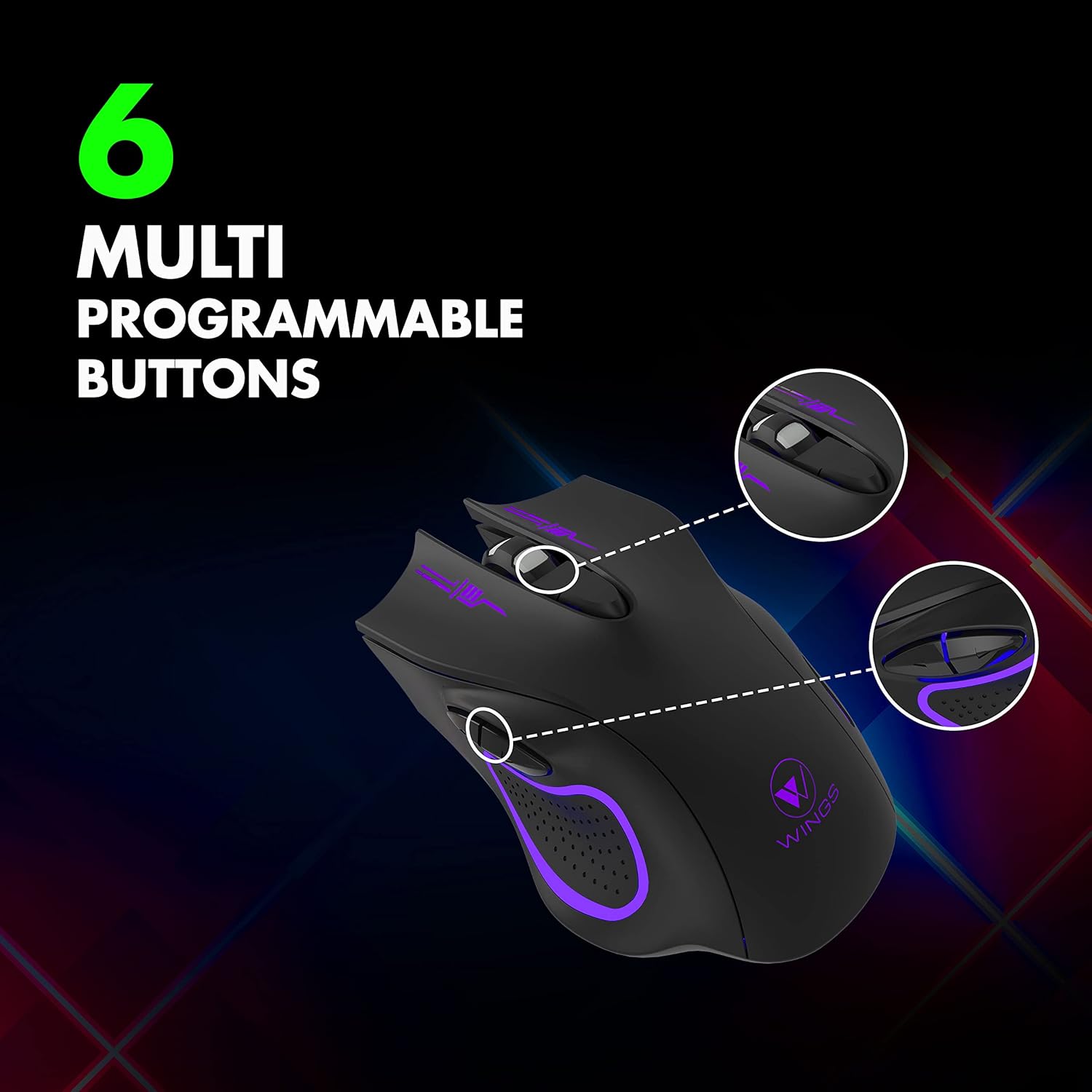
Image: Illustration of the 6 multi-programmable buttons on the Wings Crosshair 100 mouse.
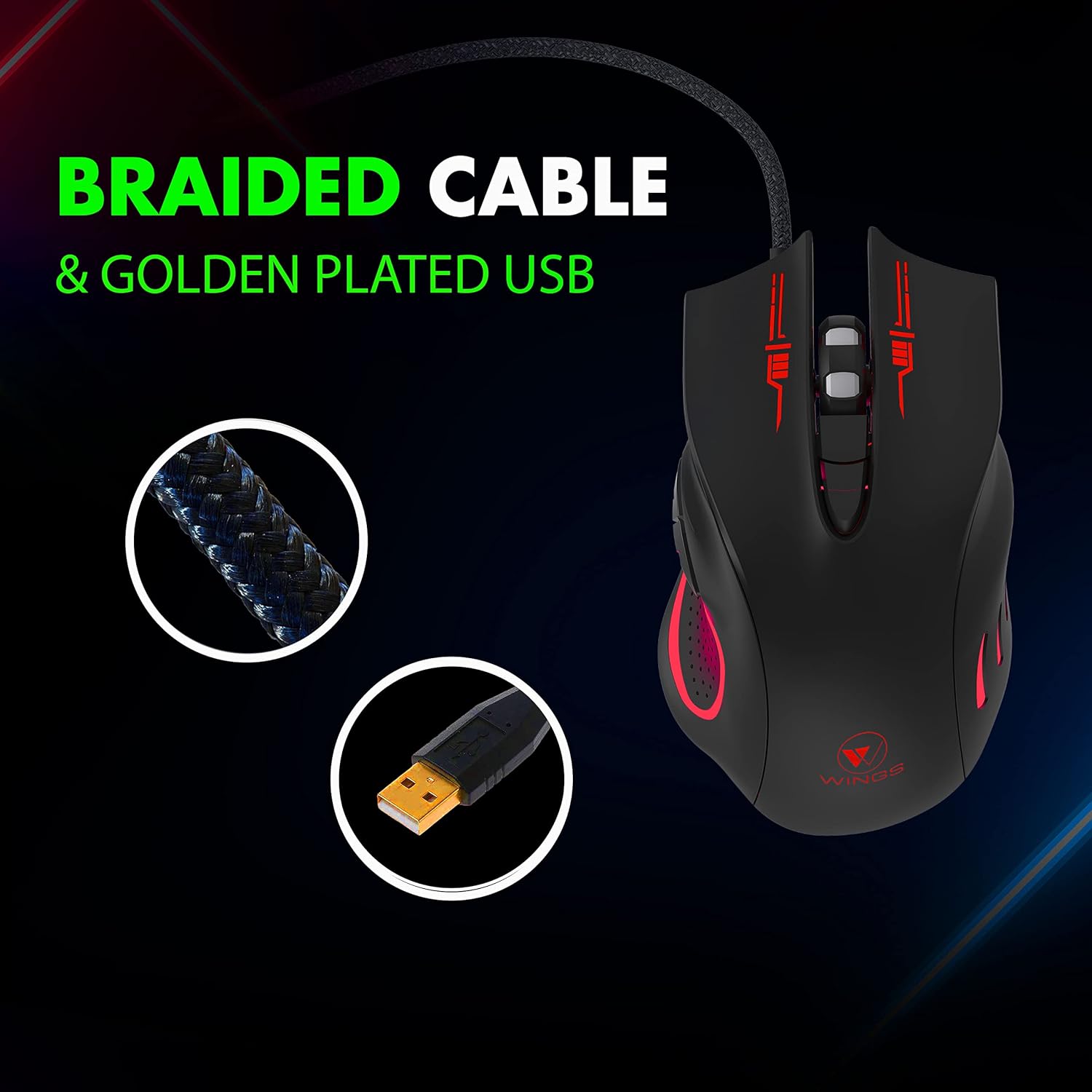
Image: Close-up of the durable braided cable and golden-plated USB connector of the Wings Crosshair 100 mouse.

Image: Demonstrating the adjustable DPI feature of the Wings Crosshair 100 mouse, with DPI levels of 1000, 1600, 2400, and 3200.

Image: The vibrant RGB LED lighting of the Wings Crosshair 100 mouse.

Image: A collage highlighting key features: compatibility with various OS, hyperfast scroll wheel, light and comfortable design, and ultra-smooth movement.
Configuración
- Conecta o rato: Insert the USB connector of the Wings Crosshair 100 mouse into an available USB 3.0 port on your computer.
- Instalación de controladores: The mouse is plug-and-play. Your operating system (Windows XP/Vista/7/8/8.1/10/11, Mac OS) will automatically detect and install the necessary drivers. No additional software installation is typically required for basic functionality.
- Uso inicial: Unha vez instalados os controladores, o rato estará listo para o seu uso inmediato.
Instrucións de funcionamento
Axuste de DPI
The Wings Crosshair 100 features an adjustable DPI (Dots Per Inch) setting, allowing you to change cursor sensitivity on the fly.
To adjust DPI, press the dedicated DPI button located on the top of the mouse, usually behind the scroll wheel. Each press cycles through predefined DPI levels: 1000, 1600, 2400, and 3200.
6 Funcionalidade do botón
This mouse is equipped with 6 buttons for enhanced control:
- Botón esquerdo para premer: Clic principal estándar.
- Botón dereito do rato: Clic secundario estándar.
- Botón da roda de desprazamento: Clickable scroll wheel for middle-click functions.
- Botón DPI: Percorre ciclicamente a configuración de DPI.
- Botón de avance: (Side button) Default function for navigating forward in web navegadores ou file exploradores.
- Botón de retroceso: (Side button) Default function for navigating backward in web navegadores ou file exploradores.
While default configurations are set, some operating systems or third-party software may allow for customization of these buttons.
Mantemento
- Limpeza: Usa un pano suave e seco para limpar a superficie do rato. Para a sucidade persistente, limpa lixeiramenteampEnxágüe o pano con auga. Evite produtos químicos agresivos ou materiais abrasivos.
- Coidados do sensor: Manteña o sensor óptico da parte inferior do rato limpo e libre de po ou residuos para garantir un seguimento preciso.
- Xestión de cables Evite curvas bruscas ou tirar demasiado do cable trenzado para evitar danos.
Resolución de problemas
| Problema | Solución |
|---|---|
| O rato non responde. | Ensure the USB cable is securely plugged into the computer. Try a different USB port. Restart your computer. |
| O movemento do cursor é errático ou irregular. | Clean the optical sensor on the bottom of the mouse. Ensure you are using the mouse on a clean, non-reflective surface. |
| As luces LED non funcionan. | Check the USB connection. If the mouse is otherwise functional, this might indicate a minor LED issue that does not affect performance. |
| DPI button not changing sensitivity. | Ensure the mouse is properly connected. Some applications or games may override mouse sensitivity settings. |
Especificacións
| Característica | Detalle |
|---|---|
| Marca | Ás |
| Modelo | WL-CROSSHAIR100-BLK |
| Conectividade | Con cable (USB) |
| Tecnoloxía de detección de movemento | Óptica |
| Niveis de DPI | Up to 3400 (1000, 1600, 2400, 3200) |
| Taxa de votación | 125 Hz |
| Botóns | 6 (programable) |
| Tipo de cable | Trenzado |
| Conector USB | Golden plated |
| Iluminación | Multicolor LED (RGB) |
| Deseño | Ambidextrous, Ergonomic |
| Compatibilidade | Windows XP/Vista/7/8/8.1/10/11, Mac OS, Linux |
| Dimensións do produto | 12 x 7 x 0.1 cm |
| Peso do elemento | 150 g |
Vídeos oficiais de produtos
Vídeo: Presentación oficial dun produto en vídeoasing the features and design of the Wings Crosshair 100 Wired Optical Gaming Mouse.
Video: A brand film from Wings, featuring their products and brand ambassador.
Garantía e Soporte
The Wings Crosshair 100 Wired Optical Gaming Mouse comes with a 1-year warranty. For warranty claims, technical support, or further assistance, please refer to the contact information provided on the product packaging or the official Wings websitio.
For more information, you can visit the official Wings websitio ou póñase en contacto co seu servizo de atención ao cliente.


