1. Introdución
The FINGERS Lil’Clicks is a versatile mini keyboard designed for seamless connectivity across multiple devices and operating systems. It offers dual connectivity options: Bluetooth and 2.4 GHz Wireless, allowing you to switch between your laptop, tablet, or smartphone effortlessly. This manual provides detailed instructions for setup, operation, maintenance, and troubleshooting to ensure optimal use of your keyboard.

Image 1.1: The FINGERS Lil’Clicks Bluetooth Wireless Mini Keyboard, showcasing o seu deseño compacto.
2. Contido do paquete
Marque a caixa para os seguintes elementos:
- 1 x FINGERS Lil’Clicks Bluetooth Wireless Mini Keyboard
- 1 x Wireless USB Receiver (for 2.4 GHz connection)
- 1 x cable de carga micro USB
- 1 x Guía de uso rápido
- 1 x Nota de marca

Image 2.1: Contents included in the FINGERS Lil’Clicks keyboard package.
3. Configuración e conectividade
The Lil’Clicks keyboard offers two primary connection methods: Bluetooth and 2.4 GHz Wireless.
3.1. Cargar o teclado
Before initial use, ensure the keyboard is fully charged. Connect the provided Micro USB charging cable to the keyboard's charging port and the other end to a USB power source (e.g., computer USB port, USB wall adapter). The charging indicator light will show the charging status.
3.2. Conexión sen fíos de 2.4 GHz
- Locate the USB Wireless Receiver in the keyboard package.
- Conecta o receptor USB a un porto USB dispoñible no teu ordenador ou dispositivo.
- Acenda o teclado usando o interruptor de acendido, que normalmente está situado no lateral ou na parte traseira.
- The keyboard should automatically connect to your device. No additional drivers are typically required.
3.3. Conexión Bluetooth (ata 3 dispositivos)
The Lil’Clicks keyboard can connect to up to three Bluetooth devices simultaneously.
- Acende o teclado usando o interruptor de acendido.
- Manteña premido o Fn key and one of the Bluetooth keys (BT1, BT2, ou BT3) for 3-5 seconds until the corresponding Bluetooth indicator light starts blinking. This indicates the keyboard is in pairing mode.
- No teu dispositivo (portátil, tableta, teléfono intelixente), vai á configuración de Bluetooth e activa Bluetooth.
- Busca available devices. You should see "FINGERS Lil’Clicks" or a similar name appear in the list.
- Select the keyboard to pair. If prompted, enter the displayed code on the keyboard and press Entra.
- Once paired, the indicator light will stop blinking and remain solid for a few seconds before turning off.
- To connect another device, repeat steps 2-5 using a different Bluetooth key (BT2 or BT3).
3.4. Cambio entre dispositivos conectados
To switch between paired Bluetooth devices or the 2.4 GHz wireless connection:
- For Bluetooth devices: Briefly press the Fn key along with the desired Bluetooth key (BT1, BT2, ou BT3).
- For 2.4 GHz Wireless: Briefly press the Fn key along with the 2.4G key (if available, otherwise ensure the USB receiver is plugged in and no Bluetooth connection is active).

Image 3.1: The Lil’Clicks keyboard demonstrating multi-device connectivity with a laptop, monitor, phone, and tablet.
4. Uso do teclado
4.1. Mecanografía básica
The keyboard features a standard QWERTY layout. Simply type as you would on any other keyboard.
4.2. Controis multimedia
The Lil’Clicks keyboard includes 12 soft-touch media control keys. These functions are typically accessed by pressing the Fn key simultaneously with the corresponding function key (F1-F12 or dedicated media keys).
- Fn+F1-F12: Access various media functions such as play/pause, volume control, track skipping, and more. Refer to the quick usage guide for specific key mappings.

Imaxe 4.1: Primeiro plano view of the keyboard layout, highlighting the media control keys and function row.
4.3. Using the Built-in Cradle
The keyboard features a built-in cradle designed to hold most phones and tablets up to 10 mm thick and 265 mm wide. This allows you to position your device at an optimal viewángulo de inclinación para unha escritura cómoda.
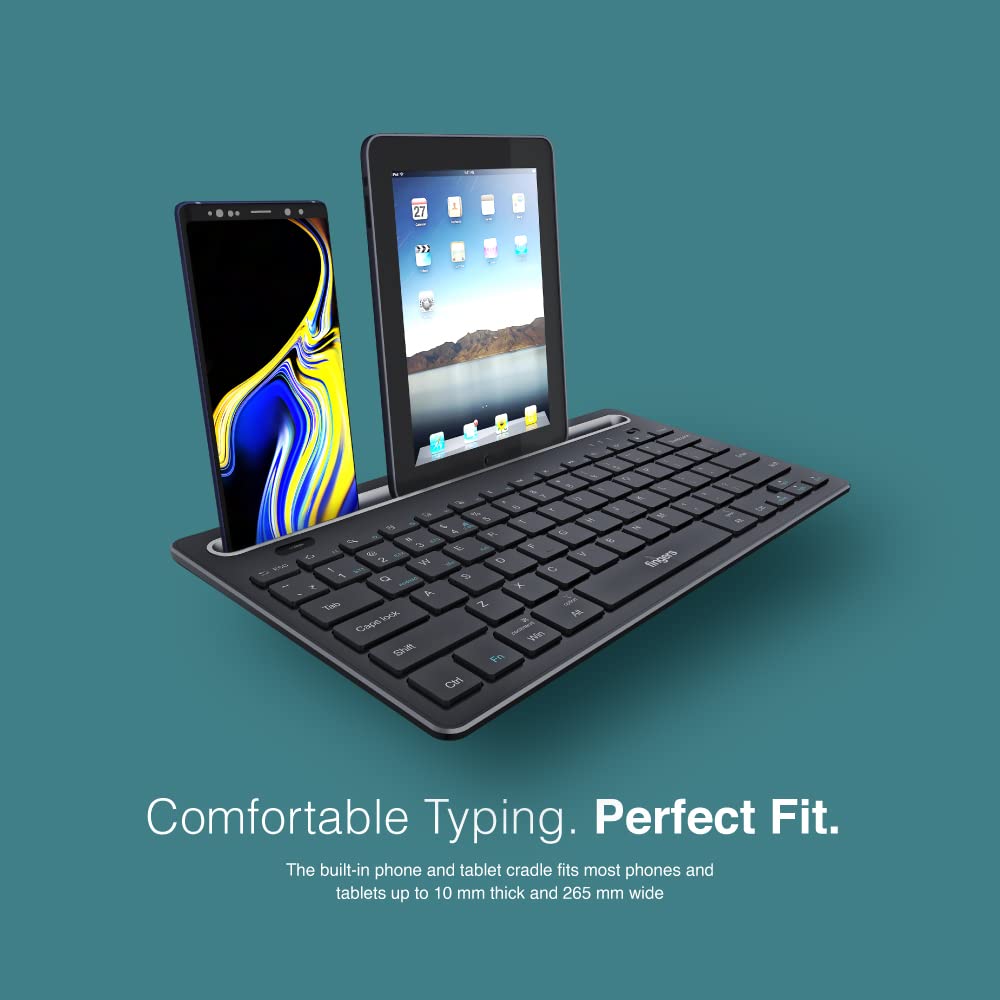
Image 4.2: The keyboard's integrated cradle holding a smartphone and a tablet for ergonomic viewing.
4.4. Compatibilidade do sistema operativo
The Lil’Clicks keyboard is compatible with a wide range of operating systems:
- Windows
- macOS
- Android
- Linux
- Chrome OS
The keyboard automatically adapts to the connected operating system for optimal functionality. Some function key behaviors may vary slightly depending on the OS.
5. Mantemento
5.1. Limpeza
Para limpar o teclado, limpe suavemente a superficie cun pano suave eamp, lint-free cloth. Avoid using harsh chemicals, abrasive cleaners, or excessive moisture, as these can damage the keyboard. The membrane-coated sheet beneath the keys helps protect against dust and minor spills.
5.2. Coidado da batería
The keyboard features a long-lasting battery, providing up to 45 days of usage on a single charge. To prolong battery life:
- Cargue o teclado completamente antes do primeiro uso.
- Evita descargar completamente a batería con frecuencia.
- Se garda o teclado durante un período prolongado, cárgueo ao 50 % aproximadamente e gárdeo nun lugar fresco e seco.
5.3. Almacenamento
When not in use, store the keyboard in a clean, dry environment away from extreme temperatures and direct sunlight. Its compact and lightweight design makes it easy to carry and store.

Image 5.1: The Lil’Clicks keyboard's portability, shown being carried and used in a cafe setting.
6 Solución de problemas
If you encounter issues with your FINGERS Lil’Clicks keyboard, please refer to the following troubleshooting steps:
6.1. Keyboard Not Connecting/Pairing
- Comprobar a potencia: Ensure the keyboard is turned on and has sufficient battery charge.
- Volver entrar no modo de emparellamento: For Bluetooth, press and hold Fn + BT1/BT2/BT3 until the indicator blinks. For 2.4 GHz, ensure the USB receiver is securely plugged in.
- Dispositivo Bluetooth: Asegúrate de que o Bluetooth estea activado no teu dispositivo e que sexa detectable.
- Forget Device (Bluetooth): If previously paired, try removing/forgetting the keyboard from your device's Bluetooth list and then re-pairing.
- Receptor USB: Try plugging the 2.4 GHz USB receiver into a different USB port on your device.
- Interferencia: Achega o teclado ao dispositivo e afastao doutros dispositivos sen fíos que poidan causar interferencias.
6.2. Keys Not Responding or Typing Incorrectly
- Nivel de batería: A low battery can affect key responsiveness. Charge the keyboard fully.
- Estabilidade de conexión: Ensure a stable connection. If using Bluetooth, try switching to a different Bluetooth channel (BT1, BT2, BT3) or re-pairing. If using 2.4 GHz, ensure the receiver is firmly connected.
- Interferencia: Wireless interference can sometimes cause missed keystrokes. Try moving to a different location or reducing other wireless activity.
- Limpar as teclas: Check for any debris or foreign objects under the keys that might be obstructing their movement.
- Modo do sistema operativo: Ensure the keyboard is in the correct operating system mode if there are specific key combinations for OS switching (e.g., Fn + Android/Win/Mac keys).
6.3. A batería non se carga
- Comprobar o cable: Ensure the Micro USB charging cable is securely connected to both the keyboard and the power source.
- Fonte de enerxía: Try a different USB power source (e.g., another USB port on your computer, a different wall adapter).
- Integridade do cable: Inspect the charging cable for any signs of damage. Try using a different Micro USB cable if available.
7. Especificacións
| Marca | DEDOS |
| Modelo | Lil’Clicks |
| Conectividade | Bluetooth, 2.4 GHz Wireless |
| Compatibilidade | Windows, macOS, Android, Linux, Chrome OS |
| Cor | Negro |
| Dimensións (LxWxH) | 29 x 16 x 2 cm |
| Peso do elemento | 400 g |
| Duración da batería | Ata 45 días (cunha soa carga) |
| Vida de teclas | 5 millóns de pulsacións de teclas |
| Cradle Dimensions | Fits devices up to 10 mm thick and 265 mm wide |
| Fonte de enerxía | Alimentado por batería |
8. Garantía e soporte
8.1. Información da garantía
The FINGERS Lil’Clicks Bluetooth Wireless Mini Keyboard comes with a 1 ano de garantía from the date of purchase. This warranty covers manufacturing defects under normal use. Please retain your purchase receipt as proof of purchase for warranty claims.
A garantía non cubre os danos derivados de:
- Accidental damage, misuse, abuse, or negligence.
- Unauthorized repair or modification.
- Desgaste normal.
8.2. Manufacturer and Importer Details
Fabricante: Dynamic Conglomerate Pvt. Ltd., 329/330, GIDC Phase II, Near Sardar Chowk, Vapi, Dist. Valsad, Gujarat - 396195.
Importador: Dynamic Conglomerate Pvt. Ltd. 4th Floor, Simba Tower, Vishveshwar Nagar, Goregaon (E), Mumbai - 400063, Maharashtra
8.3. Atención ao cliente
For technical assistance, warranty claims, or any other inquiries, please contact FINGERS customer support through their official website or the contact information provided in your Quick Usage Guide.


