1. Introdución
The TP-Link Archer AX80/A is a high-performance AX6000 WiFi 6 router designed to deliver ultra-fast wireless speeds and enhanced network capacity. Featuring advanced technologies like OFDMA, MU-MIMO, and 8-stream connectivity, it ensures a stable and efficient network experience for numerous connected devices, including smartphones, tablets, and IoT devices. This manual provides detailed instructions for setting up, operating, and maintaining your Archer AX80/A router.


2. Contido do paquete
Verifique que o seu paquete conteña os seguintes elementos:
- TP-Link Archer AX80/A AX6000 WiFi 6 Router
- Adaptador de alimentación
- Cable Ethernet
- Guía de instalación rápida
3. Sobrecarga físicaview
3.1 Portos e botóns
The Archer AX80/A router features various ports and buttons for connectivity and control.

- 2.5Gbps WAN/LAN Port: One port for high-speed internet connection or LAN device.
- Porto WAN/LAN Gigabit: One port for standard internet connection or LAN device.
- Gigabit LAN Ports: Three ports for connecting wired devices.
- Porto USB 3.0: One port for connecting external storage devices for network sharing.
- Botón de acendido / apagado: To power the router on or off.
- Botón de reinicio: To restore factory default settings (use a pin to press and hold).

3.2 Opcións de colocación
The Archer AX80/A offers flexible placement options to suit your environment.

4. Guía de configuración
4.1 Conexión de hardware
- Power off your modem and remove the backup battery if it has one.
- Connect the modem to the router's WAN port (usually the 2.5Gbps port) using an Ethernet cable.
- Power on the modem, then power on the router.
- Wait for the router's LED indicators to stabilize, indicating a successful connection.
4.2 Easy Setup via TP-Link Tether App
The TP-Link Tether app provides an intuitive way to set up and manage your router from your smartphone or tablet.
- Descarga a aplicación TP-Link Tether desde a App Store ou Google Play.
- Connect your mobile device to the router's default Wi-Fi network (SSID and password are on the router's label).
- Open the Tether app and follow the on-screen instructions to complete the initial setup, including creating a TP-Link ID, setting up your Wi-Fi name and password, and configuring internet settings.

5. Instrucións de funcionamento
5.1 Conexión de dispositivos
- Conexión sen fíos: Busca nome da túa rede Wi-Fi (SSID) no teu dispositivo e introduce o contrasinal que definiches durante a configuración.
- Conexión por cable: Connect your computer or other wired devices to the router's LAN ports using Ethernet cables.

5.2 Xestión da súa rede
You can manage your router settings through the TP-Link Tether app or by accessing the web interface de xestión a través dunha web browser (typically at http://tplinkwifi.net or http://192.168.0.1).
- Change Wi-Fi settings (SSID, password, security type).
- Monitorizar os dispositivos conectados.
- Configure advanced network settings.
6. Funcións avanzadas
6.1 OneMesh™ Support
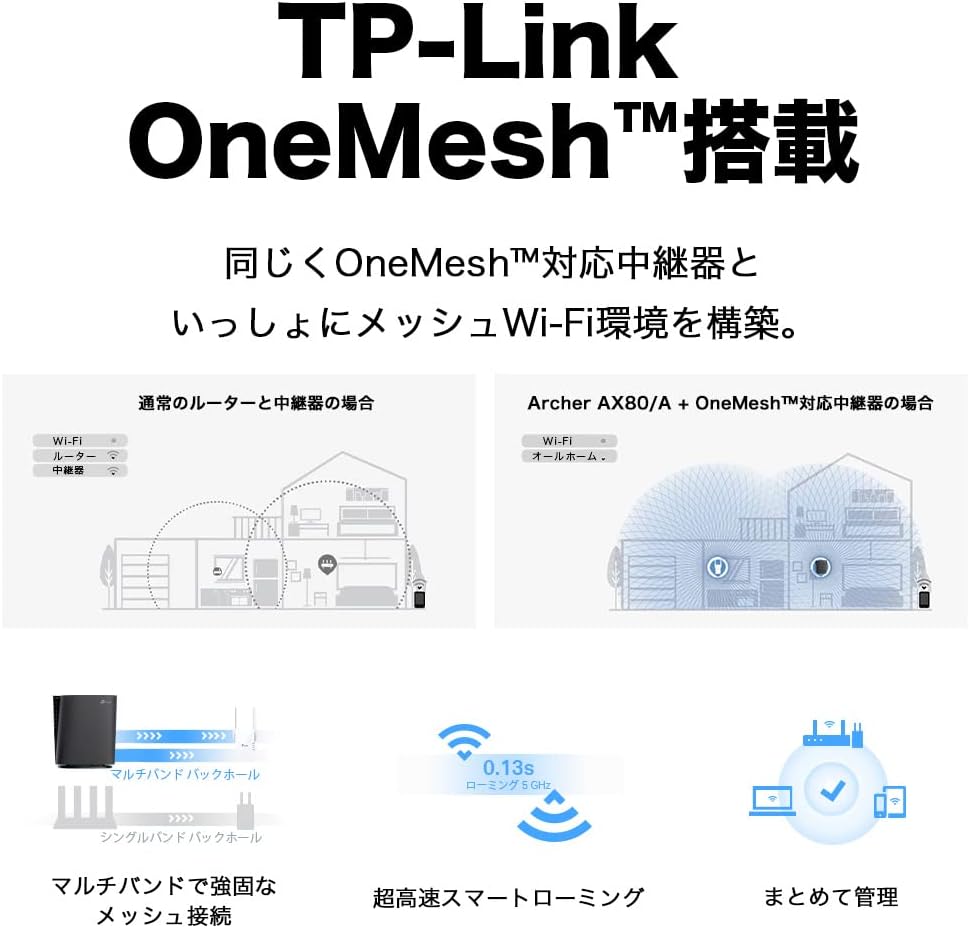
The Archer AX80/A supports TP-Link OneMesh™, allowing you to create a seamless whole-home Wi-Fi network by connecting to OneMesh-compatible range extenders. This eliminates Wi-Fi dead zones and provides uninterrupted roaming.
6.2 VPN Client Functionality
The router includes VPN client functionality, enabling you to establish a secure VPN connection without needing additional VPN software on each device. It supports OpenVPN, PPTP VPN, and L2TP VPN protocols.

6.3 IPv6 IPoE Support
The Archer AX80/A supports IPv6 IPoE (IPv4 over IPv6), including v6 Plus, OCN Virtual Connect, and DS-Lite, ensuring compatibility with modern internet service provider configurations for optimal performance.
6.4 Controis parentais
Manage and control internet access for family members with robust parental control features available through the Tether app. Set time limits, block inappropriate content, and monitor usage.

6.5 WPA3 Security
The router supports WPA3, the latest Wi-Fi security protocol, providing enhanced encryption and protection against cyber threats for a more secure home network.

6.6 US-Based Security Standards
TP-Link adheres to US government cybersecurity and infrastructure security agency (CISA) promoted "Secure-by-Design" principles, ensuring high-level security throughout design, development, and maintenance.

7. Mantemento
7.1 Actualizacións de firmware
Actualiza o firmware do teu enrutador regularmente para garantir un rendemento óptimo, seguridade e acceso a novas funcións. As actualizacións do firmware pódense realizar a través da aplicación Tether ou de web interface de xestión.
- Open the Tether app or log in to the web interface de xestión.
- Navigate to System Tools > Firmware Upgrade.
- Follow the instructions to check for and install available updates.
7.2 Reiniciar o enrutador
If you experience network issues, a simple reboot can often resolve them. You can reboot the router through the Tether app, web management interface, or by unplugging and replugging the power adapter.
8 Solución de problemas
8.1 Sen acceso a Internet
- Comproba se o teu módem funciona correctamente.
- Asegúrate de que todos os cables estean conectados de forma segura aos portos correctos.
- Reinicia tanto o módem como o enrutador.
- Verify your internet settings in the router's management interface.
8.2 Sinal Wi-Fi débil
- Relocate the router to a central location, away from obstructions and interference sources.
- Consider adding a TP-Link OneMesh™ compatible range extender to expand coverage.
- Adjust Wi-Fi channel settings in the router's management interface to avoid interference.
8.3 Esqueciches o contrasinal da wifi ou o contrasinal de inicio de sesión
- O contrasinal Wi-Fi predeterminado está impreso na etiqueta da parte inferior do enrutador.
- If you changed it and forgot, you can retrieve or reset it via the Tether app or web interface de xestión.
- If you forgot the router's login password, you may need to perform a factory reset (see Section 3.1) and reconfigure the router.
9. Especificacións
| Característica | Descrición |
|---|---|
| Marca | TP-Link |
| Nome do modelo | Archer AX80/A |
| Estándar sen fíos | 802.11ax (Wi-Fi 6) |
| Clase de banda de frecuencia | Dobre banda |
| Taxa de transferencia de datos | AX6000 (4804 Mbps on 5GHz + 1148 Mbps on 2.4GHz) |
| Portos | 1x 2.5Gbps WAN/LAN, 1x Gigabit WAN/LAN, 3x Gigabit LAN, 1x USB 3.0 |
| Tipo de antena | Interno |
| Protocolo de seguridade | WPA3 |
| Método de xestión | aplicación Tether, Web UI |
| Dispositivos compatibles | Teléfonos intelixentes, tabletas, portátiles |
| Dimensións (L x W x H) | 18.9 cm x 5.9 cm x 20 cm |
10. Garantía e soporte
10.1 Información da garantía
The TP-Link Archer AX80/A router comes with a 3 anos de garantía do fabricanteConserva o comprobante de compra para reclamacións de garantía. A garantía cobre defectos de materiais e fabricación en condicións normais de uso.
10.2 Soporte técnico
For technical support, firmware updates, and additional resources, please visit the official TP-Link website or contact TP-Link customer support. You can find contact information and FAQs on the TP-Link support page: