1. Introdución
This manual provides comprehensive instructions for the Orange Pi 5 4GB Single Board Computer. The Orange Pi 5 is a high-performance, open-source development board designed for a wide range of applications, including edge computing, artificial intelligence, cloud computing, AR/VR, intelligent security, and smart home systems.
It features a Rockchip RK3588S 8-core 64-bit processor (quad-core A76 + quad-core A55) with a main frequency up to 2.4GHz, an integrated ARM Mali-G610 GPU, and a built-in NPU with 6Tops computing power. This model comes with 4GB of LPDDR4/4x RAM and supports 8K display processing capabilities.
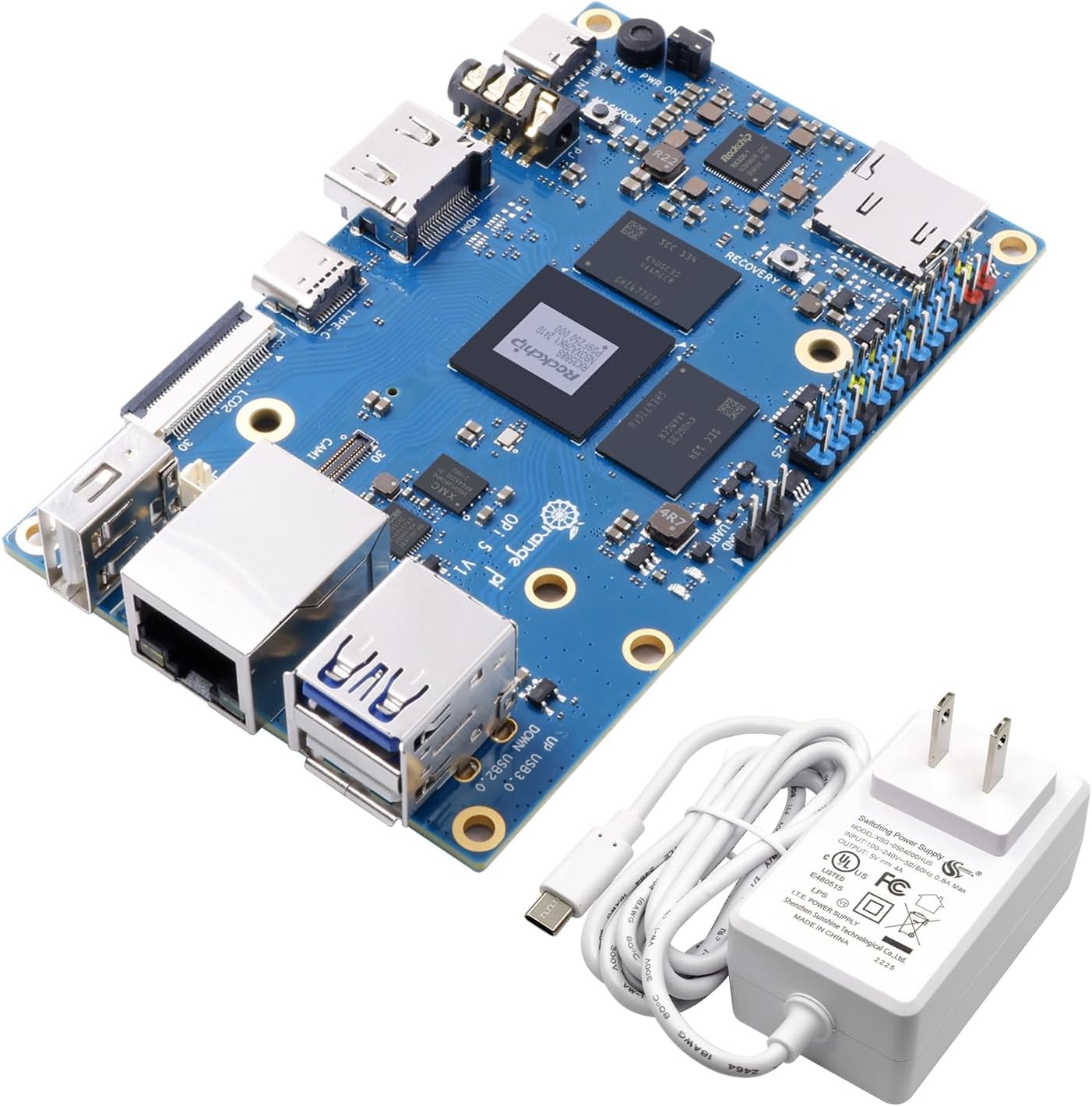
Figure 1: Orange Pi 5 4GB Single Board Computer and included 5V4A Type-C power supply.
2. Que hai na caixa
Ao abrir o paquete, comproba que estean presentes todos os elementos:
- Orange Pi 5 4GB Single Board Computer
- 5V4A Type C Power Supply

Figure 2: The included 5V4A Type-C power supply.
3. Produto rematadoview
The Orange Pi 5 board is equipped with various ports and components to facilitate its functionality. Familiarize yourself with the layout below.

Figura 3: Arriba view of the Orange Pi 5 board, highlighting key components such as the Rockchip RK3588S processor, RAM modules, USB ports (USB 3.0, USB 2.0), Gigabit Ethernet, HDMI output, Type-C port (power/DP1.4), MicroSD card slot, 26-pin headers, and camera interfaces.

Figure 4: Diagram illustrating the core features of the Orange Pi 5, including the RK3588S CPU, 4GB LPDDR4/4x RAM, Gigabit Ethernet, HDMI 2.1, 26-pin headers, and Type-C power supply.

Figura 5: Abaixo view of the Orange Pi 5 board, featuring the M.2 PCIe 2.0 interface for NVMe SSDs, CODEC (ES8388), RTC, and additional camera interfaces.
3.1. Key Interfaces and Components
- Procesador: Rockchip RK3588S (8-core, 64-bit, up to 2.4GHz)
- GPU: ARM Mali-G610
- NPU: 6Tops computing power
- RAM: 4 GB de LPDDR4/4x
- Saída de vídeo: HDMI 2.1 (8K support), USB-C (DP1.4), Dual MIPI D-PHY
- Almacenamento: MicroSD Card Slot, M.2 PCIe 2.0 (supports 2242 NVMe SSDs)
- Rede: Porto LAN Gigabit
- Portos USB: 1x USB 3.0, 2x USB 2.0, 1x Type-C (power/DP1.4)
- GPIO: 26-pin header for general purpose input/output
- Interfaces da cámara: Multiple MIPI CSI interfaces (CAM1, CAM2, CAM3)
- Audio: Audio In/Out jack

Figure 6: Pin definition diagram for the Orange Pi 5 v1.3.2, detailing the GPIO, UART, I2C, SPI, and PWM pins.
4. Especificacións
| Característica | Detalle |
|---|---|
| Procesador | Rockchip RK3588S, 8-core (Quad-core A76 + Quad-core A55), 64-bit, up to 2.4 GHz |
| GPU | ARM Mali-G610 |
| NPU | 6 TOPS |
| RAM | 4 GB de LPDDR4/4x |
| Soporte de almacenamento | MicroSD card slot, M.2 PCIe 2.0 (for NVMe SSD) |
| Saída de vídeo | HDMI 2.1 (8K@60Hz), USB-C (DP1.4), Dual MIPI D-PHY |
| Rede | Gigabit Ethernet |
| Portos USB | 1x USB 3.0, 2x USB 2.0, 1x Type-C (Power/DP1.4) |
| GPIO | Cabeceira de 26 pinos |
| Sistemas operativos | Orange Pi OS, Android 12, Debian 11 |
| Dimensións | Aproximadamente 7.44 x 4.02 x 2.72 polgadas (dimensións do paquete) |
| Peso | Aproximadamente 8.8 onzas |
5. Guía de configuración
Follow these steps to set up your Orange Pi 5:
- Prepare Storage:
The Orange Pi 5 requires an operating system to function. You can install an OS onto a MicroSD card or an NVMe SSD (via the M.2 slot).
- Tarxeta MicroSD: Download your preferred operating system image (e.g., Orange Pi OS, Android 12, Debian 11) from the official Orange Pi website. Use a disk imaging tool (e.g., Balena Etcher) to write the image to a high-speed MicroSD card (Class 10 or higher recommended). Insert the prepared MicroSD card into the MicroSD card slot on the board.
- SSD NVMe: For enhanced performance, install a compatible 2242 NVMe SSD into the M.2 PCIe 2.0 slot. You will then need to flash the OS to the NVMe drive, typically after an initial boot from a MicroSD card or via specific flashing tools.
- Conectar periféricos:
- Visualización: Connect a monitor or display to the HDMI OUT port using an HDMI cable. Alternatively, use a USB-C to DisplayPort cable for the Type-C port.
- Teclado e rato: Connect a USB keyboard and mouse to the available USB 2.0 or USB 3.0 ports.
- Rede: For wired internet access, connect an Ethernet cable to the Gigabit LAN port.
- Audio: If needed, connect speakers or headphones to the Audio In/Out jack.
- Encendido:
Connect the included 5V4A Type-C power supply to the Type-C power port on the Orange Pi 5. The board should power on automatically, and the operating system should begin to boot.
6. Instrucións de funcionamento
Once the Orange Pi 5 has successfully booted into your chosen operating system, you can begin using it. The operation will largely depend on the specific OS installed (e.g., Orange Pi OS, Android 12, Debian 11).
- Operating System Interface: Navigate the desktop environment or Android interface using your connected keyboard and mouse.
- Instalación de software: Install applications and development tools as required by your projects. Refer to the documentation for your specific operating system for detailed instructions on package management and software installation.
- Desenvolvemento: The Orange Pi 5 is an open-source development board. Utilize its GPIO pins, camera interfaces, and other expansion options for custom hardware projects. Consult the Orange Pi community forums and official documentation for programming guides and examples.
- Apagado: Always perform a proper shutdown through the operating system's menu to prevent data corruption. Do not simply disconnect the power supply.
7. Mantemento
To ensure the longevity and optimal performance of your Orange Pi 5, consider the following maintenance tips:
- Refrixeración: The RK3588S processor can generate heat under heavy load. Consider adding a heatsink or a small fan, especially if the board is enclosed or used for demanding applications, to prevent thermal throttling and ensure stable operation.
- Limpeza: Periodically clean the board with a soft, dry brush or compressed air to remove dust accumulation, which can impede cooling and potentially cause short circuits. Ensure the board is powered off and disconnected from all power sources before cleaning.
- Ambiente: Operate the Orange Pi 5 in a clean, dry environment, away from extreme temperatures, humidity, and direct sunlight.
- Actualizacións de software: Regularly update your operating system and installed software to benefit from performance improvements, security patches, and new features.
8 Solución de problemas
If you encounter issues with your Orange Pi 5, refer to the following common troubleshooting steps:
- Sen alimentación/Sen arranque:
- Ensure the 5V4A Type-C power supply is correctly connected and functioning.
- Verify that the MicroSD card or NVMe SSD contains a properly flashed operating system image. Try re-flashing the OS.
- Check for any visible damage to the board or power supply.
- Sen saída de visualización:
- Confirm the HDMI or USB-C (DP) cable is securely connected to both the Orange Pi 5 and the monitor.
- Asegúrate de que o monitor estea acendido e configurado na fonte de entrada correcta.
- Try a different HDMI cable or monitor if available.
- Some operating systems may require specific display configurations; consult OS documentation.
- Peripheral Issues (Keyboard/Mouse/USB devices):
- Tenta conectar o dispositivo a un porto USB diferente.
- Ensure the device is functioning correctly by testing it on another computer.
- Some operating systems may require specific drivers for certain peripherals.
- Problemas de conectividade de rede:
- Verify the Ethernet cable is properly connected to the Gigabit LAN port and your router/switch.
- Check your router/switch for internet connectivity.
- Ensure network settings within the operating system are correctly configured (e.g., DHCP enabled).
- Inestabilidade/Conxelación do sistema:
- Ensure adequate cooling is provided, especially if running demanding applications. Overheating can lead to instability.
- Check for sufficient power supply. An underpowered board can behave erratically.
- Verify the integrity of your MicroSD card or NVMe SSD. Corrupted storage can cause system issues.
- Ensure your operating system and kernel are up to date.
For further assistance, refer to the official Orange Pi community forums or support resources.
9. Garantía e soporte
For warranty information and technical support, please refer to the official Orange Pi websitio web ou póñase en contacto co seu vendedor. Garde o comprobante de compra para reclamacións de garantía.
Orange Pi is committed to providing open-source hardware and software. Community support is available through official forums and online resources, where users can find guides, share projects, and troubleshoot issues.
Manufacturer: Shenzhen Xunlong Software CO.,Limited