1. Produto rematadoview
The ProtoArc K100-A is an ultra-slim wireless Bluetooth keyboard specifically designed for Mac devices. It features a full-size layout with a numeric keypad, responsive scissor-switch keys for quiet typing, and adjustable white LED backlighting. This keyboard supports connection to up to three devices simultaneously, allowing for seamless switching between your MacBook, iMac, iPad, or iPhone. Its built-in rechargeable battery ensures long-lasting use.

Image: The ProtoArc K100-A keyboard connected to a MacBook, iPad, and iPhone, showcasing a súa capacidade multidispositivo.
2. Contido do paquete
- Teclado Bluetooth ProtoArc K100-A retroiluminado
- Cable de carga USB-C
- Manual de usuario (este documento)
3. Iniciación
3.1 Carga do teclado
Before first use, fully charge the keyboard. Connect the provided USB-C charging cable to the keyboard's Type-C port and the other end to a USB power source (e.g., computer USB port, USB wall adapter). A full charge takes approximately 4-5 hours. The built-in 1200mAh lithium-ion battery provides a standby time of 3-4 months.

Image: The keyboard's Type-C charging port with the charging cable inserted.
3.2 Encendido/apagado
Locate the power switch on the side or back of the keyboard. Slide it to the "ON" position to power on the keyboard. Slide it to "OFF" when not in use to conserve battery.
4. Conexión Bluetooth
The ProtoArc K100-A keyboard supports connection to three different devices via Bluetooth. Follow these steps to pair your devices:
- Asegúrate de que o teclado estea acendido.
- Press and hold one of the Bluetooth channel keys (BT1, BT2, ou BT3) durante 3-5 segundos ata que a luz indicadora correspondente parpadee rapidamente. Isto indica que o teclado está en modo de emparellamento.
- On your Mac device (MacBook, iMac, iPad, iPhone), go to Configuración do sistema (ou Preferencias do sistema) > Bluetooth.
- Activa o Bluetooth e busca os dispositivos dispoñibles.
- Seleccionar "ProtoArc K100-A" da lista de dispositivos.
- Follow any on-screen prompts to complete the pairing process. The indicator light will stop flashing and remain solid for a few seconds, then turn off, indicating successful pairing.
- Repita estes pasos para un máximo de dous dispositivos adicionais que empreguen as outras teclas de canle Bluetooth.

Image: The dedicated Bluetooth channel keys (BT1, BT2, BT3) on the keyboard.
4.1 Cambio entre dispositivos
To switch between paired devices, simply press the corresponding Bluetooth channel key (BT1, BT2, ou BT3) once. The keyboard will connect to the selected device within a few seconds.
5. Instrucións de funcionamento
Control de retroiluminación 5.1
The keyboard features soft white LED backlighting with three adjustable brightness levels (low, medium, high). To adjust the backlight brightness, press the backlight key (often indicated by a sun icon or similar) located on the top right of the keyboard. Pressing it repeatedly cycles through the brightness levels and turns the backlight off.

Image: The keyboard with its white adjustable backlight at different brightness levels.
5.2 Teclas de atallo
The keyboard includes 12 shortcut keys for enhanced productivity on Mac devices. These keys provide quick access to functions such as brightness adjustment, mission control, media playback, volume control, and more. Refer to the key labels for specific functions.

Image: Detail of the keyboard's silent scissor-switch keys, designed for quiet and responsive typing.
6. Mantemento e coidados
- Manteña o teclado limpo cun pano suave e seco. Evite o uso de produtos químicos agresivos ou materiais abrasivos.
- Non expoñas o teclado a temperaturas extremas, humidade nin luz solar directa.
- Avoid spilling liquids on the keyboard. If a spill occurs, immediately power off the keyboard and allow it to dry completely before use.
- When not in use for extended periods, power off the keyboard to preserve battery life.
- The keyboard automatically enters sleep mode after 30 minutes of inactivity to save power. Press any key to wake it up.
7 Solución de problemas
- Keyboard not connecting/disconnecting frequently:
- Asegúrate de que o teclado estea completamente cargado.
- Verify Bluetooth is enabled on your device and the keyboard is within range (up to 10 meters).
- Tenta volver emparellar o teclado co teu dispositivo.
- Asegúrate de que non haxa outras interferencias con sinais inalámbricos fortes.
- Keys not responding or delayed response:
- Comprobe o nivel da batería e cárguea se é necesario.
- Asegúrate de que o teclado estea conectado correctamente mediante Bluetooth.
- If the keyboard has entered sleep mode, press any key and wait a few seconds for it to reconnect.
- A retroiluminación non funciona:
- Asegúrate de que o teclado estea acendido.
- Press the backlight key to cycle through brightness levels and turn it on.
- If the battery is very low, the backlight may not function to conserve power. Charge the keyboard.
8. Especificacións
| Número de modelo | K100-A |
| Marca | ProtoArco |
| Tecnoloxía de conectividade | Bluetooth |
| Dispositivos compatibles | Mac OS 12.2 or higher (MacBook, MacBook Pro, MacBook Air, iMac, iMac Pro, Mac Pro/Mini, iPad, iPhone) |
| Características especiais | Backlit, Rechargeable, Multi-Device Connection (3 devices) |
| Capacidade da batería | 1200mAh ión de litio |
| Tempo de carga | 4-5 horas |
| Tempo de espera | 90-120 días |
| Dimensións do produto | 16.79" L x 4.78" W x 0.57" H |
| Peso do elemento | 1.59 libras |
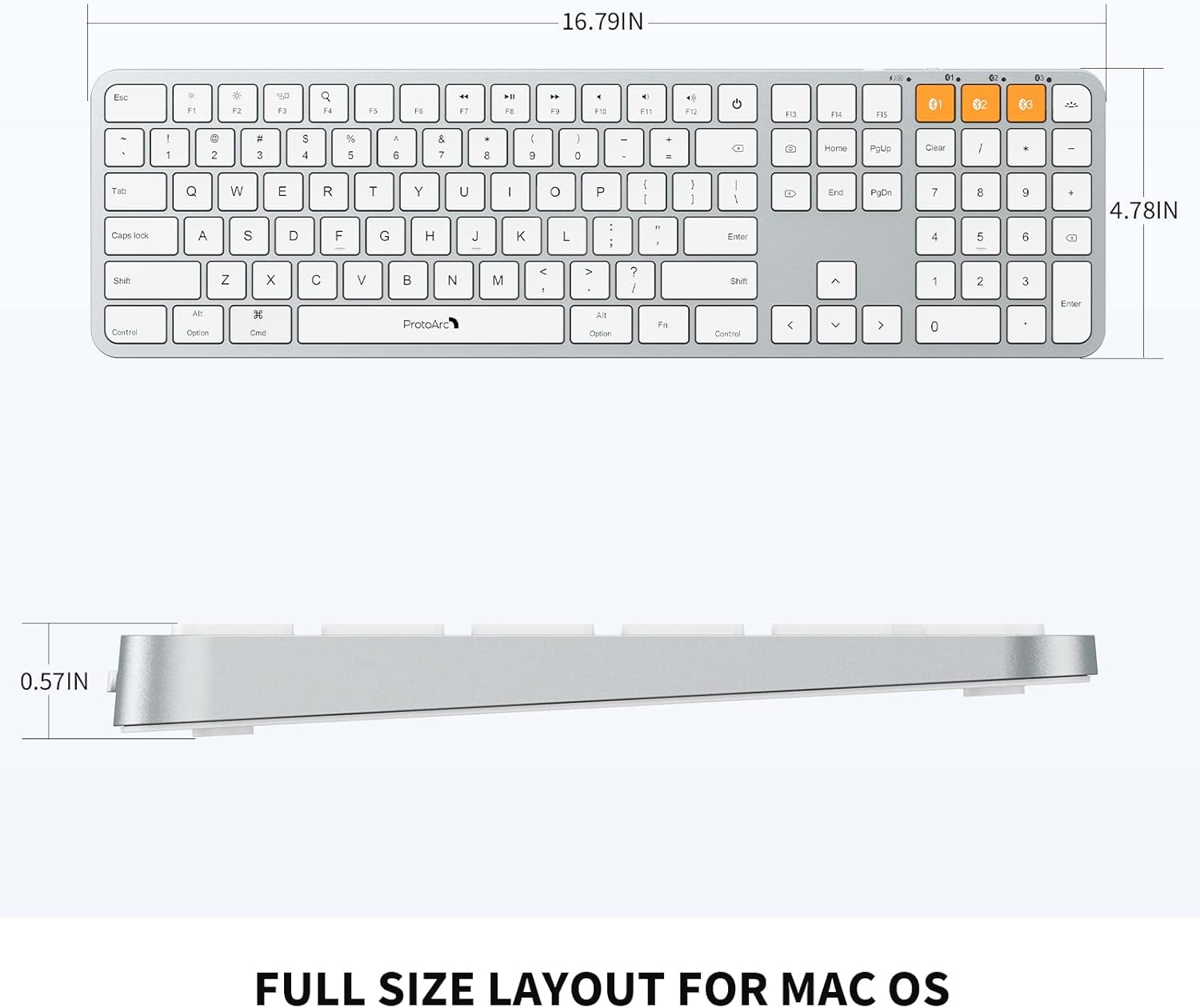
Image: Dimensional diagram of the ProtoArc K100-A keyboard.
9. Garantía e soporte
For warranty information and technical support, please refer to the official ProtoArc websitio web ou póñase en contacto directamente co servizo de atención ao cliente. Garde o recibo de compra para reclamacións de garantía.


