1. Produto rematadoview
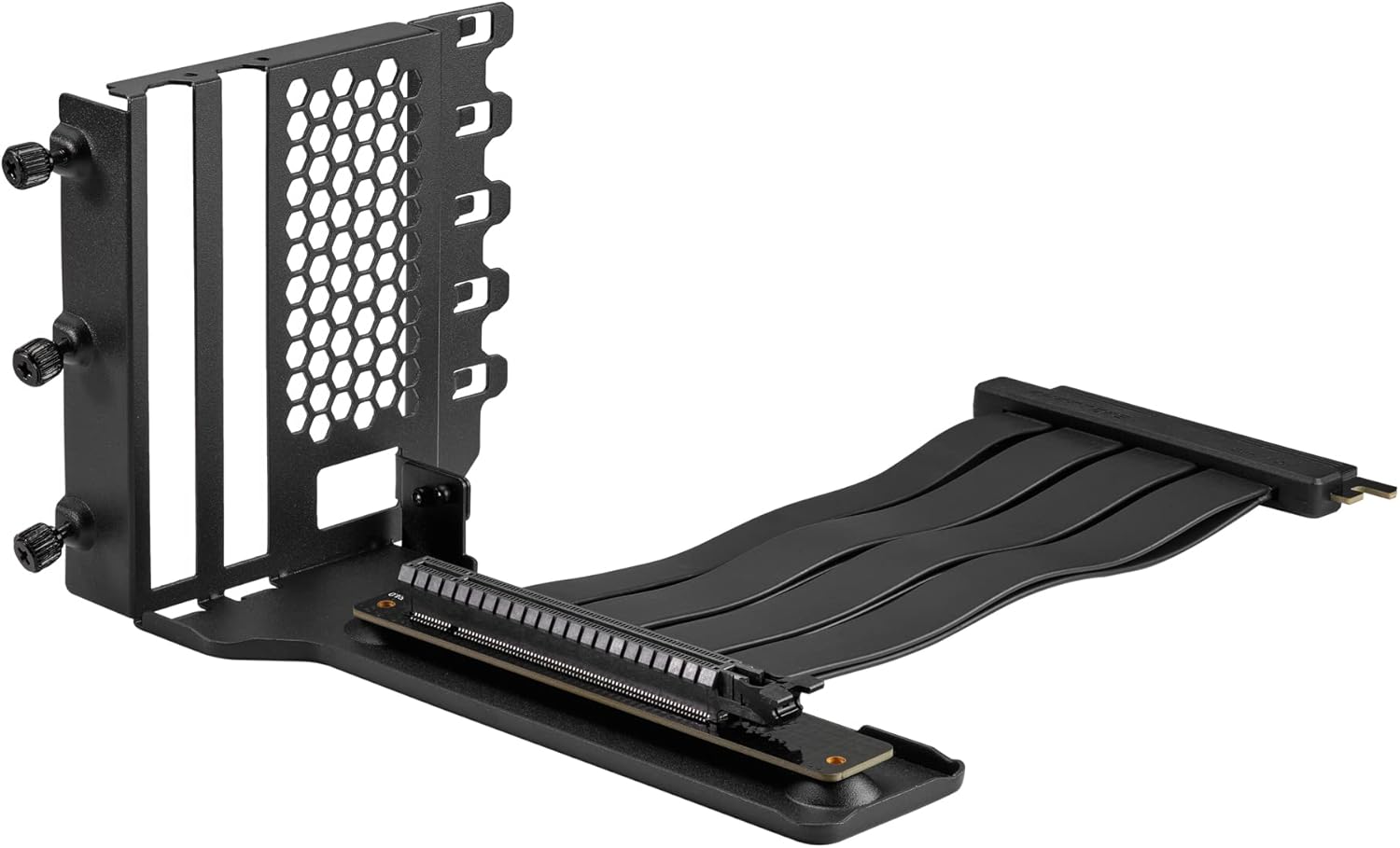
The Phanteks Gen4 Vertical GPU Bracket is designed to allow vertical placement of a graphics card within a compatible PC chassis, utilizing full PCI-E Gen4 speeds. This kit includes a 220mm Flat Line PCI-E Gen4 x16 Riser Cable, ensuring high-speed data transfer and signal integrity for optimal graphics card performance.
As características principais inclúen:
- Vertical mounting system compatible with 1-slot, 2-slot, 3-slot, and 4-slot graphics cards.
- Requires a chassis with 7 open PCI slots.
- Direct installation without modification in Phanteks Eclipse P300A, P360A, and P400A chassis. Other ATX chassis may require modification.
- Includes rubber pads to provide additional support and prevent graphics card sag.
- 220mm PCI-E Gen4 x16 Riser Cable with dual-layer, individually shielded cables for stable performance.
2. Contido do paquete
Verifique que todos os compoñentes estean presentes no paquete antes de continuar coa instalación.

- Vertical GPU Bracket (1x)
- PCI-E Gen4 x16 Riser Cable (220mm) (1x)
- Rubber Support Pads (various sizes) (3x)
- Tornillos de montaxe (4x)
- Manual de instrucións (1x)
3. Configuración e instalación
Antes de comezar a instalación, asegúrate de que o teu ordenador estea apagado e desconectado da toma de corrente. Recoméndase usar unha pulseira antiestática para evitar danos por descarga electrostática (ESD) nos compoñentes.
3.1. Chassis Compatibility Check
The bracket requires a PC chassis with at least 7 open PCI slots. For Phanteks Eclipse P300A, P360A, and P400A chassis, direct installation is possible. Other ATX chassis may require modification to the PCI slot area for proper fitment and display port access.
3.2. Preparación do chasis
- Open your PC chassis and remove the side panel.
- Locate the PCI slot area at the rear of the chassis. Remove all 7 PCI slot covers. Keep the screws for later use if applicable, or use the provided screws.
- If your chassis has a horizontal bar separating the PCI slots, it may need to be removed or modified to allow the vertical bracket to sit flush and for display cables to pass through.
3.3. Installing the Vertical GPU Bracket
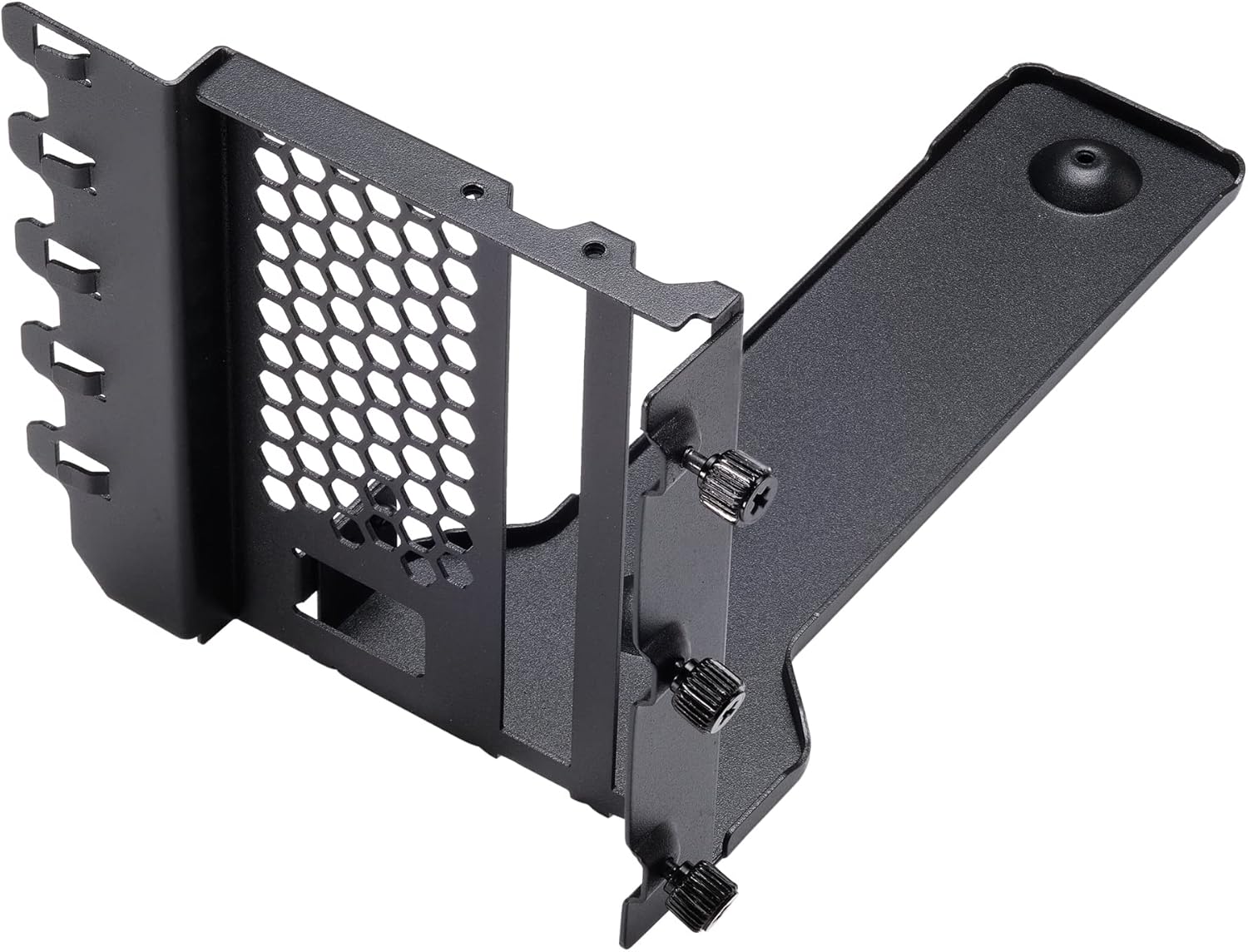
- Position the vertical GPU bracket into the chassis, aligning its mounting holes with the PCI slot screw holes.
- Secure the bracket to the chassis using the provided mounting screws or the original PCI slot screws. Ensure the bracket is firmly attached.
3.4. Connecting the Riser Cable
- Carefully insert one end of the 220mm PCI-E Gen4 x16 Riser Cable into the primary PCI-E x16 slot on your motherboard. Ensure it is fully seated.
- Route the riser cable neatly within the chassis to the vertical GPU bracket. Avoid sharp bends or kinks in the cable.
3.5. Mounting the Graphics Card
- Align your graphics card with the PCI-E slot on the vertical GPU bracket.
- Gently push the graphics card into the slot until it is fully seated.
- Secure the graphics card to the bracket using its original mounting screws or the thumb screws on the bracket.
- Connect the free end of the riser cable to the graphics card's PCI-E x16 slot. Ensure a secure connection.
- Apply the included rubber support pads to the bottom of the graphics card or the bracket's support arm to prevent sag, especially for heavier GPUs. Position them to provide stable support without obstructing fans.
4. Funcionamento
Once the Phanteks Gen4 Vertical GPU Bracket and graphics card are installed, ensure all power cables (PCI-E power connectors) are securely connected to the graphics card. Close your chassis side panel and reconnect all peripherals and power. Power on your computer.
The PCI-E Gen4 x16 Riser Cable is designed to operate at full Gen4 speeds. Your system should automatically detect the graphics card and operate it at the highest compatible PCI-E generation. No specific software or driver installation is required for the bracket itself.
5. Mantemento
Regular maintenance helps ensure optimal performance and longevity of your components.
- Eliminación de po: Periodically clean dust from the graphics card fans and heatsink, as well as the bracket's ventilation areas, using compressed air. Ensure the system is powered off and unplugged before cleaning.
- Inspección de cables: Occasionally check the riser cable for any signs of wear, damage, or loose connections.
- Support Pad Check: Verify that the rubber support pads remain in place and continue to provide adequate support to the graphics card.
6 Solución de problemas
6.1. Sen saída de visualización
- Comproba as conexións: Ensure the riser cable is fully seated in both the motherboard's PCI-E slot and the graphics card's PCI-E slot. Verify all power cables to the graphics card are securely connected.
- Configuración da BIOS: If your motherboard has a PCI-E 3.0 chipset and you are using a PCI-E 4.0 graphics card, you may need to manually set the PCI-E slot speed to "Gen3" or "PCI-E 3.0" in your motherboard's BIOS settings. Some motherboards may not auto-negotiate Gen4 speeds correctly through a riser cable, especially with older BIOS versions.
- Test Directly: If possible, test the graphics card by plugging it directly into the motherboard's PCI-E slot to rule out issues with the card itself.
6.2. Graphics Card Sag
- Adjust Support Pads: Ensure the included rubber support pads are correctly positioned under the graphics card to provide maximum support. Experiment with different placements or stacking if necessary.
- Montaxe segura: Verify that the vertical GPU bracket is securely fastened to the chassis and the graphics card is securely fastened to the bracket.
6.3. Problemas de rendemento
- Configuración da BIOS: Confirm that your motherboard's BIOS is set to the correct PCI-E generation (Gen4 for compatible systems, or Gen3 if troubleshooting display issues on older chipsets).
- Fluxo de aire: Ensure adequate airflow around the vertically mounted graphics card. Vertical mounting can sometimes affect cooling depending on chassis design.
7. Especificacións
| Característica | Especificación |
|---|---|
| Número de modelo | PH-VGPUKT4.0_03R |
| PCI-E Generation | PCI-E 4.0 x16 |
| Lonxitude do cable elevador | 220 mm |
| Compatibilidade GPU | 1-slot, 2-slot, 3-slot, and 4-slot graphics cards |
| Chassis Requirement | 7 open PCI slots (ATX) |
| Material | Aceiro revestido en po |
| Cor | Negro |
| Peso do elemento | 1 libra (aprox.) |
| Resolución máxima de pantalla | 7680x4320 (dependent on GPU) |
8. Garantía e soporte
Para obter información sobre a garantía e asistencia técnica, consulte a páxina oficial de Phanteks. websitio web ou póñase en contacto co seu distribuidor local. Garde o comprobante de compra para reclamacións de garantía.
Podes atopar máis información e datos de contacto en: www.phanteks.com
For specific regional support, refer to the contact information below:
- Phanteks Taiwan Inc.
11F., no 150, Jian 1st Rd.,
Zhonghe Dist. Nova cidade de Taipei 235 - Importer EU (Axpertec Int. B.V.)
Rúa de Sydney 33
3047 BP Rotterdam
Os Países Baixos - Importer US (Axpertec Inc.)
20465 E Nogueira Dr. N
City of Industry, California 91789
Estados Unidos


