1. Introdución
This manual provides detailed instructions for the setup, operation, maintenance, and troubleshooting of your Volcora 80mm Thermal Receipt Printer. This printer is designed for Point-of-Sale (POS) applications, offering fast and efficient thermal printing with an auto-cutter. It supports USB and Ethernet connectivity and is compatible with Android, Windows, and Linux operating systems.
2. Información de seguridade
- Asegúrate de que a impresora estea conectada a unha toma de corrente con toma de terra.
- Non expoña a impresora á auga nin a humidade excesiva.
- Evite colocar a impresora baixo a luz solar directa ou preto de fontes de calor.
- Use only the power adapter provided with the printer.
- Manteña a impresora lonxe dos nenos.
- Non intente desmontar nin reparar a impresora vostede mesmo. Póñase en contacto co servizo de atención ao cliente para obter axuda.
3. Contido do paquete
Verifica que todos os elementos estean presentes no paquete:
- Volcora 80mm Thermal Receipt Printer
- Cable de alimentación
- Cable USB
- Rolo de papel de proba
- CD de instalación

Figure 3.1: Package Contents. The image displays the Volcora Thermal Receipt Printer along with its accessories: a power cord, a USB cable, a roll of test paper, and an installation CD.
4. Produto rematadoview
4.1. Portos e botóns
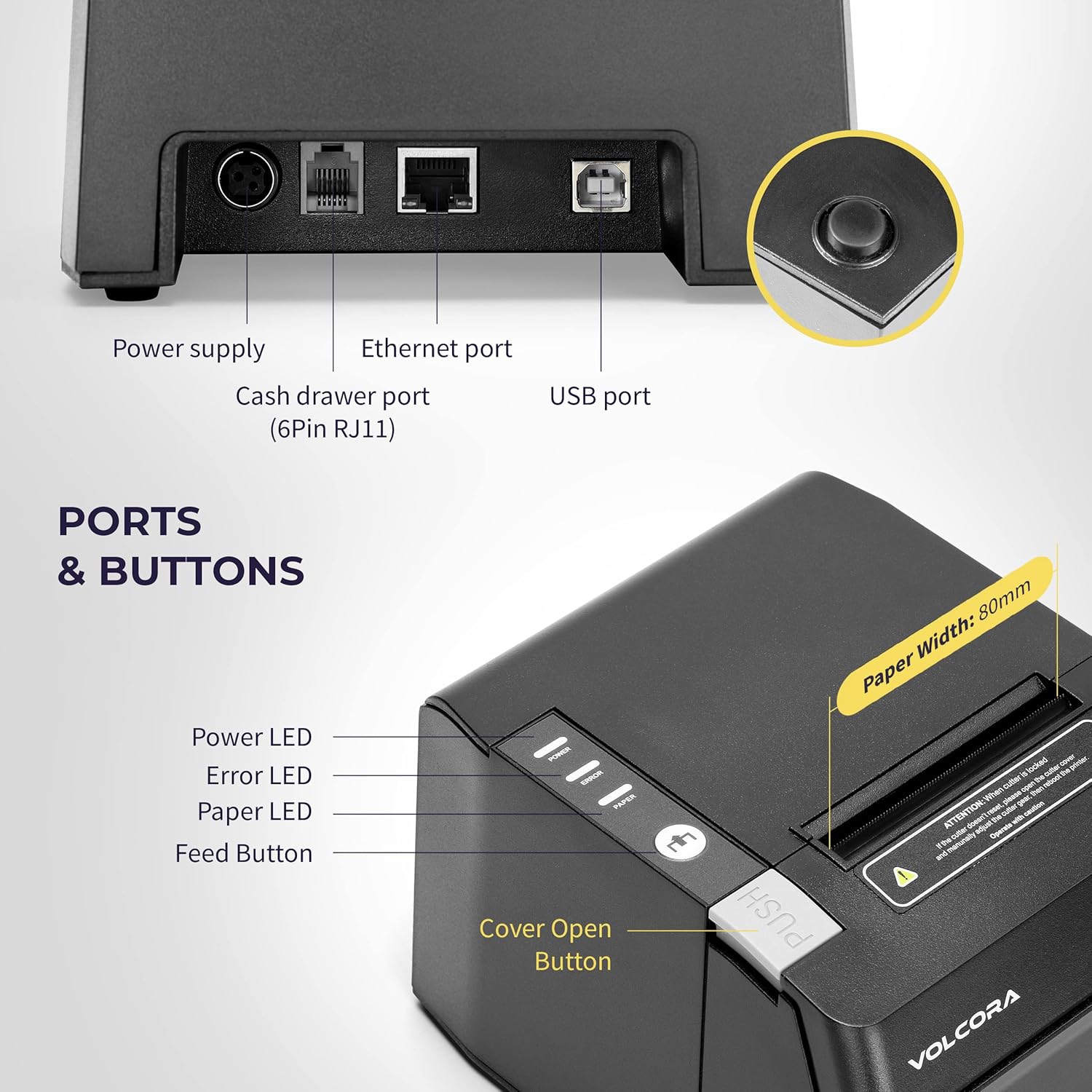
Figure 4.1: Printer Ports and Buttons. This image illustrates the rear ports including Power Supply, Ethernet Port, Cash Drawer Port (6Pin RJ11), and USB Port. It also shows the front panel with Power LED, Error LED, Paper LED, Feed Button, and Cover Open Button.
- Porto de alimentación: Conéctase ao adaptador de alimentación.
- Porto Ethernet: For network connectivity (LAN).
- Cash Drawer Port (6Pin RJ11): Connects to a cash drawer.
- Porto USB: Para conexión directa a un ordenador.
- LED de alimentación: Indica o estado da enerxía.
- LED de erro: Indicates printer errors.
- LED de papel: Indicates paper status (e.g., low paper).
- Botón de alimentación: Manually feeds paper.
- Cover Open Button: Releases the printer cover to access the paper roll.

Figura 4.2: Múltiples views of the Volcora Thermal Receipt Printer, showing its compact design and various connection points.
5. Configuración
5.1. Unboxing and Connecting
- Desembala a impresora e retira todos os materiais de embalaxe.
- Connect the power adapter to the printer and then to a power outlet.
- Connect the printer to your Windows PC using the provided USB cable.
Video 5.1: Getting Started with Volcora Thermal Receipt Printer. This video demonstrates the unboxing, connecting the printer to power and a Windows PC via USB, and performing a self-test.
5.2. Instalación do rolo de papel
- Press the Cover Open Button to open the printer cover.
- Insert the thermal paper roll with the printing side facing up.
- Pull a small length of paper out past the cutter.
- Peche a tapa da impresora firmemente ata que encaixe no seu lugar.
5.3. Driver Installation (Windows)
- Download the latest driver for Windows from the Volcora support websitio: volcora.com/support.
- Descomprimir o descargado file e executa o instalador do controlador.
- Follow the on-screen prompts, agreeing to the license and selecting your printer model (e.g., 500108).
- Ensure the printer is connected via USB during installation.
- After successful installation, the printer should be recognized in your computer's "Printers & scanners" settings.

Figure 5.2: Easy Installation Steps. This diagram outlines the four main steps: Download drivers, Install drivers, Connect the printer, and Test print.
5.4. Network Configuration (Ethernet)
If you are using the Ethernet connection, you may need to configure the printer's IP address to match your network's subnet. This can be done using the Setting Tool software.
- First, identify your PC's IP address and subnet mask.
- Perform a printer self-test (see Section 6.2) to get the printer's current IP address.
- If the printer's IP is not in the same subnet as your PC, you will need to adjust either the PC's IP or the printer's IP.
- Open the Setting Tool software (available from volcora.com/support).
- Select the printer model and choose 'NET' for the port type.
- Enter the printer's current IP address and click 'Get Param' to retrieve its network settings.
- Modify the IP address, subnet mask, and gateway to align with your network configuration.
- Click 'Set' to apply the new settings to the printer.
- Perform another self-test to confirm the IP address has been updated.
Video 5.2: How to Modify LAN IP Address of Volcora Receipt Printer. This video guides you through identifying current IP addresses, changing PC host IP, and using the Setting Tool to configure the printer's IP address for Ethernet connectivity.
5.5. Opcións de colocación

Figure 5.3: Multiple Use & Placement. The printer can be wall-mounted for kitchen use or placed on a counter for receipt printing.
6. Instrucións de funcionamento
6.1. Impresión básica
Once the printer is connected and drivers are installed, you can print receipts from your POS software or any application that supports printing. The printer features a 203 dpi resolution for clear prints and an auto-cutter for efficient receipt handling.

Figure 6.1: Efficient Printing. This image highlights the printer's fast print speed, low noise operation, and clear 203 dpi output, showing a receipt with a QR code and a barcode.
The printer supports various barcode types including UPC-A, UPC-E, EAN13, EAN8, CODE39, ITF25, CODABAR, CODE93, CODE128, QRCODE, PDF417, and Data matrix.
6.2. Printer Self-Test
A self-test prints the printer's configuration, including its IP address (if connected via Ethernet), and confirms basic functionality.
- Asegúrese de que a impresora estea apagada.
- Press and hold the "Feed" button.
- While holding the "Feed" button, power on the printer.
- Continue holding the "Feed" button for approximately 5 seconds until the self-test page begins to print.
6.3. Compatibilidade
The Volcora Thermal Receipt Printer is compatible with various POS systems and operating environments. It supports ESC/POS commands.

Figure 6.2: Printer Compatibility. This chart lists compatible POS systems such as Loyverse, SumUp, Gloria Food, FoodZaps, TabShop POS, POSAPP.vn POS, Olsera POS, and KaHero POS. It also lists systems that are not compatible, including Square, Toast, Ubereats, Grubhub, Doordash, Postmates, Clover, and Shopify.
Sistemas operativos compatibles: Android, Windows, Linux. (Note: A software development kit (SDK) is required for custom application development on Ethernet-supported systems, including Windows, Linux, and MAC.)
Non compatible con: Delivery platforms or POS applications such as Ubereats, Grubhub, Doordash, Postmates, Square, Clover, or Shopify. Does not offer Bluetooth or WiFi printing options.

Figure 6.3: Detailed Compatibility Table. This table shows compatibility for USB and Serial connections across various operating systems (Windows, Mac OS, Linux, Android, iOS) and notes about SDK and ESC/POS commands.
7. Mantemento
7.1. Limpeza
- Regularly clean the printer's exterior with a soft, damp pano.
- To clean the thermal print head, use an alcohol swab. Ensure the printer is off and cool before cleaning.
- Remove any paper dust or debris from the paper path.
8 Solución de problemas
8.1. Problemas comúns e solucións
| Problema | Causa posible | Solución |
|---|---|---|
| A impresora non responde | Power issue, loose cable, driver not installed. | Check power connection. Ensure USB/Ethernet cable is securely connected. Verify driver installation (Section 5.3). |
| Blank pages or faint print | Thermal paper loaded incorrectly, print head dirty. | Reload paper with the thermal side facing up. Clean the thermal print head (Section 7.1). |
| Atasco de papel | Incorrect paper loading, foreign object. | Open the cover, remove jammed paper, and ensure proper loading. Remove any obstructions. |
| Problemas de conexión Ethernet | Incorrect IP address configuration. | Perform a self-test to check the printer's IP. Use the Setting Tool to configure the IP address to match your network (Section 5.4). |
| Printer not compatible with POS software | Software not supported. | Refer to the compatibility list (Section 6.3). Contact your POS software provider for compatibility information. |
For further assistance, refer to the Volcora support center or contact customer service.
9. Especificacións
| Característica | Detalle |
|---|---|
| Marca | Volcora |
| Número de modelo | 500108 |
| Tecnoloxía de impresión | Térmica |
| Velocidade de impresión | Ata 220 mm/s |
| Resolución de impresión | 203 ppp |
| Ancho do papel | 80mm (3 1/8") |
| Ancho de impresión | 72 mm |
| Interface | USB, Ethernet (LAN), Cash Drawer (RJ11) |
| Vida útil do cortador automático | 1.5 millóns de recortes |
| Potencia de entrada | CA 110 V/240 V, 50-60 Hz |
| Potencia de saída | DC 24V/2A |
| Dimensións do produto | 7"D x 6"W x 4.5"H (approx. 16 x 4 x 16 inches as per some specs) |
| Peso do elemento | 3.76 libras |
| Códigos de barras compatibles | UPC-A, UPC-E, EAN13, EAN8, CODE39, ITF25, CODABAR, CODE93, CODE128, QRCODE, PDF417, Data matrix |
| Comando de impresora | ESC/POS |
10. Garantía
This Volcora Thermal Receipt Printer comes with a Garantía limitada. Please refer to the warranty card included in your package or visit the Volcora support websitio para consultar os termos e condicións detallados.
11. Atención ao cliente
For additional assistance, troubleshooting, or to download drivers and tools, please use the following resources:
- Volcora Help Portal: https://help.volcora.com
- Download Support Center: https://volcora.com/support
- Correo electrónico de atención ao cliente: support@volcora.com
Our U.S. based customer support team is available to assist with any integration issues.


