1. Introdución
Thank you for choosing the TERIOS T32 Pro Wireless Controller. This high-performance controller is designed to enhance your gaming experience across multiple platforms, including Nintendo Switch, Switch OLED, Switch Lite, and PC. Featuring advanced Hall Effect joysticks for precision and no drift, dual linear motors for immersive vibration, NFC functionality, and a customizable Turbo function, the T32 Pro offers superior control and comfort. Please read this manual carefully to ensure proper setup and operation.

Image: The TERIOS T32 Pro Wireless Controller, showcasing its ergonomic design and included USB adapter.
2. Contido do paquete
Comprobe o contido do paquete para asegurarse de que estean presentes todos os elementos:
- 1 x TERIOS T32 Pro Wireless Controller
- 1 x 2.4G USB Wireless Adapter
- 1 x cable de carga USB-C
- 2 x Extra Joystick Knobs (different heights)
- 2 x Thumb Grips
- 1 x Manual de usuario (este documento)
- 1 x Protective Ghost Case (silicone cover)
- 1 x Replacement Face Cover (silver)

Image: A visual representation of all items included in the TERIOS T32 Pro Controller package.
3. Produto rematadoview
The TERIOS T32 Pro Controller is engineered for precision and durability, incorporating several advanced features:
- Joysticks de efecto Hall: Experience zero drift and high precision with electromagnetic induction technology, ensuring accurate and responsive control.
- Dual Linear Motors: Provides a more delicate and realistic vibration feedback compared to traditional rumble motors, enhancing immersion.
- Función NFC: Supports Amiibo reading for compatible games, allowing you to unlock in-game content.
- D-pad Anti-stick: Designed to prevent sticking, offering faster and more precise directional control.
- Built-in Motion Controls: Immerse yourself in games with responsive motion sensing.
- One-Button Wake Up: Conveniently wake up your Nintendo Switch console with a single press of the Home button.
- Deseño ergonómico: Shaped for comfortable long-duration gaming sessions, reducing hand and wrist fatigue.
Disposición do controlador:
Familiar button layout for intuitive use:
- Left/Right Analog Sticks (Hall Effect)
- D-pad
- Botóns A/B/X/Y
- L/R Shoulder Buttons
- Disparadores ZL/ZR
- Botón de inicio
- Plus (+) / Minus (-) Buttons
- Botón de captura de pantalla
- Turbo (T) Button
- NFC Reading Area (on the back)

Imaxe: Unha explosión view illustrating the Hall Effect Joystick technology, highlighting zero drift and precision.

Image: A diagram showing the internal dual linear motors and their effect on vibration feedback (Vibration-free, Weak, Moderate, Strong).

Image: Illustration of the NFC function on the back of the controller, supporting Amiibo figures.
4. Configuración e conexión
The TERIOS T32 Pro Controller offers multiple connection methods for various devices.
4.1 Connecting to Nintendo Switch/OLED/Lite (Wireless)
- From the HOME Menu on your Nintendo Switch, select Controladores > Cambiar Grip/Orden.
- No controlador, manteña premido o botón Home button + Y button simultaneously for 3-5 seconds until the LED indicators start flashing rapidly.
- The controller will automatically pair with your Switch. Once connected, the corresponding player LED(s) on the controller will light up solid.
- To wake up the console from sleep mode, simply press the Botón de inicio no controlador.
4.2 Connecting to PC (Windows)
You can connect the controller to your PC via 2.4G wireless adapter or USB cable.
Using 2.4G Wireless Adapter:
- Conecta o adaptador sen fíos USB de 2.4 G a un porto USB dispoñible do teu PC.
- No controlador, manteña premido o botón Home button + Y button simultaneously for 3-5 seconds until the LED indicators start flashing rapidly.
- The controller will automatically connect to the adapter. The LED indicators will become solid once connected.
- The controller will be recognized as an Xbox controller or a generic gamepad.
Using USB Cable (Wired Mode):
- Connect one end of the USB-C charging cable to the controller and the other end to a USB port on your PC.
- The controller will be automatically recognized as an Xbox controller or a generic gamepad.
4.3 Connecting to Android/iOS Devices (Bluetooth)
- Ensure Bluetooth is enabled on your Android/iOS device.
- No controlador, manteña premido o botón Home button + A button simultaneously for 3-5 seconds until the LED indicators start flashing rapidly.
- On your device, search for new Bluetooth devices and select "TERIOS T32 Pro" (or similar) to pair.
- The LED indicators on the controller will become solid once connected.
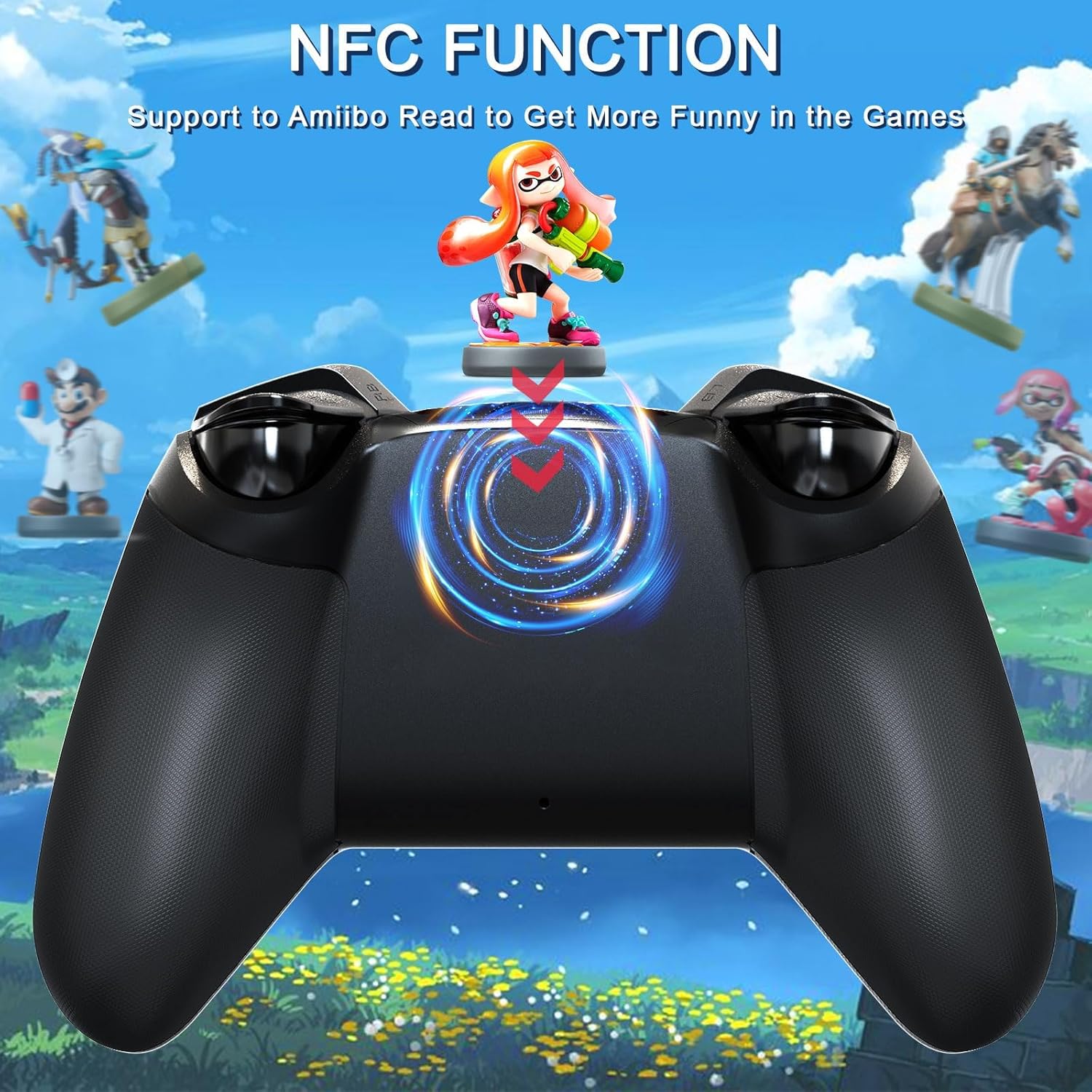
Image: The TERIOS T32 Pro Controller shown with various compatible devices, including Nintendo Switch, PC, and mobile phones.
5. Instrucións de funcionamento
5.1 Función Turbo
The Turbo function allows for rapid, continuous button presses. It has 3 adjustable speed levels.
- Para activar o Turbo: Manteña premido o Turbo (T) button, then press the desired action button (A/B/X/Y, L/R, ZL/ZR) you want to set to Turbo. The button will now continuously fire when held down.
- To Adjust Turbo Speed: With Turbo activated on a button, hold the Turbo (T) button e move o Right Analog Stick Up or Down to cycle through the 3 speed levels (5 shots/s, 12 shots/s, 20 shots/s).
- Para desactivar Turbo: Manteña o Turbo (T) button and press the same action button again. Alternatively, hold the Turbo (T) button e prema o Botón menos (-) to clear all Turbo settings.

Image: Visual representation of the 3-level Turbo function, showing different shot per second rates.
5.2 Adjusting Joystick Sensitivity
You can adjust the sensitivity of the joysticks to suit your gaming style. There are 3 levels of sensitivity:
- Manteña Turbo (T) button + L3 (Left Analog Stick press) / R3 (Right Analog Stick press) xuntos.
- The LED indicator will flash once for 50% sensitivity.
- Flash twice for 70% sensitivity.
- Flash three times for 100% sensitivity.
Note: This setting is not remembered after the console is turned off.
5.3 NFC Function (Amiibo Support)
The controller supports Amiibo functionality. To use, simply place your Amiibo figure on the NFC area located on the back of the controller.
5.4 D-pad Anti-stick Function
The D-pad is designed with an anti-stick feature. You can freely switch this function to ensure smooth and precise directional input, especially beneficial for fighting games or titles requiring quick, accurate D-pad movements.

Image: A close-up of the D-pad highlighting its anti-stick design for smooth gaming.
5.5 Motion Controls
The built-in 6-axis sensor allows for motion control in supported games, providing an immersive gaming experience where you can feel every hit, crash, and explosion.

Image: A gamer using the TERIOS T32 Pro Controller with motion controls for an immersive experience.
6. Maintenance and Charging
6.1 Carga do controlador
The controller features a built-in 1000mAh rechargeable battery.
- Connect the supplied USB-C charging cable to the USB-C port on the top of the controller.
- Connect the other end of the cable to a USB power source (e.g., Switch dock, PC, USB wall adapter).
- O tempo de carga é de aproximadamente 2.5 horas.
- A full charge provides approximately 12-15 hours of continuous gameplay.
- The controller can be used while charging.

Image: Illustration showing the controller being charged via USB-C, with battery capacity and playing time details.
6.2 Limpeza e almacenamento
- Use a soft, dry cloth to clean the controller. Do not use harsh chemicals or abrasive materials.
- Garde o controlador nun lugar fresco e seco, lonxe da luz solar directa e de temperaturas extremas.
- If not used for an extended period, charge the controller at least once every three months to maintain battery health.
7 Solución de problemas
If you encounter issues with your TERIOS T32 Pro Controller, please refer to the following common solutions:
- Controller Not Connecting/Pairing:
- Asegúrate de que o controlador estea suficientemente cargado.
- Verify you are using the correct pairing method for your device (e.g., Home + Y for Switch/2.4G, Home + A for Bluetooth).
- On Nintendo Switch, ensure you are in the "Change Grip/Order" screen.
- For PC 2.4G connection, ensure the USB adapter is properly inserted. If using multiple 2.4G dongles, separate them to avoid interference.
- If connecting to PC via Bluetooth, try holding Home + Y to enter Switch pairing mode and connect via standard Bluetooth settings on your PC, rather than relying solely on the included dongle for Switch mode.
- Joystick Drift/Inaccuracy:
- The Hall Effect joysticks are designed to prevent drift. If you experience issues, ensure the controller's firmware is up to date (check TERIOS official websitio web para actualizacións).
- Recalibrate the joysticks through your console or PC settings if available.
- Adjust joystick sensitivity (see Section 5.2).
- Vibration Not Working/Too Weak/Strong:
- Check in-game settings for vibration options.
- Ensure the controller's vibration function is enabled.
- NFC Not Reading Amiibo:
- Ensure the Amiibo is placed correctly on the NFC reading area on the back of the controller.
- Verify the game supports Amiibo functionality.
- Controller Shuts Down Automatically:
- The controller will shut down if there is no button action for 5 minutes to save power. Press the Home button to reconnect.
- Ensure the battery is not critically low.
For further assistance, please contact TERIOS customer support.
8. Especificacións
| Modelo | T32 Pro Controller |
| Marca | TERIOS |
| Compatibilidade | Nintendo Switch/OLED/Lite, Android, iOS, PC (via 2.4G adapter or USB cable) |
| Conectividade | Wireless (Bluetooth, 2.4G), Wired (USB-C) |
| Tipo de joystick | Hall Effect Joysticks (No Drift) |
| Vibración | Dual Linear Motors |
| Control de movemento | 6-axis Sensor |
| Capacidade da batería | Polímero de litio de 1000 mAh |
| Tempo de carga | Aprox. 2.5 horas |
| Tempo de xogo | Aprox. 12-15 horas |
| Peso | 1.19 libras (aprox. 0.54 kg) |
| Dimensións | 6.65 x 5.04 x 3.7 polgadas (aprox. 16.9 x 12.8 x 9.4 cm) |
9. Garantía e soporte
The TERIOS T32 Pro Controller comes with a 365-day warranty from the date of purchase. This warranty covers manufacturing defects and ensures your satisfaction with the product.
For any questions, technical support, or warranty claims, please do not hesitate to contact us via Amazon. Our customer support team is ready to assist you.
Visita o TERIOS Store on Amazon para máis información e produtos.


