1. Introdución
This manual provides comprehensive instructions for the setup, operation, and maintenance of your myStrom WiFi Button Max. This device is a versatile smart home button featuring an e-paper display, four programmable buttons, and integrated temperature and humidity sensors. It is designed to simplify control of various smart home devices and systems.
2. Produto rematadoview
The myStrom WiFi Button Max offers intuitive control and information display for your smart home environment. Its compact design allows for flexible placement and magnetic mounting.
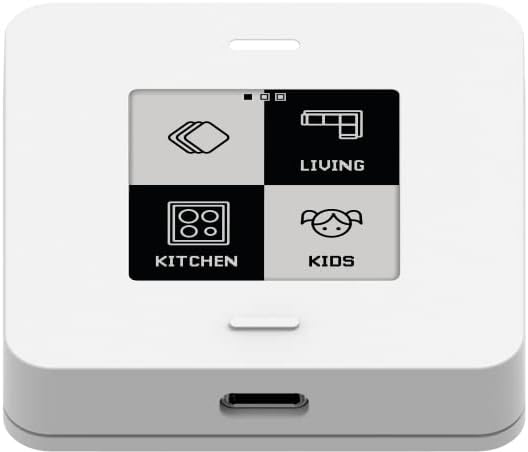
Figura 1: Fronte view of the myStrom WiFi Button Max, displaying a customizable e-paper screen with four distinct control icons for different home areas like Living, Kitchen, and Kids.
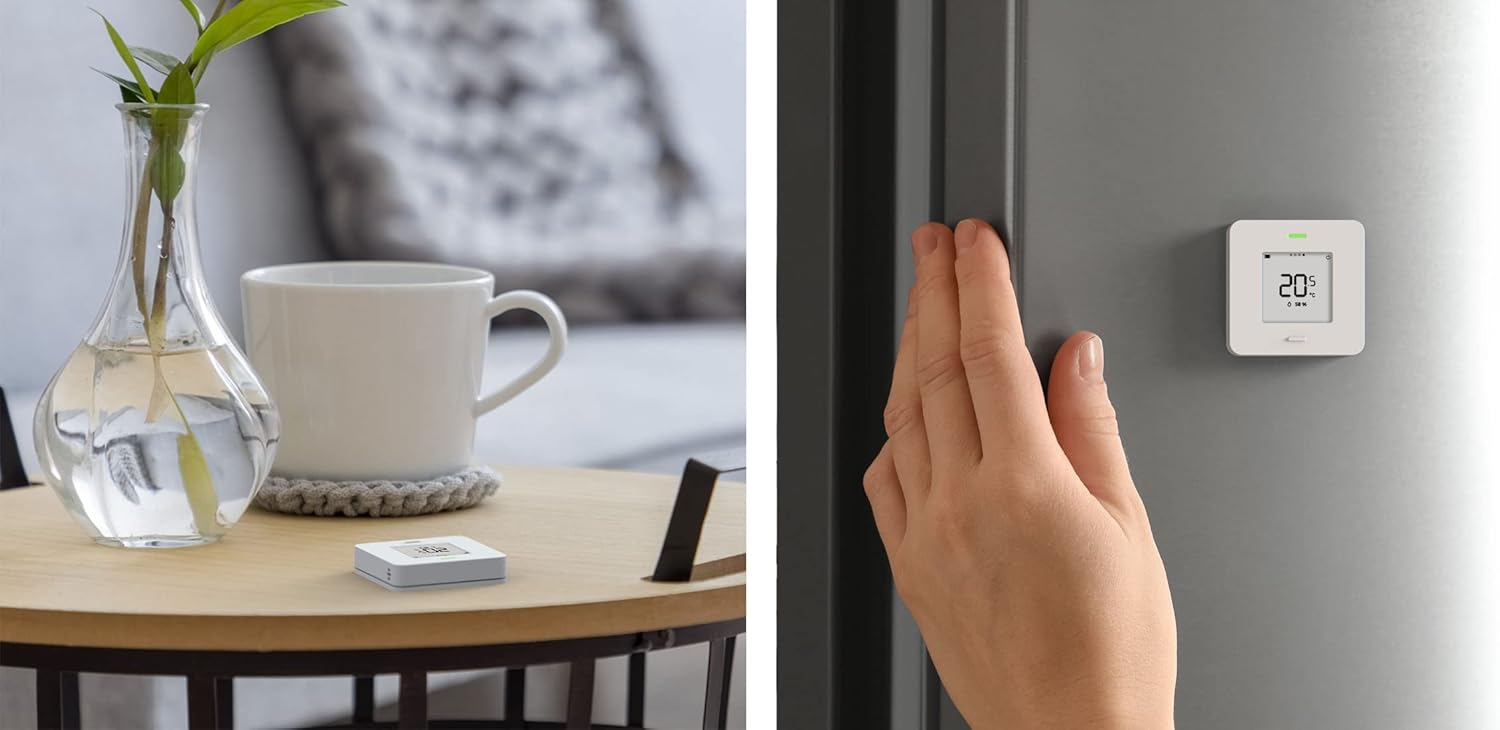
Figura 2: The myStrom WiFi Button Max shown in two common placements: resting on a wooden side table and magnetically attached to a refrigerator, where its e-paper display shows the current temperature.

Figura 3: The myStrom WiFi Button Max positioned on a wooden desk, illustrating its use for controlling various devices such as a printer, coffee machine, TV, and even a fish tank, as indicated by the icons on its e-paper display.

Figura 4: The myStrom WiFi Button Max placed on a bedside table next to a lamp, with its e-paper display showing both temperature and humidity readings, providing environmental data at a glance.

Figura 5: The myStrom WiFi Button Max placed on a solar panel, demonstrating its capability to display energy production data directly on its e-paper screen.

Figura 6: The retail packaging for the myStrom WiFi Button Max, highlighting key features such as Smart Home Control, App Data Display, and E-Paper Display.
3. Características
- E-Paper Display: Low-power display for showing device status, environmental data (temperature, humidity), power consumption, and solar energy generation.
- Catro botóns programables: Customize actions for short press, long press, and double press for each of the four virtual buttons on the display.
- Sensores integrados: Built-in temperature and humidity sensors provide real-time environmental monitoring.
- Integración do fogar intelixente: Direct control of SONOS systems (via myPower app) and compatibility with Philips Hue, IKEA WIRELESS, and Shelly devices (requires myStrom app and myStrom home).
- Colocación flexible: Designed for placement anywhere in the home, with magnetic assembly for easy mounting.
- Conectividade avanzada: Supports IFTTT and REST API for integration into custom smart home environments.
- Conectividade WiFi: Connects to your existing WiFi network for seamless operation.
4. Configuración
To set up your myStrom WiFi Button Max, follow these general steps:
- Encendido: Ensure the device is powered. The myStrom WiFi Button Max typically uses a USB-C port for power.
- Download the myStrom App: Install the official myStrom app on your smartphone or tablet. The app is available for both iOS and Android devices.
- Engadir dispositivo: Open the myStrom app and follow the on-screen instructions to add a new device. You will be guided through connecting the Button Max to your existing WiFi network.
- Configuración: Once connected, use the app to customize the functions of the four buttons, set up scenes, and configure the display to show desired information (e.g., temperature, humidity, power data).
An existing WiFi network is required for the device to function correctly. For detailed, step-by-step instructions, refer to the myStrom app's in-app guide or the official myStrom support websitio.
5. Instrucións de funcionamento
The myStrom WiFi Button Max is operated primarily through its four virtual buttons displayed on the e-paper screen and its physical interaction points.
5.1 Funcións dos botóns
Each of the four areas on the e-paper display acts as a programmable button. The myStrom app allows you to assign different actions to various press types:
- Prensa curta: Typically used for immediate actions like toggling a light or playing/pausing music.
- Prensa longa: Can be configured for actions such as dimming lights, adjusting volume, or activating a specific scene.
- Prema por dobre: Often used for secondary actions or switching between different modes.
Refer to the myStrom app for customizing these actions to suit your specific smart home setup.
5.2 E-Paper Display Information
The e-paper display provides real-time information without consuming significant power. You can configure what information is shown via the myStrom app, including:
- Datos ambientais: Current temperature and humidity readings from the integrated sensors.
- Consumo de enerxía: Display of power usage for connected myStrom devices.
- Solar Generation: If integrated, display of electricity generated by solar panels.
- Estado do dispositivo: Status of controlled smart home devices.
6. Mantemento
The myStrom WiFi Button Max requires minimal maintenance to ensure optimal performance.
- Limpeza: To clean the device, gently wipe it with a soft, slightly damp cloth. Avoid using abrasive cleaners, solvents, or harsh chemicals, as these can damage the e-paper display or the device's finish.
- Fonte de alimentación: Ensure the device is connected to a stable power source via its USB-C port. The device does not require batteries.
- Actualizacións de software: Regularly check the myStrom app for firmware updates for your Button Max. Updates can improve performance, add new features, and enhance security.
7 Solución de problemas
If you encounter issues with your myStrom WiFi Button Max, consider the following troubleshooting steps:
- O dispositivo non responde:
- Check if the device is properly powered.
- Ensure your WiFi network is active and the device is within range.
- Restart the device by disconnecting and reconnecting its power source.
- Problemas de conectividade:
- Verify your WiFi password in the myStrom app settings.
- Move the Button Max closer to your WiFi router.
- Reinicia o teu enrutador WiFi.
- App Not Detecting Device:
- Ensure your smartphone/tablet is connected to the same WiFi network as the Button Max.
- Try restarting the myStrom app.
- If issues persist, consider resetting the Button Max to factory settings (refer to the myStrom app or support website for specific instructions) and re-adding it.
- Lecturas incorrectas do sensor:
- Ensure the device is not placed in direct sunlight or near heat sources, which can affect temperature readings.
- Allow some time for the sensors to stabilize after placement or power-on.
For further assistance, visit the official myStrom support websitio ou póñase en contacto co seu servizo de atención ao cliente.
8. Especificacións
| Número de modelo | 7649995804014 |
| Marca | myStrom |
| Dimensións | 5.3 x 5.3 x 5.3 cm |
| Peso | 75 g |
| Cor | Branco |
| Conectividade | WiFi |
| Mostrar | Papel electrónico |
| Sensores | Temperatura, humidade |
| Fonte de enerxía | USB-C (No batteries required) |
| Material | Material magnético |
9. Garantía e soporte
The myStrom WiFi Button Max is designed in Switzerland, reflecting a commitment to quality and innovation.
For information regarding product warranty, please refer to the documentation included with your purchase or visit the official myStrom websitio. Os termos e condicións da garantía poden variar segundo a rexión.
For technical support, frequently asked questions, and additional resources, please visit the myStrom support portal on their official websitio. Tamén podes atopar alí información de contacto para o servizo de atención ao cliente.