Introdución
This manual provides comprehensive instructions for the HOU Smart Folio Keyboard Case, designed to enhance your iPad experience. It covers setup, operation, maintenance, and troubleshooting to ensure optimal performance and longevity of your device.

Image: The HOU Smart Folio Keyboard Case in white, shown with an iPad inserted and the keyboard unfolded, ready for use. The image highlights the sleek design and integrated keyboard.
Compatibilidade
The HOU Smart Folio Keyboard Case is specifically designed for the following iPad models:
- 10.9-inch iPad 10th Generation 2022 (Model Numbers: A2696, A2777, A2757)
- 11-inch iPad 11th Generation A16 2025
To verify your iPad model number, navigate to Configuración > Xeral > Acerca de no teu dispositivo.

Image: A visual guide showing how to find your iPad's model number and confirming compatibility with iPad 10th Generation (2022) and iPad 11th Generation A16 (2025), while indicating incompatibility with other iPad Pro/Air models.
O que hai na caixa
- HOU Smart Folio Keyboard Case
- Cable de carga magnética
- Manual de instrucións do produto (este documento)
Características clave
- Deseño ultrafino e lixeiro: At 0.6 cm thin and weighing 434 grams, designed for portability.
- Material duradeiro: Constructed from PU (with silicon) and synthetic leather, offering wear-resistant and stain-resistant properties.
- Carga magnética: Innovative power solution allowing direct power "borrowing" from the tablet via the included USB-C magnetic cable.
- Axustable Viewángulos: Features dual magnetic points for stable triangular support, offering 115° for typing and 125° for media viewing.
- Función de activación/desactivación automática: Automatically wakes your iPad when opened and puts it to sleep when closed, conserving battery.
- Full-size Chiclet Keys: Provides a comfortable and accurate typing experience with scissor foot structure.

Imaxe: Side profile of the HOU keyboard case highlighting its ultra-slim thickness and lightweight design (434g), along with icons for anti-fingerprints, oil resistance, impact resistance, dustproof, and scratch proof.

Image: An illustration demonstrating the powerful magnetic connection and smart layout that allows for adjustable viewing angles, ensuring stable support for the iPad.
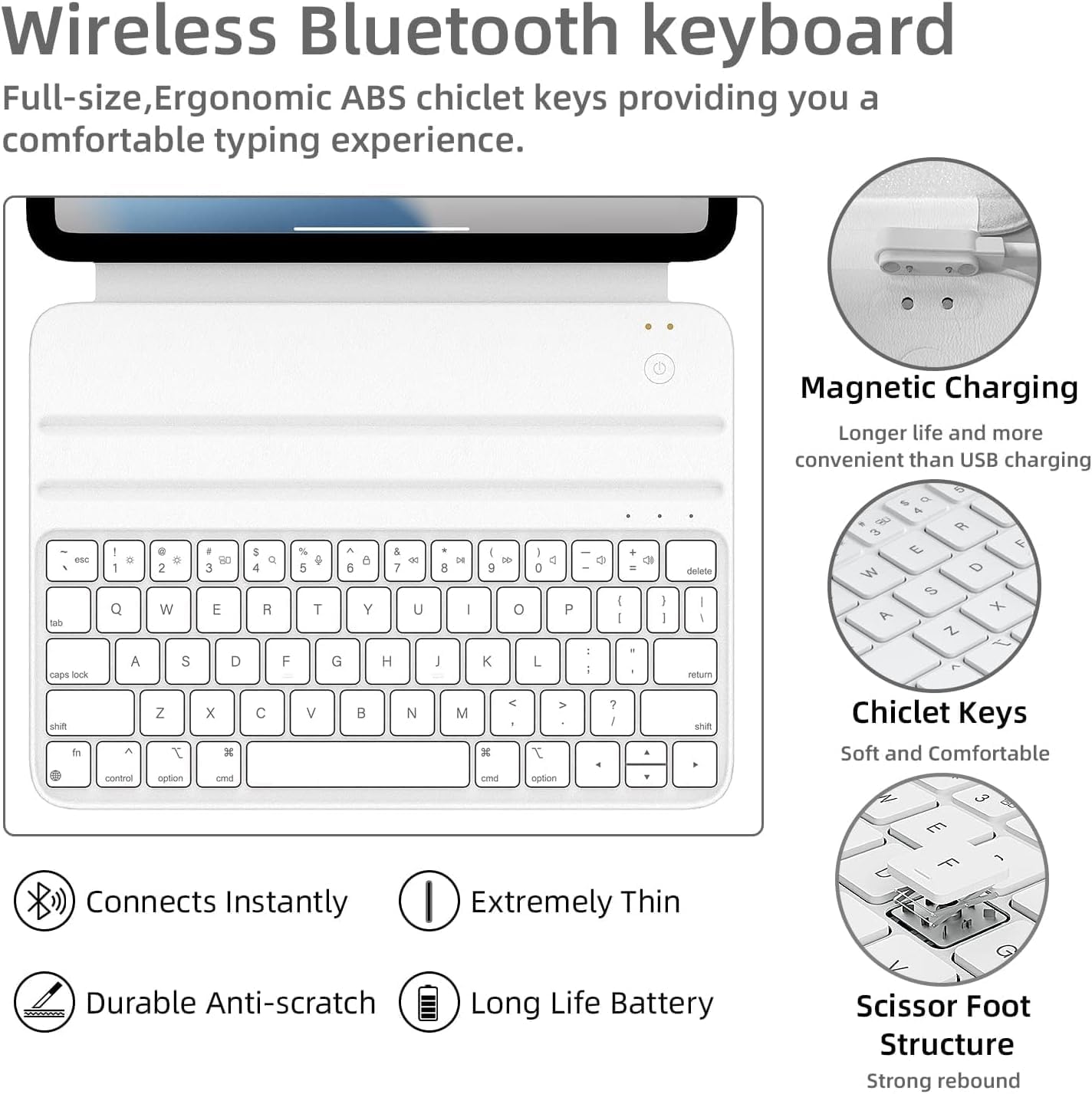
Image: A visual representation of the auto sleep/wake function, showing the iPad screen turning on when the case is opened and off when closed.

Imaxe: Primeiro plano view of the keyboard keys, highlighting features like 1.2mm key travel, skin-friendly coating, scissor switch mechanism, and silent keys.
Configuración
1. Cargar o teclado
The keyboard features an innovative magnetic charging solution. Connect the included USB-C cable to your iPad on one end and magnetically attach the other end to the keyboard's charging port. The keyboard will draw power directly from your iPad. A full charge provides approximately one week of battery life.

Imaxe: Unha vista superior view showing the HOU keyboard case connected to an iPad via the magnetic charging cable, illustrating the power transfer.
2. Emparellamento Bluetooth
- Asegúrate de que o teclado estea cargado.
- Turn on the keyboard using the concealed power switch.
- No teu iPad, vai a Configuración > Bluetooth.
- Activar Bluetooth.
- Look for "HOU Keyboard" or a similar name in the "Other Devices" list and tap to connect.
- Once connected, the keyboard will automatically pair with your iPad when turned on in the future.

Imaxe: Unha detallada view of the HOU wireless Bluetooth keyboard, highlighting features like magnetic charging, chiclet keys, instant connection, extreme thinness, durable anti-scratch surface, long battery life, and scissor foot structure.
3. Conectar o teu iPad
Align your iPad with the magnetic back of the case. The strong magnets will securely hold your iPad in place, forming a stable triangular structure when unfolded for use.
Instrucións de funcionamento
Axustando Viewángulos ing
The case allows for two primary viewángulos de ing:
- Ángulo de 115°: Ideal for typing and productivity tasks.
- Ángulo de 125°: Suitable for media consumption, such as watching movies or reading.
Simply adjust the iPad's position along the magnetic grooves to achieve the desired angle.

Image: An X-ray style illustration showing the iPad magnetically attached to the keyboard case, highlighting the dual magnetic grooves that allow for stable, adjustable angles.
Keyboard Shortcuts and Functions
The keyboard provides a full set of function keys for quick access to iPad features. Press the Fn key in combination with the corresponding function key to activate features such as volume control, media playback, and screen brightness.
Video: A demonstration of the HOU Keyboard Case for iPad, showcasing its slim design, sustainable faux leather material, smooth typing experience with pinpoint accuracy, and seamless integration with the iPad, including adjustable viewángulos de inflexión.
Mantemento
- Limpeza: The silicon-containing tech leather fabric is designed to be stain-resistant. For minor spills or dirt, wipe the surface gently with a soft, damp pano. Evite produtos químicos agresivos ou produtos de limpeza abrasivos.
- Almacenamento: When not in use, keep the keyboard case closed to protect both the iPad and the keyboard. The auto-sleep function will help conserve battery.
- Manexo: While durable, avoid excessive force or bending of the case to maintain its structural integrity and magnetic connections.

Image: A close-up of the HOU keyboard case surface with markers, demonstrating its stain-resistant and easy-to-clean properties.
Resolución de problemas
| Problema | Causa posible | Solución |
|---|---|---|
| O teclado non se conecta por Bluetooth. | Keyboard battery low; Bluetooth off on iPad; keyboard not in pairing mode; interference. | Charge the keyboard. Ensure iPad Bluetooth is on. Turn keyboard off and on. Forget device in iPad Bluetooth settings and re-pair. Move closer to iPad. |
| Keys are unresponsive or delayed. | Batería baixa; problema de conexión; fallo de software. | Charge the keyboard. Reconnect Bluetooth. Restart iPad. |
| O iPad non se activa/entra en repouso automaticamente. | iPad not properly aligned; feature disabled in iPad settings. | Ensure iPad is correctly seated in the case. Check iPad settings for "Lock/Unlock" or "Cover Lock/Unlock" feature and ensure it's enabled. |
| Magnetic connection feels weak. | Incorrect iPad model; debris on magnets. | Verify iPad model compatibility. Clean magnetic surfaces on both the iPad and the case. |
Especificacións
| Característica | Detalle |
|---|---|
| Dimensións do produto | 9.8 x 3.3 x 0.3 polgadas |
| Peso do elemento | 15.2 onzas (aprox. 434 gramos) |
| Fabricante | HOU |
| Modelos de iPad compatibles | 10.9-inch iPad 10th Generation 2022 (A2696/A2777/A2757), 11-inch iPad 11th Generation A16 2025 |
| Batería | 300 mAh (1 C battery included) |
| Conectividade | Bluetooth |
| Método de carga | Magnetic (via USB-C cable) |
Garantía e Soporte
HOU products are manufactured with high-quality standards. For any issues or inquiries, please refer to your purchase platform for specific warranty details and customer support contact information. Keep your proof of purchase for warranty claims.


