Introdución
The THIRDREALITY Zigbee 3.0 USBC-Dongle is a versatile USB stick designed to facilitate smart home automation by providing Zigbee connectivity. It is compatible with popular platforms such as Zigbee2Mqtt (Z2M) and Zigbee Home Automation (ZHA), allowing seamless integration with a wide range of Zigbee 3.0 end devices including smart switches, blinds, and sensors. This manual provides detailed instructions for setting up, operating, and maintaining your Zigbee USBC-Dongle.

Image: The THIRDREALITY Zigbee 3.0 USBC-Dongle shown with its included USB-A adapter, highlighting its compact design and dual compatibility.
O que hai na caixa
Comprobe o contido do paquete para asegurarse de que estean presentes todos os elementos:
- Zigbee 3.0 USBC-DONGLE x 1
- Manual x 1 (Este documento)
- USBA Adaptor x 1
- Pin x 1

Image: A visual representation of the package contents, including the Zigbee USBC-Dongle, USB-A adapter, quick start guide, and a pin.
Produto rematadoview
The Zigbee USBC-Dongle features a compact design with essential components for reliable Zigbee communication.

Imaxe: Unha interna view of the Zigbee USBC-Dongle's PCB, showing key components such as the Boot and Reset button, RGB LED, PCB Antenna, Type-C Connector, and Type-C to Type-A Convertor.
- Boot and Reset button: Used for device reset and firmware burning.
- LED RGB: Indicates device status and activity.
- PCB Antenna: Integrated antenna for Zigbee signal transmission and reception.
- Conector tipo C: Primary USB-C interface for connection.
- Type-C to Type-A Convertor: Allows connection to standard USB-A ports.
Especificacións
Detailed technical specifications for the THIRDREALITY Zigbee 3.0 USBC-Dongle:

Image: A graphic detailing the specifications of the Zigbee USBC-Dongle, including dimensions and key technical data.
| Atributo | Valor |
|---|---|
| Marca | TERCEIRA REALIDADE |
| Modelo No. | 3RZD02032Z |
| Dimensións do produto | 60 x 20 x 9 mm (2.36 x 0.79 x 0.35 polgadas) |
| Peso do elemento | 1.13 onzas (0.03 quilogramos) |
| Material | Plastics, PCBA |
| Poder | 300 mW |
| Temperatura de traballo | 0°C – 40°C |
| Frecuencia RF | 2405 – 2480 MHz |
| Protocolo sen fíos | Zigbee 3.0 |
| Interface de hardware | USB 2.0 |
| Cor | Branco |
| UPC | 850001595735 |
Características clave
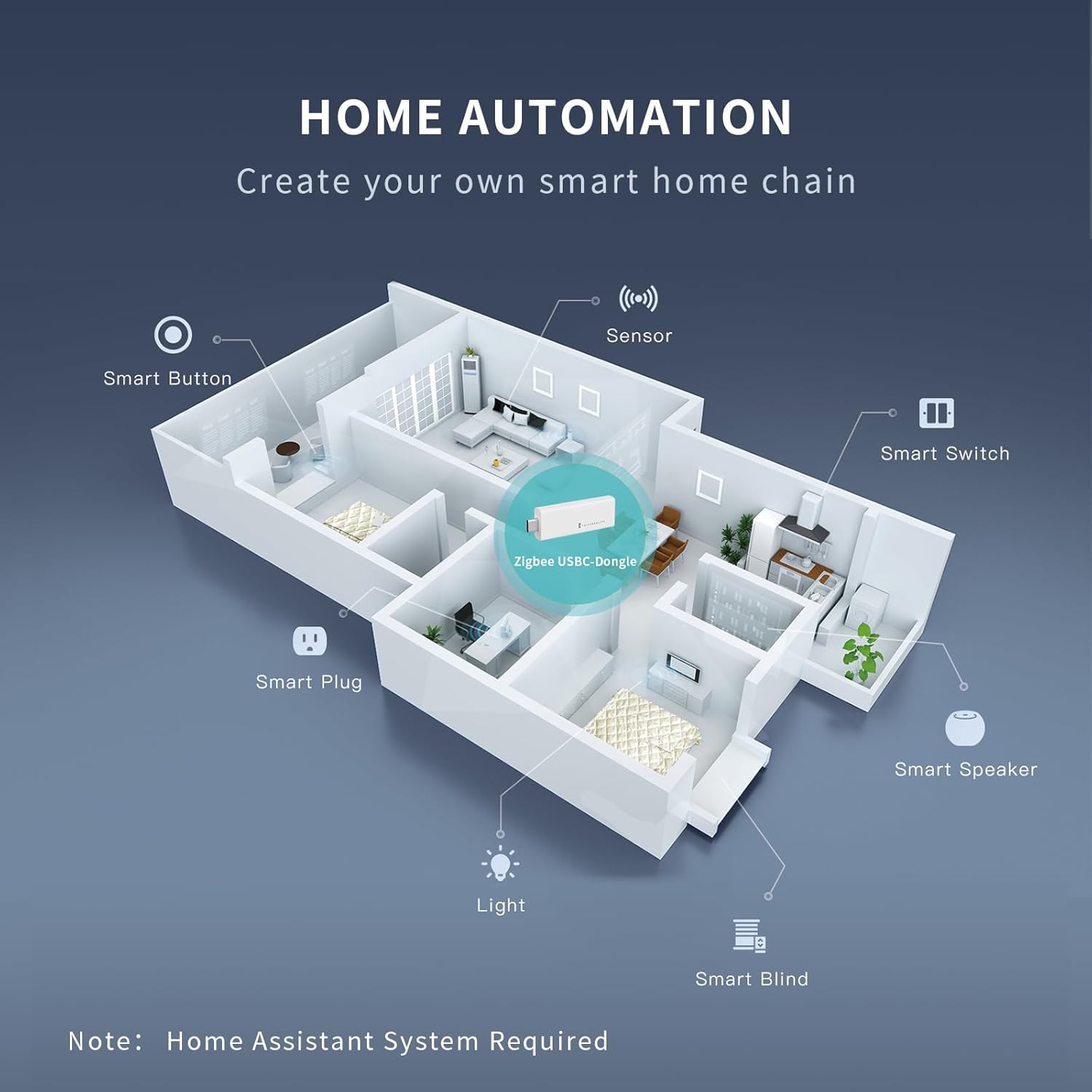
Image: A graphic highlighting the main features of the Zigbee USBC-Dongle, including port support, compatibility, range, and installation simplicity.
- Compatibilidade da plataforma: Designed to be compatible with Zigbee2Mqtt (Z2M) and Home Assistant (Zigbee Home Automation).
- Zigbee 3.0 Compatibility: Supports standard Zigbee 3.0 end devices from various brands, including smart switches, smart blinds, and smart sensors.
- Installation Simplicity: Plug-and-play functionality for easy setup. Simply insert the dongle into a compatible USB port.
- Dual USB Support: Includes support for both USB-A and USB-C connections, enhancing compatibility across various devices.
- Firmware Upgrade Support: Supports burning of equipment and factory reset (refer to advanced sections for details).
- Stable Range: Offers a communication distance of up to 30 meters.
Configuración e instalación
The THIRDREALITY Zigbee USBC-Dongle is designed for straightforward installation. Follow these steps to get started:
- Conecta o dongle:
Insert the Zigbee USBC-Dongle directly into a USB-C port on your computer or Raspberry Pi. If your device only has USB-A ports, use the included USB-A adapter.
Video: Demonstrates connecting the THIRDREALITY Zigbee USBC-Dongle to a computer and a Raspberry Pi, showing the blue indicator light upon successful connection.
- Software Configuration (Home Assistant):
The dongle is primarily used with Home Assistant for smart home integration. Depending on your setup, you will configure it for either Zigbee Home Automation (ZHA) or Zigbee2Mqtt (Z2M).
For ZHA (Zigbee Home Automation):
- Navega ata Configuración > Devices & Services in Home Assistant.
- Look for the discovered "Radio Browser" or "Zigbee Home Automation" integration.
- Configure the integration by selecting the correct serial device path for your dongle (e.g.,
/dev/ttyUSB0). - Siga as indicacións en pantalla para completar a configuración.
For Z2M (Zigbee2MQTT):
- Ensure the Zigbee2MQTT add-on is installed and running in Home Assistant.
- Access the Zigbee2MQTT add-on configuration.
- Locate the 'serial' section in the configuration and specify the correct port for your dongle (e.g.,
port: /dev/ttyUSB0). - Save the configuration and restart the Zigbee2MQTT add-on.

Image: An illustrative diagram showing how the Zigbee USBC-Dongle acts as a central hub in a smart home chain, connecting various Zigbee devices like smart buttons, sensors, switches, plugs, lights, and blinds. Note: A Home Assistant System is required for this setup.
Instrucións de funcionamento
Once successfully configured with your chosen smart home platform (ZHA or Z2M), the Zigbee USBC-Dongle operates as the coordinator for your Zigbee network. It enables communication between your smart home hub and all paired Zigbee end devices.
- Emparejamento de dispositivos: Refer to your smart home platform's documentation (Home Assistant, Zigbee2Mqtt) for specific instructions on how to pair new Zigbee devices with the dongle. Typically, this involves enabling pairing mode on the dongle via the software interface and then activating pairing mode on the Zigbee end device.
- Xestión de redes: Your smart home platform will provide tools to manage your Zigbee network, including viewing connected devices, checking signal strength, and performing network repairs if needed.
- Automatización: Utilize your smart home platform's automation features to create routines and scenes involving your Zigbee devices.
Mantemento
The THIRDREALITY Zigbee USBC-Dongle requires minimal maintenance to ensure optimal performance:
- Manter limpo: Wipe the dongle with a dry, soft cloth to remove dust. Avoid using liquid cleaners.
- Condicións ambientais: Operate the dongle within its specified temperature range (0°C – 40°C) and avoid excessively humid environments.
- Actualizacións de firmware: Periodically check the THIRDREALITY website or your smart home platform's community forums for any available firmware updates for the dongle. Updates can improve performance, add features, or address bugs.
Resolución de problemas
If you encounter issues with your Zigbee USBC-Dongle, try the following troubleshooting steps:
| Problema | Posible Solución |
|---|---|
| Dongle not recognized by computer/Raspberry Pi. |
|
| Os dispositivos Zigbee non se emparellan. |
|
| Poor Zigbee signal or dropped devices. |
|
| Dongle LED not lighting up. |
|
Garantía e Soporte
For warranty information and technical support, please refer to the official THIRDREALITY website or contact their customer service directly. You can also find additional resources and community support through the Home Assistant and Zigbee2Mqtt forums.
A PDF version of the user guide may also be available for download:
Descargar a guía do usuario (PDF)
For direct assistance, please contact Third Reality, Inc., the seller of this product.