Introdución
Welcome to the instruction manual for your Galax Revolution 06 (Rev-06) Mid Tower ATX Gaming Cabinet. This manual provides essential information for the proper setup, operation, maintenance, and troubleshooting of your new computer case. Please read this manual thoroughly before installation and retain it for future reference.

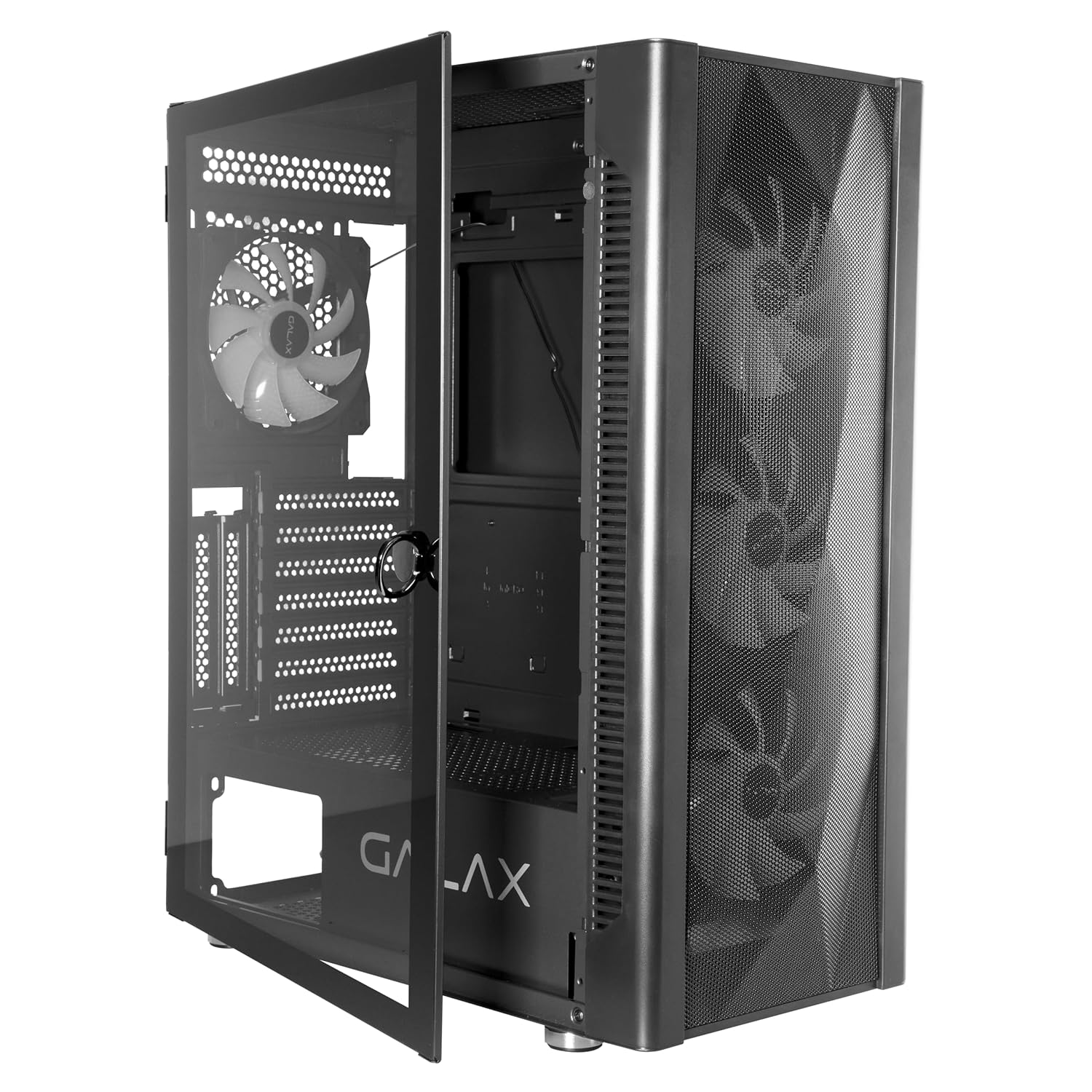
Imaxe: Fronte view of the Galax Revolution 06 gaming cabinet.
Información de seguridade
- Always disconnect power from the power supply unit (PSU) before installing or servicing any components inside the cabinet.
- Handle tempered glass panels with extreme care to prevent breakage. Avoid impacts or dropping the panel.
- Avoid exposing the cabinet to extreme temperatures, direct sunlight, or high humidity.
- Keep small parts, such as screws and accessories, out of reach of children.
- Ensure proper grounding of your computer system to prevent electrical hazards.
Contido do paquete
Verifique que todos os elementos estean presentes no seu paquete:
- Galax Revolution 06 Mid Tower ATX Gaming Cabinet
- 4 Pre-installed RGB Cooling Fans
- Accessory Kit (includes various screws, standoffs, and cable ties)
- Manual de usuario (este documento)
Produto rematadoview
The Galax Revolution 06 is a mid-tower ATX gaming cabinet engineered for optimal airflow and component visibility. It features a mesh front panel for superior cooling performance and a hinged magnetic tempered glass side panel for easy access and a clear view dos seus compoñentes internos.
Características principais:
- Superior Cooling: Equipped with 4 pre-installed RGB cooling fans and a mesh front panel to ensure peak airflow.
- Limpar View: Hinged magnetic tempered glass door provides a crystal-clear view of your PC system's interior.
- Conectividade do panel frontal: Includes 1x USB 3.0, 2x USB 2.0, 3.5mm Microphone port, 3.5mm Headphone port, Reset Button, and Power Button.
- Soporte de refrixeración líquida: Versatile radiator mounting options for Front (240mm/280mm/360mm), Top (240mm/280mm), and Rear (120mm).
- Compatibilidade con tarxetas gráficas: Accommodates graphics cards up to 330mm in length.
Portos de E/S do panel frontal:

Imaxe: Detallada view of the front panel connectivity, including USB 3.0, USB 2.0, microphone, headphone, reset, and power buttons.
Configuración
1. Preparación do caso
- Place the cabinet on a stable, flat surface.
- Gently pull the handle to open the hinged tempered glass side panel.
- Remove any protective films from the glass and other surfaces.
2. Instalación da placa base
- Identify the correct standoff positions for your motherboard (ATX, Micro-ATX, Mini-ITX).
- Install the necessary standoffs from the accessory kit into the corresponding holes on the motherboard tray.
- Carefully place your motherboard into the cabinet, aligning it with the installed standoffs and the rear I/O shield opening.
- Secure the motherboard with screws provided in the accessory kit.

Image: Empty internal view of the case, illustrating motherboard mounting points and cable routing options.
3. Instalación da fonte de alimentación (PSU)
- Install the PSU into its designated compartment at the bottom rear of the cabinet.
- Secure the PSU with screws from the rear of the cabinet.
4. Instalación da tarxeta gráfica (GPU)
- Remove the necessary PCIe slot covers from the rear of the cabinet.
- Insira a tarxeta gráfica na ranura PCIe correspondente da placa base.
- Secure the GPU with screws. The cabinet supports GPUs up to 330mm in length.
5. Instalación da unidade de almacenamento
- Install 2.5-inch SSDs or 3.5-inch HDDs into the available drive bays. Refer to the cabinet's internal layout for specific mounting points and methods.
6. Xestión de cables
- Utilize the cable routing holes and tie-down points behind the motherboard tray to manage cables neatly. This practice improves airflow and enhances the aesthetic appeal of your build.
Imaxe: Example of internal component installation and organized cable routing within the cabinet.
7. Instalación do ventilador e do radiador (opcional)
- The cabinet comes with 4 pre-installed RGB fans. Additional fans or liquid cooling radiators can be installed in the following locations:
- Fronte: Supports 240mm, 280mm, or 360mm radiators.
- Arriba: Supports 240mm or 280mm radiators.
- Traseira: Supports a 120mm radiator.
En funcionamento
- Once all internal components are installed and cables are securely connected, close the tempered glass side panel.
- Connect your monitor, keyboard, mouse, and other peripherals to your system.
- Connect the power cable to the power supply unit (PSU) and then to a wall outlet.
- Press the power button located on the front panel of the cabinet to start your system.
- The pre-installed RGB fans will illuminate upon power-on, providing visual effects and cooling.
Mantemento
Limpeza do filtro de po
- The cabinet features a magnetic dust filter on the top panel. Regularly remove and clean this filter to maintain optimal airflow and prevent dust buildup inside the system.
- To clean, simply lift the magnetic filter, gently brush off accumulated dust, or rinse with water if necessary. Ensure it is completely dry before reattaching.
Tempered Glass Care
- Clean the tempered glass panel with a soft, lint-free cloth and a non-abrasive glass cleaner.
- Avoid using harsh chemicals, abrasive materials, or excessive force, as these can scratch or damage the glass.
Limpeza xeral
- Periodically use compressed air to remove dust from internal components, fan blades, and mesh panels to ensure efficient cooling.
Resolución de problemas
O sistema non se acende
- Check all power connections: ensure the PSU is connected to the wall outlet, the 24-pin ATX power cable and 8-pin CPU power cable are securely connected to the motherboard, and the front panel power switch cable is correctly connected to the motherboard's front panel header.
- Verify that the power switch on the back of the PSU is in the "ON" (I) position.
Fans Not Spinning / RGB Not Lighting Up
- Ensure that all fan power cables and RGB cables are correctly connected to the motherboard or any included fan/RGB controller.
- Comprobe se hai conexións soltas.
Sen saída de visualización
- Confirm that your monitor is connected to the graphics card (or motherboard integrated graphics, if applicable) and is powered on.
- Reseat the graphics card and RAM modules to ensure they are properly seated in their slots.
For further assistance, refer to your motherboard manual or contact Galax support.
Especificacións
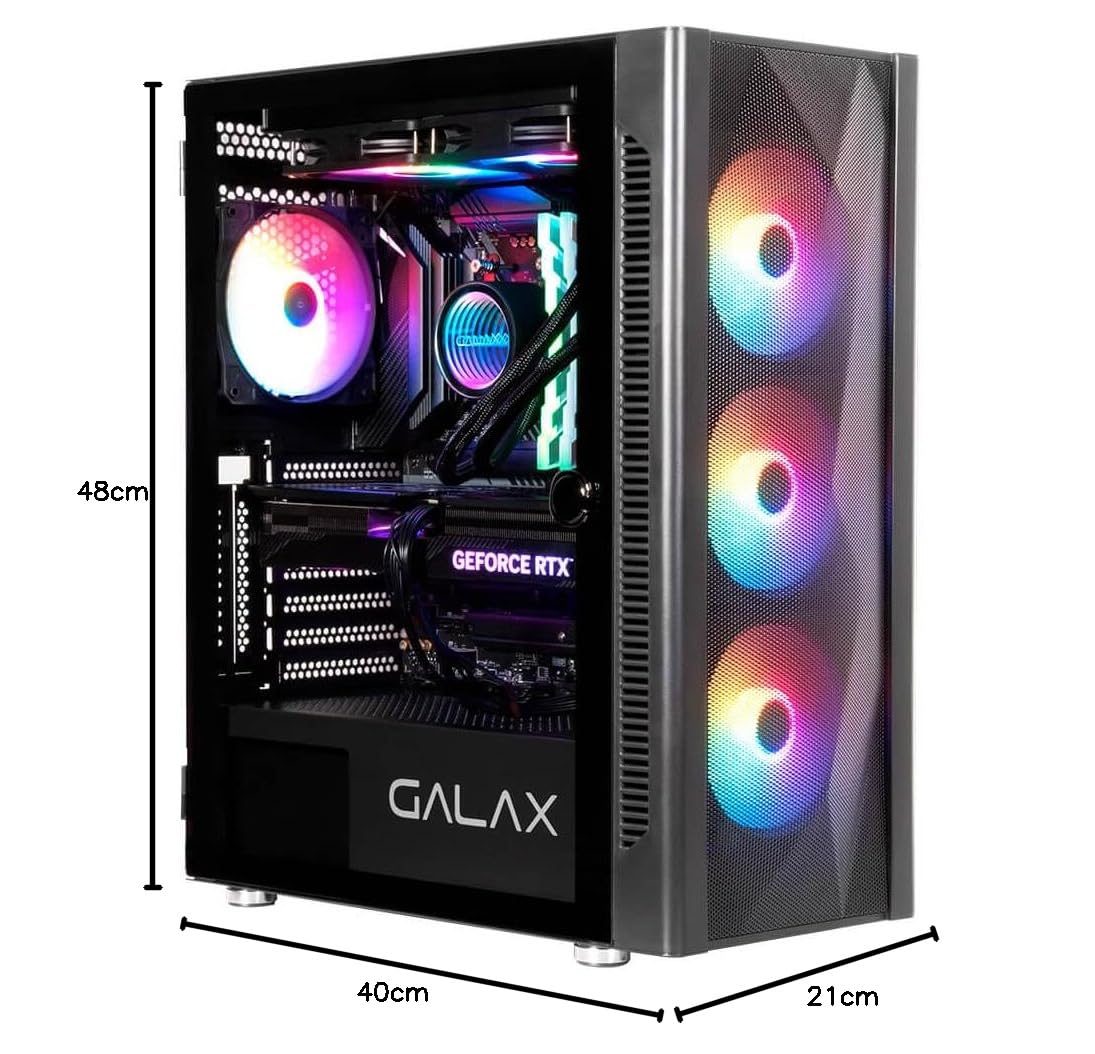
Image: Dimensions and internal layout diagram with key specifications.
| Marca | Galax |
| Serie modelo | Revolution 06 Black (Rev-06) |
| Número de modelo do artigo | CGG6AGBA4B0 |
| Tipo de caso | Torre media |
| Cor | Negro |
| Dimensións do produto (LxWxH) | 40 x 21 x 48 cm |
| Peso do elemento | 4.3 kg |
| Compatibilidade da placa base | ATX, Micro ATX, Mini ITX |
| Ventiladores preinstalados | 4 RGB Fans |
| E / S do panel frontal | 1x USB 3.0, 2x USB 2.0, 3.5mm Microphone, 3.5mm Headphone, Reset, Power |
| Soporte de refrixeración líquida | Front (240/280/360mm), Top (240/280mm), Rear (120mm) |
| Lonxitude da tarxeta gráfica | Ata 330 mm |
Garantía e Soporte
Información da garantía
This Galax Revolution 06 Gaming Cabinet comes with a 1 ano de garantía from the date of purchase. Please retain your proof of purchase for all warranty claims. The warranty covers manufacturing defects under normal use. Damage resulting from improper installation, misuse, unauthorized modifications, or accidents is not covered.
Detalles do fabricante
Fabricante: Galaxy Microsystems Ltd., Hong Kong, Kowloon Bay, Wang Chiu Rd, 33, Exchange Tower, Room 1601, 16th Floor.
Importador (India): Technology And Gadgets, Gala no.142/143, 1st Floor, Building no.6, Mittal Industrial Estate, Marol, Andheri (East), Mumbai - 400059., Mumbai, India, Maharashtra.
Soporte técnico
For technical support, warranty inquiries, or further assistance, please contact your local retailer or refer to the official Galax support channels available on their websitio.


